
How to Use the Testlify Question Library
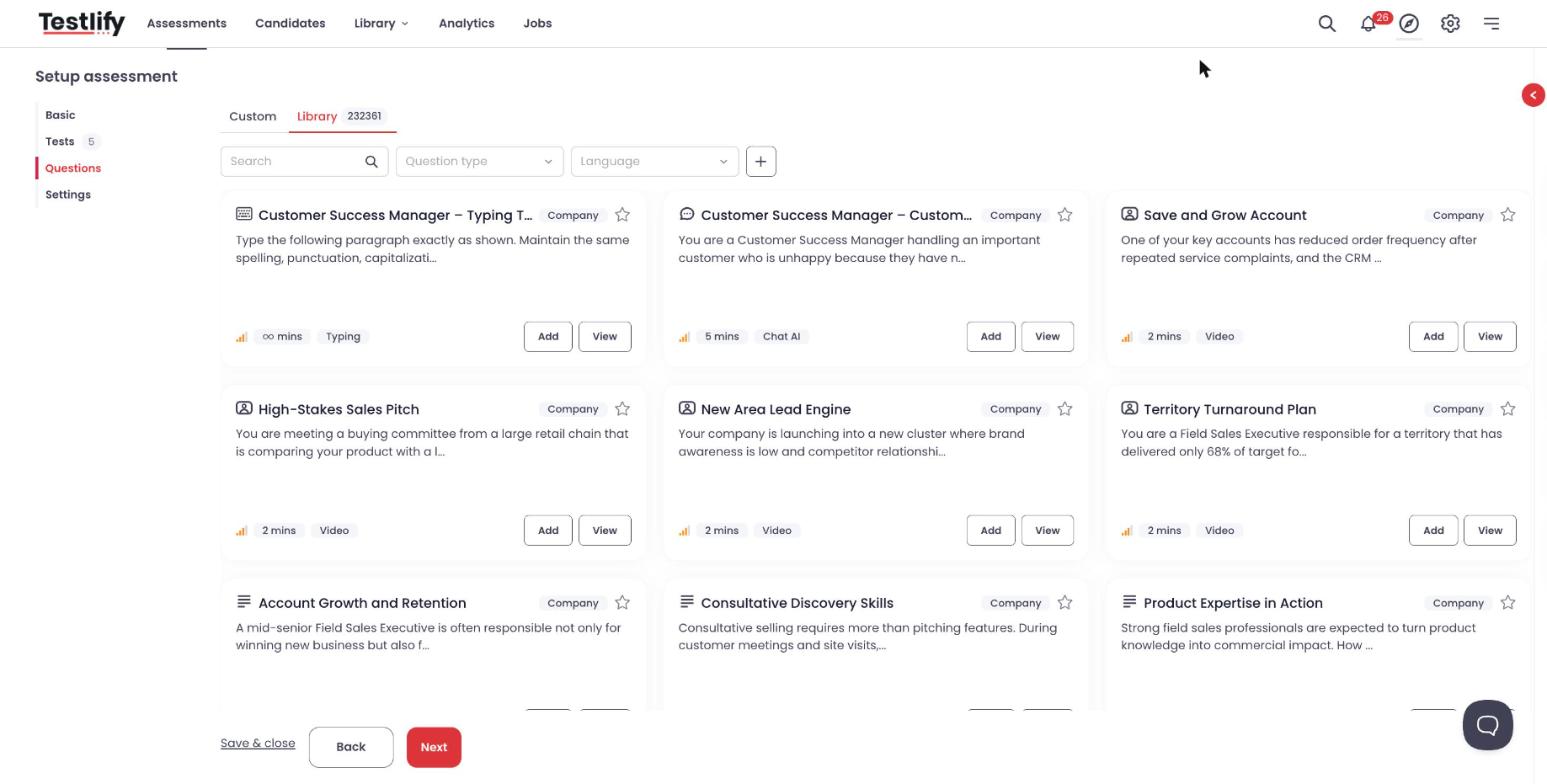
To find a ready-made question, go to Library > Questions, search or filter the list, click View to preview a question, and click Use to add it to an assessment. You can also add library questions while you build an assessment or a company test, from the Library tab on the Questions step.
Open the Question Library
- Click Library in the top navigation.
- Select Questions.
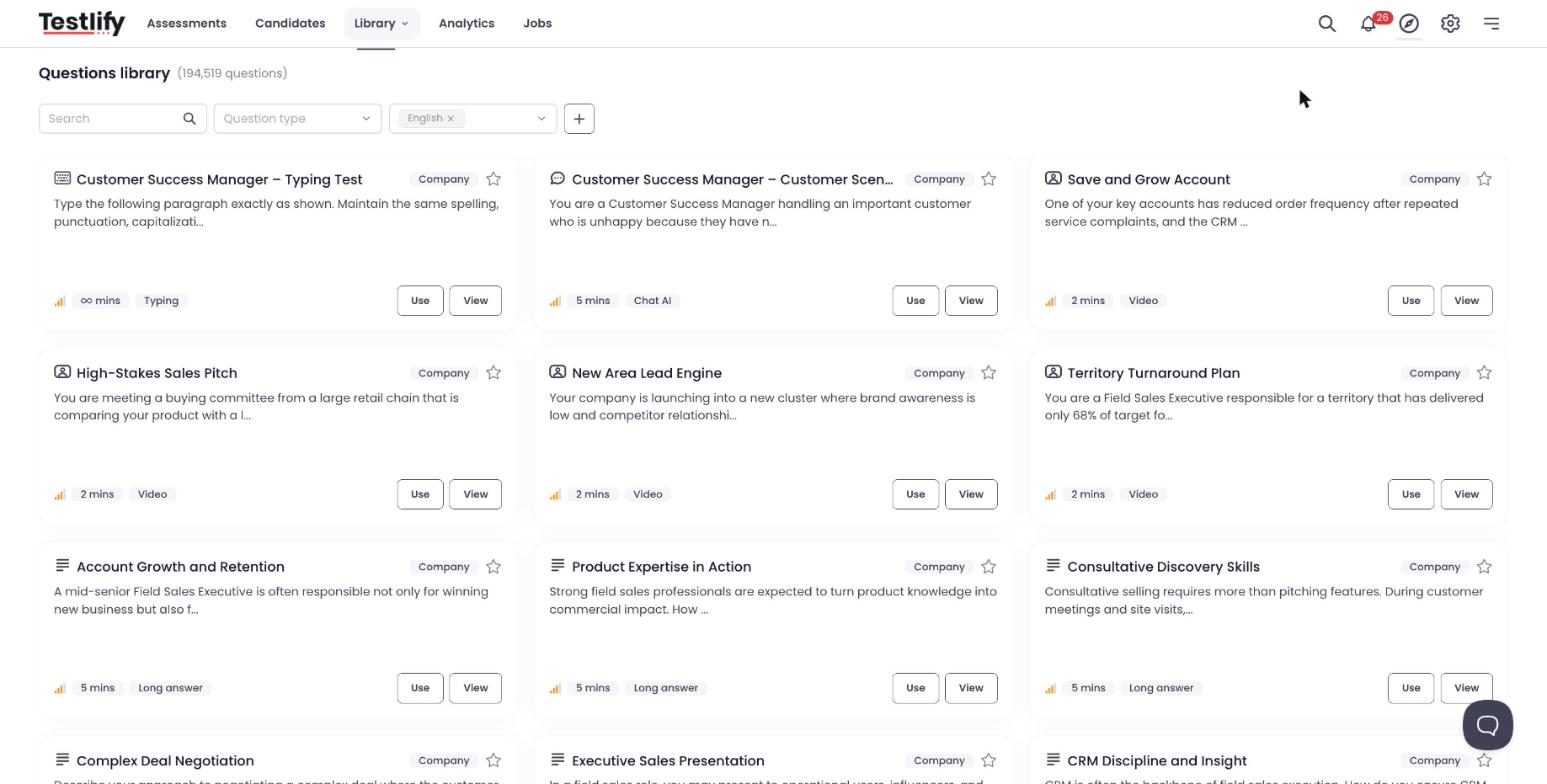
Search and filter questions
- Type a keyword in the Search box.
- Use Question type and the language filter to narrow the list.
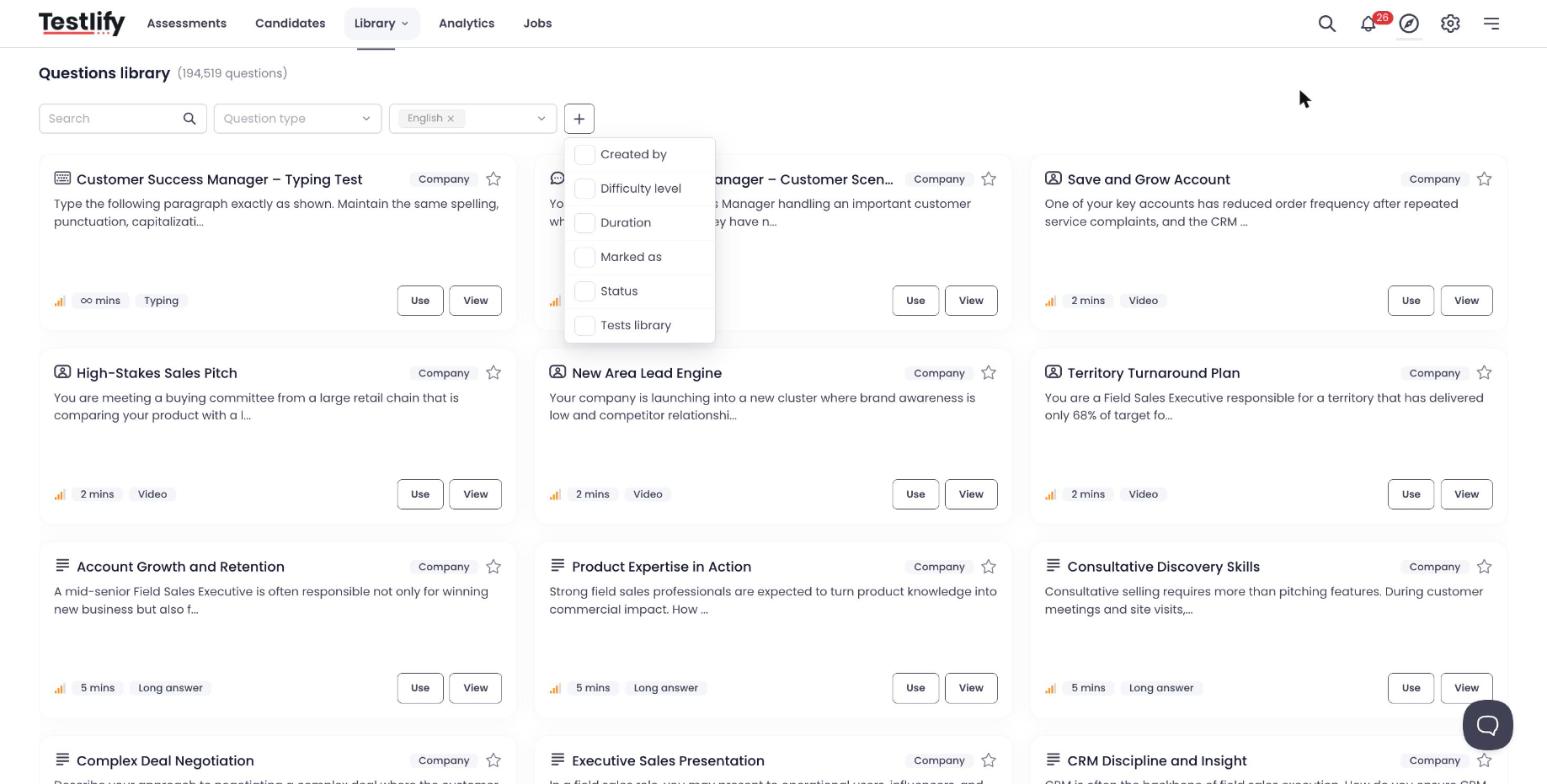
- Click + for more filters: Created by, Difficulty level, Duration, Marked as, Status and Tests library.
Tip: Combine search and filters. For example, search "communication" and set Question type to Long answer.
Review a question
Each card shows the question's title, a short description, its duration and its question type. Click View to open a full preview in a new tab.
Add a question to an assessment
- Click Use on the question card.
- Search for the assessment and select it from the list.
Or add questions from the Library tab while building the assessment (see below).
Add library questions while building an assessment
- Open the assessment, click Edit, and go to the Questions step.
- Open the Library tab.
- Search or filter, then click Add on each question you want. Click View to preview a question first.
Add library questions to a company test
To create a company test, see How to Create a Company Test on Testlify.
- Go to Library > Tests, click ⋮ on your company test, and select Edit.
- Open the Questions step, then the Library tab.
- Click Add on each question you want.
To build your own questions instead, see Choose the Right Custom Question Type in Testlify.
Need help? Contact support.