
How to Use Video Questions in Testlify
Before you begin
Video questions capture verbal communication skills — ideal for sales, customer service, and leadership roles. Before adding them, confirm:
- You are on a desktop or laptop with a stable internet connection.
- You are using a Chromium-based browser (version 80.0 or above) — Google Chrome or Microsoft Edge recommended.
- Your camera and microphone are connected and not in use by another application.
Add a video question to a test
- Go to Library and click Tests.
- Open an existing test or click Create New Test.
- Click Add Custom Question and select Video as the response type.
- Enter your question text — be specific about what you want the candidate to address.
- Set the time limit for the response and choose the number of recording attempts allowed.
- Optionally, add guidelines or prompts to set clear expectations for candidates.
- Save the question and publish your test.
For a full walkthrough, see Adding Video Interview Questions in Testlify.
What candidates see
When a candidate reaches a video question:
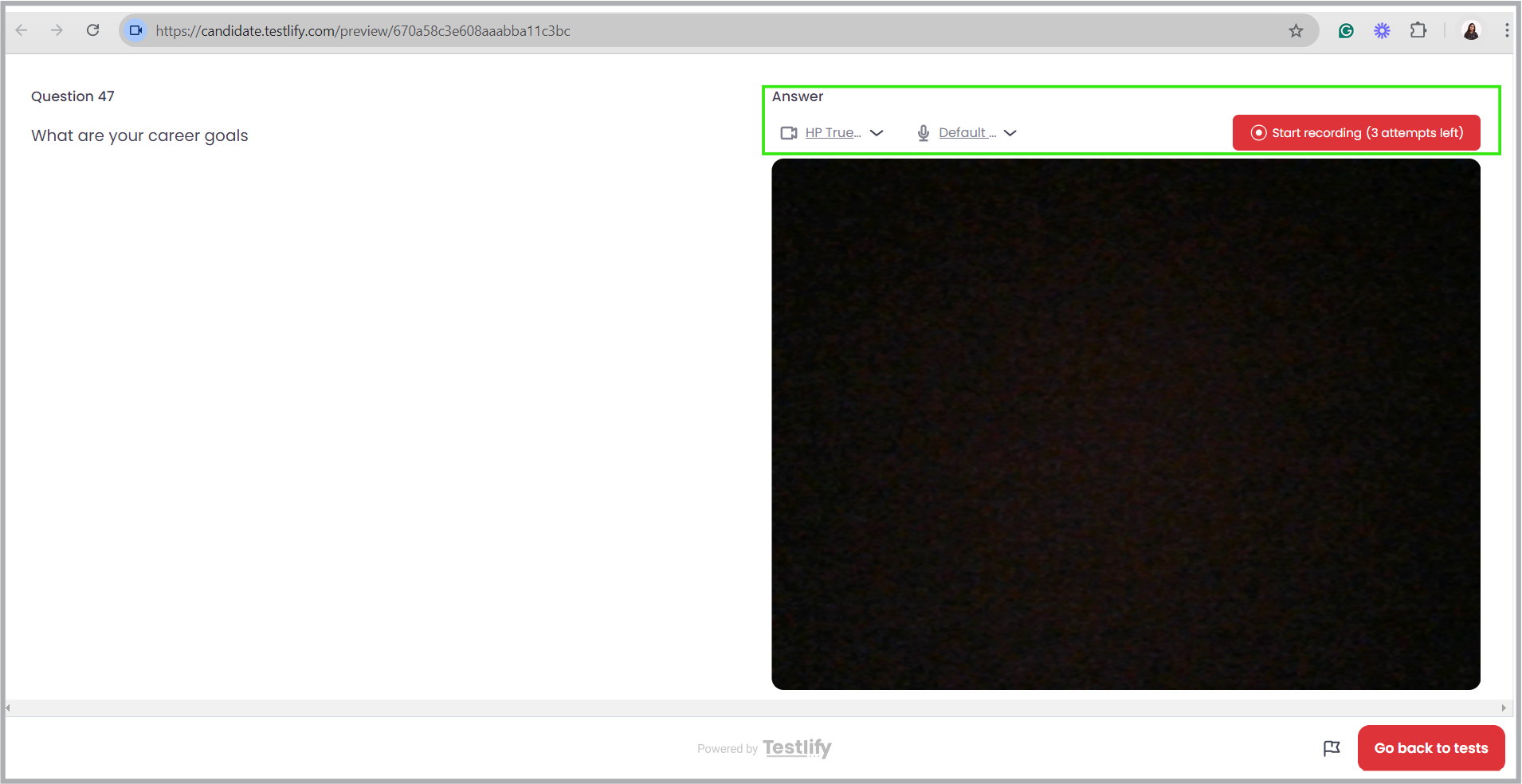
- They are shown the question and a Record button.
- They record their response within the time limit and submit.
- If you allowed multiple attempts, they can re-record before submitting.
- After submitting, they move to the next question automatically.
AI transcript and scoring
Testlify automatically processes each video response after submission:
- AI Transcript: Testlify converts the candidate's spoken response to text. The transcript appears in the Results section alongside the video for quick reference.
- AI Score: The AI evaluates the response against your defined criteria — assessing language, clarity, and role relevance — to support your manual review.

Review video responses
- Open Results in your Testlify dashboard.
- Select a candidate and navigate to the video question.
- Watch the video and read the AI transcript.
- Check the AI score and add your own ratings or notes.
Troubleshoot common issues
- Camera or microphone not detected: Close other applications using the device, refresh the browser, and grant permissions when prompted.
- Slow video upload: Switch to a faster or more stable network connection and retry.
- Unable to record: Update the browser to the latest version and confirm camera and microphone permissions are enabled in browser settings.
Best practices
- Write specific questions — vague prompts lead to unfocused answers that are hard to compare.
- Limit recording attempts to one or two to encourage natural, spontaneous responses.
- Set response time between 1–3 minutes to keep answers concise and on-topic.
Tip: Place video questions at the end of your assessment so candidates demonstrate technical skills first, then show communication style and personality on camera.
Need help? Contact support.