
Multiple simultaneous Chat AI scenarios in one assessment
Multi-chat simulations let a candidate handle more than one customer chat at the same time within a single assessment. The request behind this feature is for two chat scenarios side by side, each with its own AI persona.
What candidates see
The candidate sees a split-screen view. Each side shows its own chat, with its own AI persona and its own context, such as account or billing details. A wait-time indicator shows how long each customer has been waiting.


Candidates can switch between chats, reply in either one, and choose which customer to handle first. Nothing pauses while they work in the other chat.
Creating a multi-chat question
- Open the assessment you want to edit.
- Select Add question.
- Choose Multi-chat as the question type.
-
Option 1: Describe— Generate through AI or Option 2: Customise—complete manual setup
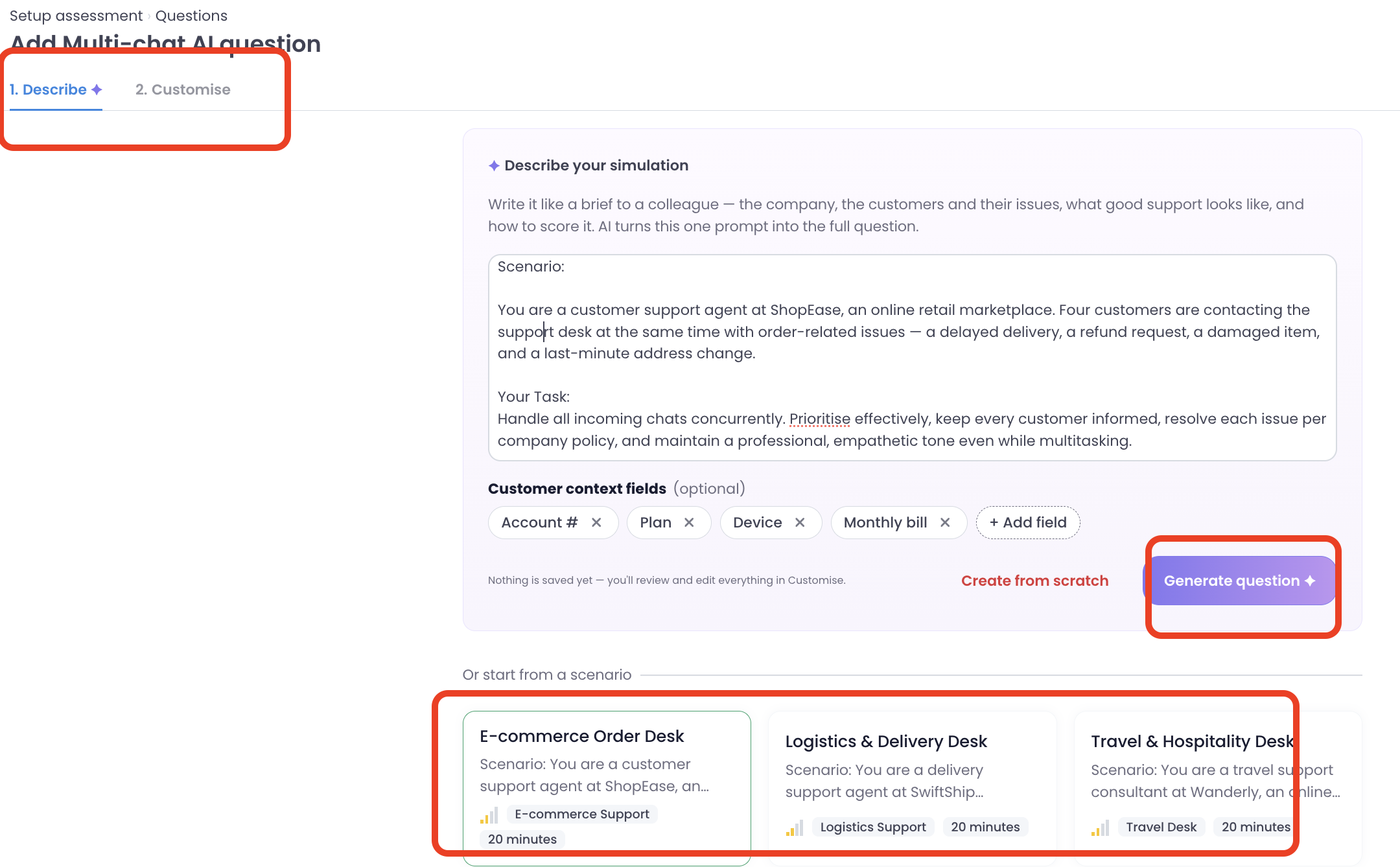
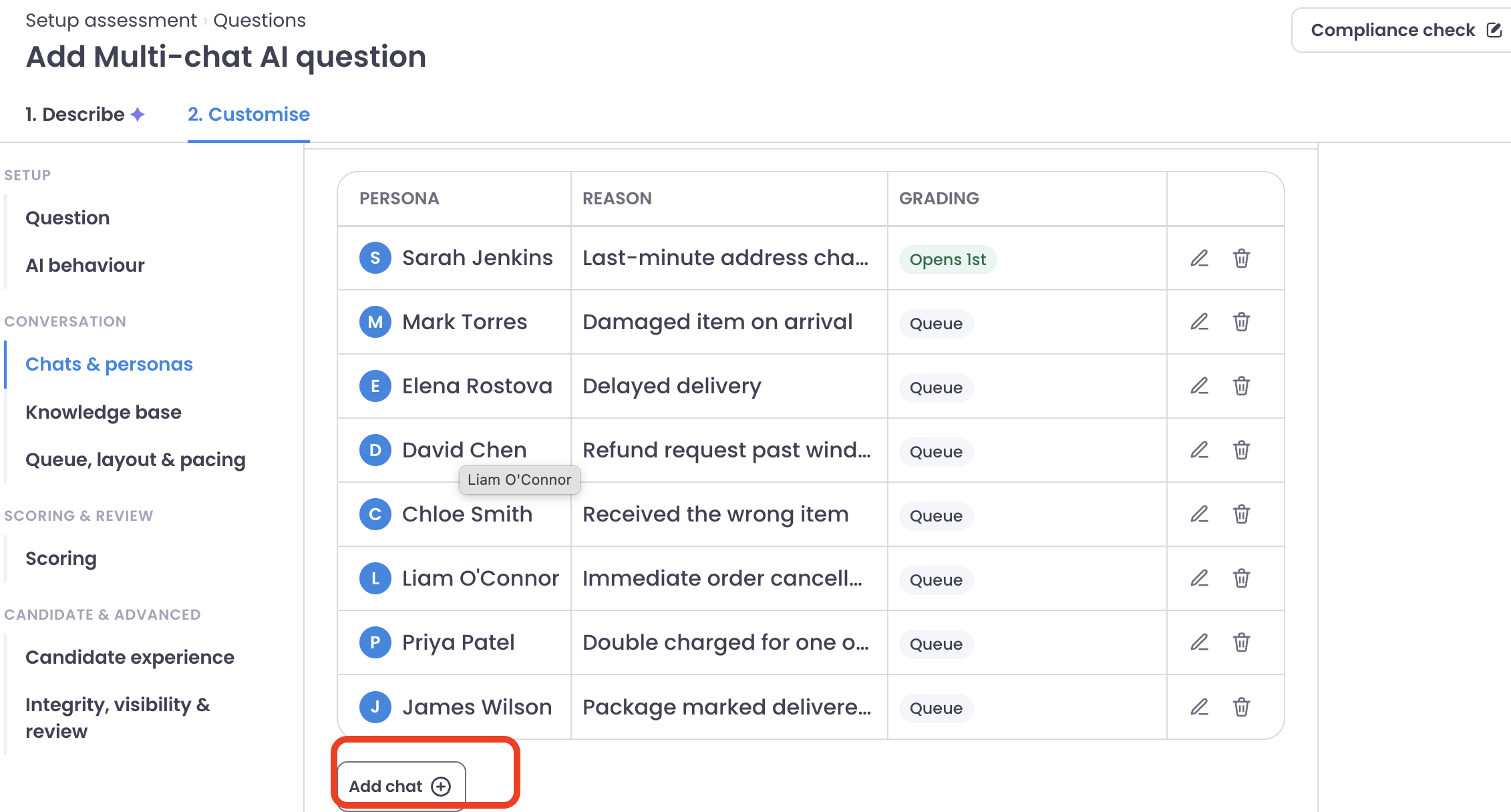
Option 1 & Option 2 - For (Manual), add your first chat scenario. Enter the AI persona, the customer's opening message, and any context the candidate needs.
-
Add a second chat scenario.
-
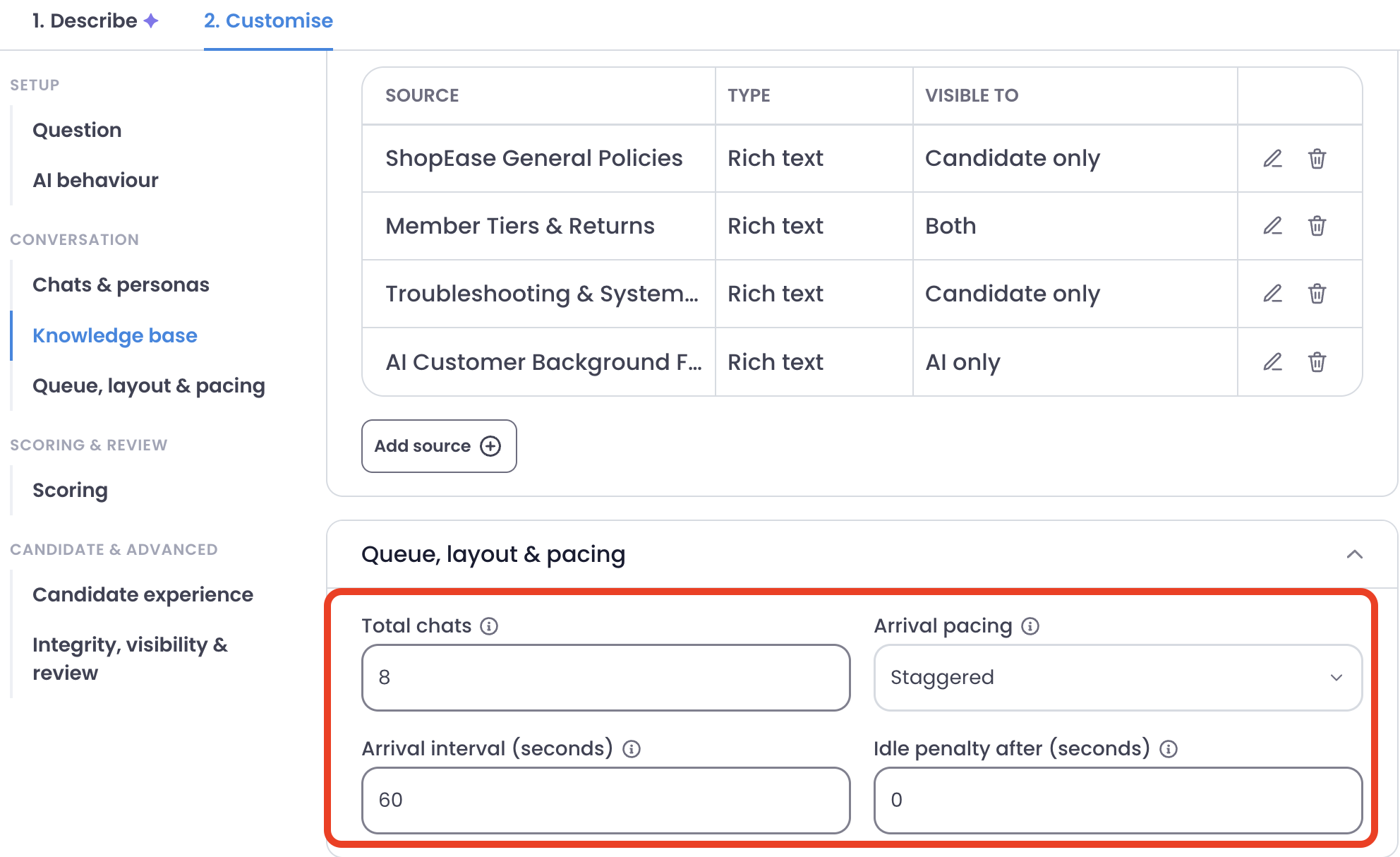
Customise Arrival-Time and Idle-Penalty After, if you want candidates to see how long each customer has waited.
-
Select [Preview] to confirm both chats load on the same screen.
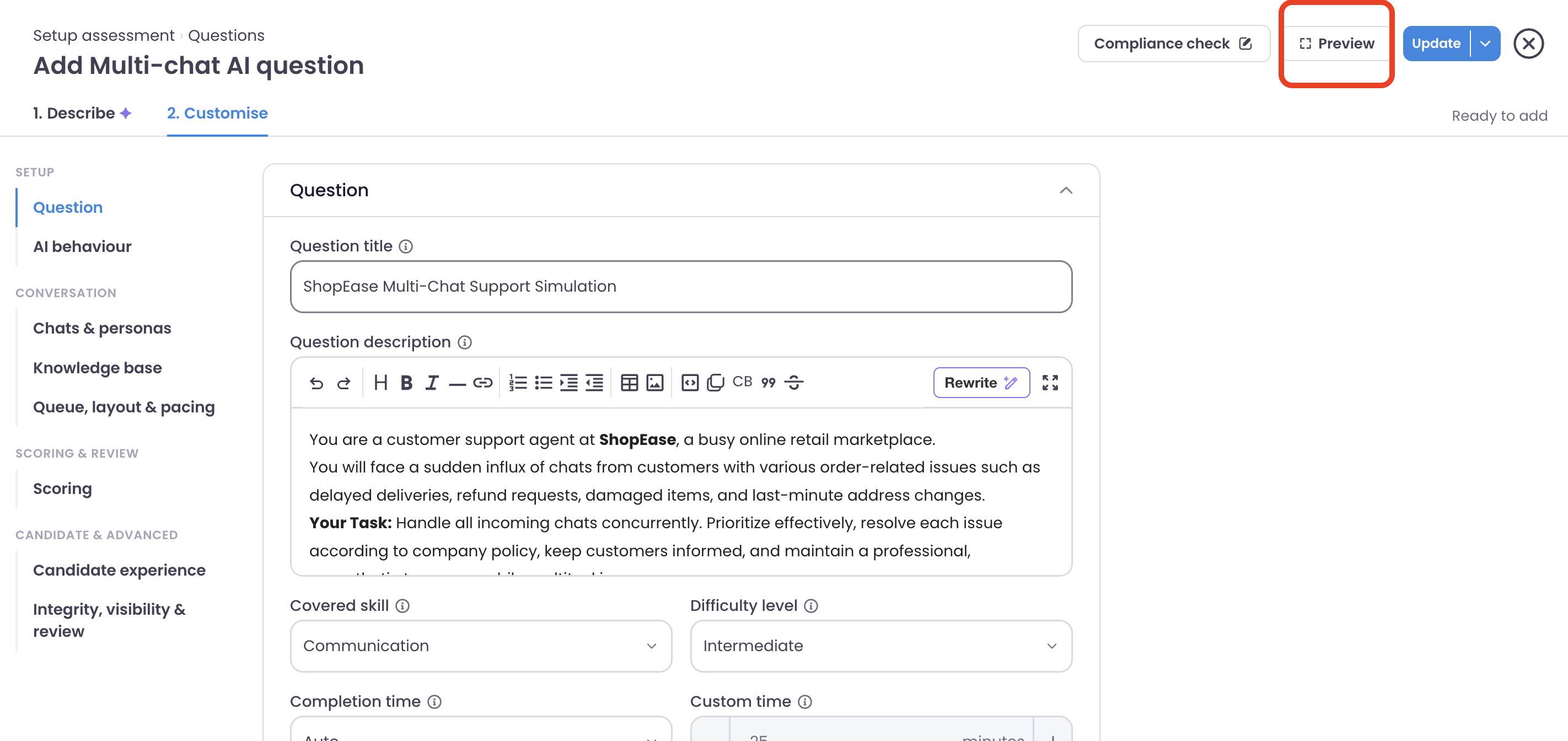
Point 8 (preview) - Save the question.

Reviewing candidate responses
Responses can be scored in two ways:
- Manual scoring: You review and score each response yourself.
-
[Auto score using AI]: The response is scored automatically by AI.
Limits
- Up to 8 customer chats have been tested in one question.
- The recommended number is 4 to 6 customer chats per question.