
How to Schedule Candidate Invitations (Manual and Bulk)
You can schedule assessment invitations to go out automatically at a date and time you choose. Use a manual invite for up to 10 candidates or a bulk CSV invite for up to 500, then pick a time and click Schedule.
| Method | Best for | Candidates per batch | How you add candidates |
|---|---|---|---|
| Manual invite | A small group | Up to 10 | Type each candidate's details in the invite form |
| Bulk invite | High-volume hiring | Up to 500 | Upload a filled-in CSV template |
Watch the walkthrough: Scheduling Candidate Invitations, Manual and Bulk.
Before you start
- Your assessment is created and ready to send.
- You have each candidate's name and email address.
- For bulk invites, you can open and save a CSV file in Excel, Google Sheets or Numbers.
Schedule invites manually (up to 10 candidates)
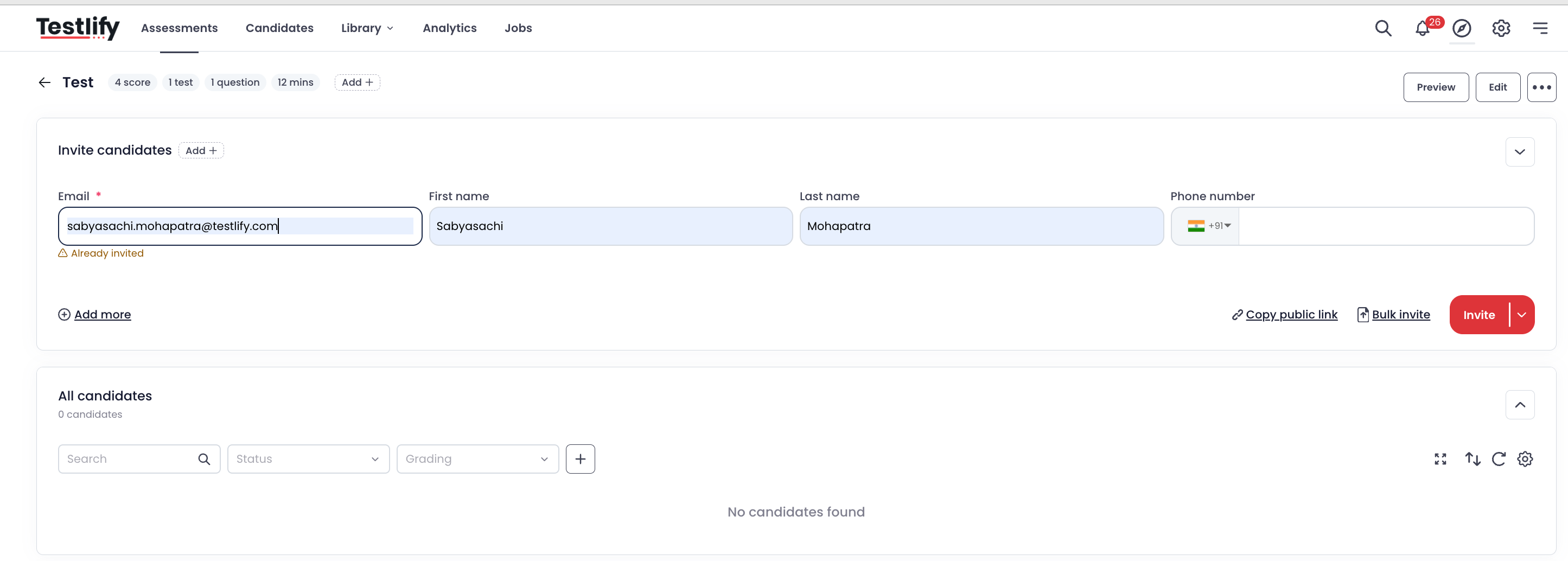
- Open the assessment and click Invite candidates.
- Enter the details for each candidate, up to 10 at a time.
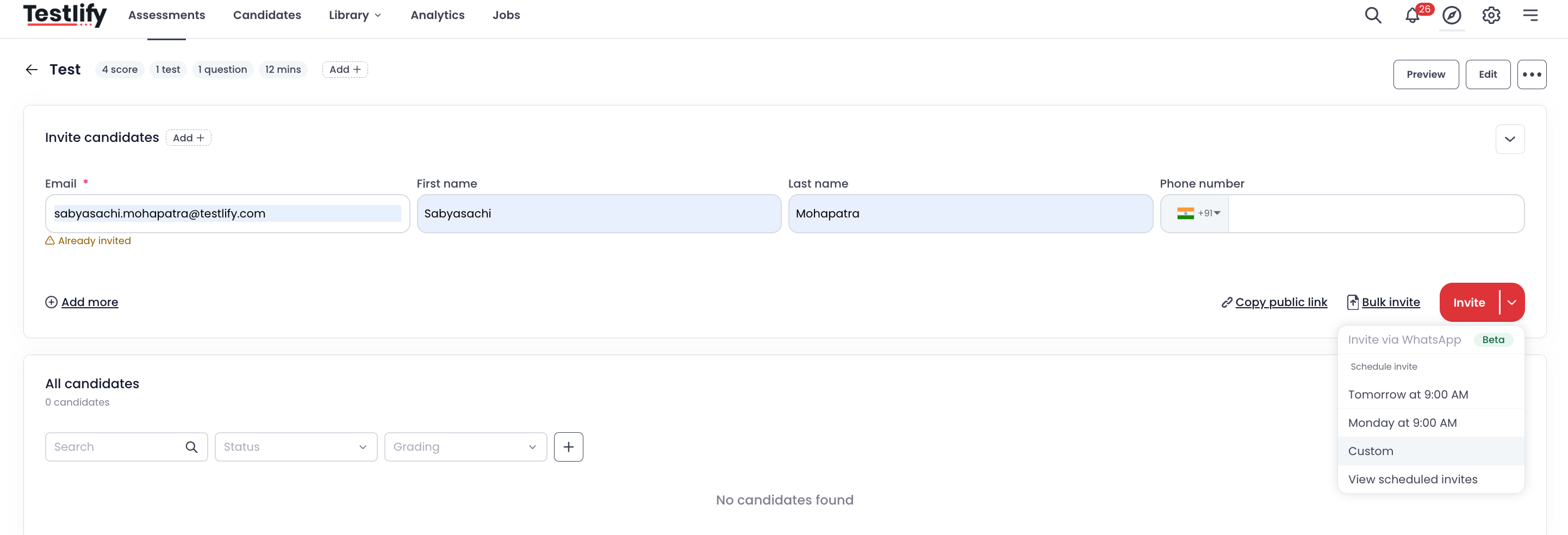
- Open the invite timing dropdown and choose the custom date and time option.
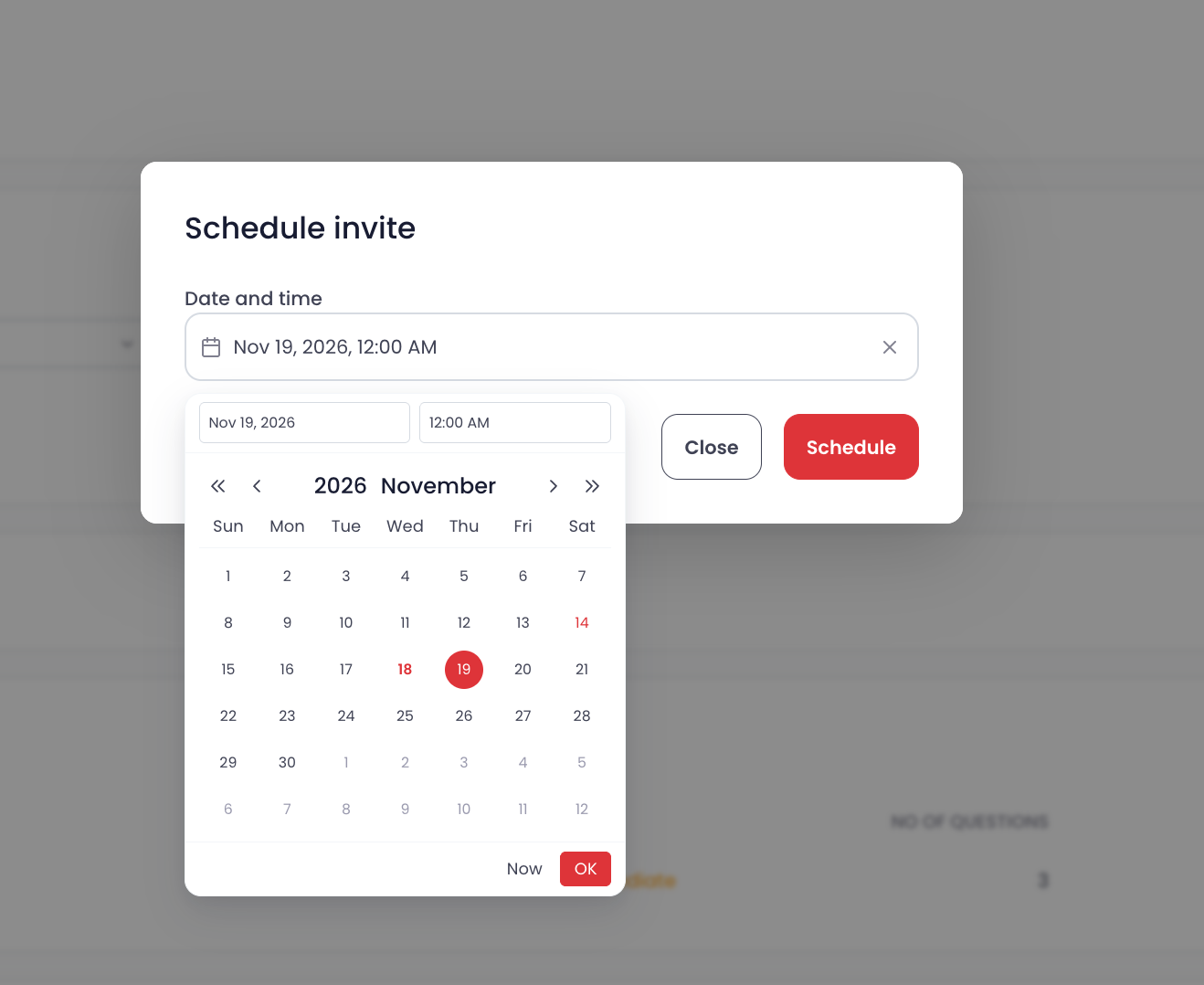
- Pick the date and time from the calendar.
- Click Schedule.
Schedule invites in bulk (up to 500 candidates)
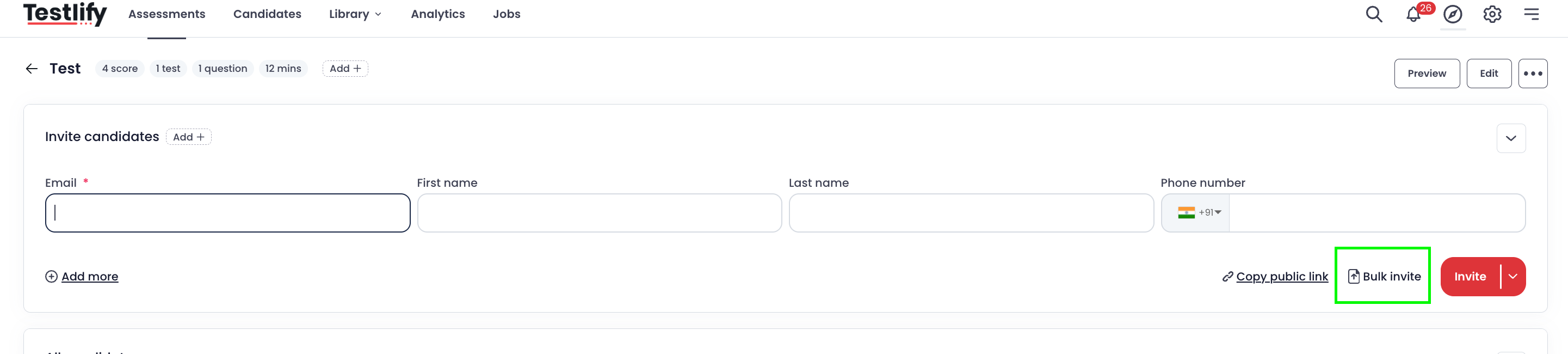
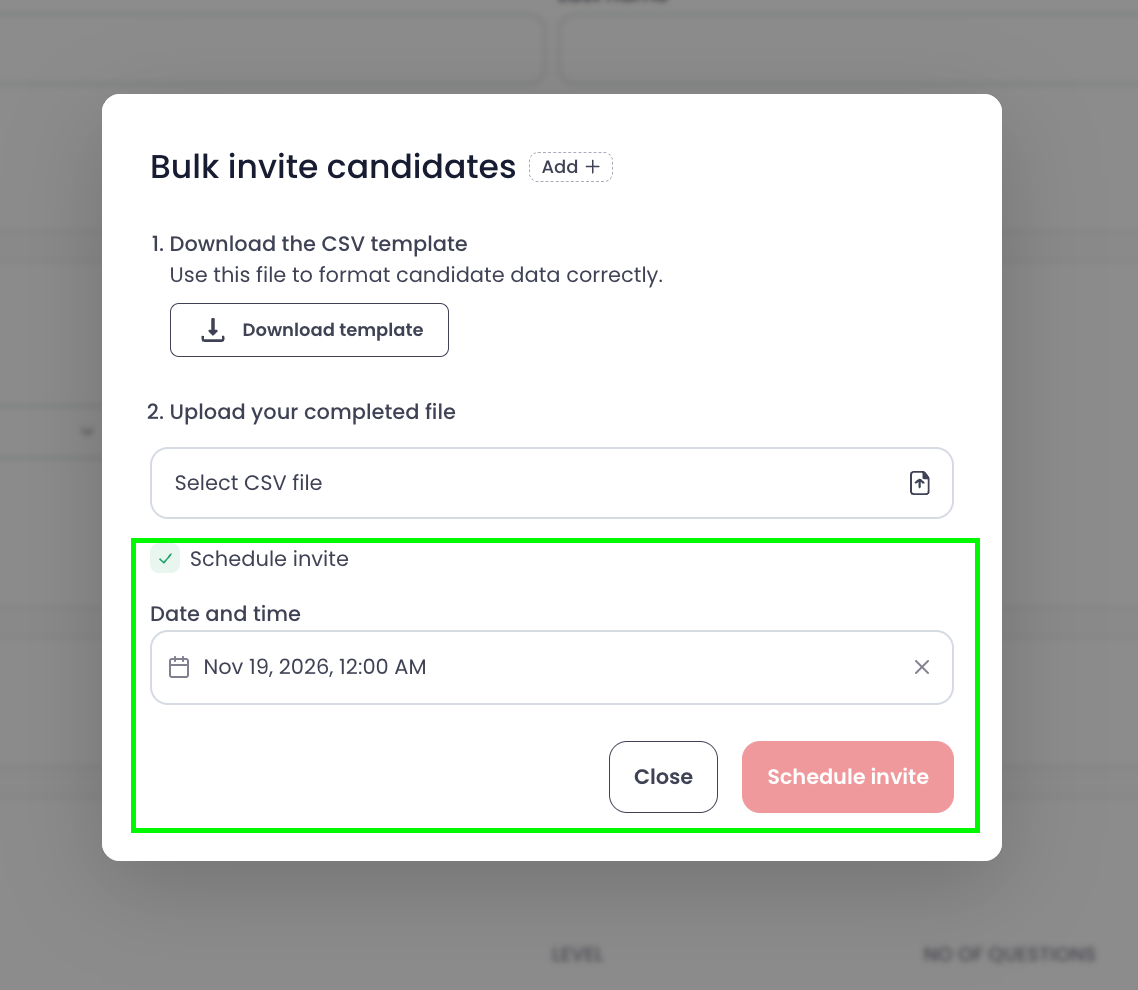
- Open the assessment and choose Bulk invite.
- Download the CSV template.
- Fill in one row per candidate. Keep the column headers exactly as they are.
- Save the file as CSV and upload it.
- In the invite timing dropdown, choose the custom date and time option and pick a slot from the calendar.
- Click Schedule.
What happens next
The invitations are sent automatically at the scheduled time. You do not need to be signed in when they go out.
Troubleshooting
Choosing between manual and bulk
For 11 to 500 candidates, use bulk invite. Manual invite is limited to 10 candidates per batch.
More than 500 candidates
Split them into several CSV files of 500 or fewer and schedule each file separately.
The CSV upload failed
Check that you used the latest template, kept the original headers, saved the file as .csv, and have no blank rows or invalid email addresses.
Still need help, please reach out to us at support@testlify.com.