
How to Secure Your Compromised or At-Risk Account
If you notice unfamiliar sign-in activity, receive unexpected security alerts, or suspect unauthorized access to your account, act immediately. Follow this comprehensive step-by-step guide to secure your account, protect your personal and workspace data, and prevent further unauthorized access.
When to Use This Guide
You should follow the account recovery and securing procedures outlined below if you encounter any of the following scenarios:
- Multiple Failed Sign-In Alerts: You receive notifications about repeated failed attempts to log into your account that you did not initiate. (Note: A single failed sign-in attempt is often a simple typo, but multiple consecutive attempts indicate a potential brute-force or credential-stuffing attack.)
- Unexpected Security Notifications: You receive an email, SMS, or push notification regarding a password reset request, email change, or new device login that you did not request.
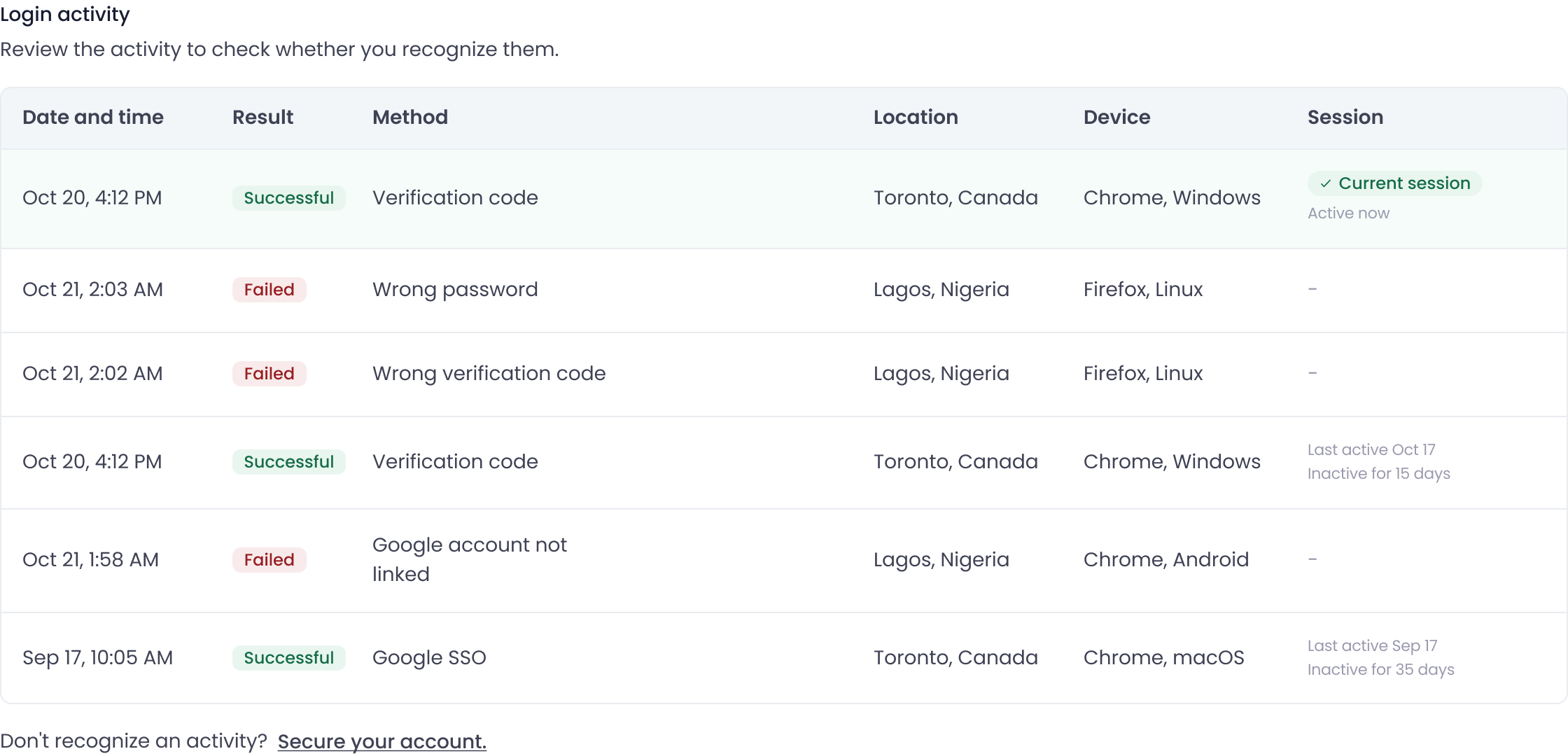
- Unfamiliar Active Sessions: When reviewing your recent account activity, you see logged-in devices, IP addresses, or geographic locations that do not belong to you or your team.
-
Suspicious Account Changes: Unrecognized changes have been made to your account details, integration keys, or user permissions.
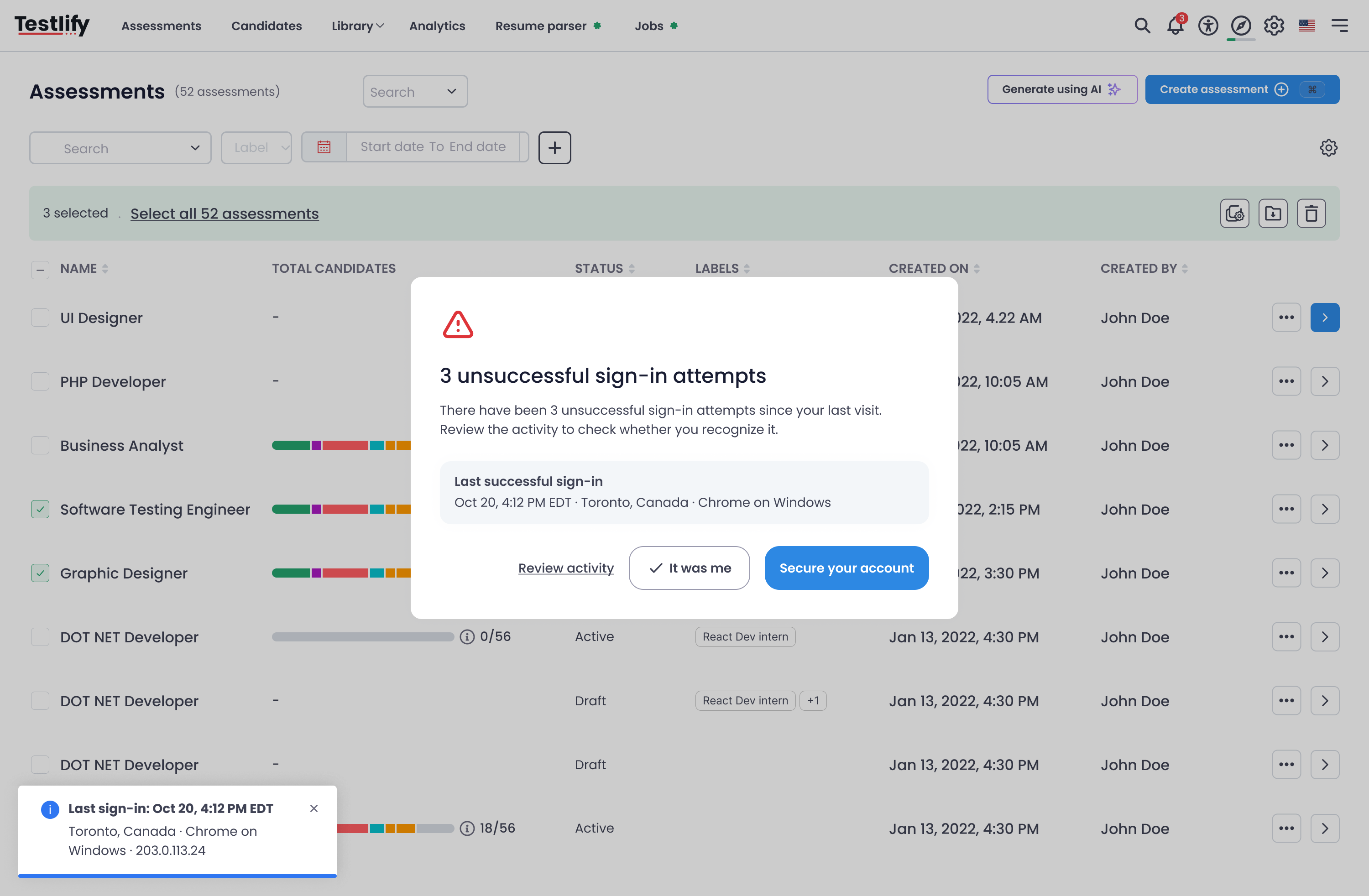
Step-by-Step Account Recovery & Securing Protocol
Execute these steps in sequence to regain full control over your account and seal any potential security gaps.
Step 1: Sign Out of All Active Sessions
Terminate all active user sessions across all browsers and devices immediately. This ensures that any unauthorized party currently logged into your account is booted out instantly.
- Navigate to your account Profile by clicking on your avatar or user icon in the top navigation menu.
- Select Login Activity (or Active Sessions) from the sidebar menu.
- Review the list of active sessions, devices, and approximate locations.
- Click Sign out of all other sessions.
Note: Executing this action will disconnect every device except the current browser session you are using. Do not log out of your current device until you have updated your credentials.
Step 2: Set or Update Your Account Password
Once other sessions are terminated, change your credentials so unauthorized users cannot log back in.
- In your Profile menu, locate the Security or Account Credentials section.
-
Click Change Password (or Set Password if you initially created your account using a third-party login method and haven't set a direct password yet).
Create a strong, unique password:
- Minimum 12–16 characters long.
- Include a mix of uppercase and lowercase letters, numbers, and special symbols (
!@#$%^&*). -
Do not reuse a password that you use for any other service, site, or email account.
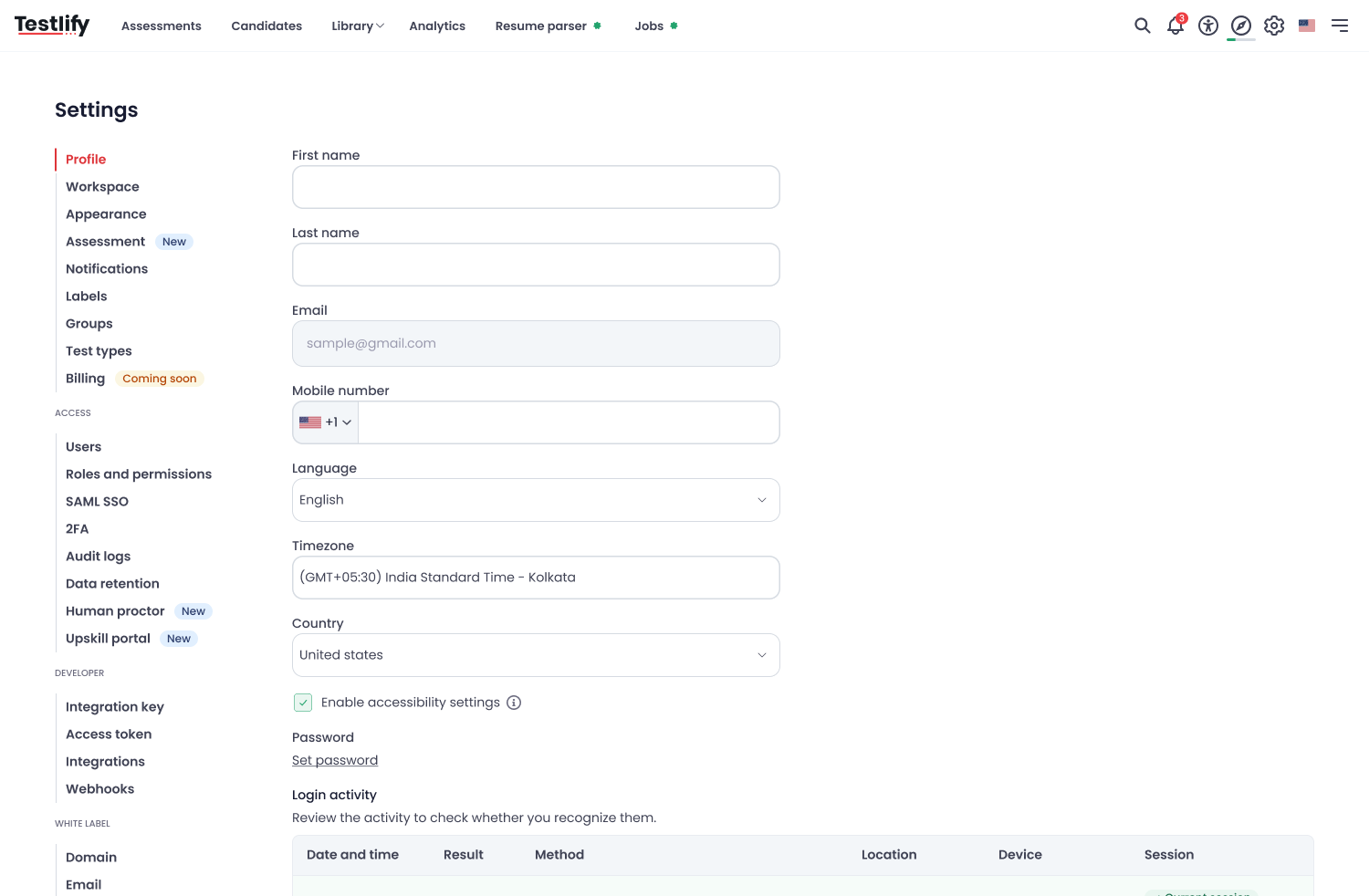
- Save your changes.
Step 3: Secure Your Associated Email Account
Your primary email address is the master key to your digital identity. Because single-sign-on (SSO) links, password reset links, and verification codes are sent directly to your inbox, securing your email account is critical.
- Update Email Password: Log into your primary email provider (e.g., Gmail, Outlook, Yahoo) and immediately change the password to a completely unique passphrase.
- Enable Email 2FA: Turn on two-factor authentication (2FA) or two-step verification on your email account using an authenticator app or hardware security key.
- Review Email Forwarding & Rules: Inspect your email account settings to ensure no hidden auto-forwarding rules or filter conditions have been set up by an attacker to intercept your security emails.
Step 4: Verify Third-Party Sign-In Providers (Google / Apple / Microsoft)
If you log into this service using an external identity provider (such as Google Sign-In), you must ensure that the master account itself has not been breached.
- Go to your provider's security portal (e.g., for Google accounts).
- Review Recent Security Activity and Your Devices for unrecognized access.
- Remove access for any legacy devices or suspicious third-party apps connected to your Google/Microsoft account.
- Force a password reset on your main Google/Microsoft account if any unusual activity is detected.
Step 5: Enterprise Sign-In / Single Sign-On (SSO) Users
If your account utilizes Enterprise Single Sign-On (SSO) via identity providers like Okta, Azure AD, Ping Identity, or OneLogin:
- Contact Your IT Admin / Helpdesk Immediately: Internal security teams must lock, audit, and reset your identity provider credentials from the administrative console.
- Do Not Attempt Manual Resets: Standard password reset forms within this application will not update your corporate SSO credentials.
Step 6: Enable Two-Factor Authentication (2FA)
Two-Factor Authentication adds an indispensable secondary layer of defense, preventing logins even if an attacker gains access to your password.
-
Navigate to Settings > 2FA (or Security Settings).
Select your preferred verification method:
- Time-based One-Time Password (TOTP) Apps (Recommended): Use apps like Google Authenticator, 1Password, or Authy to scan the provided QR code.
- Hardware Security Keys: Use WebAuthn/FIDO2 security keys (e.g., YubiKey) where supported.
- Complete the initial setup by entering the generated 6-digit confirmation code.
- Save Your Backup / Recovery Codes: Download or write down the emergency single-use backup codes provided upon setup. Store them in a secure physical location or encrypted password manager. Never save them in clear text on your desktop or email.
Step 7: Audit Recent Account Changes & Integrations
Attackers often create backdoors or persistent access pathways before losing access. Carefully audit every setting listed below:
- Team Members & User Permissions: Go to your Team / Users settings. Instantly remove any unrecognized email addresses, pending invites, or newly added administrative users that you did not explicitly authorize.
- API Keys & Webhooks: Navigate to Integrations / Developer Settings. Regenerate all active API keys and secret tokens, update them in your internal applications, and revoke any unrecognized third-party integrations or webhooks.
- Profile Email Address: Check your personal settings to confirm that your profile email address has not been modified or redirected to an attacker's inbox.
What to Do If You Still See Unrecognized Activity
If you have completed all the steps above and continue to observe unauthorized activity, or if you are locked out of your account entirely:
Contact your Workspace Administrator or reach out directly to our support team at support@testlify.com.
To help us investigate and resolve the incident swiftly, please include the following details in your email:
- Date and Time: The exact timestamps of the unauthorized events or emails received.
- Location & IP Details: The geographic locations or IP addresses listed under Login Activity.
- Screenshots: Full, unedited screenshots of your Login Activity page or relevant security alert emails.
- Current Account Access Status: State clearly whether you can still log in or if you are completely locked out.
Guidance for Workspace Administrators
If a member of your team reports a compromised account or suspicious activity, administrators must take immediate defensive actions to safeguard company assets and candidate data:
- Deactivate the User Account: Go to the Admin Console, locate the affected user, and temporarily set their account status to Deactivated or Suspended while the investigation is ongoing.
- Enforce Mandatory 2FA: Update workspace-level security policies to require Two-Factor Authentication for all team members across the organization.
- Conduct a Data Audit: Review system audit logs to determine if sensitive candidate data, personally identifiable information (PII), or confidential assessment results were viewed, downloaded, or exported during the compromise period.
- Regulatory Reporting: If candidate data or sensitive company information was exposed, consult your legal and compliance team to determine if mandatory breach notifications are required under privacy regulations (e.g., GDPR, CCPA, state privacy laws).
General Security Best Practices
Keep your account safe from future unauthorized access attempts by keeping these golden rules in mind:
- Beware of Phishing: We will never ask for your password, two-step verification code, or login credentials via email, phone, SMS, or chat support.
- Use Unique Passwords: Never reuse the password you use for your Testlify account on any other platform or website.
- Use a Password Manager: Consider using a trusted password manager (such as Bitwarden, 1Password, or Dashlane) to generate, store, and auto-fill strong, complex passwords securely.
- Keep Software Updated: Ensure your web browsers, operating systems, and antivirus software are regularly updated to protect against device-level malware and keyloggers.
If you need any further help updating the guide or integrating specific details like your support email address (support@testlify.com ), feel free to reach out!