
How to Detect and Block VPN Usage During an Assessment
Overview
Candidates sometimes use a VPN to hide their real location. This can let them get past an IP-based country restriction and take an assessment they are not eligible for. For example, a candidate in India could connect to an Australia-based VPN to open an Australia-only assessment.
The VPN Detection setting in Proctoring helps you handle this. It identifies when a candidate is connected through a VPN, then either warns them or stops them from continuing until the VPN is turned off. Any VPN activity is also recorded in the candidate's results, so you can review it later.
You can choose between two levels of control:
| Option | What happens when a VPN is detected | Can the candidate continue with the VPN on? |
| VPN Detection | The candidate sees a warning asking them to disable the VPN. | Yes, they can continue. |
| Block candidate using VPN | The candidate sees the same warning and must disable the VPN before proceeding. | No, they cannot continue until the VPN is off. |
Who Should Use This Feature
- Hiring teams running country-restricted assessments (for example, Australia-only or US-only roles)
- Teams that need reliable location data for compliance or eligibility reasons
- Teams that want to reduce wasted assessment credits caused by ineligible candidates
- Anyone who wants a clearer record of candidate integrity in the results
Step-by-Step Guide: Enable VPN Detection
-
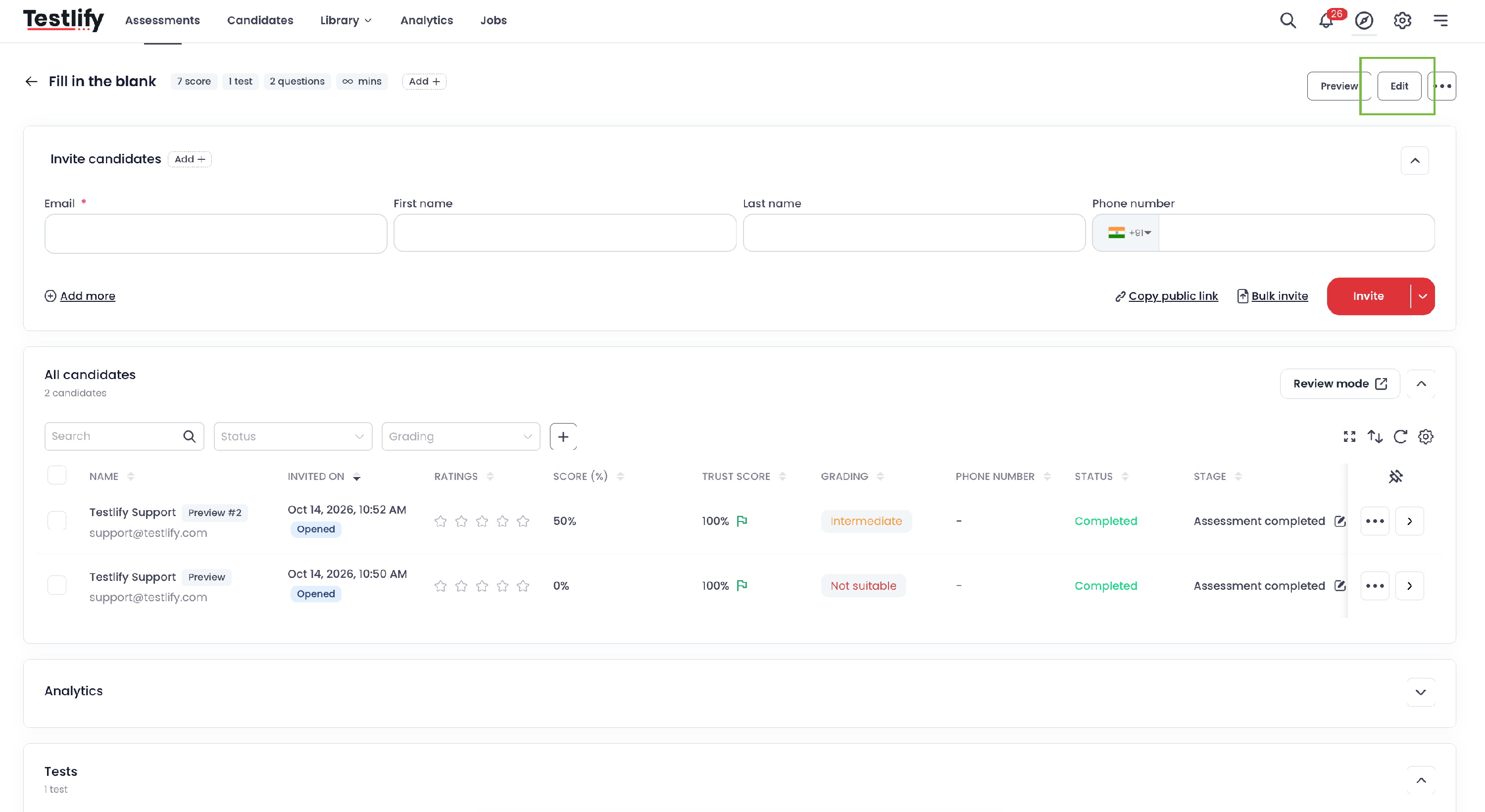
Edit the assessment. Open the assessment you want to protect from your assessments list and click Edit.
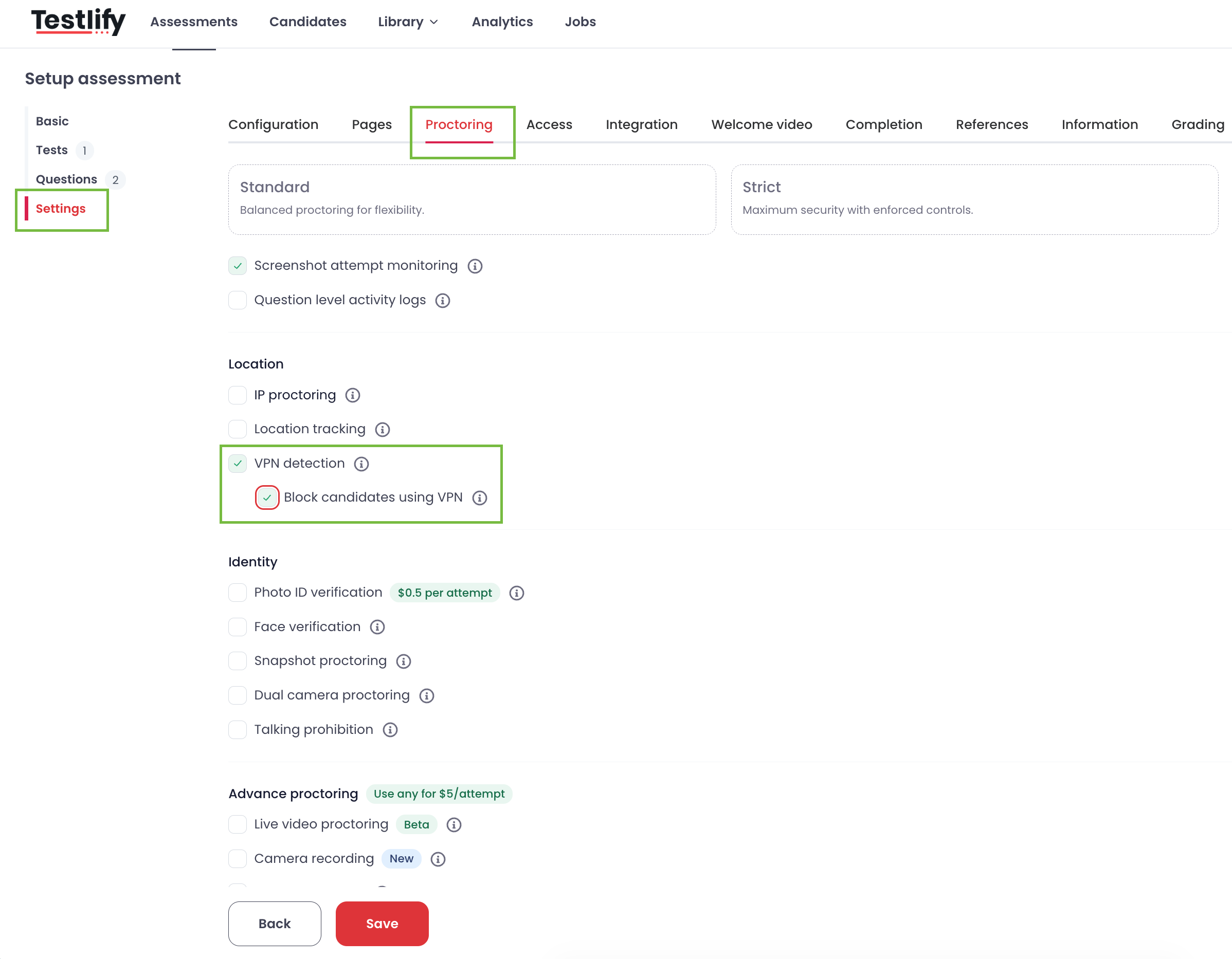
- Go to Settings. Inside the assessment editor, select the Settings tab.
- Open Proctoring. In the Settings menu, select Proctoring. This section contains all the integrity and monitoring controls for the assessment.
- Turn on VPN Detection. Find the VPN Detection option and check the box. With only this box checked, the candidate is warned when a VPN is detected and asked to disable it, but they can still continue with the test. Use this option if you want visibility and a gentle deterrent without interrupting candidates who may be using a VPN for privacy reasons.
- (Optional) Block candidates who use a VPN. For strict enforcement, check the box for Block candidate using VPN, located directly below VPN Detection. With this box also checked, the candidate is warned when a VPN is detected and must disable the VPN to continue with the test. Use this option for assessments where location eligibility is mandatory, such as country-restricted roles.
-
Save your changes. Save the assessment settings so they apply to all candidates who take the test from now on.
Note: The setting applies to candidates who start the assessment after you save. It will not retroactively affect candidates who already began.
What the Candidate Sees When a VPN Is Detected
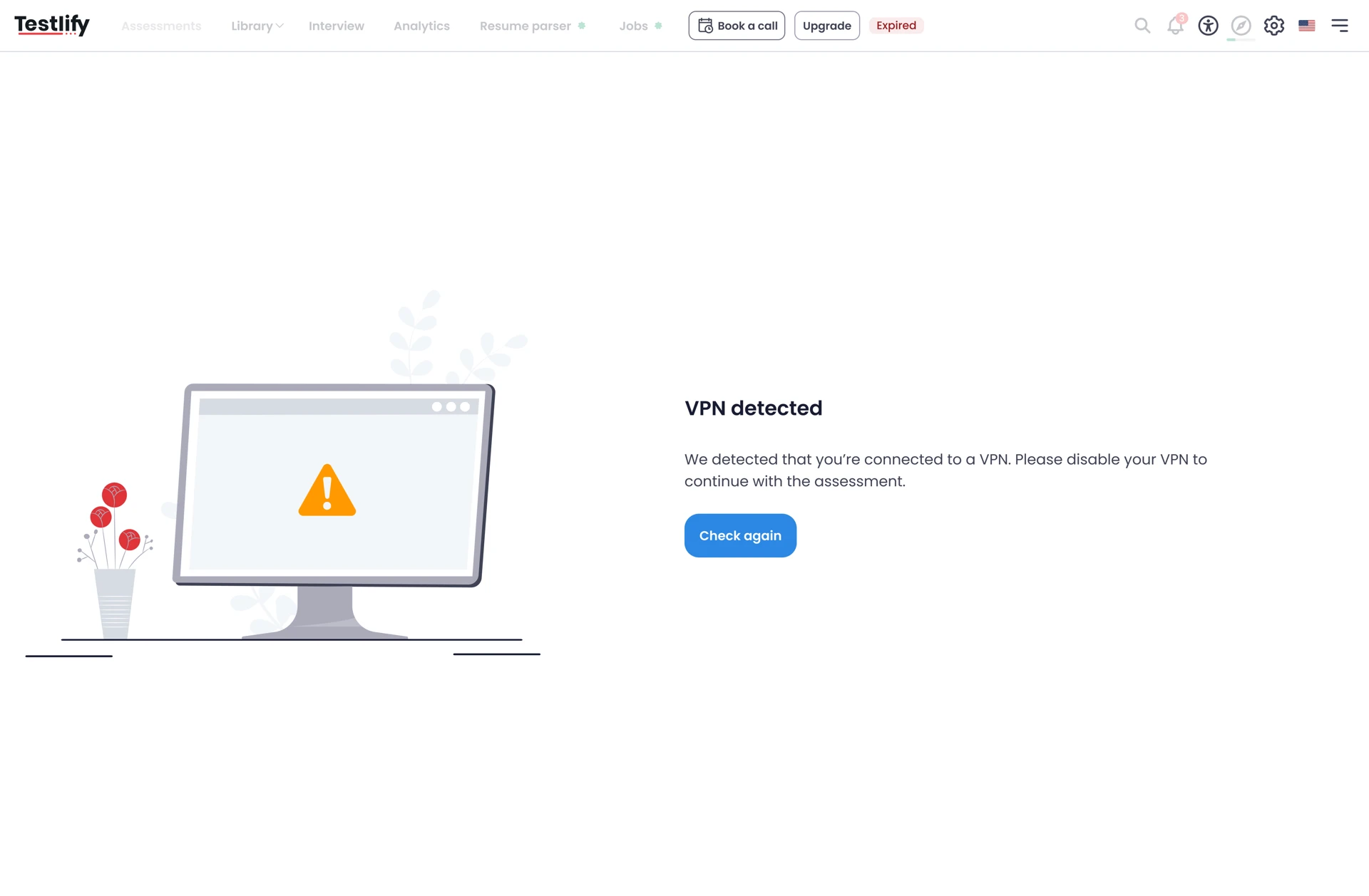
When the system detects a VPN, the candidate sees a "VPN Detected" warning with this message:
"We detected that you are using a VPN. Please disable your VPN to continue with the assessment."
Below the message there is a Try again button. The candidate should:
- Disconnect or turn off their VPN.
- Click Try again.
-
If the VPN is no longer detected, the assessment continues as normal.
How to View VPN Violations
If a candidate used a VPN, you can review it in their results:
- Open the candidate's result page.
- Scroll down to the Trust Insight section.
-
Under Trust Insight, you can see the violations recorded for that candidate, including VPN-related ones.
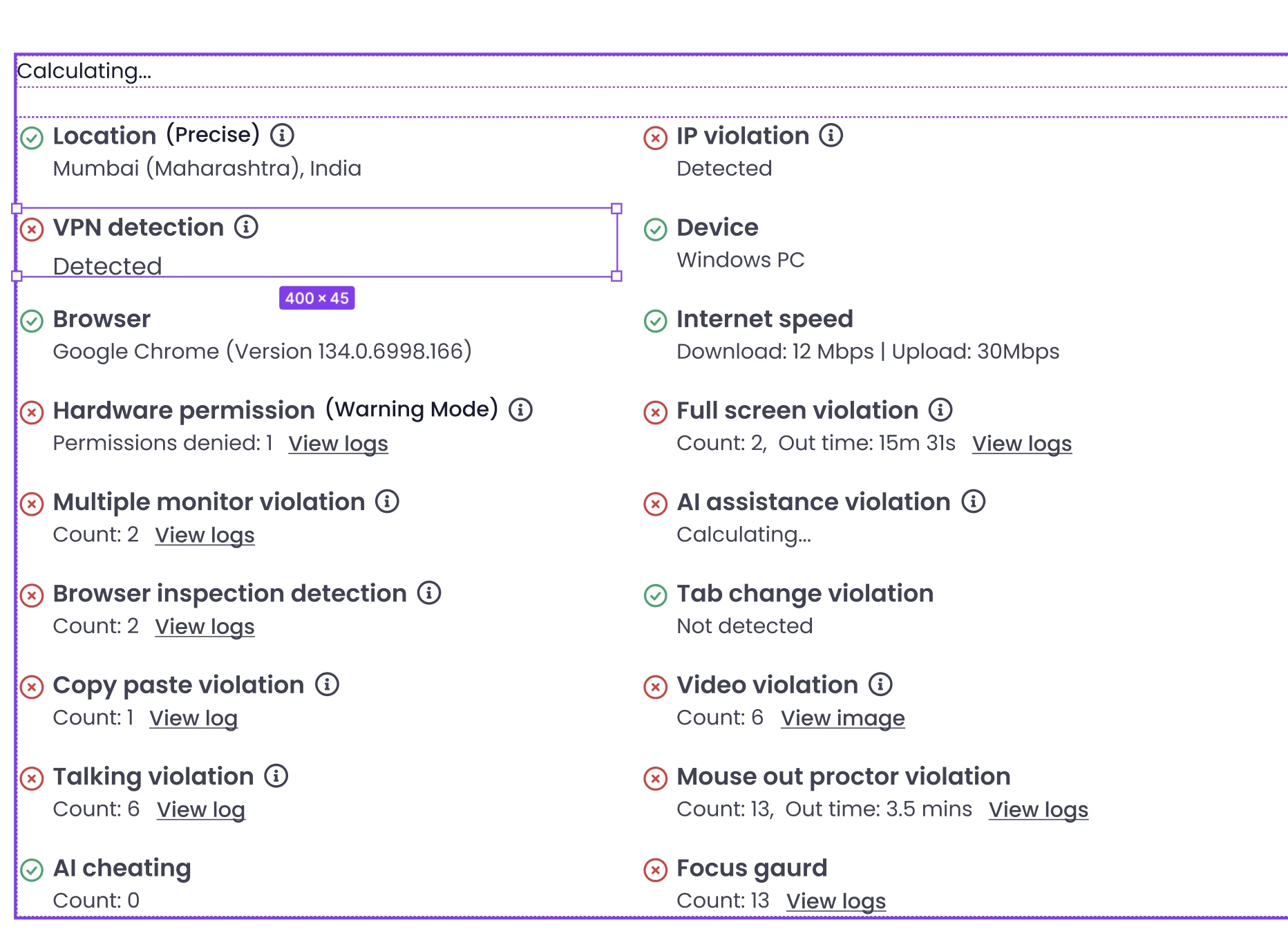
Review these alongside the candidate's score when deciding whether to move them forward.
Best Practices
- Use both settings for country-restricted assessments. Combine the country restriction with Block candidate using VPN so the location check can't be bypassed.
- Tell candidates in advance. In your invitation email, mention that VPNs must be turned off during the assessment. This avoids confusion and support requests.
- Check Trust Insight before decisions. Make it part of your review routine for roles where location or integrity matters.
- Use detection-only for flexible roles. If location isn't critical, the warning-only option is less disruptive for candidates.
Troubleshooting Tips
1. The candidate says they have disabled their VPN, but the warning still appears.
- Ask them to fully disconnect the VPN, not just pause it.
- Check for browser extensions that act as VPNs or proxies and disable them.
- Ask them to close and reopen the browser, then click Try again.
2. The candidate is using a corporate or office network.
Some company networks route traffic through a VPN or proxy. Ask the candidate to switch to a personal network, such as home Wi-Fi or a mobile hotspot, and then click Try again.
3. The candidate cannot find where the VPN is running.
Ask them to check:
- VPN apps in the system tray or menu bar
- Browser extensions
- Device-level VPN settings (Settings → Network/VPN)
- Security or antivirus software with a built-in VPN feature
4. The VPN Detection option isn't visible in Proctoring.
Make sure you are editing the assessment and have opened Settings → Proctoring. If it still doesn't appear, contact support.
5. A candidate was not flagged, but you suspect VPN use.
No detection method catches every VPN or proxy. Check the Trust Insight section and other proctoring signals, and contact support if you need a closer look.
6. The candidate's browser shows an error after clicking Try again.
Ask the candidate to refresh the page, clear their browser cache, or try a different supported browser.
Frequently Asked Questions
Q1. What is the difference between "VPN Detection" and "Block candidate using VPN"?
VPN Detection warns the candidate but lets them continue. Block candidate using VPN requires them to disable the VPN before they can proceed.
Q2. Will the candidate be able to continue if they ignore the warning?
It depends on your settings. With only VPN Detection, yes. With Block candidate using VPN enabled, no. They must disable the VPN first.
Q3. Does the candidate lose their attempt if a VPN is detected?
No. They can disable the VPN and click Try again to continue.
Q4. Where can I see if a candidate used a VPN?
Open the candidate's result page and scroll down to Trust Insight, where the violations are listed.
Q5. Do I need to enable Location Tracking or Photo ID for VPN Detection to work?
No. VPN Detection is a separate Proctoring setting that you can enable on its own.
Q6. Can I apply this to assessments that are already live?
Yes, you can edit the settings at any time. The new settings apply to candidates who start the assessment after you save.
Q7. Is VPN detection 100% accurate?
No detection technology is perfect. It identifies the vast majority of common VPN services, but new or private VPNs may occasionally go undetected. Use it together with the other Proctoring and Trust Insight signals.
Q8. Should I enable blocking for every assessment?
Not necessarily. Blocking is best for assessments where location eligibility is mandatory. For others, detection alone may be enough.
Conclusion
VPN Detection helps you keep your assessments fair, so only eligible candidates complete them. Turn on VPN Detection to warn candidates, or add Block candidate using VPN to require that they disable it before continuing. Either way, you can review any violations under Trust Insight on the candidate's result page.
Need Further Assistance?
If you have questions or need help setting this up, contact our support team at Support@testlify.com.