
How to Use Face Match for Photo ID Verification
Face Match adds an additional identity verification layer to Photo ID Verification. It uses AI to compare the candidate's live photo captured during the assessment setup with the photo on their submitted ID.
This helps you quickly identify potential identity mismatches while still allowing candidates to continue the assessment when manual verification may be required.
🔍 What is Face Match?
Face Match uses AI to compare:
- The candidate's live photo
- The photo displayed on the candidate's submitted ID
Based on this comparison, Testlify indicates whether the photos appear to belong to the same person.
Because automated face matching may occasionally produce false positives, a detected mismatch does not automatically prevent the candidate from continuing the assessment.
Instead, the result is displayed in the candidate report for review.
⚙️ How to Enable Face Match
To enable Face Match:
- Open the assessment you want to configure.
- Navigate to Assessment settings > Proctoring.
- Enable Photo ID verification.
- Enable Face match.
- Save your changes.
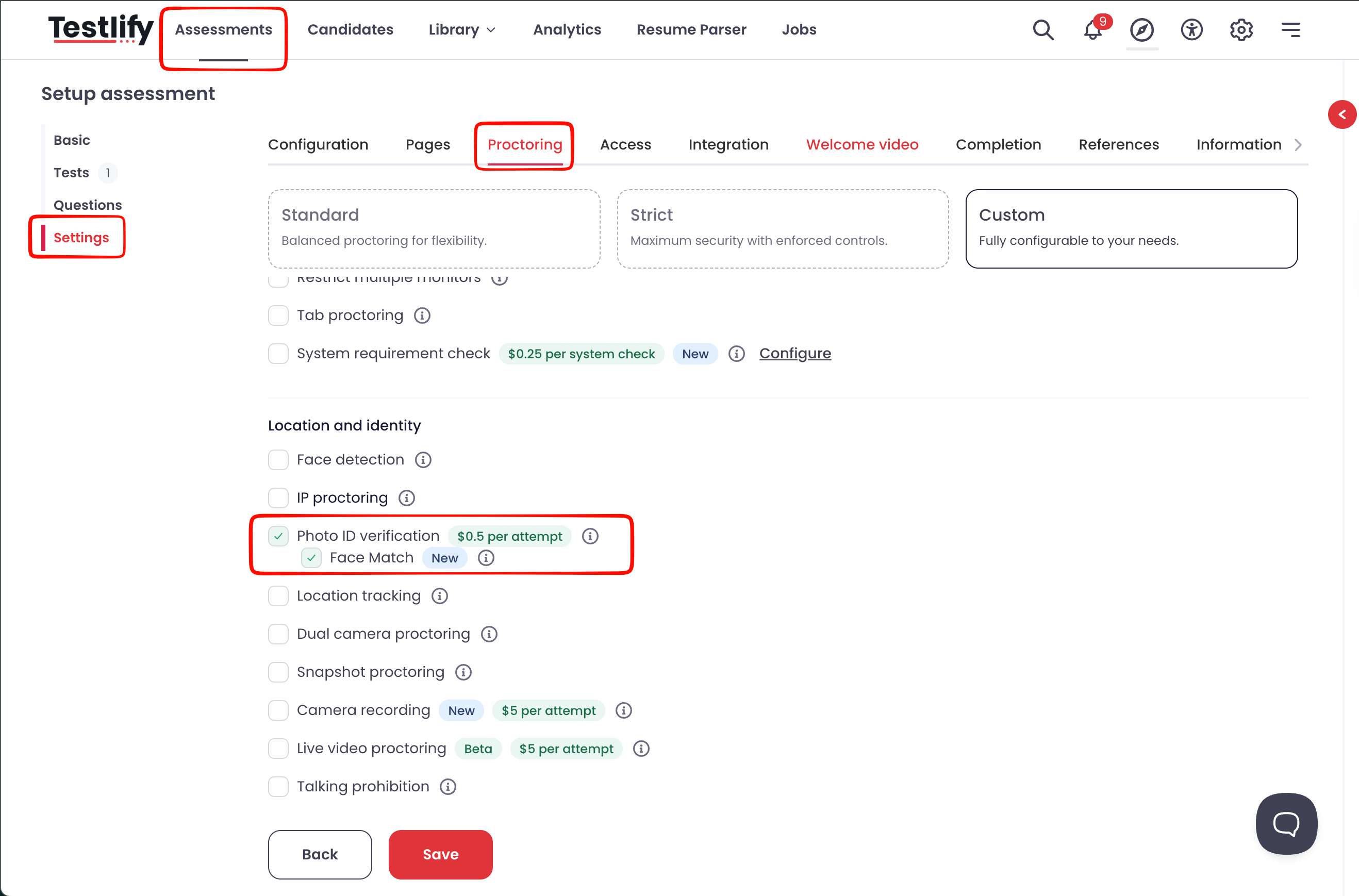
The Face Match option is available as part of Photo ID Verification.
👤 Candidate Experience
When Photo ID Verification and Face Match are enabled, the candidate completes the required identity verification steps before proceeding with the assessment.
Testlify compares the candidate's live photo with the image available on their submitted ID.
If a potential mismatch is detected, the candidate can still continue with the assessment.
The result is made available to the assessment administrator for further review.
🚩 Reviewing a Face Mismatch
If Testlify identifies that the candidate's live photo may not match the photo on their submitted ID, a Face mismatch badge appears in the candidate information section.
You may also see a Name mismatch badge when the candidate's submitted information does not match the expected information.
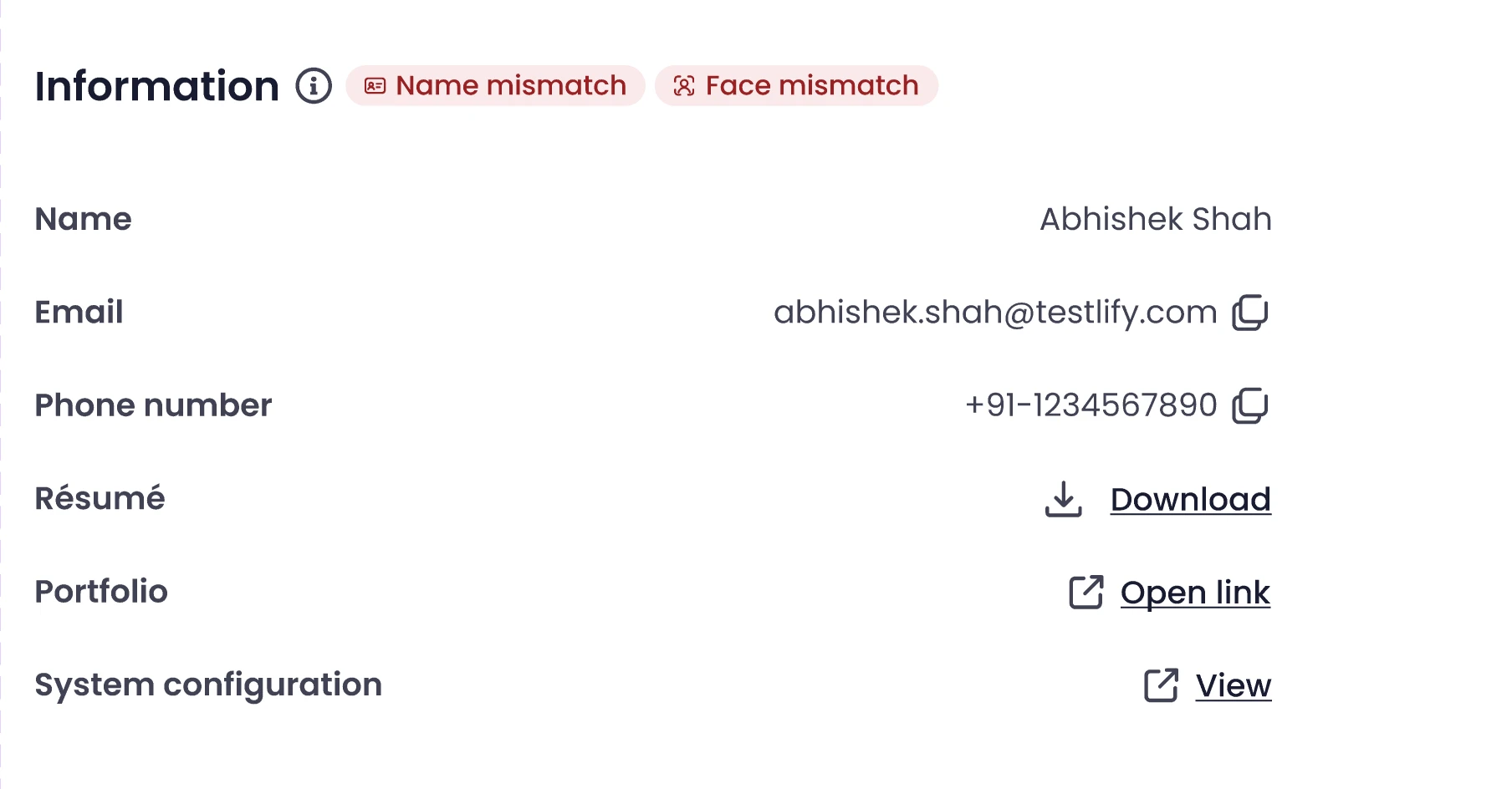
Hovering over the Face mismatch badge provides additional information indicating that the face on the submitted ID differs from the candidate's registered live photo.
🪪 Review Identity Verification Details
You can review the candidate's identity verification information from the Identity section of the candidate report.
When a face mismatch is detected, Testlify displays a warning indicating:
Face on the ID differs from the registered live photo.
The candidate's live photo and submitted ID are displayed together to make manual verification easier.
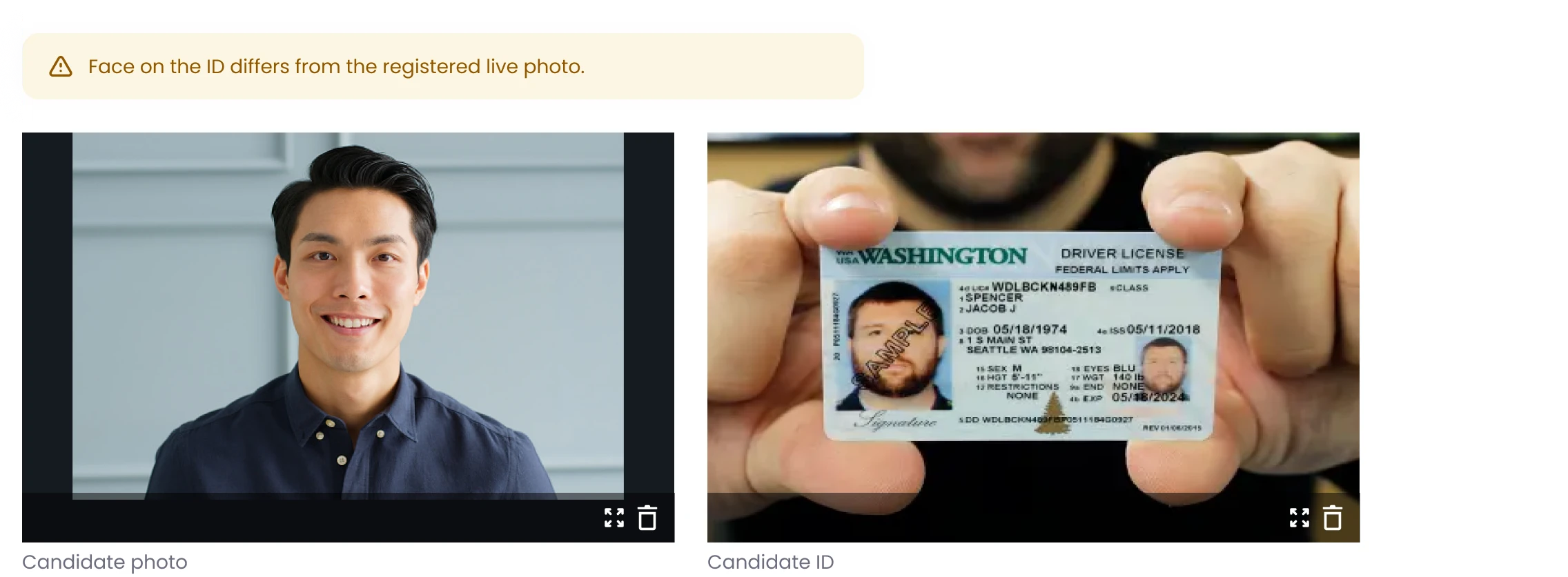
Review both images before making a decision about the candidate's identity.
📊 Face Match Confidence
Face Match uses AI to evaluate the similarity between the candidate's live photo and ID photo.
Where available, the Face Match result and confidence information can help you determine whether additional manual verification is necessary.
Automated results should be used as an additional verification signal rather than the sole basis for making a decision.
📄 Face Match in PDF Reports
Face Match verification details are also included in the candidate's PDF report.
If a mismatch is detected, the relevant Face Match information or badge is displayed in the report so that identity verification results remain available when the candidate report is downloaded or shared.
🔐 Key Considerations
- Face Match requires Photo ID verification to be enabled.
- Testlify compares the candidate's live photo with the photo on their submitted ID.
- A detected Face Match mismatch does not automatically stop the candidate from taking the assessment.
- Use the Face mismatch badge and Identity section to review potential mismatches.
- AI-generated results may require manual verification in some cases.
- Face Match information can also be included in downloadable candidate reports.
Face Match helps reduce the effort required to manually compare candidate photos while giving reviewers the information they need to investigate potential identity mismatches.