
Multi-Assessment Candidate Drop-off Tracking Report
Overview
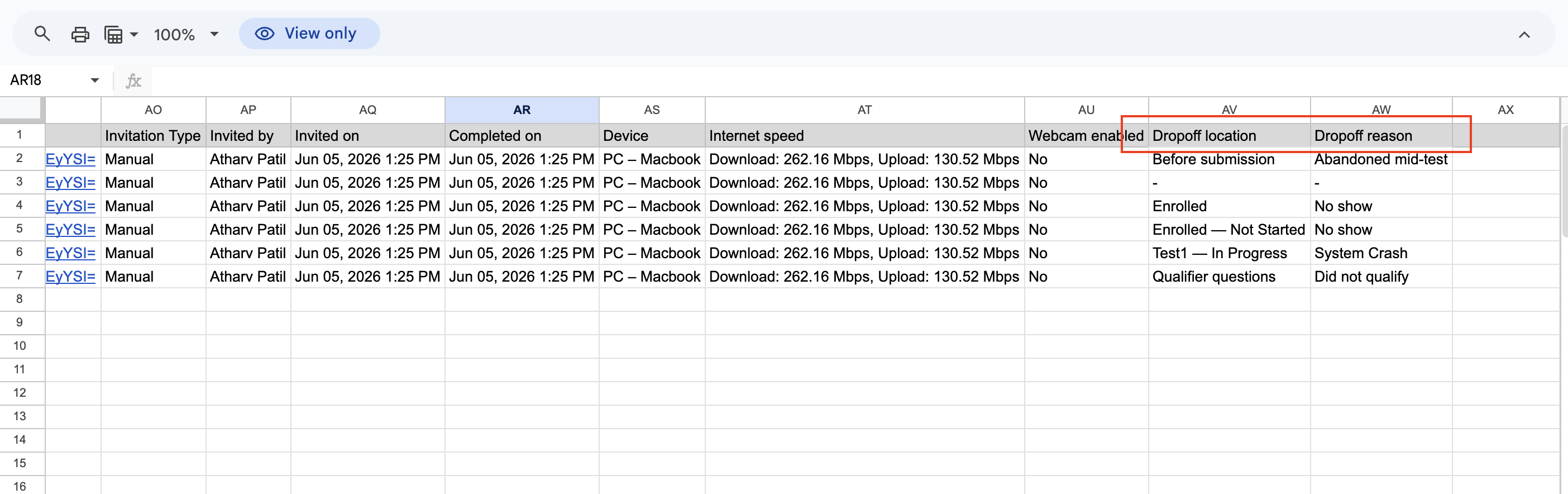
The Multi-Assessment Candidate Drop-off Tracking Report gives employers a CSV/Excel export that shows exactly where and why candidates are dropping off across their assessments.
This report surfaces two key data points directly in the file:
- Drop-off location — the stage of the assessment flow at which the candidate stopped engaging.
- Drop-off reason — the reason recorded for why the candidate did not complete the assessment.
Together, these two fields help employers quickly identify patterns for example, whether candidates are dropping off before submission, during qualifier questions, or mid-test so hiring teams can investigate and improve the candidate experience.
How to Download the Report
-
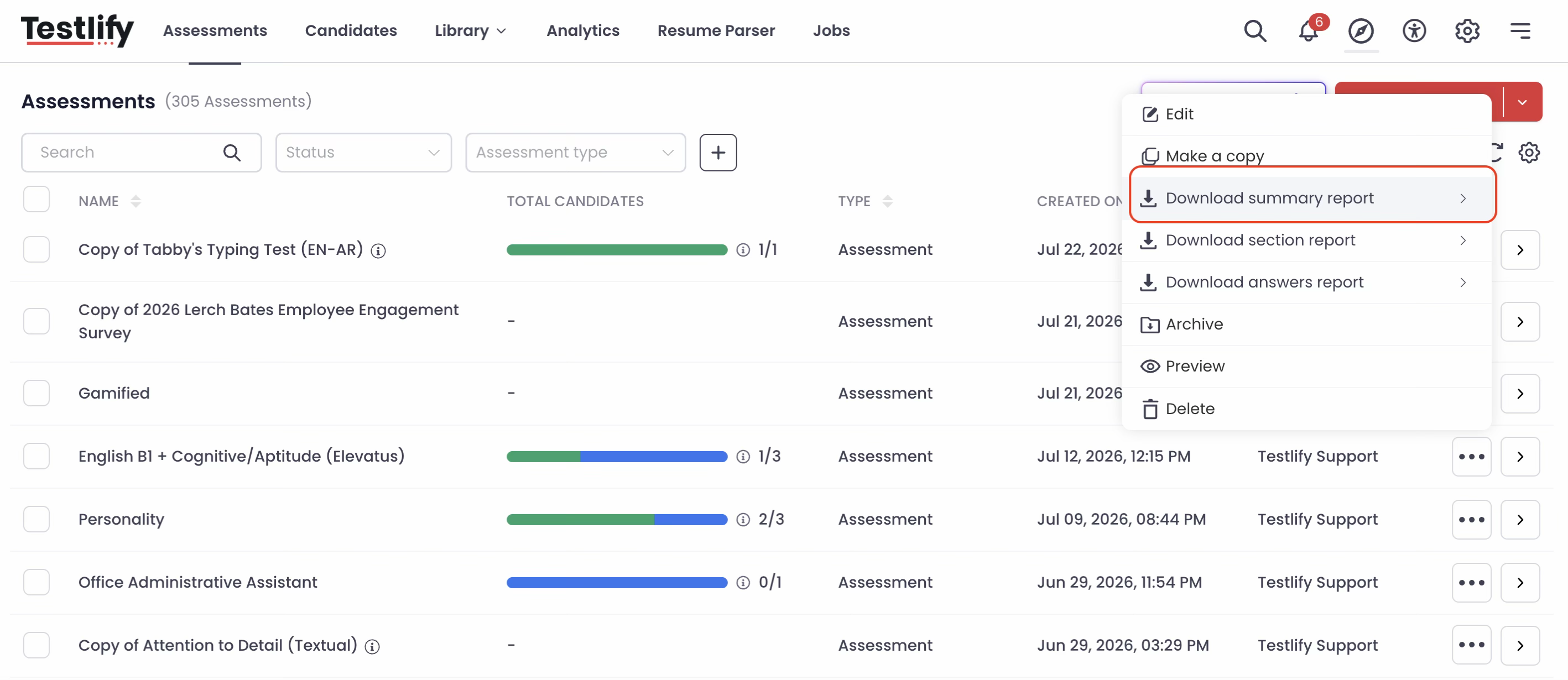
Go to the Assessments list and choose any assessment.
-
Click the three-dot (•••) options menu for that assessment.
-
From the menu, select Download summary report, as shown below.
-
The downloaded CSV/Excel file will include the Drop-off location and Drop-off reason columns for each candidate, alongside the rest of the summary data.
Drop-off Location Values
| Drop-off Location | What It Means |
| Before submission | The candidate left before submitting the invitation form / before entering the assessment flow. |
| – | No drop-off location applicable — for example, the candidate completed the assessment. |
| Enrolled | The candidate was enrolled into the assessment but no further activity was recorded. |
| Enrolled — Not Started | The candidate was enrolled but never started the assessment. |
| Test1 — In Progress | The candidate started the first test section but did not complete it. |
| Qualifier questions | The candidate dropped off while answering the qualifier questions, before reaching the main assessment. |
Drop-off Reason Values
| Drop-off Reason | What It Means |
| Abandoned mid-test | The candidate started the assessment but exited before completing it. |
| – | No specific reason recorded — for example, the candidate completed the assessment. |
| No show | The candidate was invited but never opened or attempted the assessment. |
| System crash | The candidate's session ended due to a technical issue rather than by choice. |
| Did not qualify | The candidate was screened out after failing to meet the qualifier question criteria. |
Why This Is Useful
- Pinpoint exactly where in the assessment flow candidates are losing interest or facing friction.
- Distinguish between candidate-driven drop-offs (no show, did not qualify) and system issues (system crash).
- Compare drop-off patterns across multiple assessments in one export.
- Use the data to improve assessment length, qualifier questions, or invitation flow.
For more assistance, contact support@testlify.com