
Connect Testlify with Ashby
Connect Testlify with Ashby to send skills assessments directly from candidate profiles in your Ashby hiring workflow.
Before you begin
- You need Admin access in both Testlify and Ashby.
-
Keep both platforms open in separate browser tabs to move through the steps quickly.
Part 1: Generate your Testlify API key
-
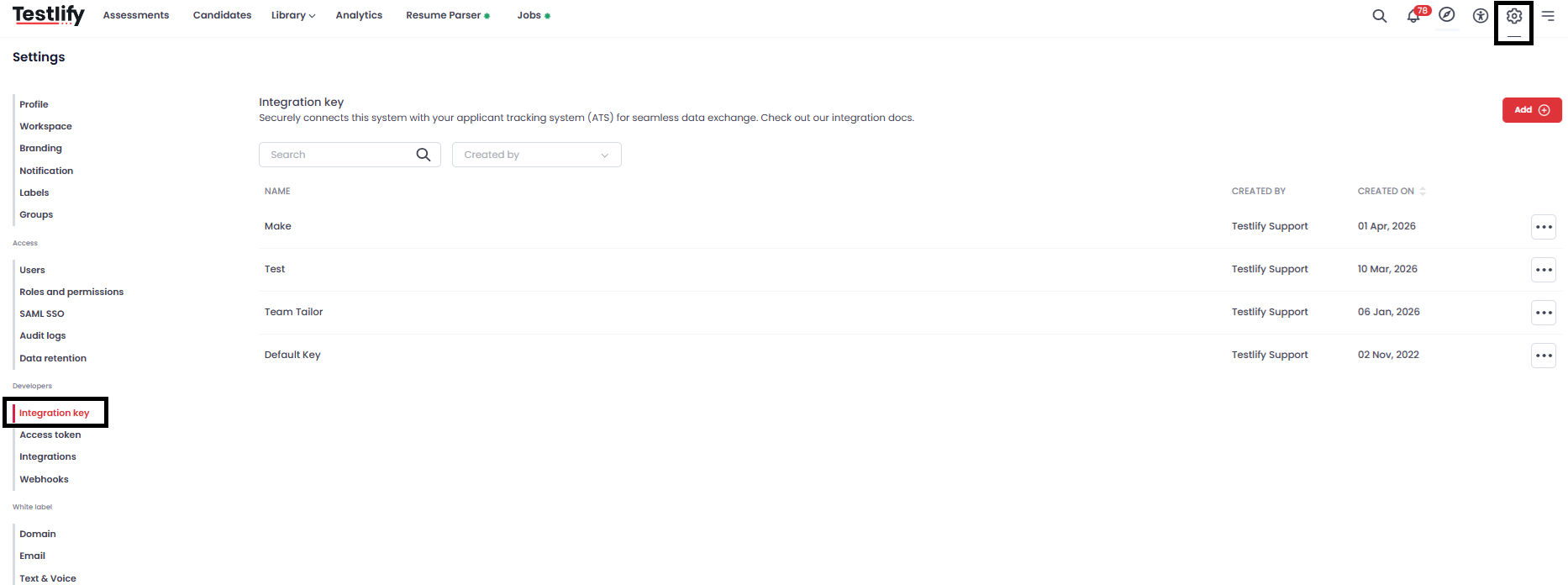
In Testlify, click the Settings icon and go to Settings > Integration Key.
-
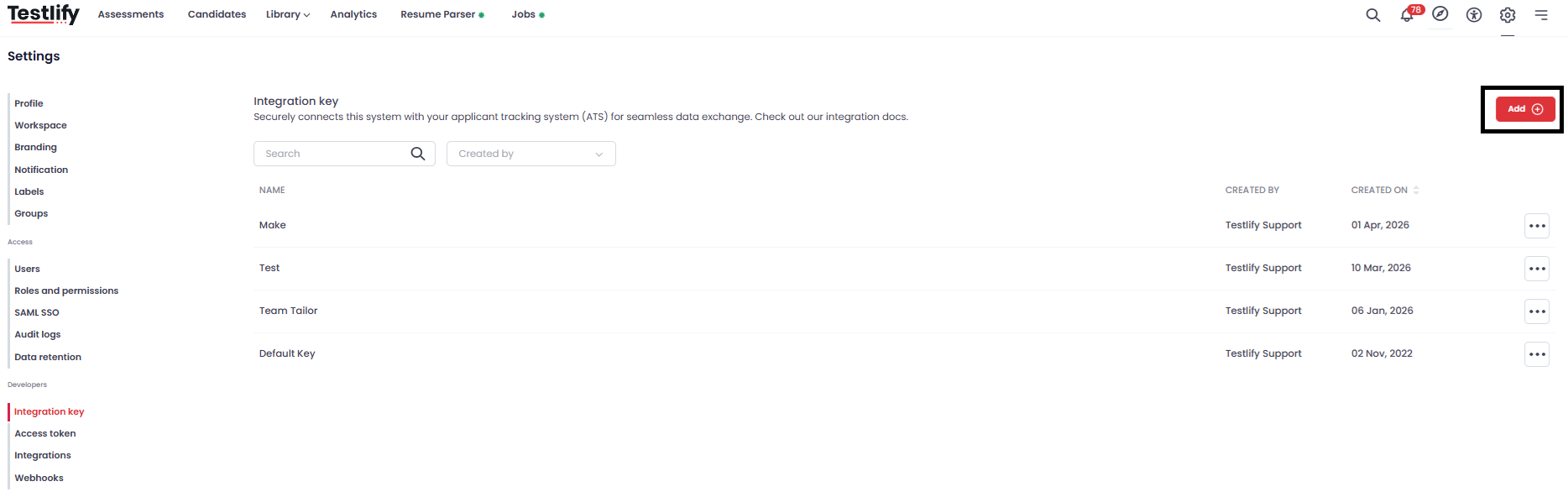
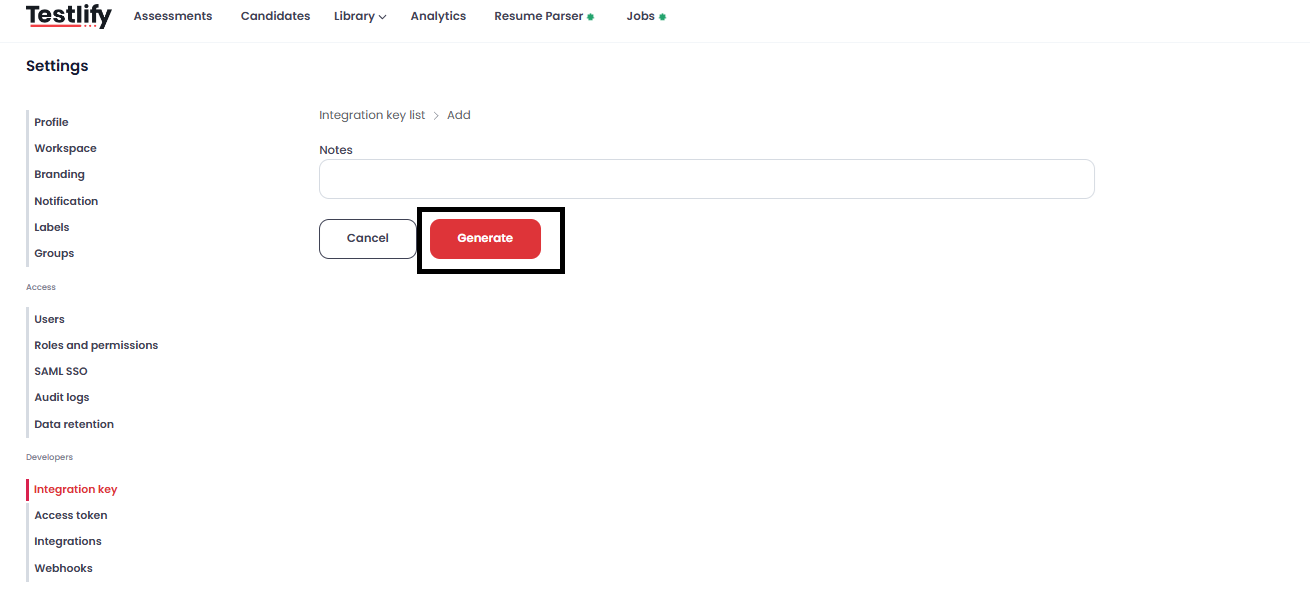
Click Add, then click Generate Key.
-
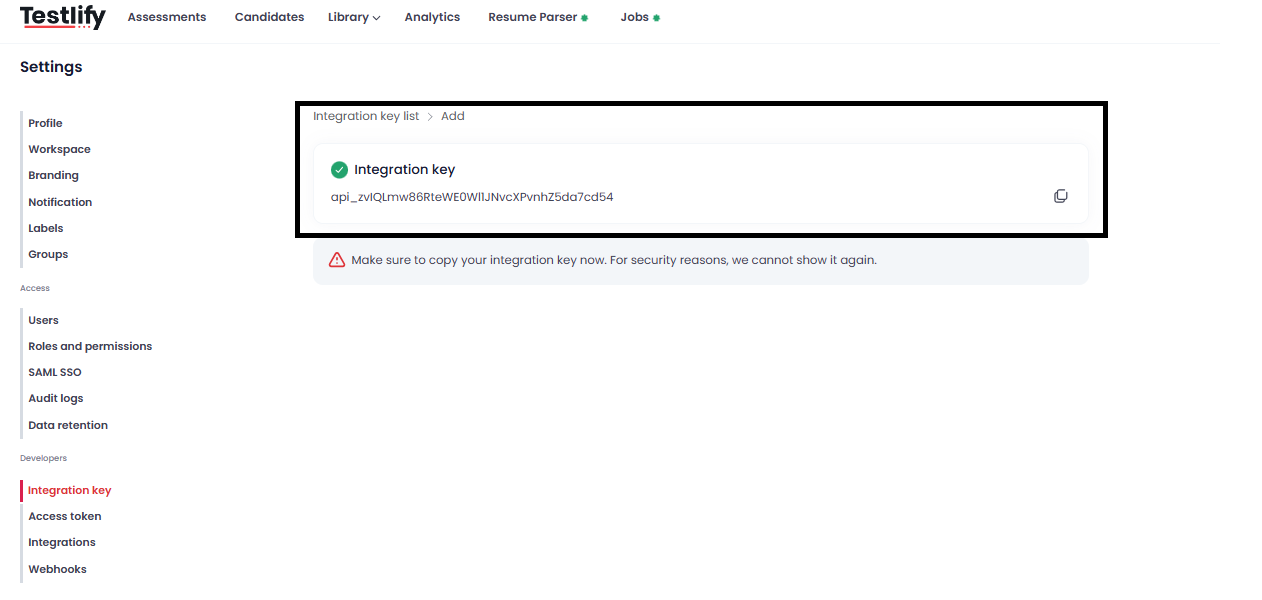
Click Copy Key to copy the key to your clipboard — you will paste it in Part 2.
Part 2: Enable Testlify in Ashby
-
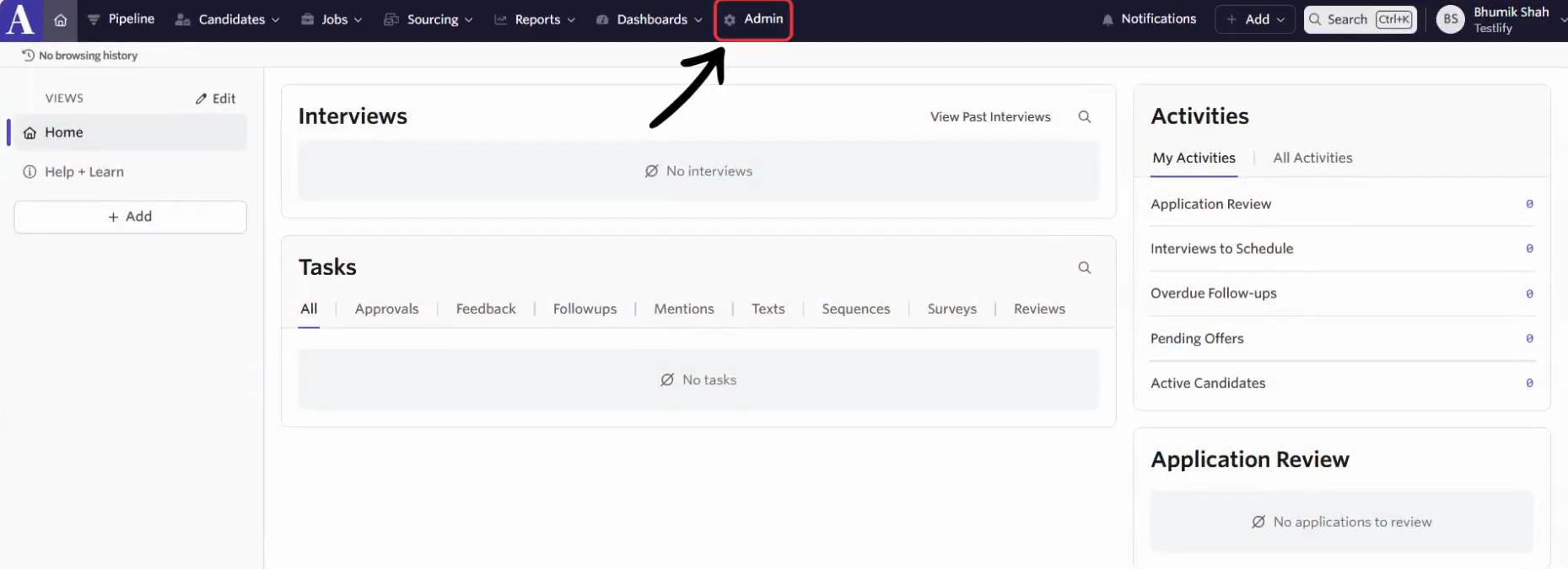
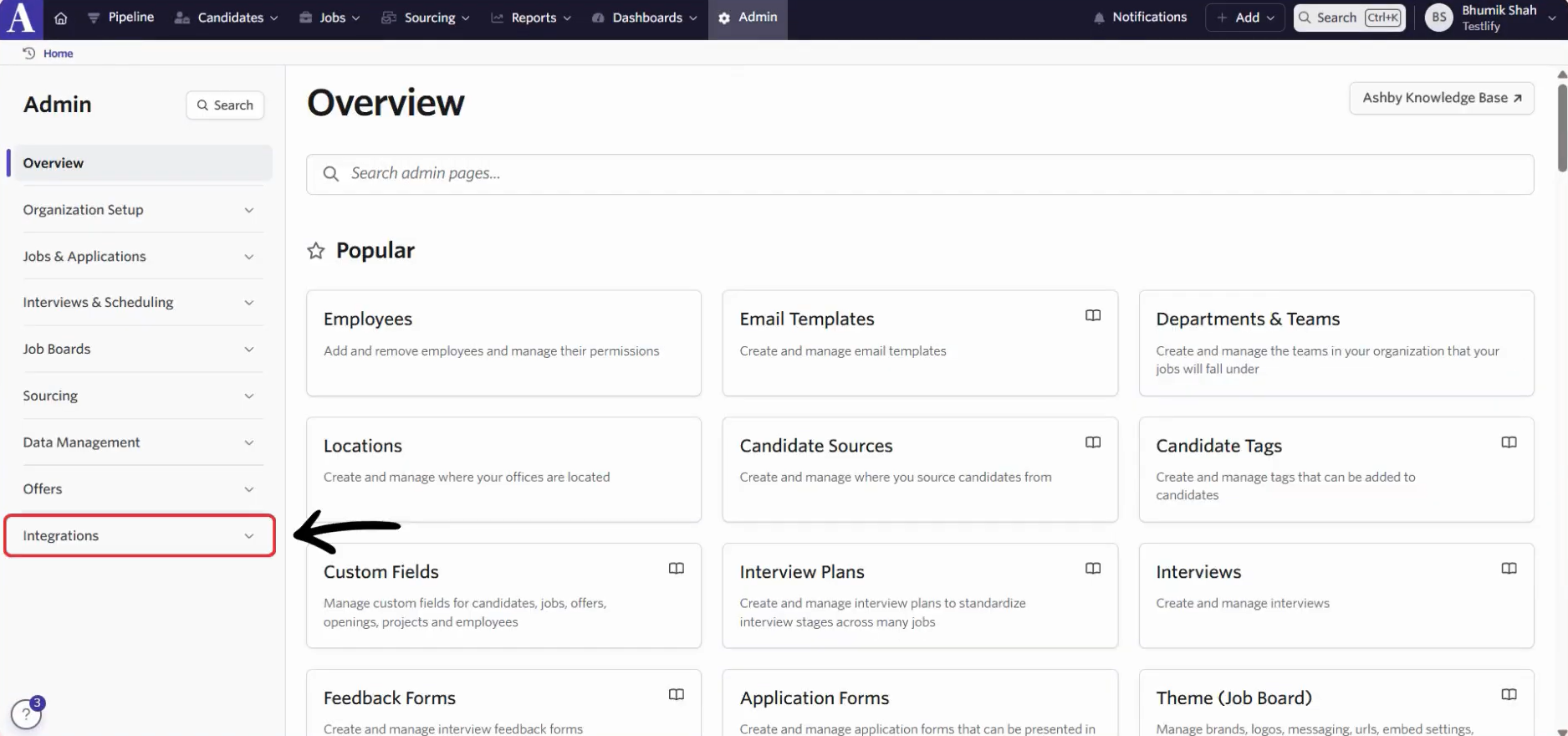
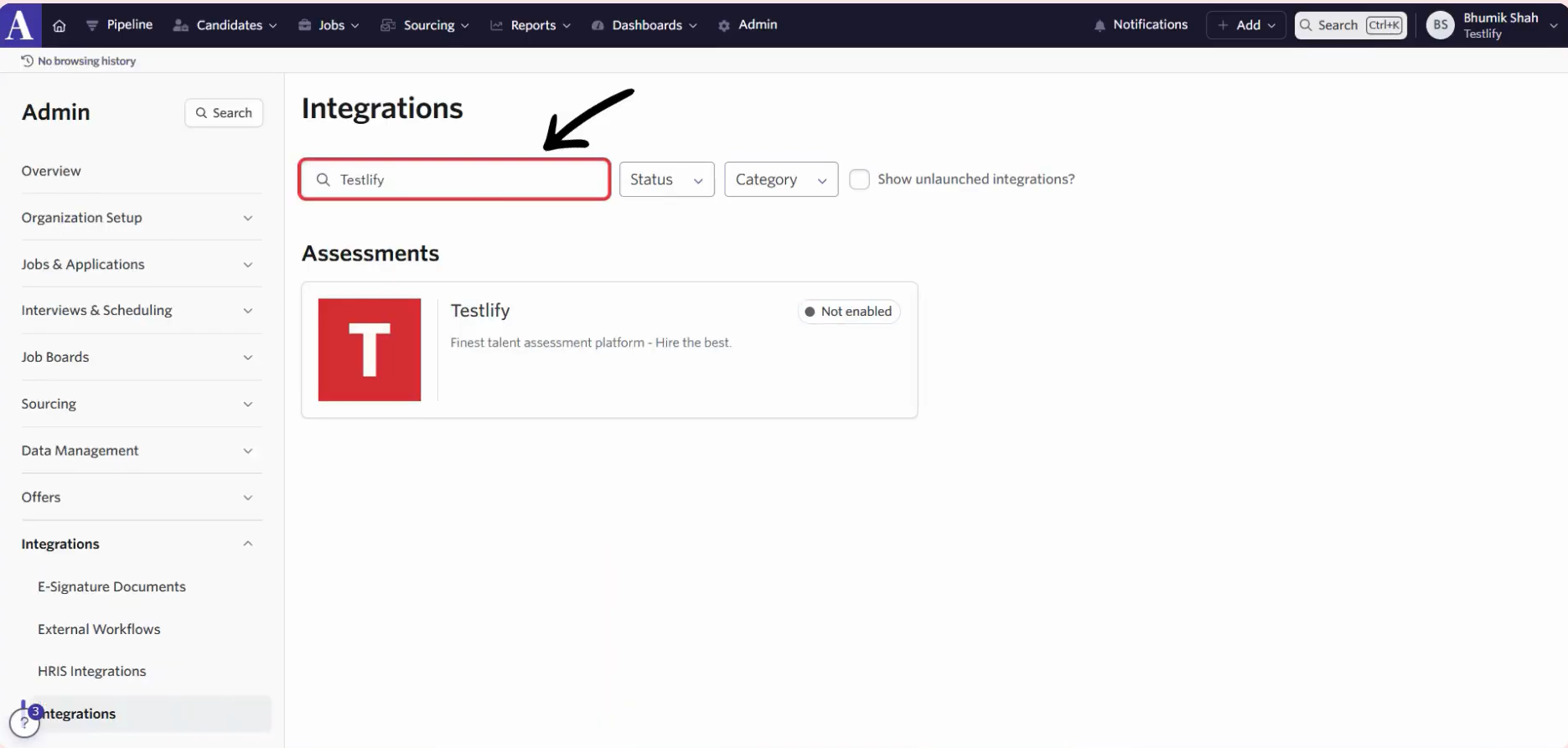
In Ashby, click Admin, then open the Integrations tab and search for Testlify.
-
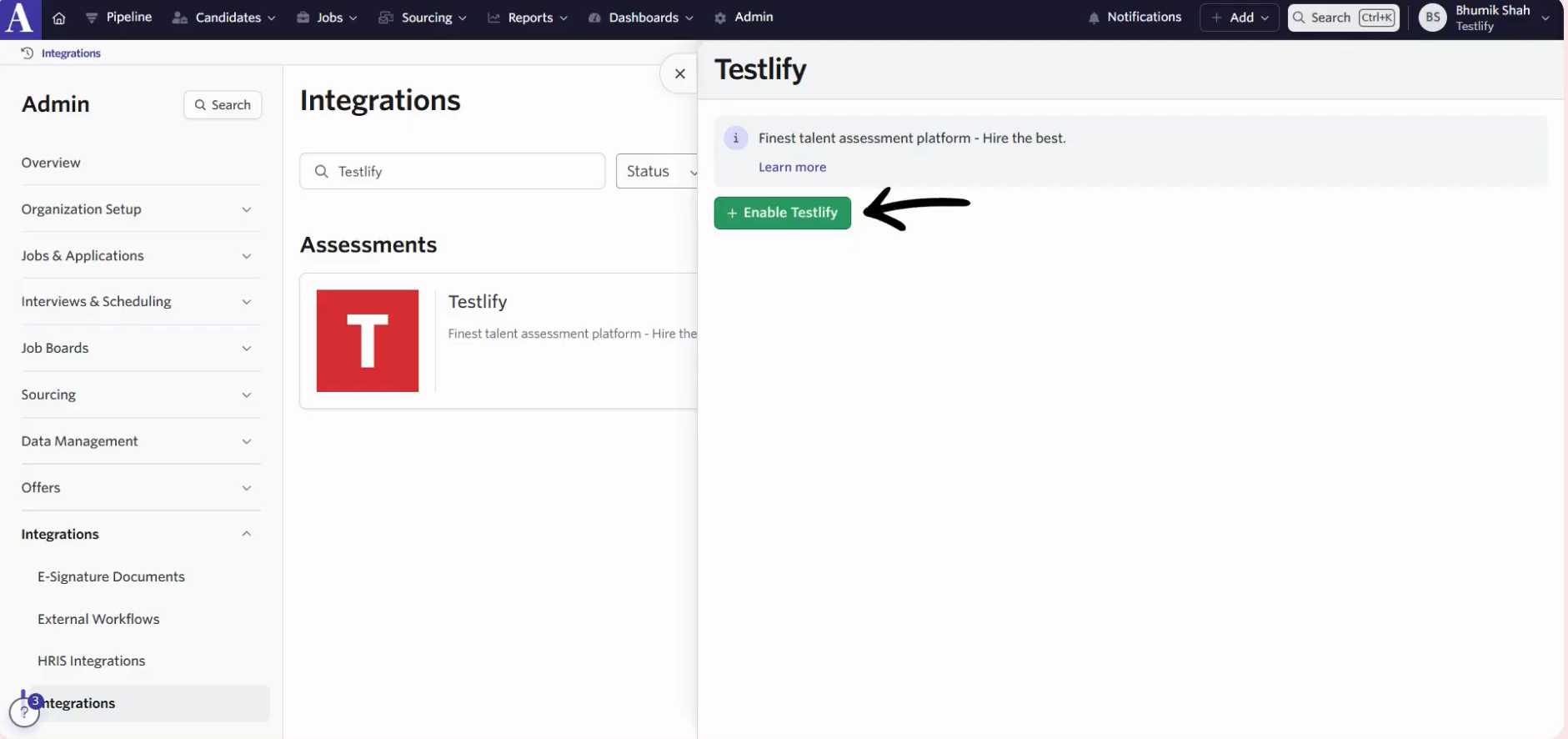
Select Testlify and click Enable Testlify.
-
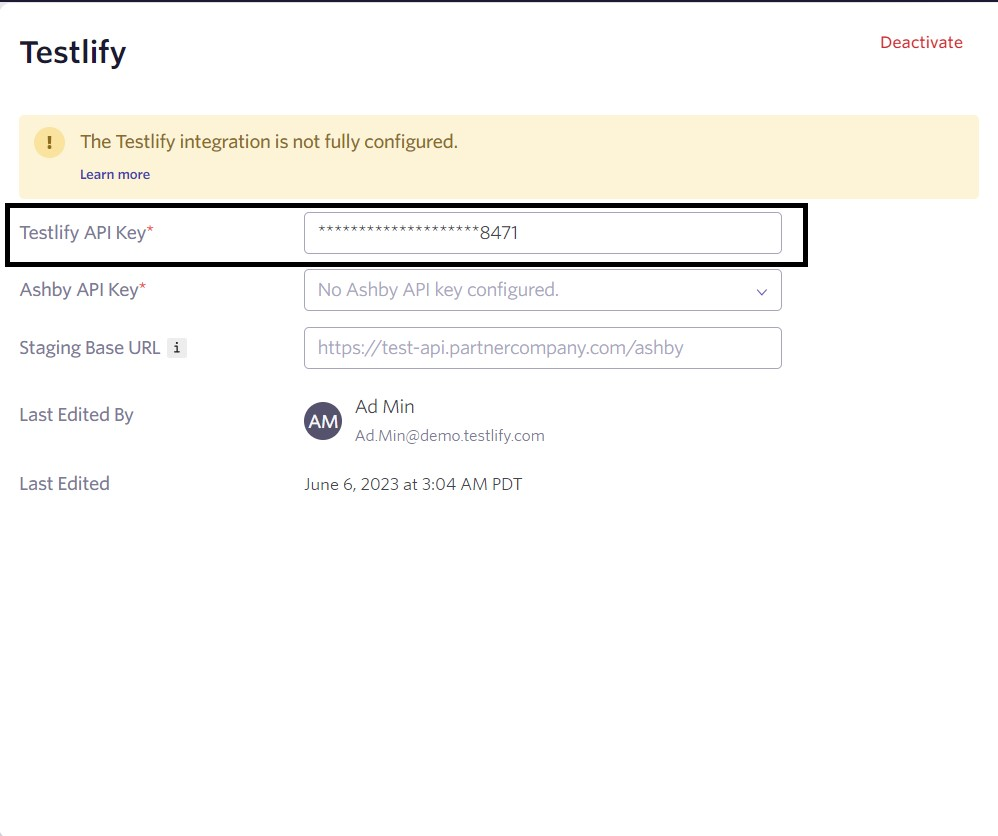
Paste the Testlify API key you copied in Part 1 and click Save.
Part 3: Generate your Ashby API key
-
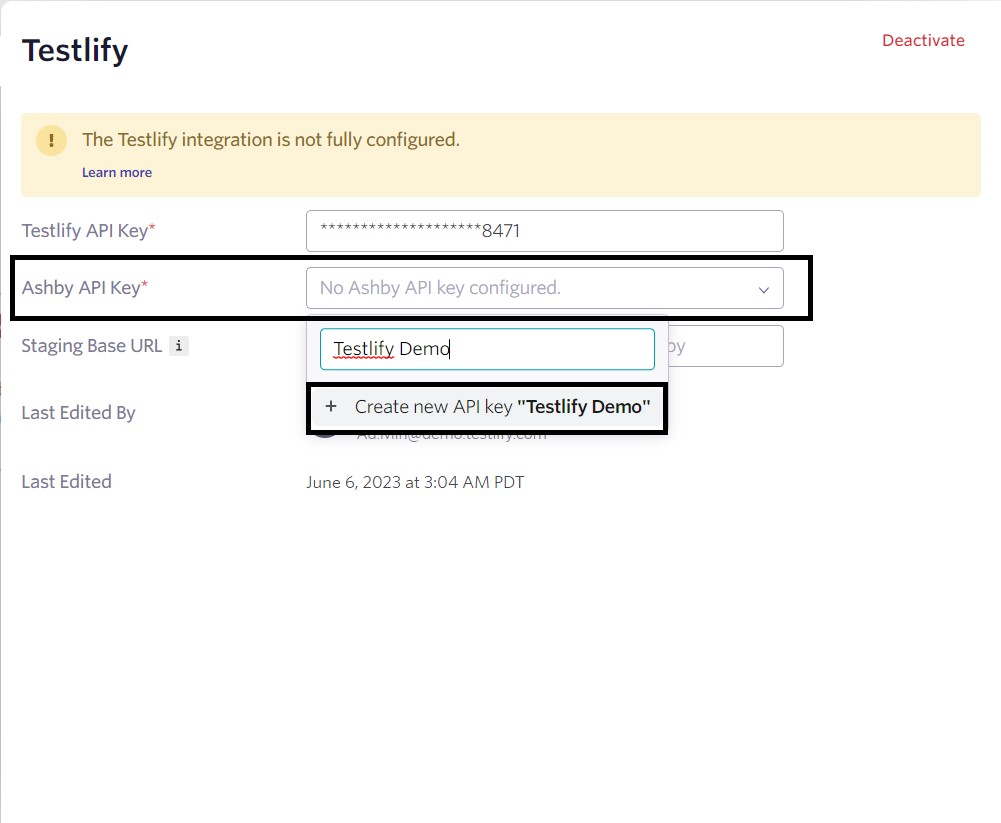
On the same Testlify integration screen in Ashby, click Ashby API Key.
-
Enter a name for the key and click Create New.
-
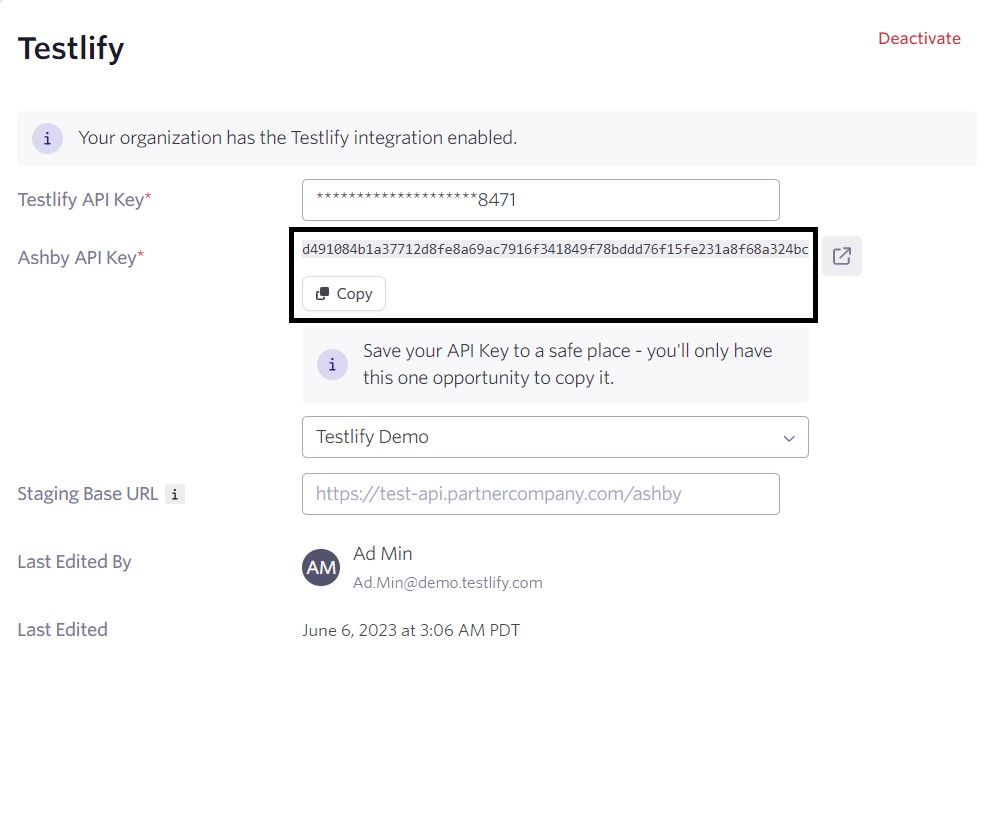
Click Copy to copy the generated Ashby API key — you will paste it in Part 4.
Part 4: Add the Ashby API key in Testlify
-
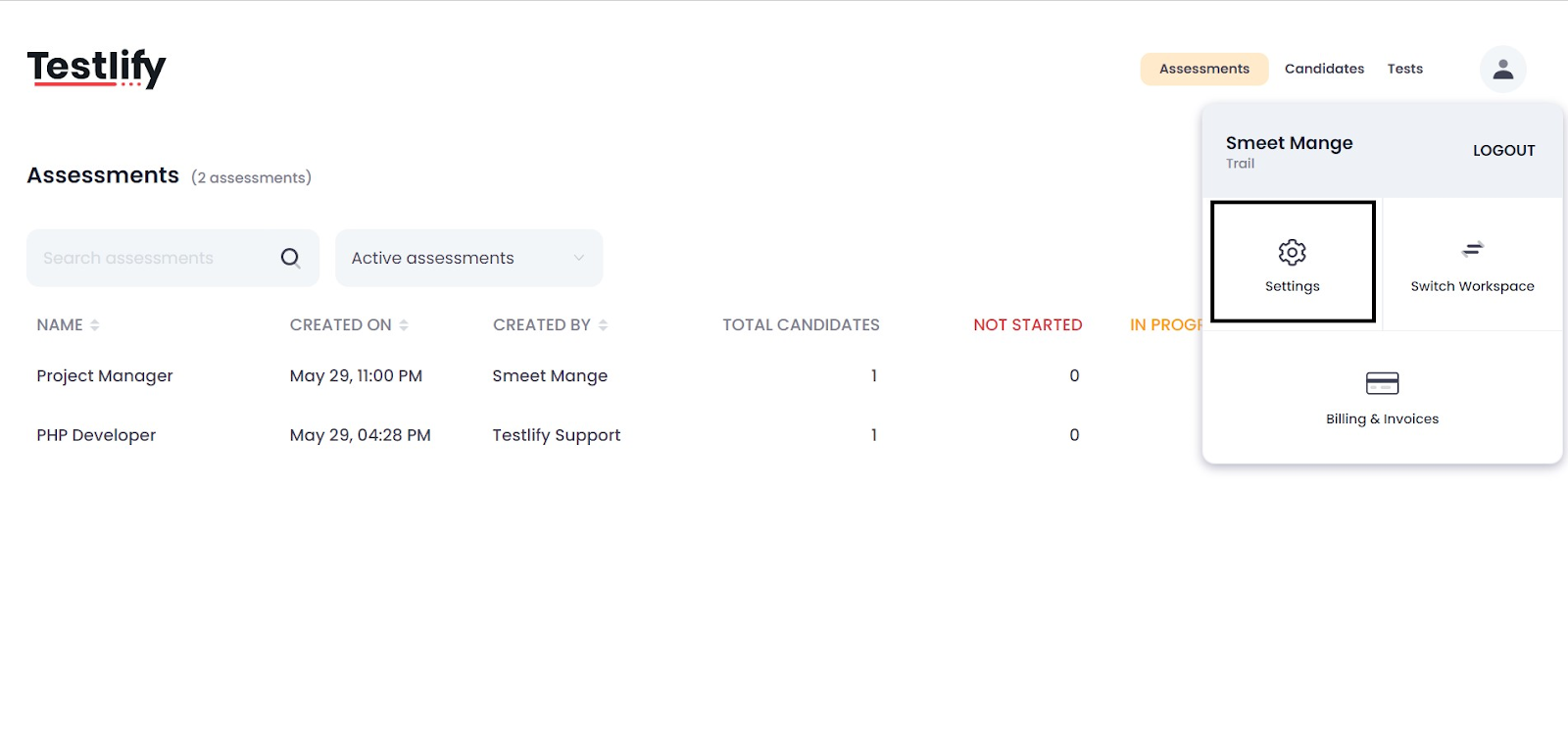
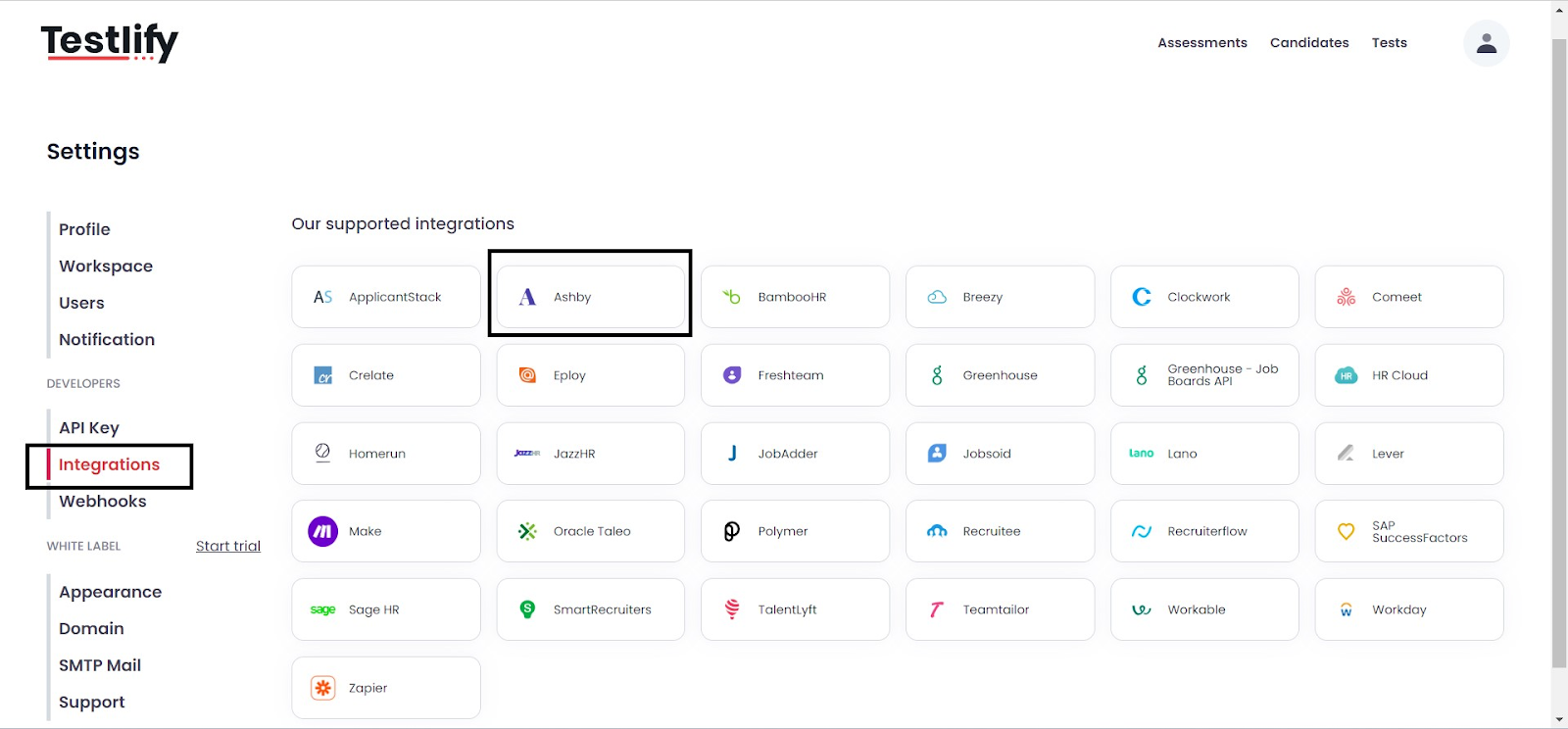
In Testlify, click your Profile icon and go to Settings.
-
Under the Developers tab, click Integrations and select Ashby.
-
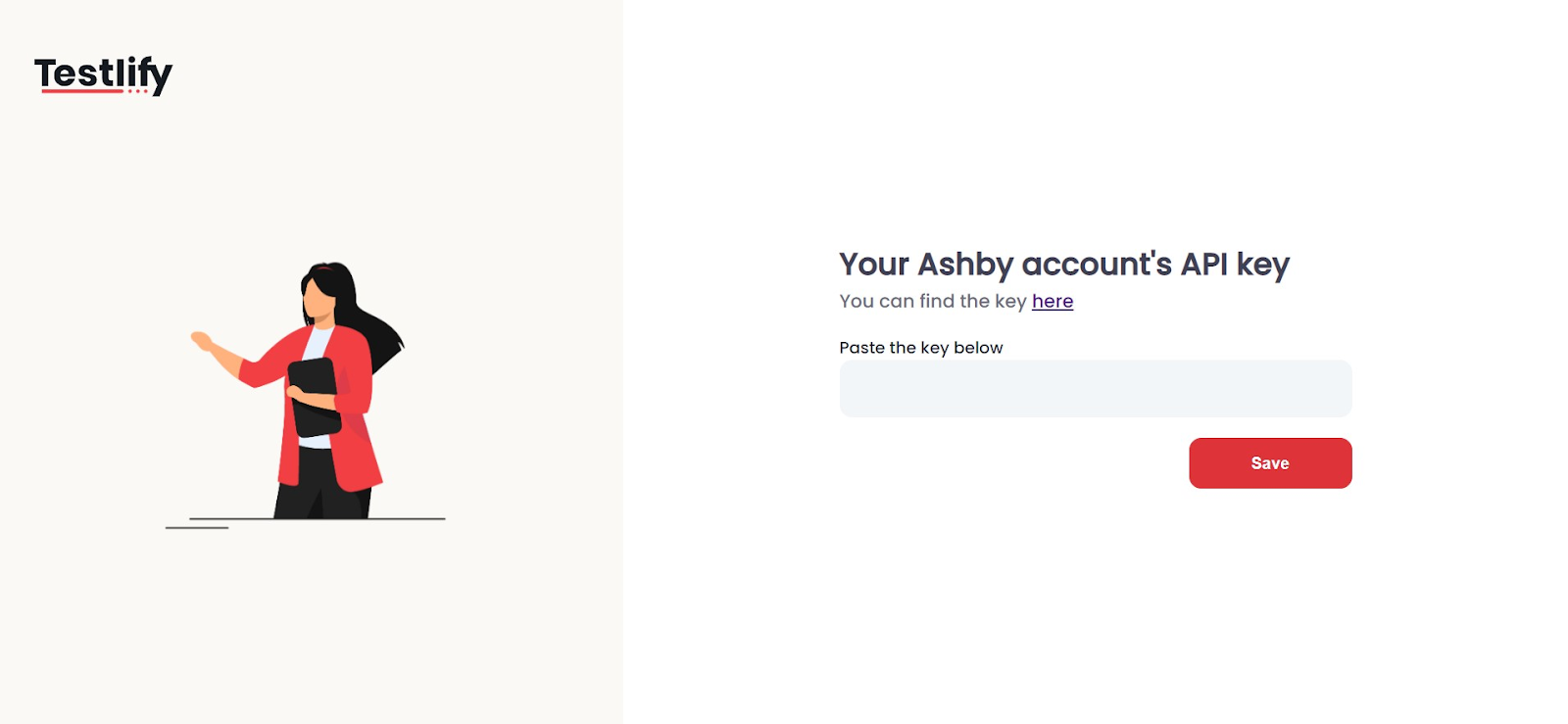
Paste the Ashby API key and click Save.
💡 Tip: To confirm the integration is active, open a candidate profile in Ashby and check that a Send Assessment option appears. If it does not appear, verify that both API keys were saved correctly.
Section 2: Candidate Score Visibility & Filtering in Ashby
Once your assessments and interviews are underway, recruiters can view, sort, and filter candidate review scores in a centralized location within Ashby.
Access Candidate Reviews
To view candidate scores, status tracking, and notes centrally:
- Log in to Ashby.
- Navigate to Sourcing → Candidate Reviews.
This section displays all requested candidate reviews along with critical metadata, including:
- Review status & submission timestamps
- Reviewer & Requester names
-
Candidate scores & review notes
View Candidate Scores
Inside a candidate review request, recruiters can view candidate scores directly alongside feedback and overall status.
- Scoring Scale: Ashby supports scoring candidates on a standard scale from 1 (Strong No) to 4 (Strong Yes).
-
Additional Insights: The review section also supports average score visibility, approved rate tracking, historical candidate feedback, and AI-generated review summaries (if enabled for your organization).
Sort Candidates by Score
To change the order of candidates within a review request:
- Open the specific Candidate Review request.
-
Click the Score column header.
Select your preferred sorting order:
- Score (Ascending or Descending)
-
Candidate Name (A–Z or Z–A)
Filter Candidate Reviews
Recruiters can apply filters to quickly access relevant review requests. Available filtering options include Review Status, Reviewer, Requester, Search by Review Name, and Saved Views.
Steps to Filter Reviews:
- Navigate to Sourcing → Candidate Reviews.
- Click the + Filter button.
- Configure your required filter criteria.
-
(Optional) Click Save as New to save this specific filter configuration for quick access later.
Section 3: Filtering Candidates by Feedback Scores in the Pipeline
If you need to filter candidates based on feedback scores directly across your interview plan stages, you can do so from the main pipeline view.
- Navigate to the Candidate Pipeline (or the pipeline for a specific job).
- Click on the Filters option.
- Look for the Average Overall Recommendation filter. (This filter focuses on the cumulative scores given by interviewers via the Overall Recommendation field on feedback forms).
- Select the desired score range or specific scores to filter the candidates accordingly.
-
The pipeline will automatically update to show only the candidates who meet your specified feedback score criteria.
Need help? Contact Support at support@testlify.com