
Download & Print Actions in the Candidate Shareable Report
Overview
Testlify allows you to control whether users viewing a candidate's shareable report can download the report as a PDF or print it directly. By enabling these settings, you can make it easier for your clients, hiring managers, or internal stakeholders to save, print, or share candidate reports without requiring access to the Testlify workspace.
This feature is especially useful when:
- Sharing candidate reports with clients.
- Providing reports to hiring managers for offline review.
- Keeping printed copies for interviews or documentation.
- Allowing stakeholders to download candidate reports for future reference.
Prerequisites
Before enabling these options, ensure that:
- You have access to your Testlify workspace.
- You have permission to edit the assessment.
- A shareable report is being used for candidate evaluation.
Step-by-Step Guide
Step 1: Log in to Your Testlify Workspace
- Open your web browser.
- Visit app.testlify.com.
- Enter your registered email address.
- Click Continue.
- Enter the One-Time Password (OTP) sent to your email.
- After successful verification, you'll be logged in to your Testlify workspace.
Step 2: Open the Assessment
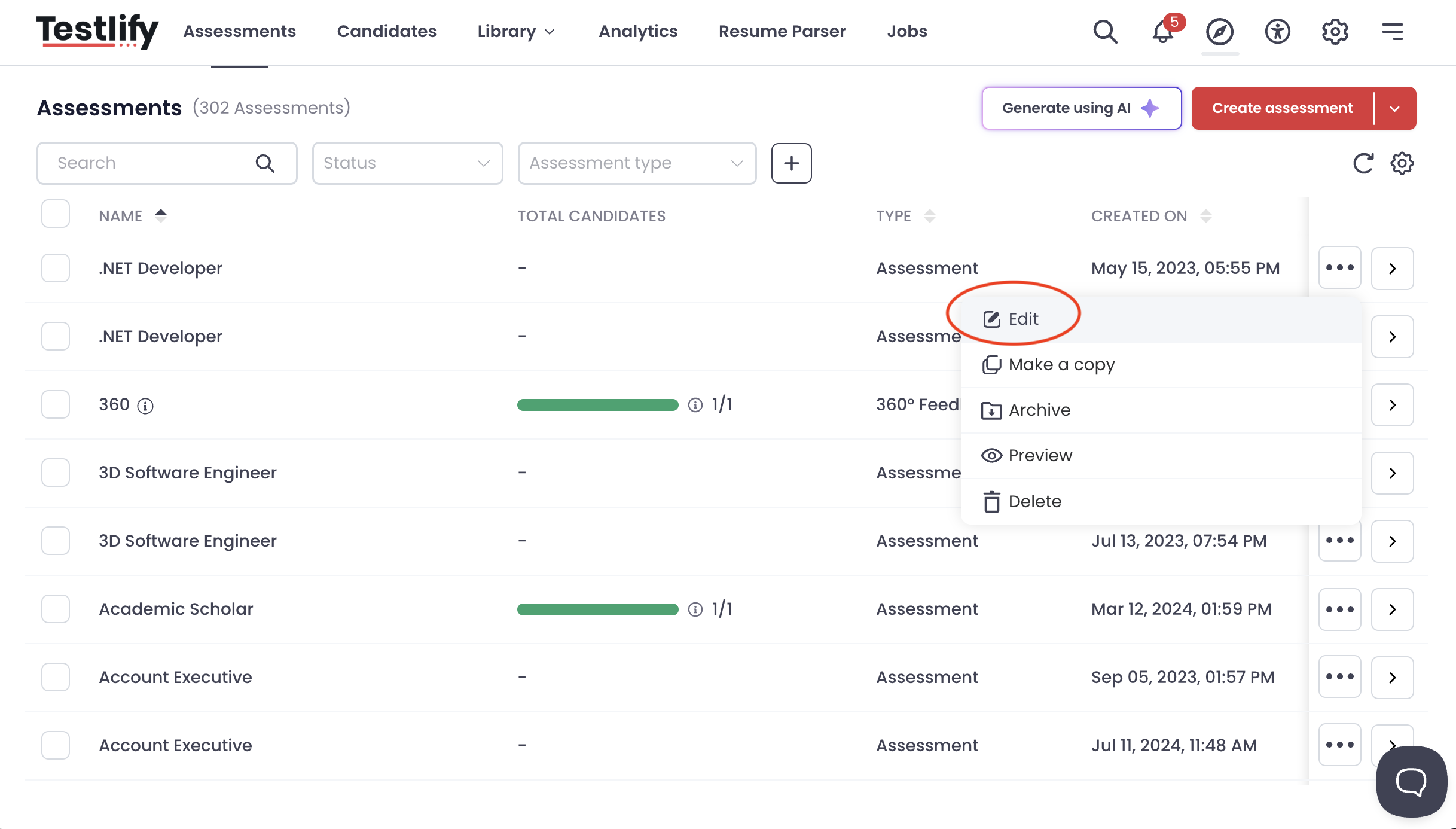
- From your dashboard, navigate to Assessments.
- Locate the assessment for which you want to enable download and print options.
-
Click Edit to open the assessment settings.
Step 3: Navigate to Report Settings
- Inside the assessment editor, click Settings.
- Select the Report tab from the available settings.
This section contains options related to candidate reports and shareable reports.

Step 4: Enable PDF Download and Print Options
Within the Report settings, enable the following options:
- Allow PDF download for shareable report
- Allow print for shareable report
Once enabled, save your assessment settings.

What Happens After Enabling These Settings?
After these options are turned on:
- Anyone with access to the candidate's shareable report link can download the report as a PDF.
- Users can also print the report directly from the shareable page using the Print option.
- This eliminates the need for workspace access when stakeholders only need to review, download, or print candidate reports.
These permissions apply only to the assessment where the settings have been enabled.
Benefits
Enabling PDF download and print options allows you to:
- Share professional candidate reports with clients.
- Let hiring managers save reports for future reference.
- Print reports for interview discussions or offline reviews.
- Simplify collaboration between recruiters, clients, and internal teams.
- Improve the overall report-sharing experience.
Conclusion
The Allow PDF Download and Allow Print settings provide a convenient way to make candidate shareable reports more accessible to your clients and internal teams. Once enabled, users with the shareable report link can easily download the report as a PDF or print it directly without needing to log in to the Testlify workspace.
This feature helps streamline candidate review, improves collaboration, and makes it easier to distribute assessment results across your hiring process.
If you need any assistance or have questions about this feature, please contact our support team at support@testlify.com. We're always happy to help!