How to Set Up Auto Email Notifications for Shortlisted Candidates
Step-by-Step Guide
1. Enable Auto Update Stage
- Select the assessment you wish to configure and click Edit.

-
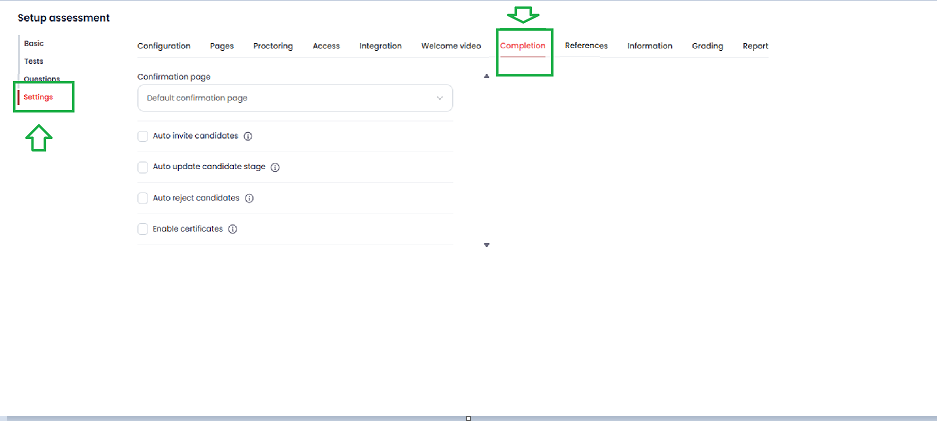
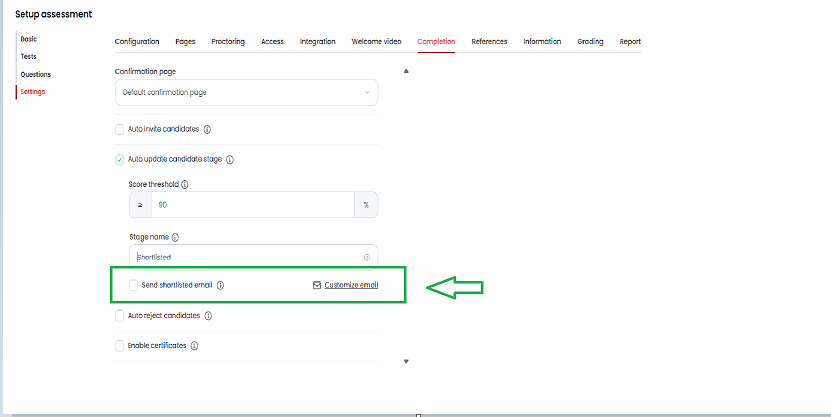
Go to the assessment Settings > Completion tab.
-
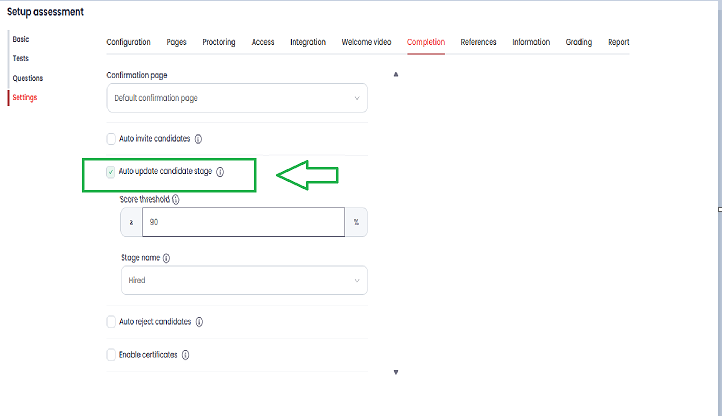
Check the box for Auto update candidate stage.
-
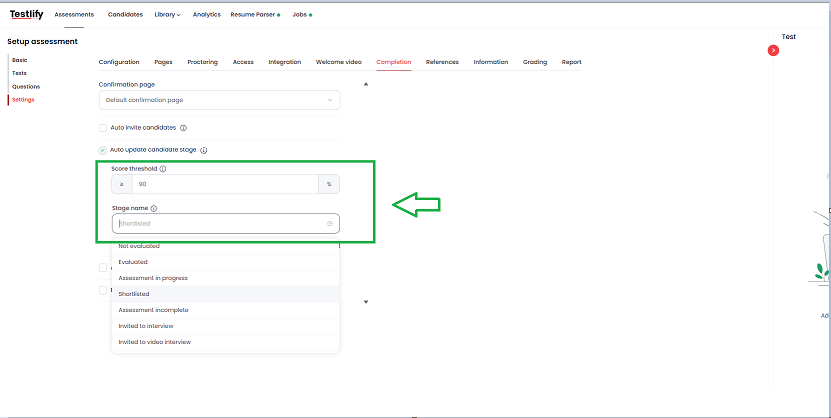
Set your Score threshold (e.g., ≥ 90%) and select Shortlisted from the Stage name dropdown.
-
Once Shortlisted is selected, the Send shortlisted email option will appear.
2. Configure the Shortlisted Email
- Check the box for Send shortlisted email.
- Click the Customize email hyperlink next to the checkbox to open the email editor.
3. Personalize Your Template
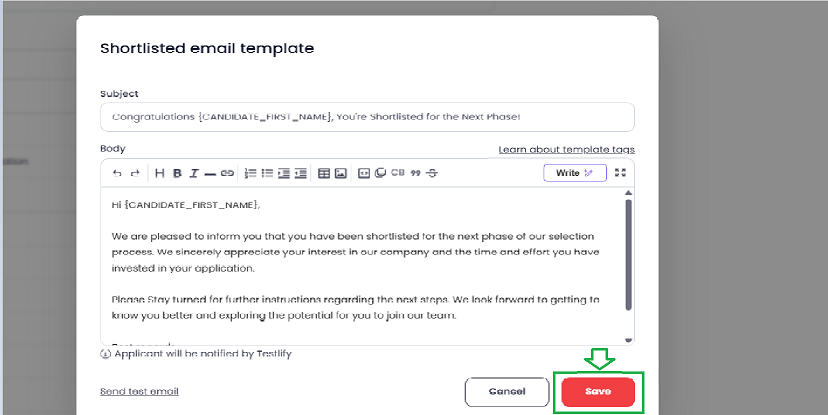
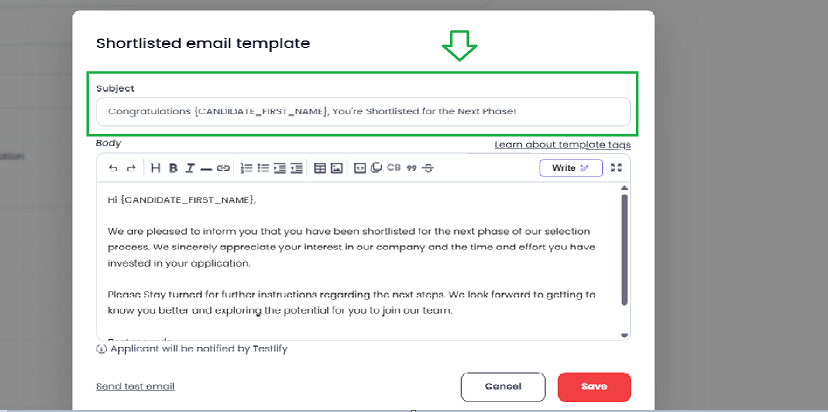
In the Shortlisted email template window, you can:
-
Subject Line: Edit the subject to grab the candidate's attention (e.g., "Congratulations {CANDIDATE_FIRST_NAME}, You're Shortlisted!").
-
Click Save to finalize your template.