
Screenshot Protection (Proctoring Feature)
Overview
Screenshot Attempt Monitoring is a new proctoring feature available under Assessment Settings → Proctoring.
When enabled, the system detects supported screenshot key actions (such as Print Screen /
PrtSc) and automatically blanks the assessment screen at the moment of capture. As a
result, any screenshot taken using these shortcuts will contain a blank or covered screen
instead of assessment content. This feature helps prevent candidates from taking screenshots during an assessment by actively monitoring screenshot attempts, blocking it and warning candidates that screenshots are prohibited.
What does this feature do?
When enabled:
- The system detects screenshot attempts made by the candidate and block it during the assessment.
- A warning message is displayed to the candidate indicating that taking screenshots is not allowed.
-
This helps protect the confidentiality and integrity of assessment content.
Note: This feature is designed as a deterrent and monitoring mechanism to discourage unfair practices.
How to enable Screenshot Attempt Monitoring
- Go to your Assessment.
- Click on Settings.
- Navigate to the Proctoring tab.
- Enable Screenshot Attempt Monitoring.
-
Save the assessment settings.
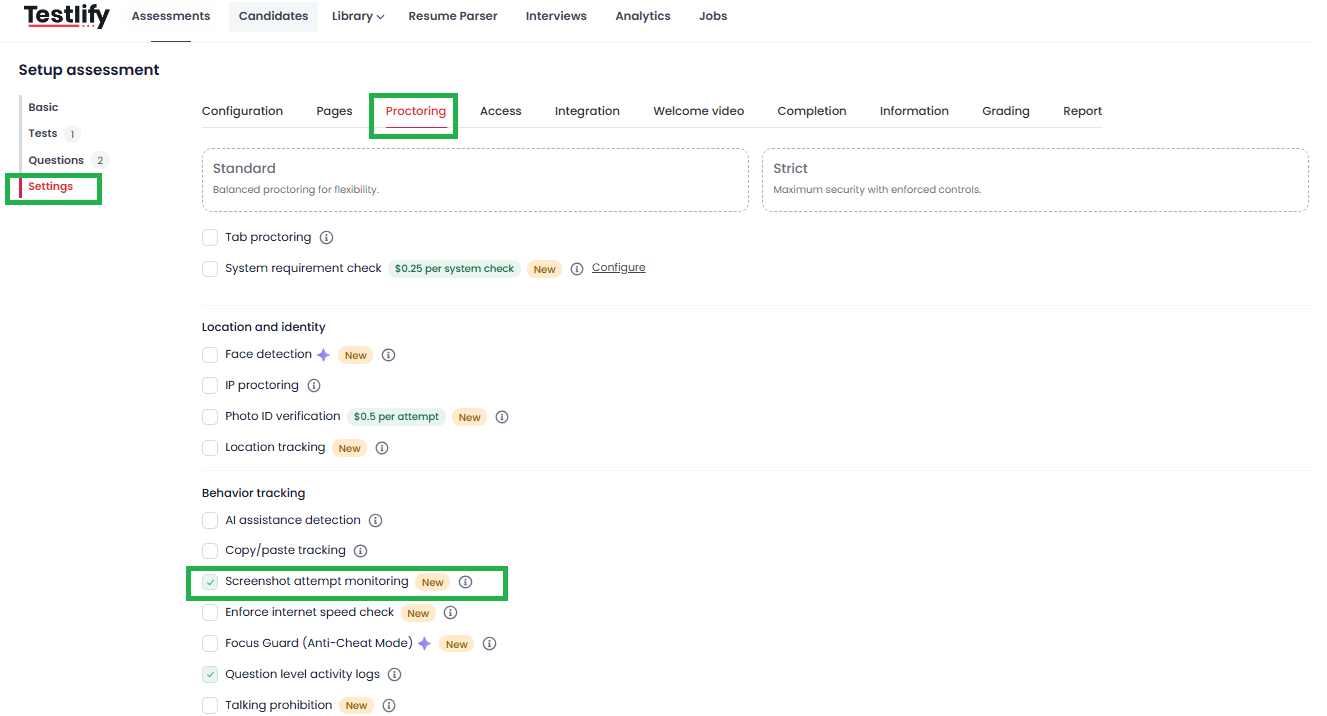
Once enabled, the feature will apply to all candidates attempting that assessment.
Candidate Experience
- If a candidate tries to take a screenshot during the test, they will see a message stating that screen capture detected. It won't allow candidates to take the screenshot.
- The assessment continues, but the action is monitored as part of proctoring.

When should you use this feature?
We recommend enabling Screenshot Attempt Monitoring when:
- The assessment contains confidential or proprietary questions
- You want to discourage content sharing
-
You are running high-stakes or proctored assessments
Important Notes
- Screenshot Attempt Monitoring works best when used alongside other proctoring features such as Tab Proctoring, Copy-Paste Tracking, and Snapshot Proctoring.
- The feature can be turned on or off at any time from the assessment settings.