
How to Use the Country Restriction Feature to Limit Assessment Access
The Country Restriction feature lets you control which countries can access your assessments. Choose Allowed mode to permit candidates only from specific countries, or Disallowed mode to block candidates from specific countries. All other candidates are handled accordingly. Access is verified via the candidate's IP address at the moment they open the assessment link, making this ideal for roles with geographic hiring requirements.
Before you begin
- You must have admin or assessment editor access in your Testlify workspace.
- The assessment must already be created and open in Edit mode.
- Decide in advance whether you want to use Allowed mode (whitelist) or Disallowed mode (blocklist), since only one can be active at a time.
Set up country restrictions
-
Log in to your workspace.
Go to app.testlify.com, enter your email address, and verify with the OTP sent to your inbox.
-
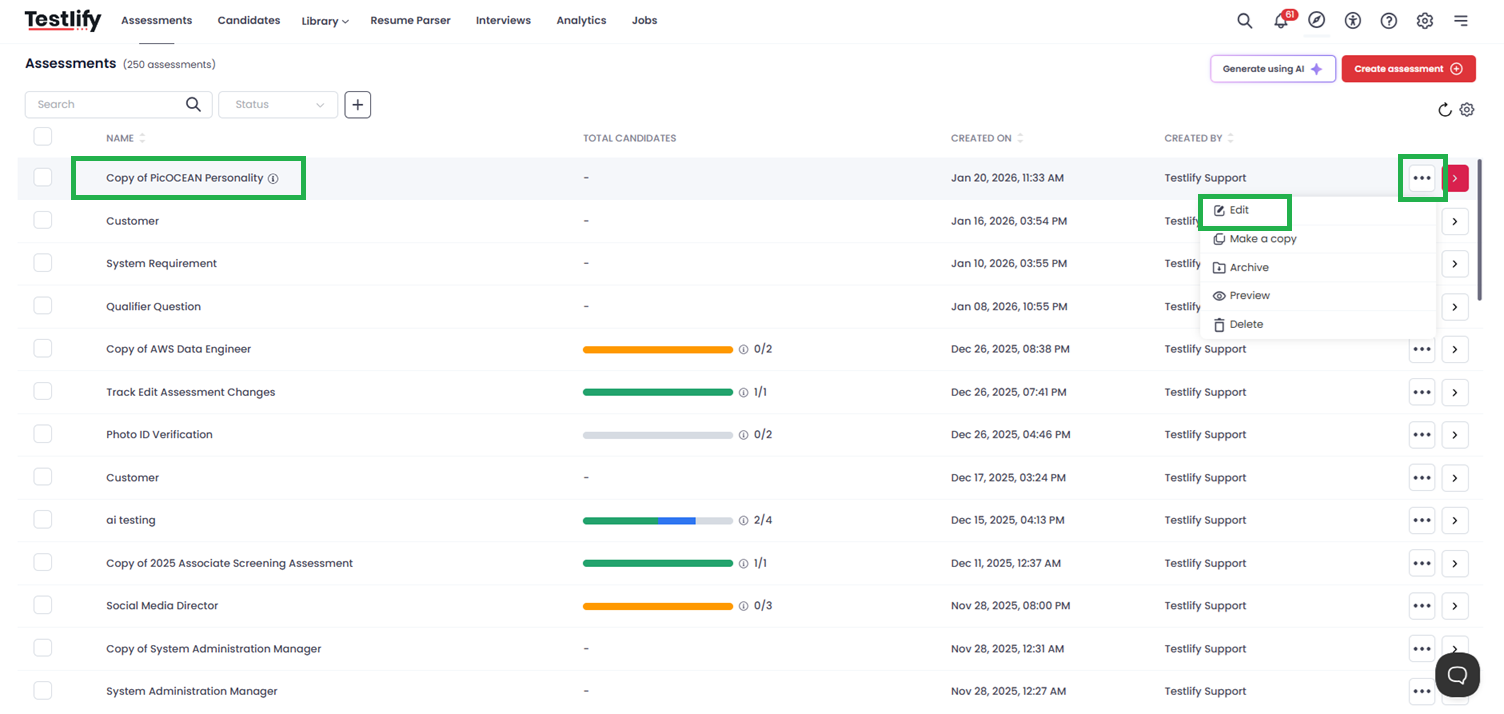
Open the assessment.
From your dashboard, select the assessment for which you want to configure country restrictions, then click Edit.
-
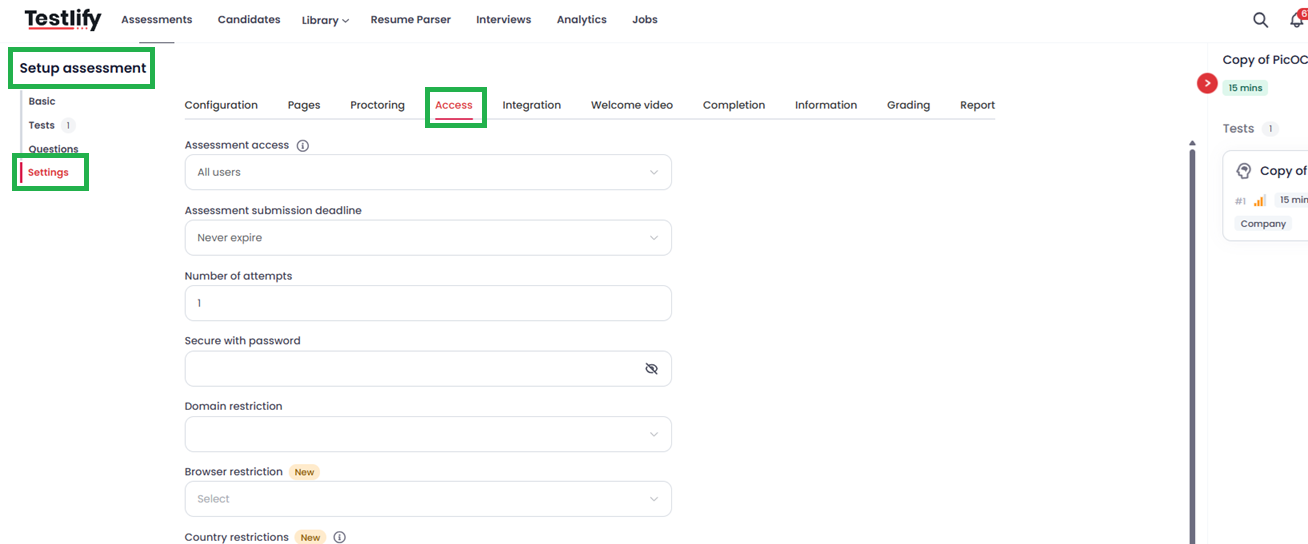
Go to Settings > Access.
Inside the assessment editor, click Settings in the left menu, then select Access.
-
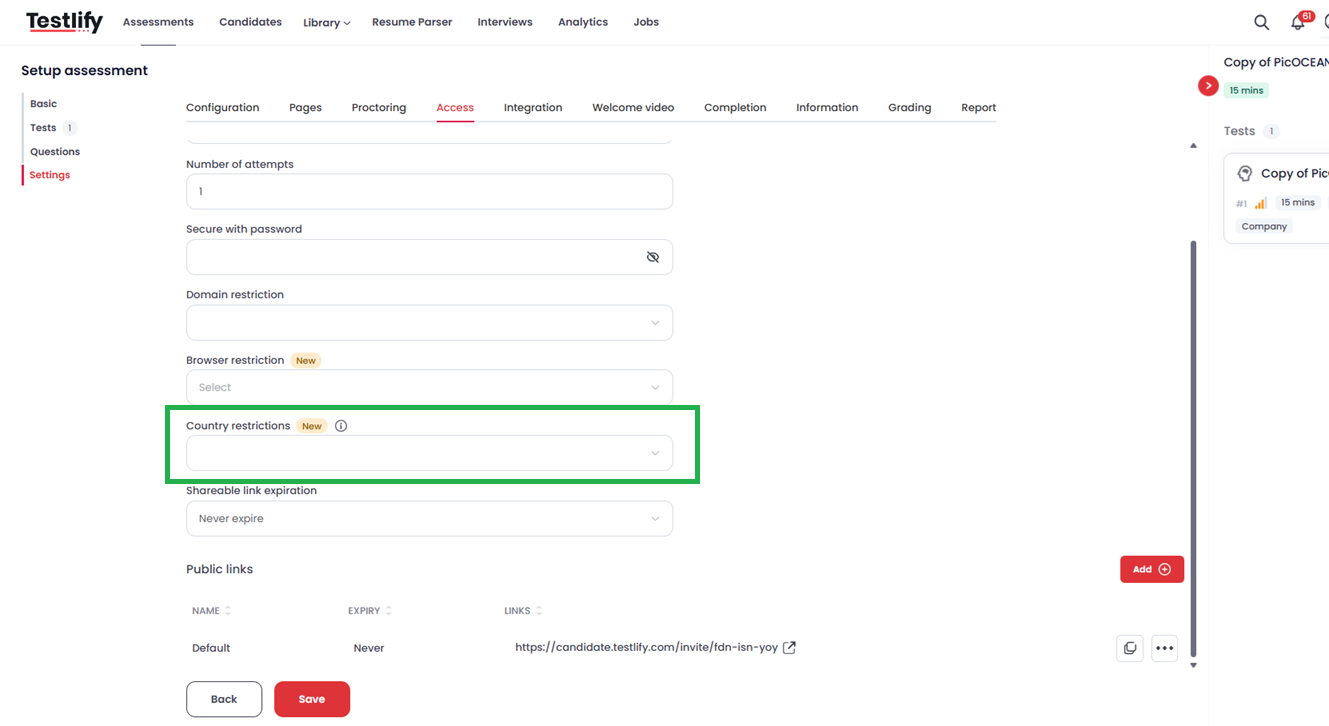
Find the Country Restriction option.
Under the Access settings, scroll or search for Country Restriction.
-
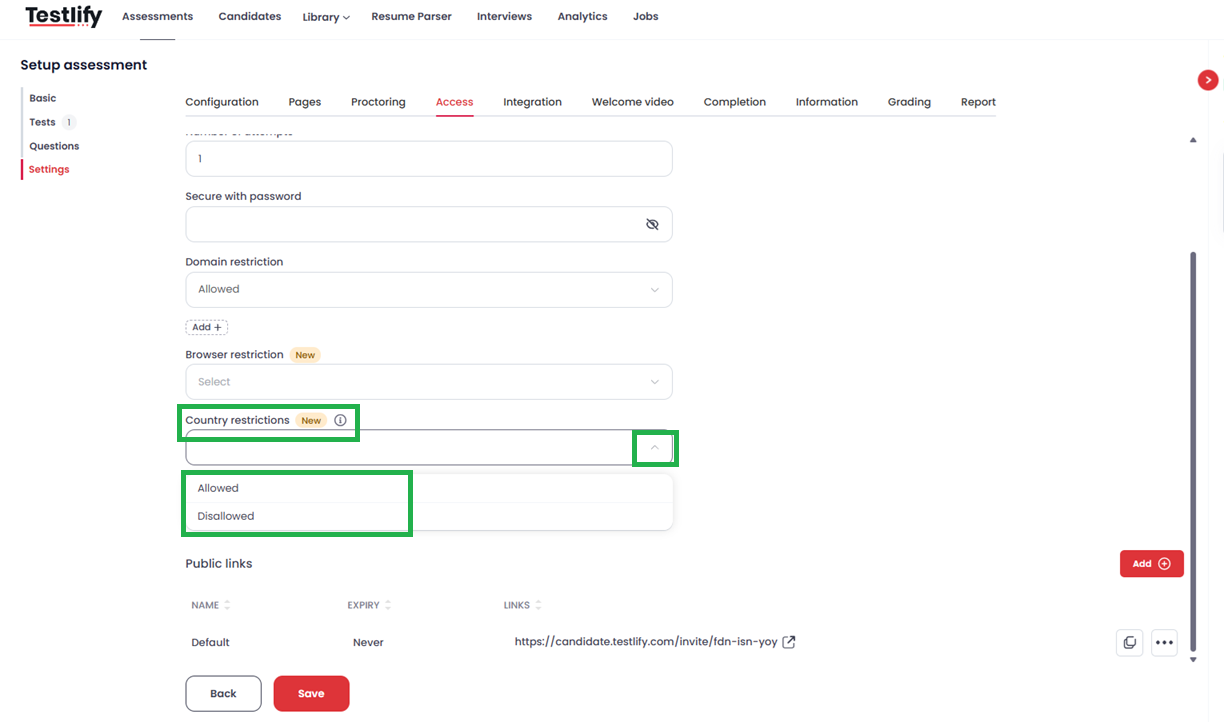
Select a restriction mode.
- Choose Allowed from the dropdown to specify which countries can access the assessment.
- Choose Disallowed from the dropdown to specify which countries cannot access the assessment.
Note: You can only use one mode at a time — either Allowed or Disallowed.
-
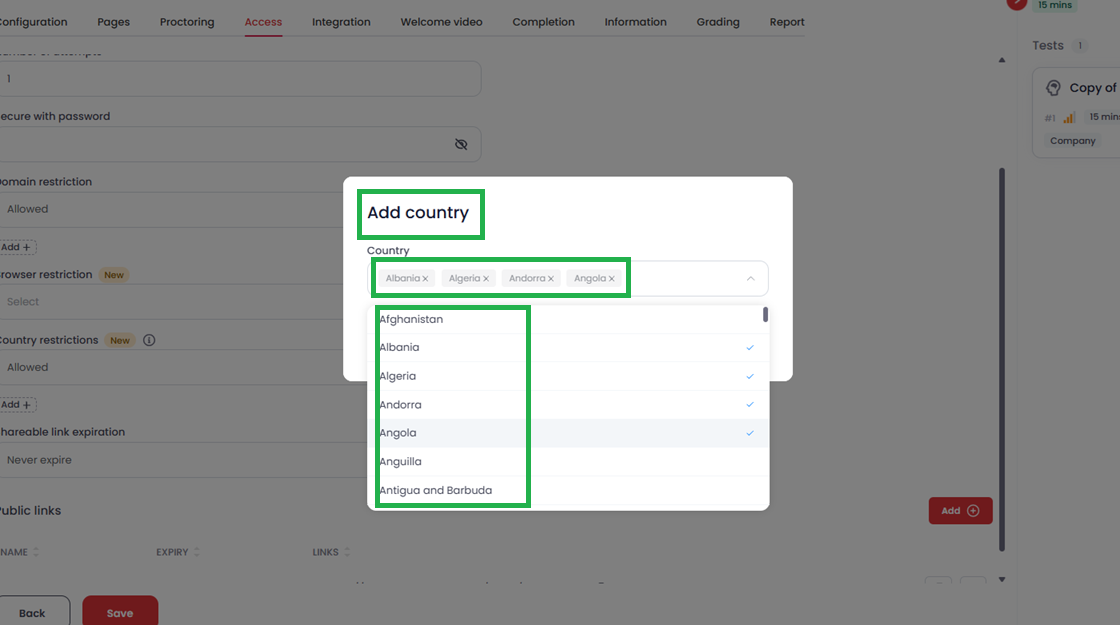
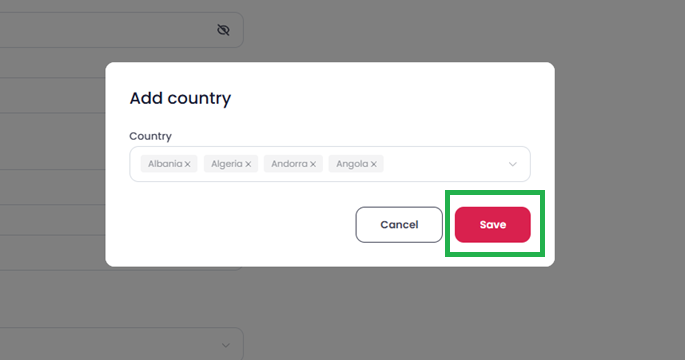
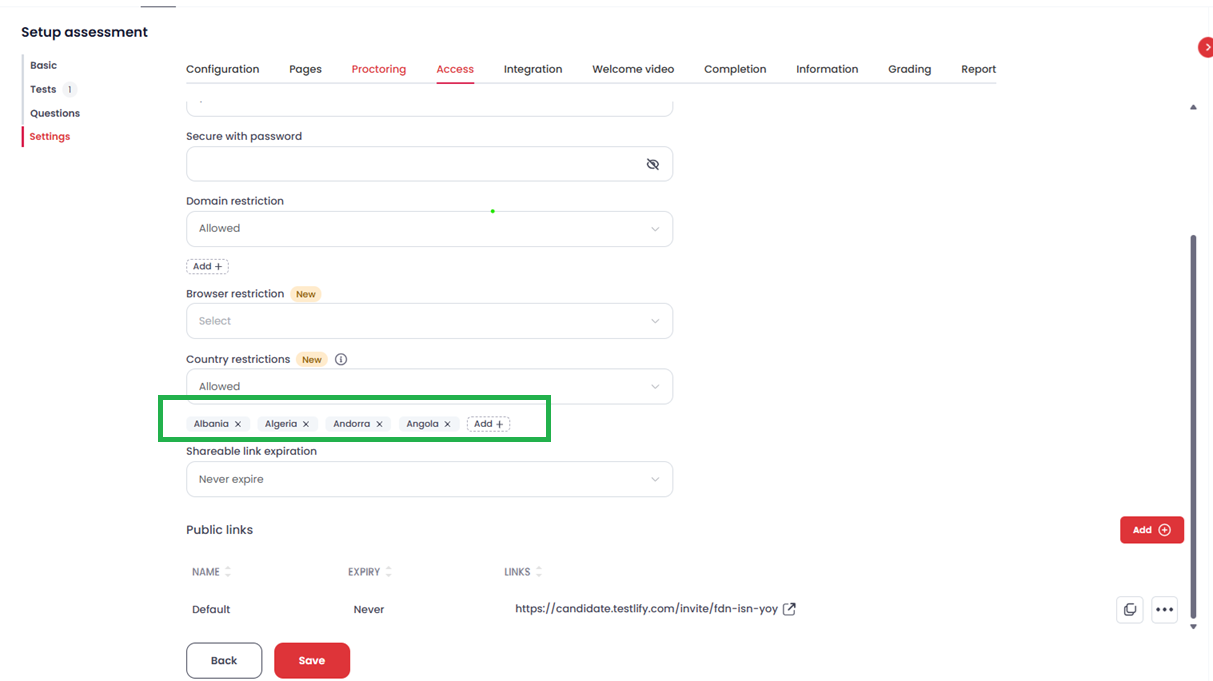
Add countries.
- Allowed mode: Use the search or multi-select box to add countries whose candidates are permitted to take the assessment. Candidates from all other countries will be blocked.
- Disallowed mode: Use the search or multi-select box to add countries whose candidates are not permitted to take the assessment. Candidates from all other countries can proceed.
Tip: Detection is IP-based. Candidates using a VPN may appear to be located in the VPN server's country rather than their actual country, which could allow or block them unexpectedly.
-
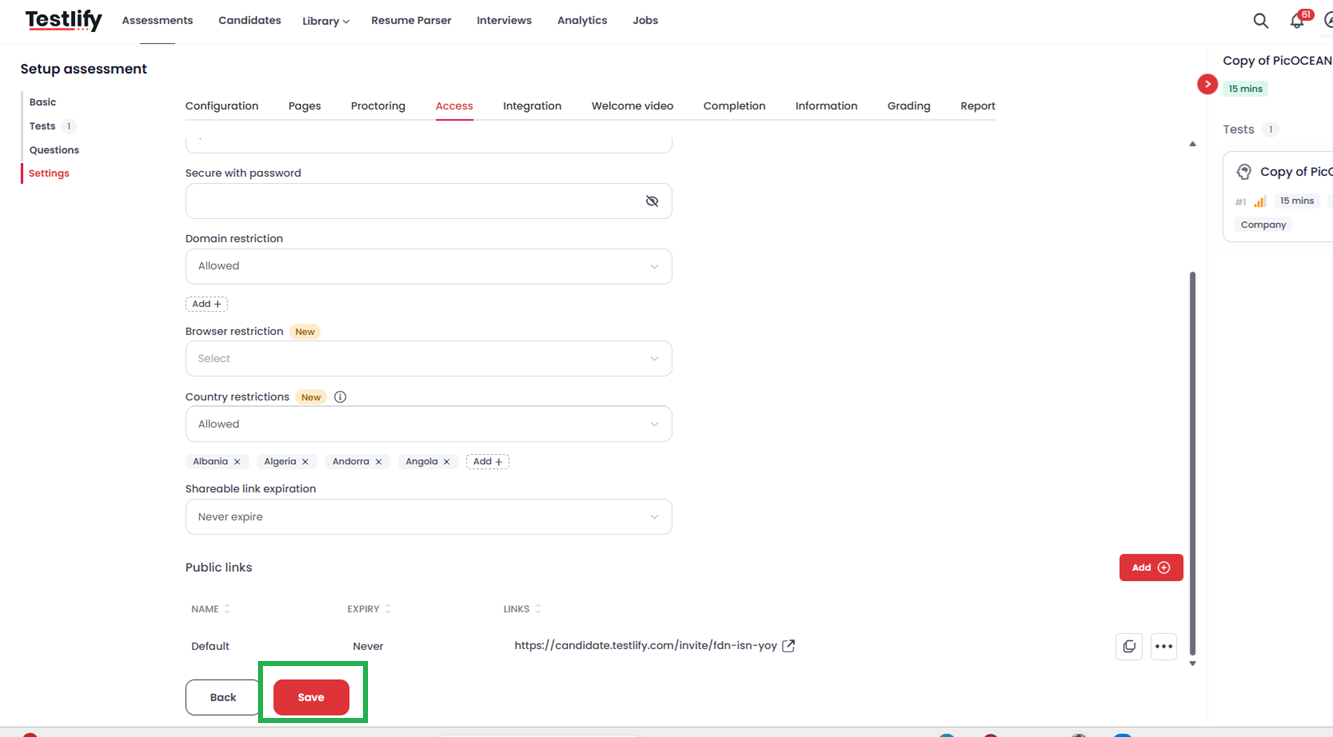
Save your changes.
Once you have configured the country restrictions, click Save Assessment to apply the settings.
What candidates see
- Allowed mode: Only candidates from your selected countries can proceed. Candidates from all other countries see an Access Unavailable page and cannot start the assessment.
- Disallowed mode: Candidates from your selected countries see an Access Unavailable page. All other candidates can proceed normally.

Frequently asked questions
Can I use both Allowed and Disallowed modes at the same time?
No. Each assessment supports only one restriction mode at a time. You must choose either Allowed or Disallowed.
What happens if I choose Allowed mode but don't add any countries?
No candidates can access the assessment from any location. Always add at least one country when using Allowed mode.
What happens if I choose Disallowed mode but don't add any countries?
All candidates from all locations can access the assessment — the restriction has no effect until you add countries.
How does the system detect a candidate's country?
The candidate's IP address is checked at the moment they click the assessment link. This detection happens automatically with no action required from the candidate.
Can I update the mode or country list after saving?
Yes. You can change the restriction mode and country selections at any time. Updates take effect immediately for new access attempts.
Will blocked candidates know why they cannot access the assessment?
Yes. They see a clear message indicating the assessment is unavailable in their location.
Does the system support VPN detection?
No. Detection is IP-based only. Candidates using a VPN may appear to be in the VPN server's country, not their actual location.
Need help? Contact support.