
Download Changelog Feature for Tracking Assessment Changes
The Download Changelog feature enables employers to track and review all changes made to an assessment, providing an audit trail of the edits made to the test. This feature captures every modification, including changes to the settings, added questions, and any other adjustments, with timestamps for each activity.
How to Use the Download Changelog Feature:
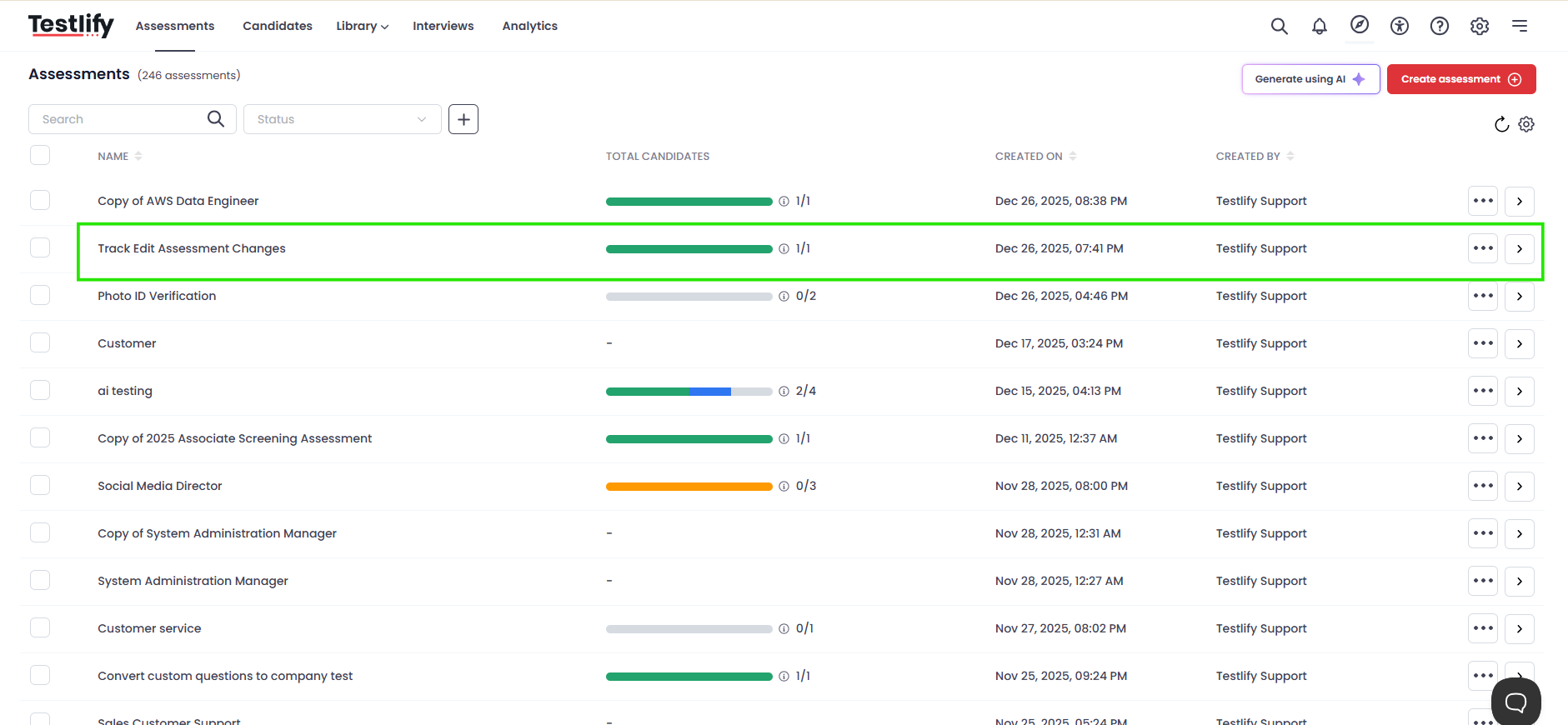
- Access the Assessment:
- Navigate to the assessment for which you want to track changes. Go to the Assessments section of your dashboard.
-
- Initiate the Download:
- Locate the assessment you wish to track (e.g., Track Edit Assessment Changes).
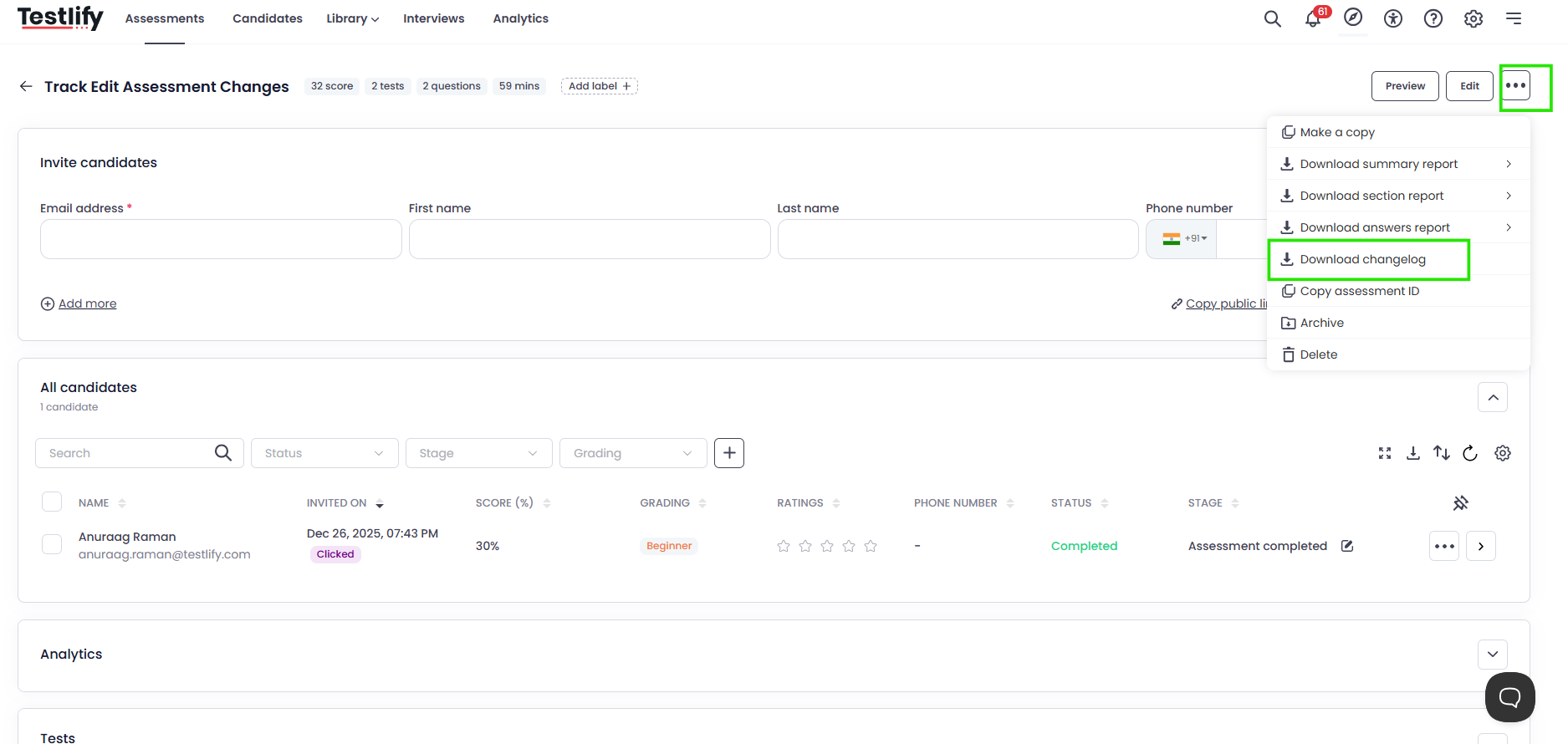
- Click the three dots next to the assessment, and select Download Changelog from the dropdown menu.
-
- Download the Changelog:
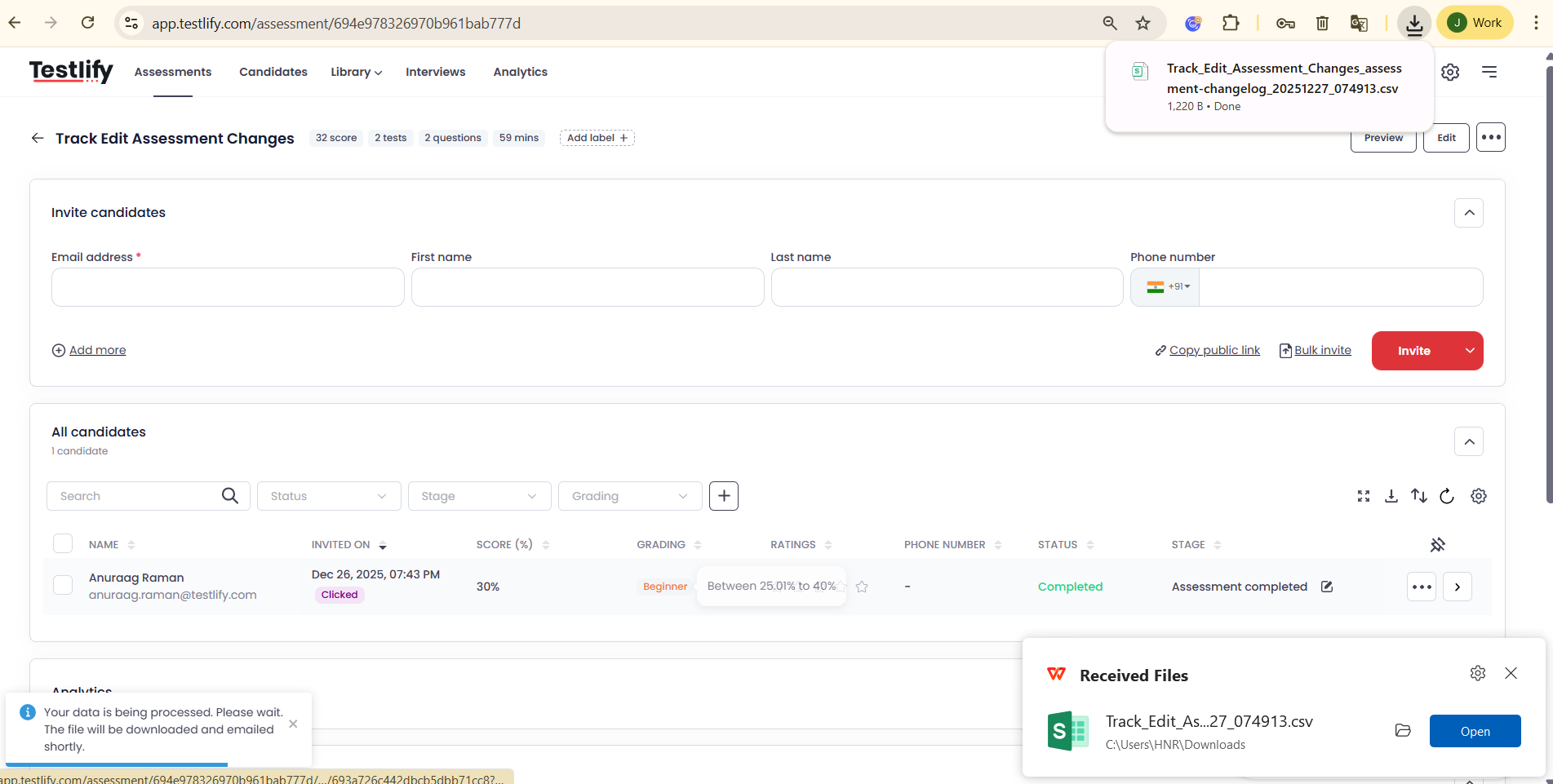
- The changelog will automatically download onto your device as a CSV file. This file contains a detailed list of all changes made to the assessment.
- Open the file to view the changelog.
-
- View the Details:
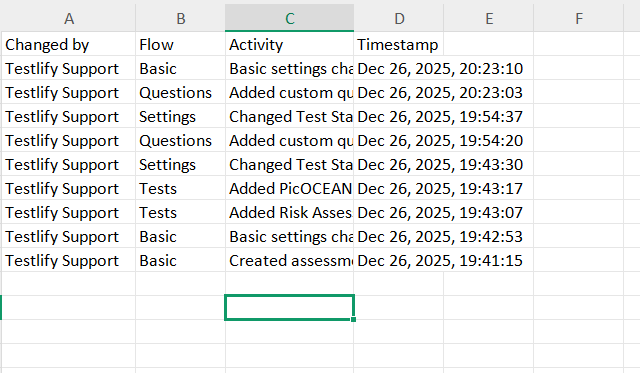
- The changelog includes the following information:
- Changed By: Who made the change (e.g., Testlify Support).
- Flow: The section of the assessment affected (e.g., Basic, Settings, Questions).
- Activity: A brief description of the change made (e.g., "Added custom question").
-
Timestamp: The exact time the change was made.
Example of the CSV file content:
-
- The changelog includes the following information:
- Changed By | Flow | Activity | Timestamp
- Testlify Support | Basic | Basic settings changed | Dec 26, 2025, 20:23:10
- Testlify Support | Questions | Added custom question | Dec 26, 2025, 20:23:03
- Testlify Support | Settings | Changed Test Status | Dec 26, 2025, 19:54:37
- Review and Audit:
- Use the downloaded changelog to ensure that all changes are correctly implemented and track the modification history. This can be especially useful for audits or reviews of the assessment process.
Benefits of Using the Download Changelog Feature:
- Track Edits: Provides a clear audit trail of all modifications made to your assessments.
- Transparency: Helps maintain transparency in the assessment process by logging who made changes and when.
- Accountability: Increases accountability for those managing and modifying assessments.
- Efficient Review: Makes it easier to review changes and ensure assessments are aligned with your needs.
FAQs:
- How can I access the changelog?
- You can access the changelog by clicking the three dots next to your assessment and selecting Download Changelog.
- What information does the changelog contain?
- The changelog includes the user who made the change, the section of the assessment modified, a description of the activity, and the timestamp of when the change was made.
- Can I download multiple changelogs at once?
- Currently, you can only download the changelog for individual assessments. You’ll need to download them separately for each assessment.