
Factorial Integration
How to Integrate Factorial ATS with Testlify
Overview
This article explains how to integrate Factorial ATS with Testlify. The integration happens in two levels:
- Workspace-level integration
-
Assessment-level integration
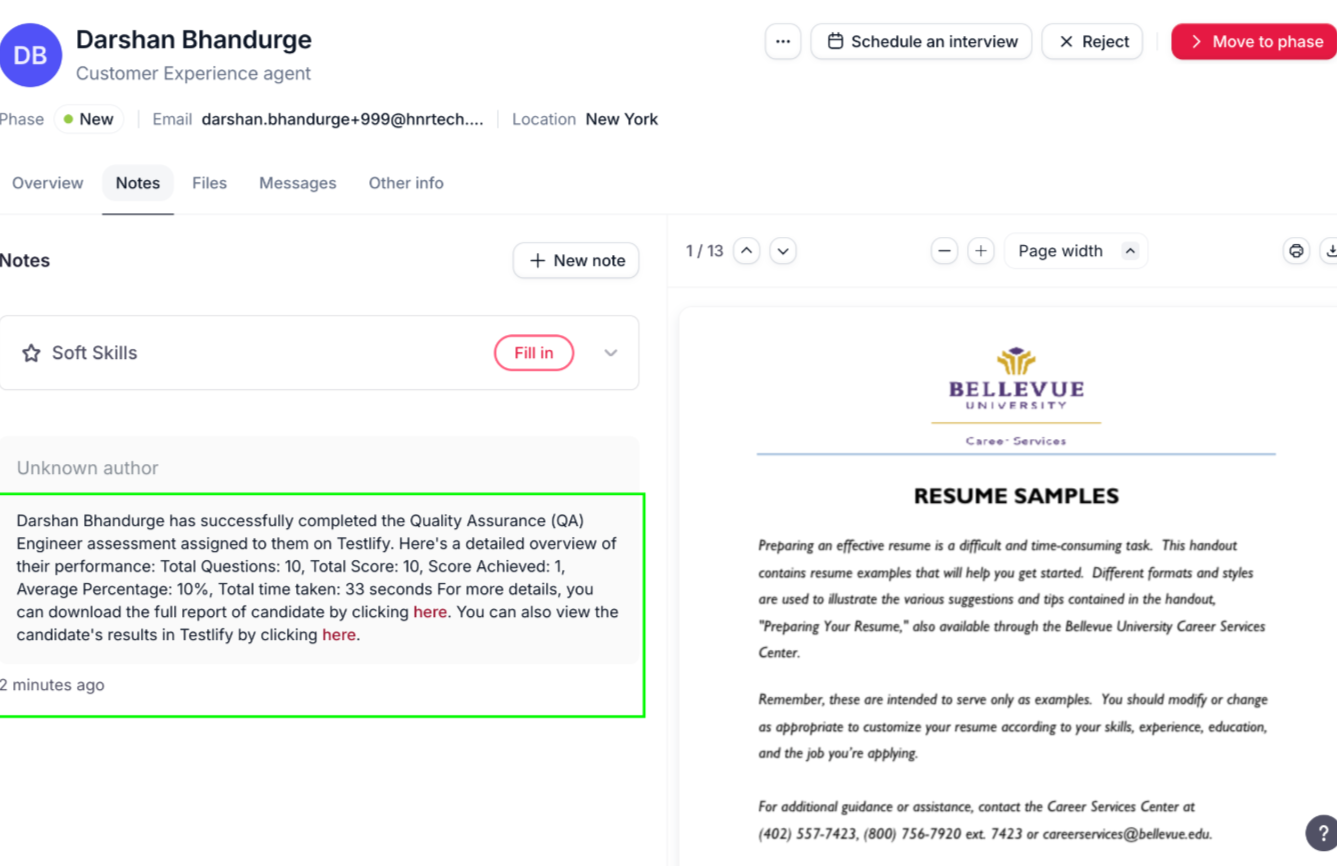
Once configured, candidates who apply through Factorial will automatically receive Testlify assessments, and their scores will appear in the Notes section of Factorial.Step 1: Factorial Integration at Workspace Level
-
Log in to your Testlify account
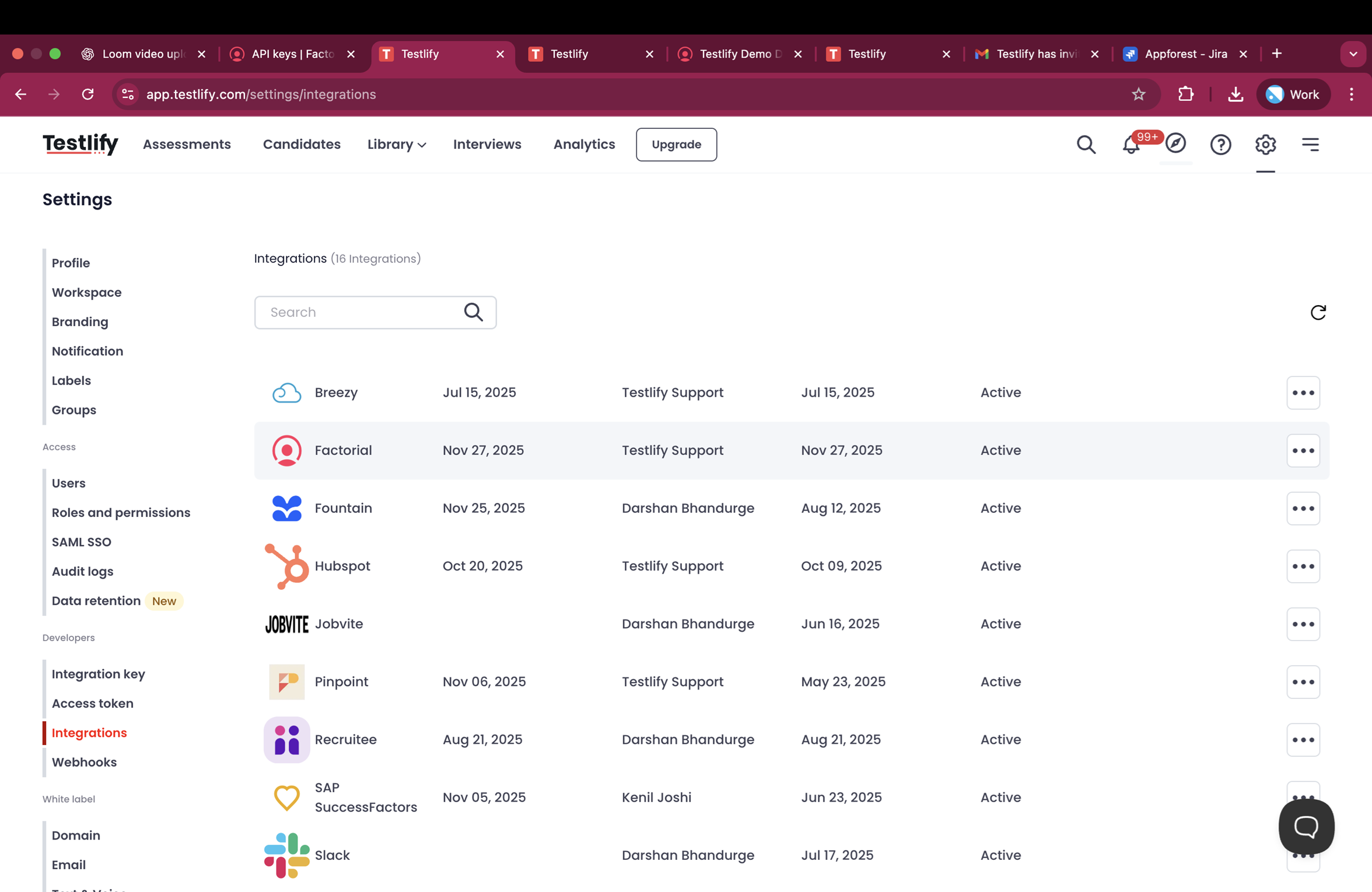
- Go to Settings → Integration Module
-
Search for Factorial ATS
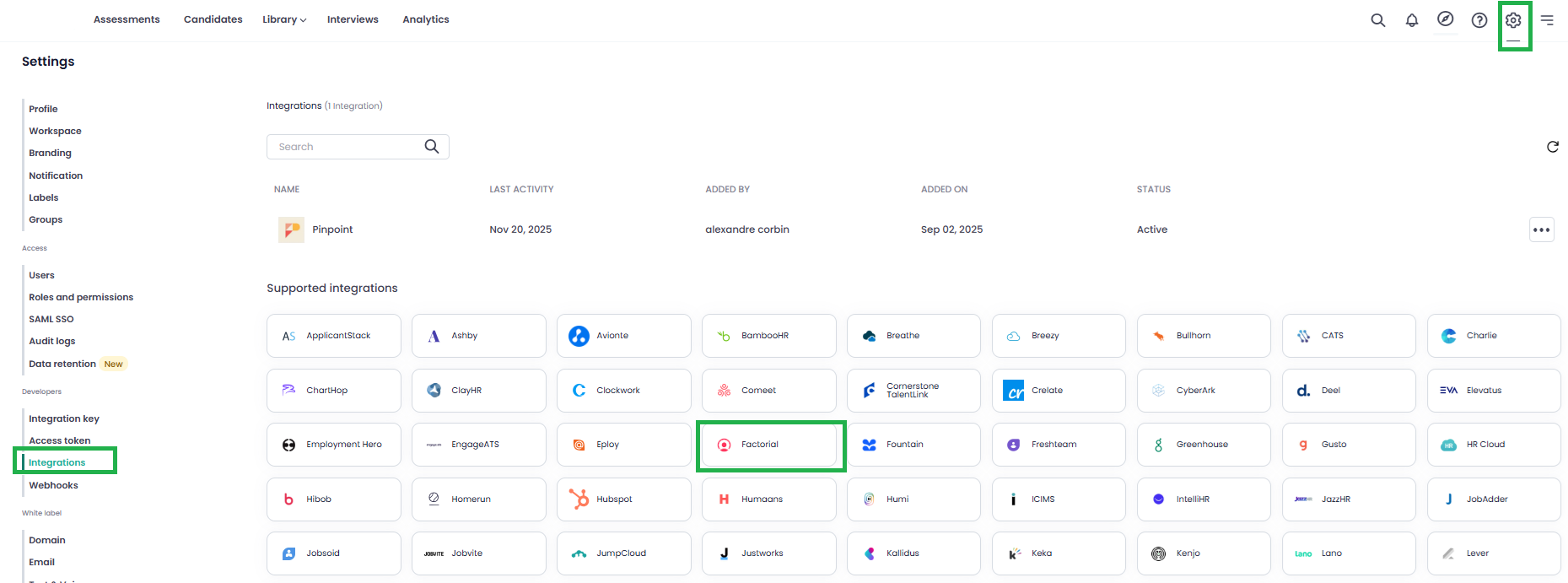
Connect Factorial ATS
- Click on Factorial ATS
-
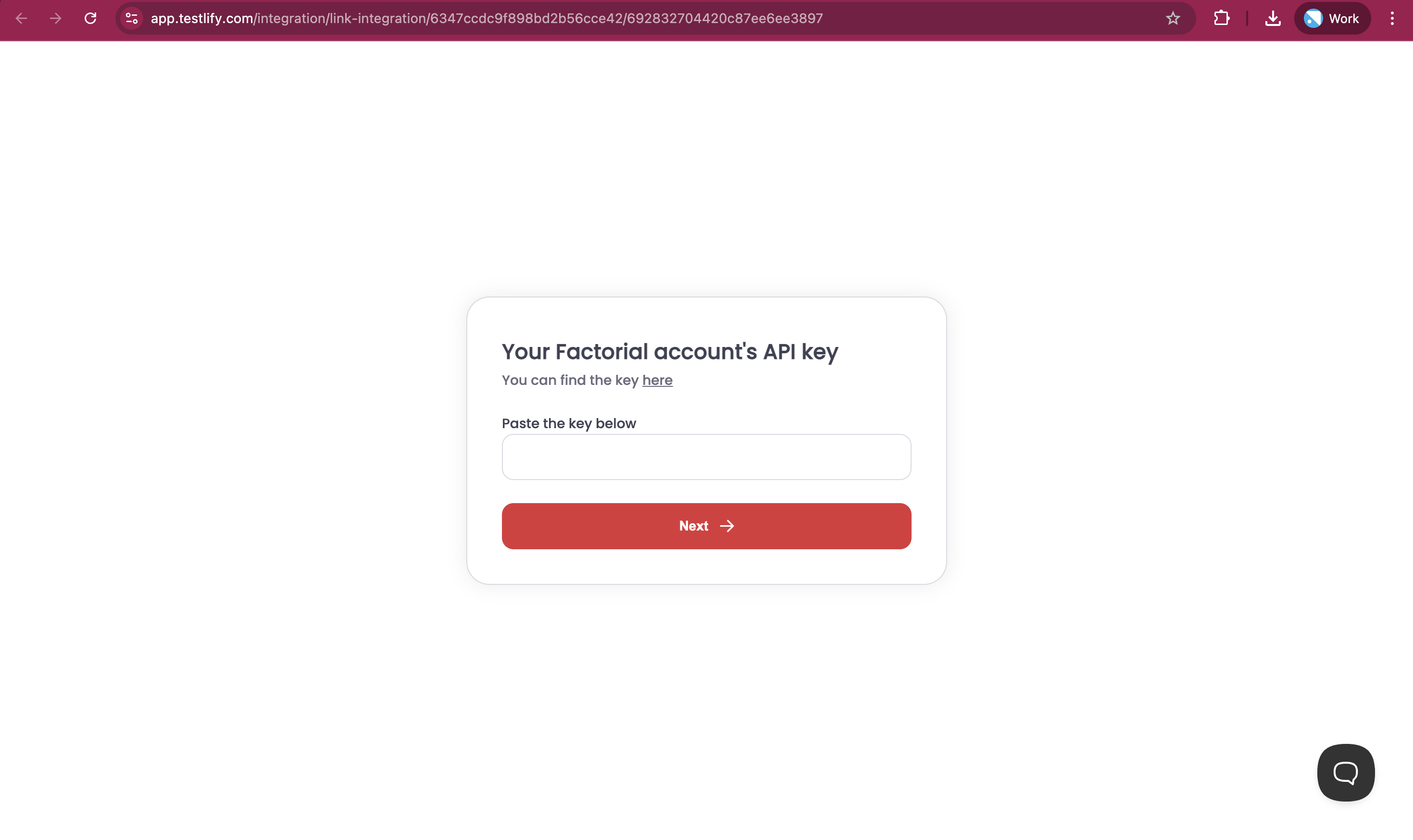
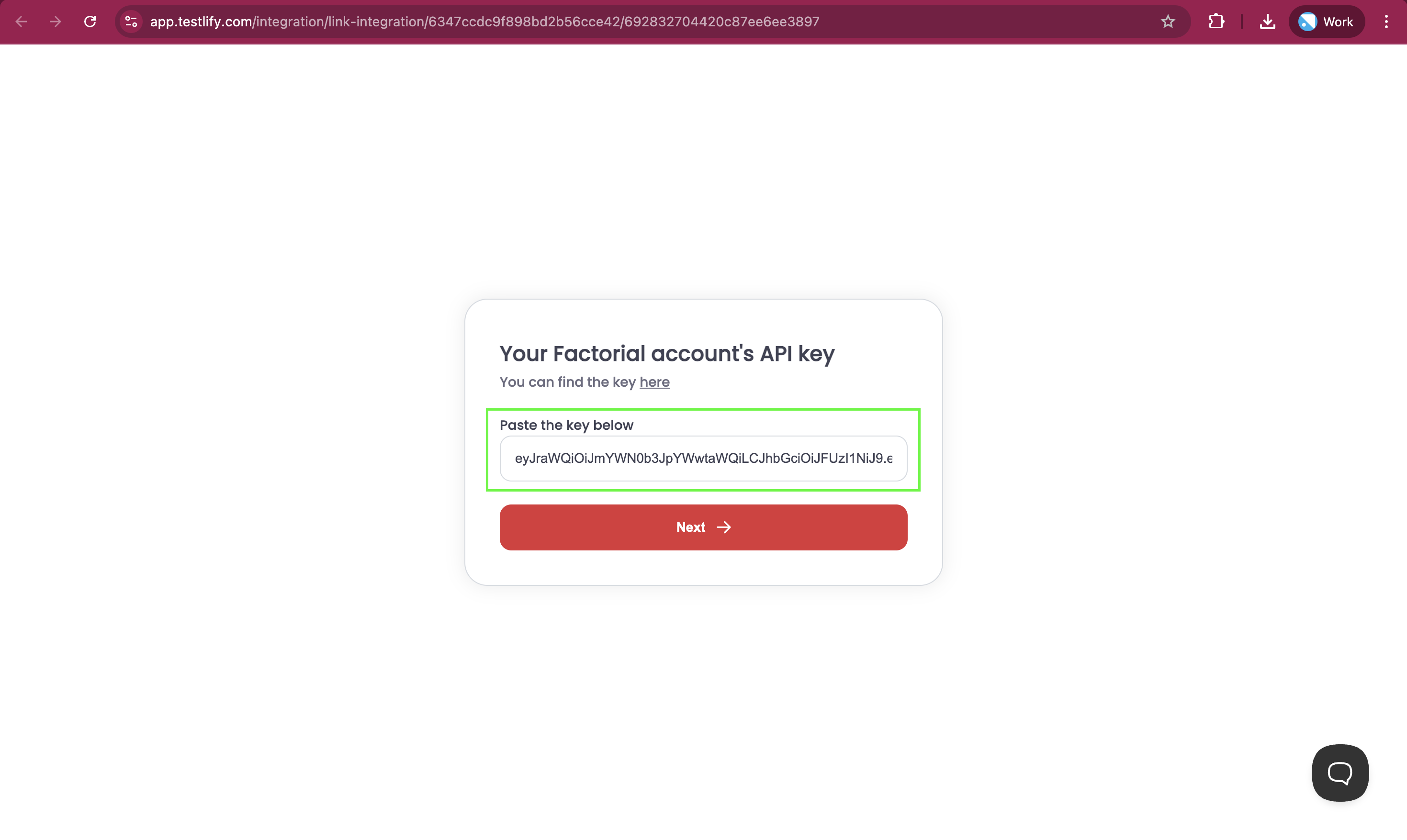
You will be redirected to a new page asking for the Factorial API Key
How to Get the Factorial API Key
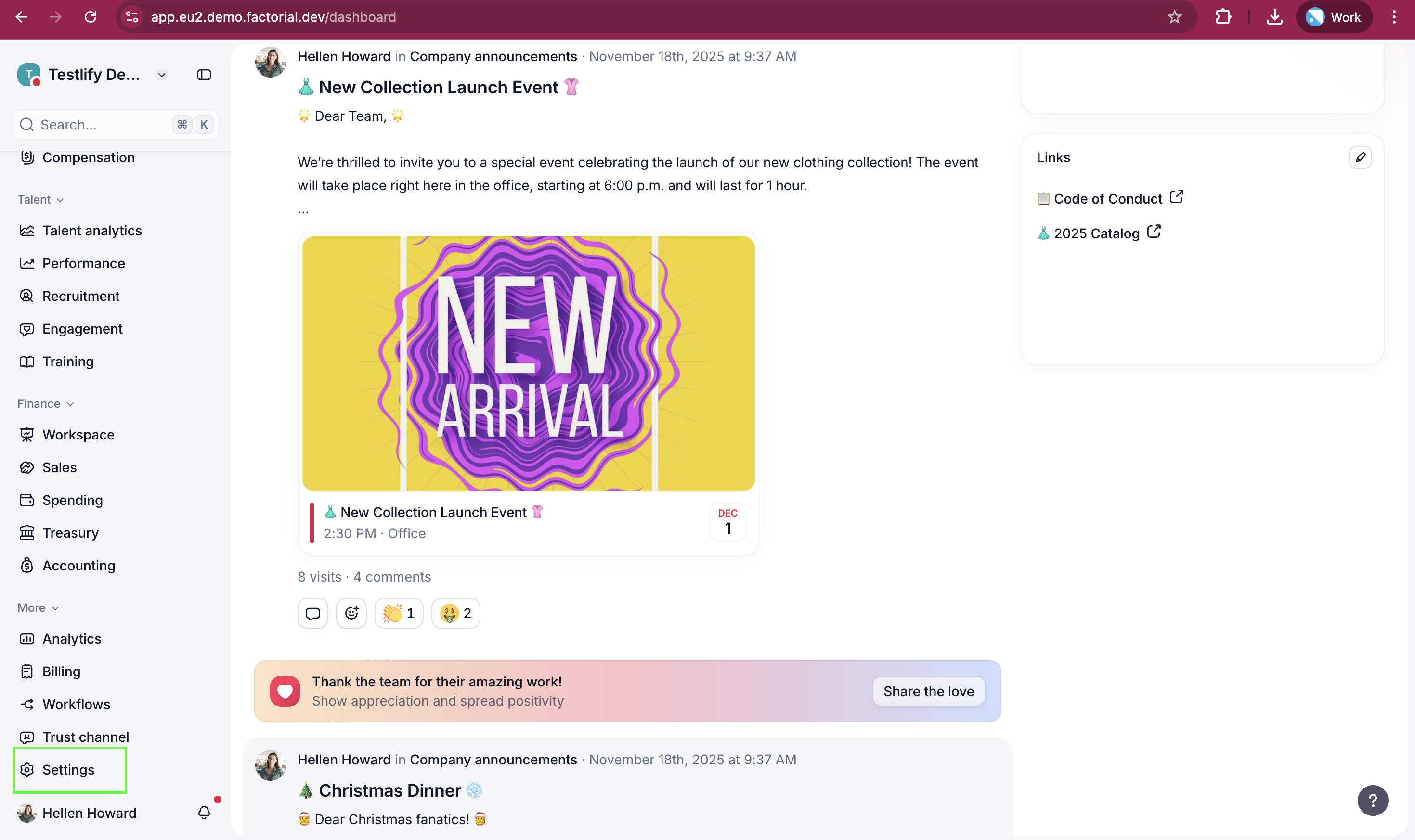
- Log in to your Factorial account
- Click on Settings (located at the bottom-left side menu)
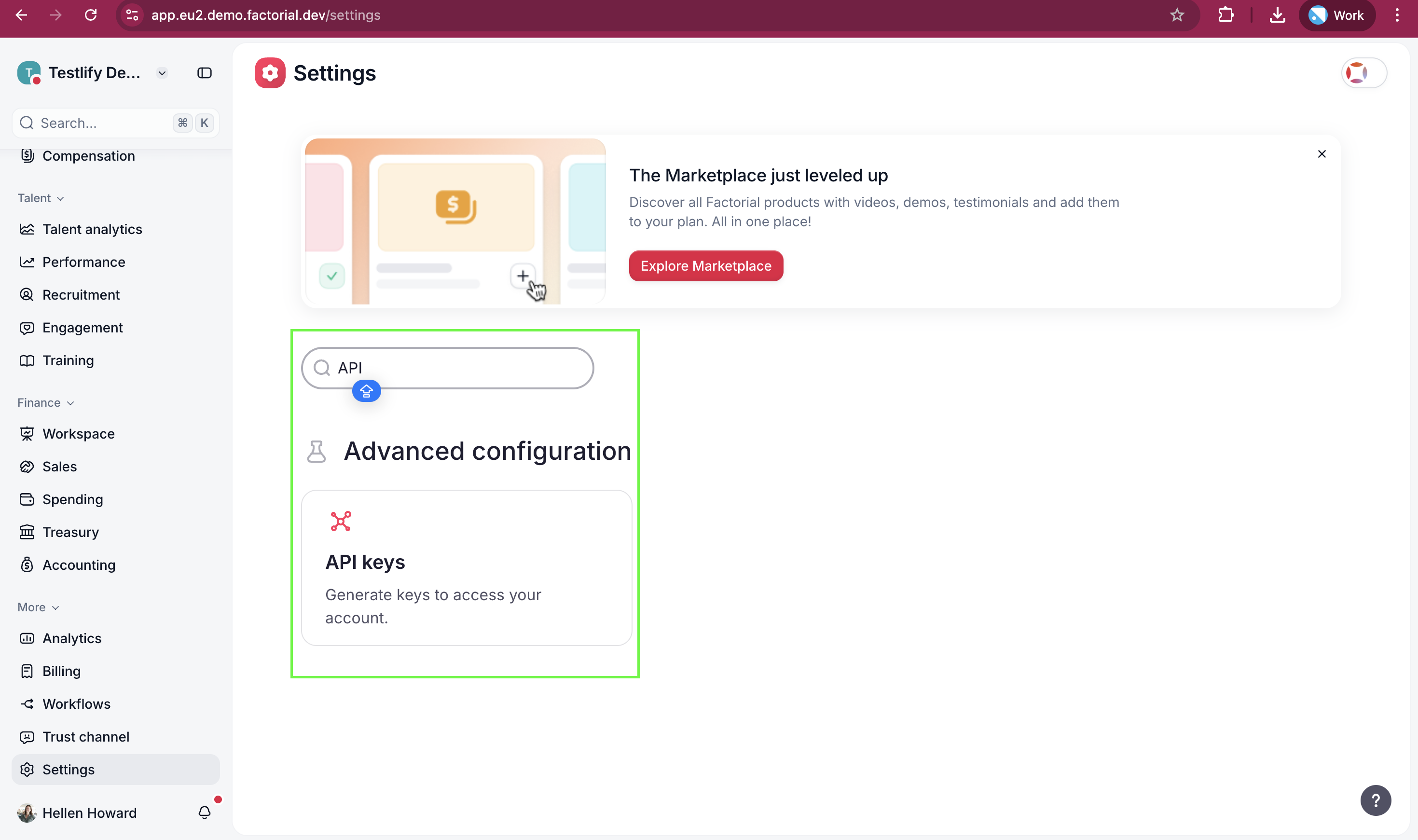
- Search for API Key
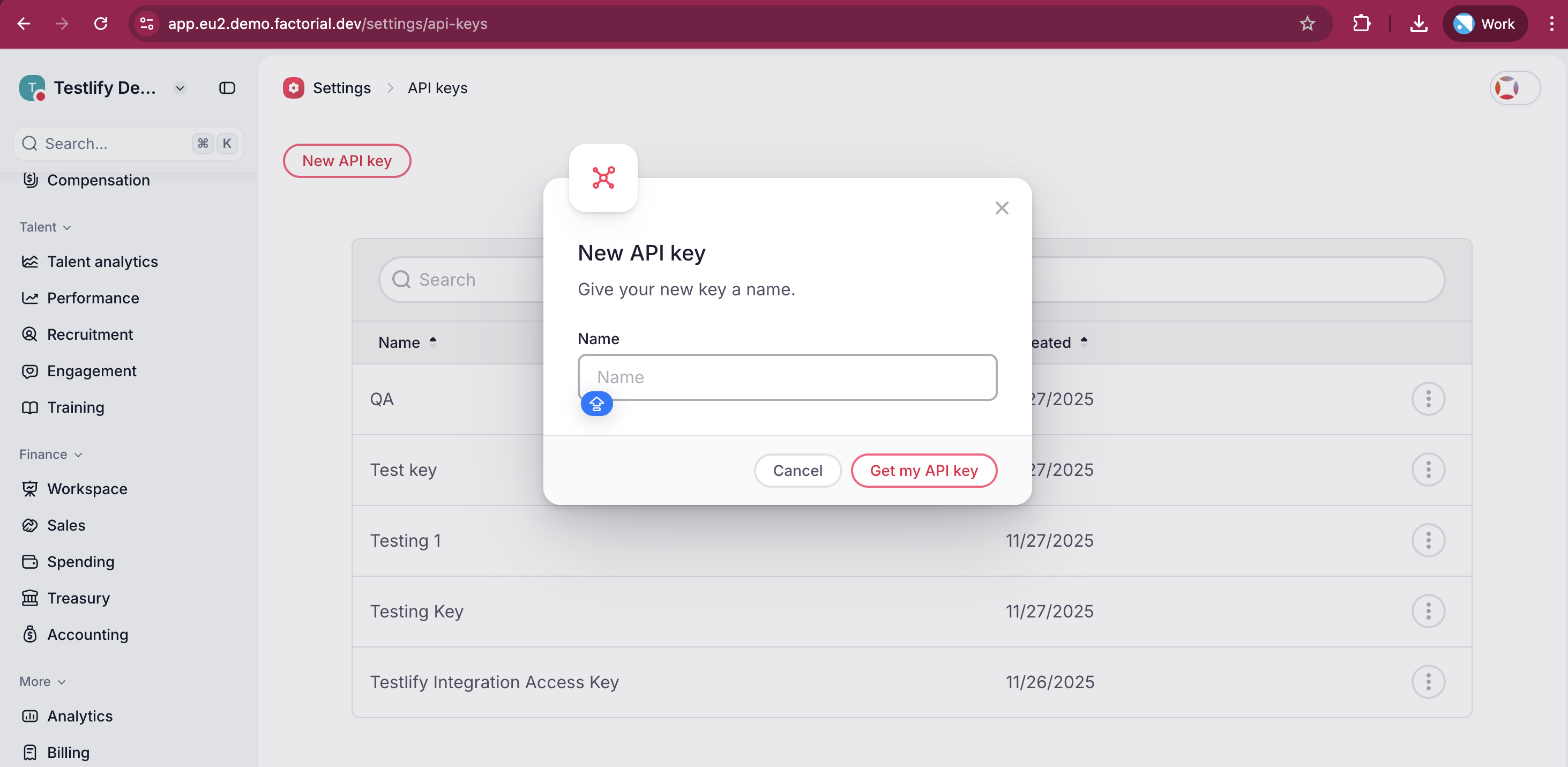
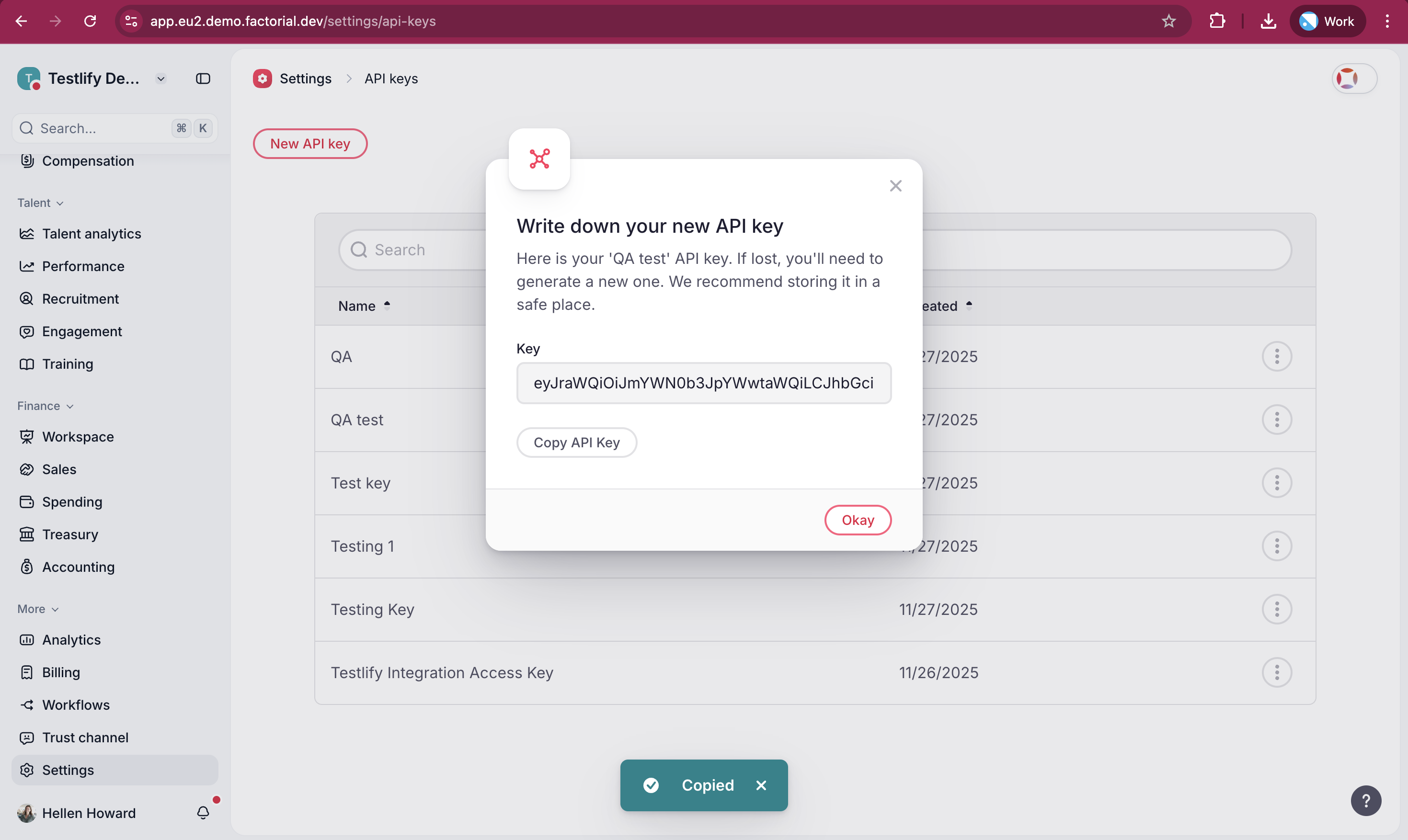
- Click on API Key and Generate a new API
- Copy the API key
-
Go back to Testlify, paste the API key, and click Next
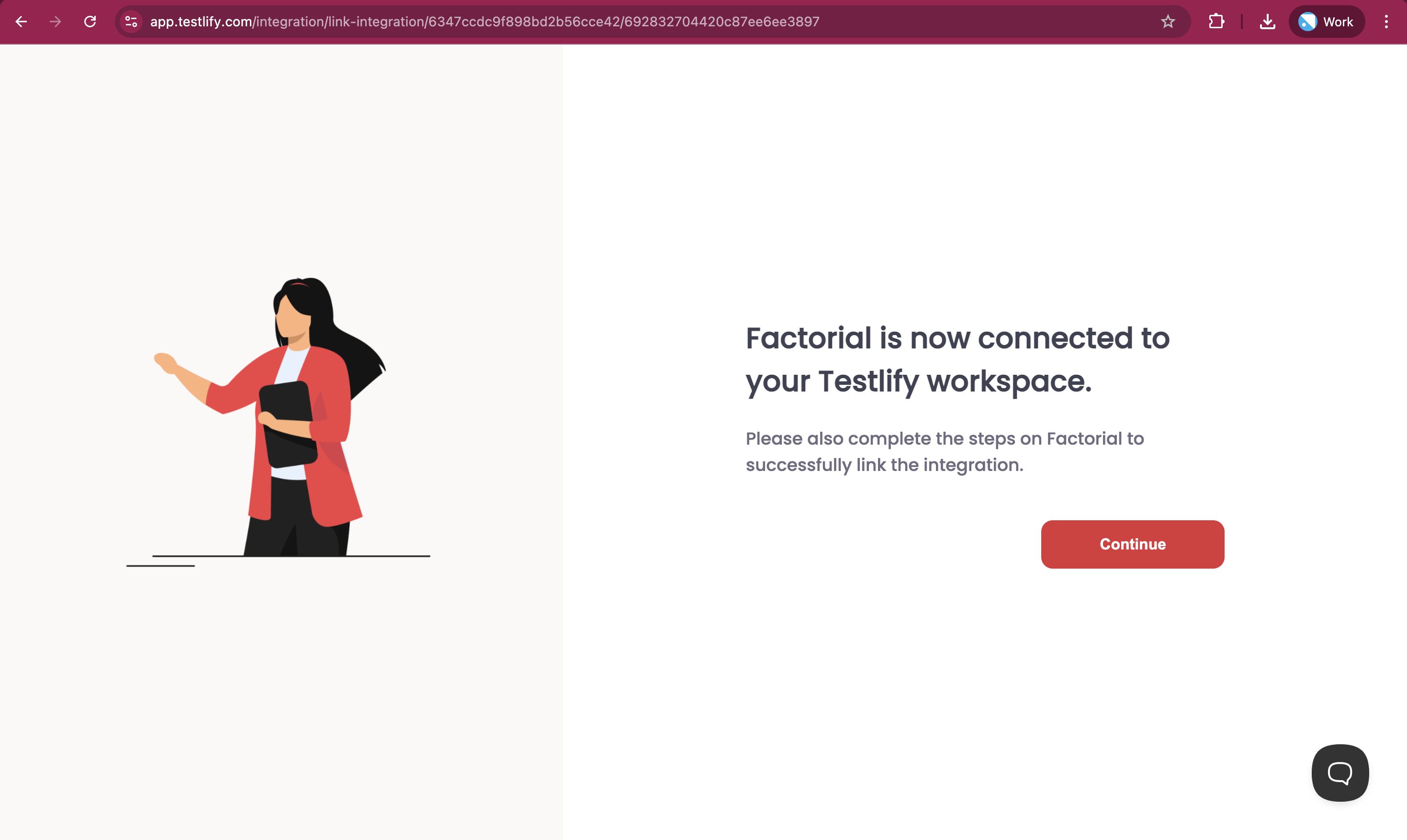
You will now see the message: Factorial has been successfully integrated at the workspace
- Configure Integration at Assessment Level
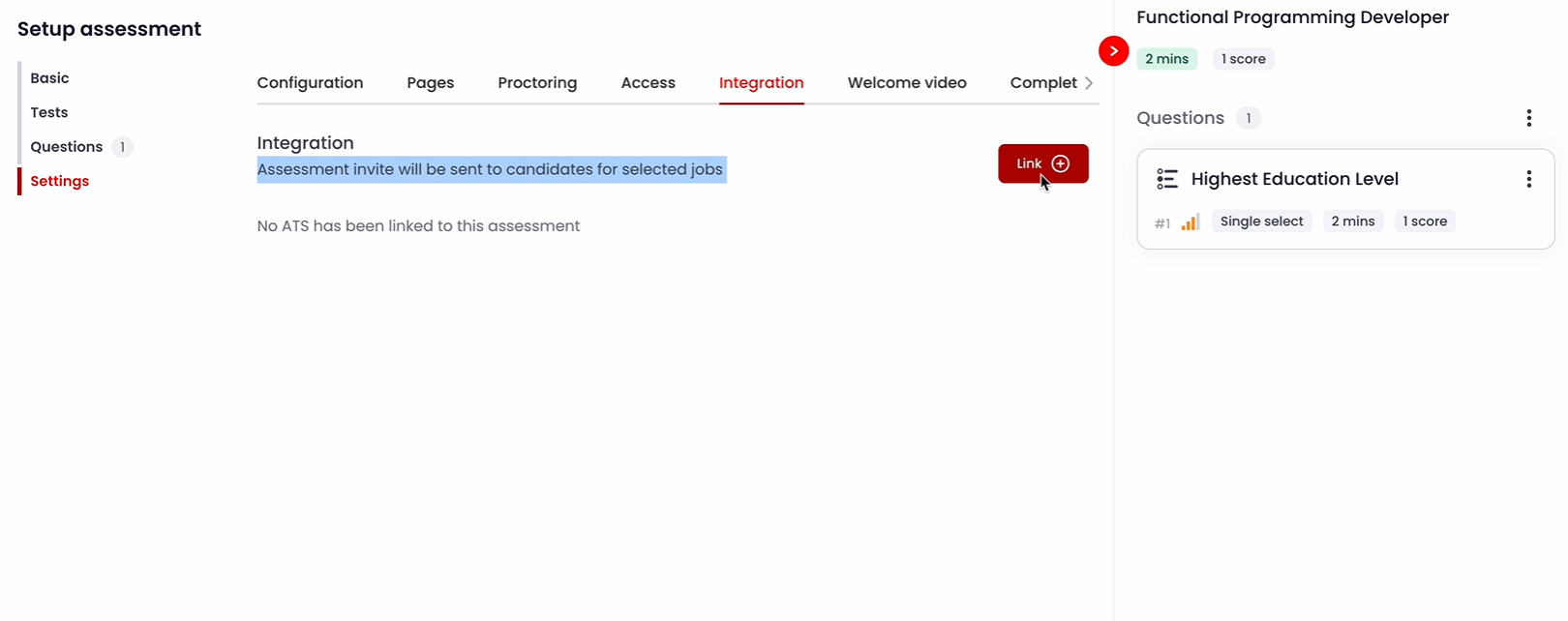
- While creating an assessment, go to Settings
- Open the Integration section
- Click on ATS
-
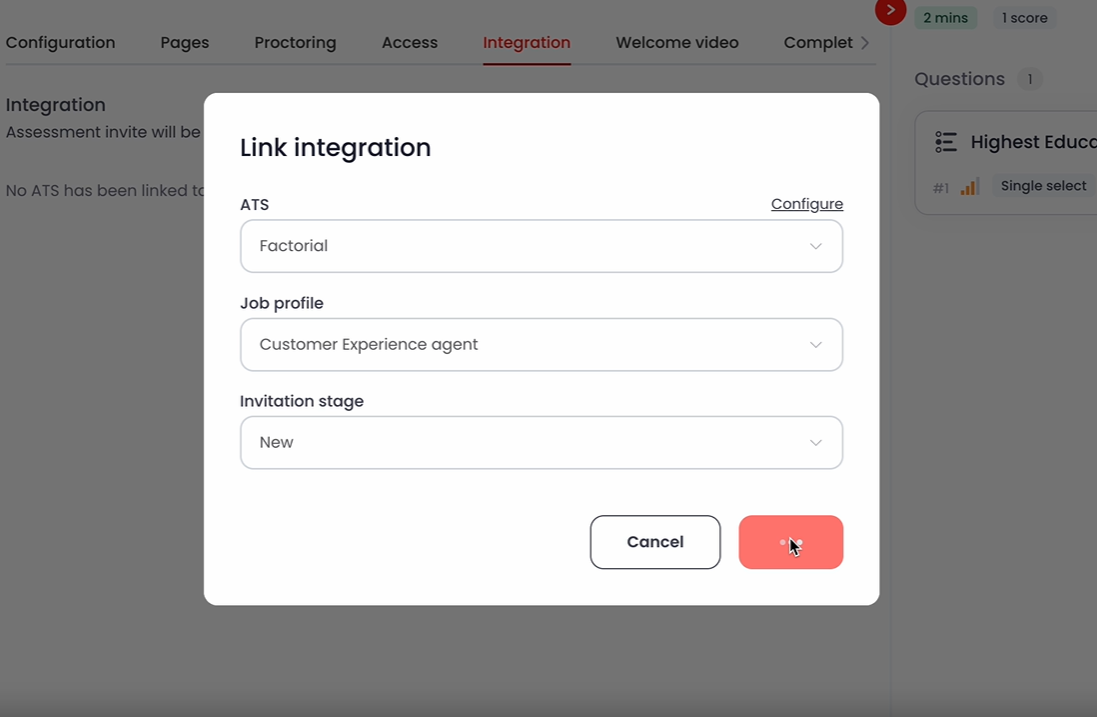
From the dropdown, select Factorial ATS
Job & Stage Selection
- Once Factorial is selected, all published jobs from your Factorial account will appear in the Job Profile dropdown
- Select a job
-
Then, select Stage = New in the next dropdown
-
Only the New stage triggers the invite, because the stage change webhook is not yet configured by Factorial support.
-
Save the assessment
Test the Integration
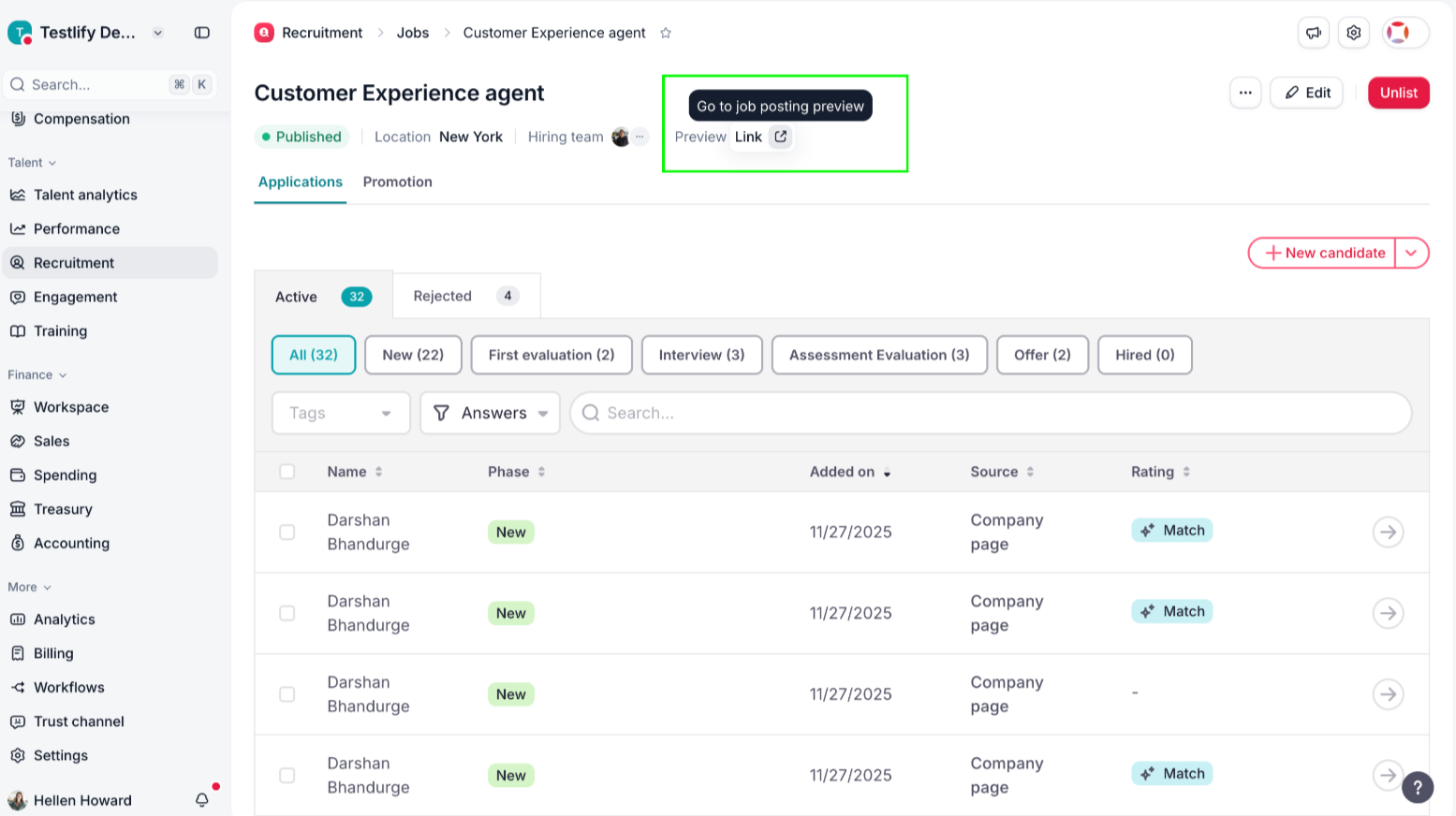
- Go to your Factorial account
- Open the same Job Profile you selected during assessment setup
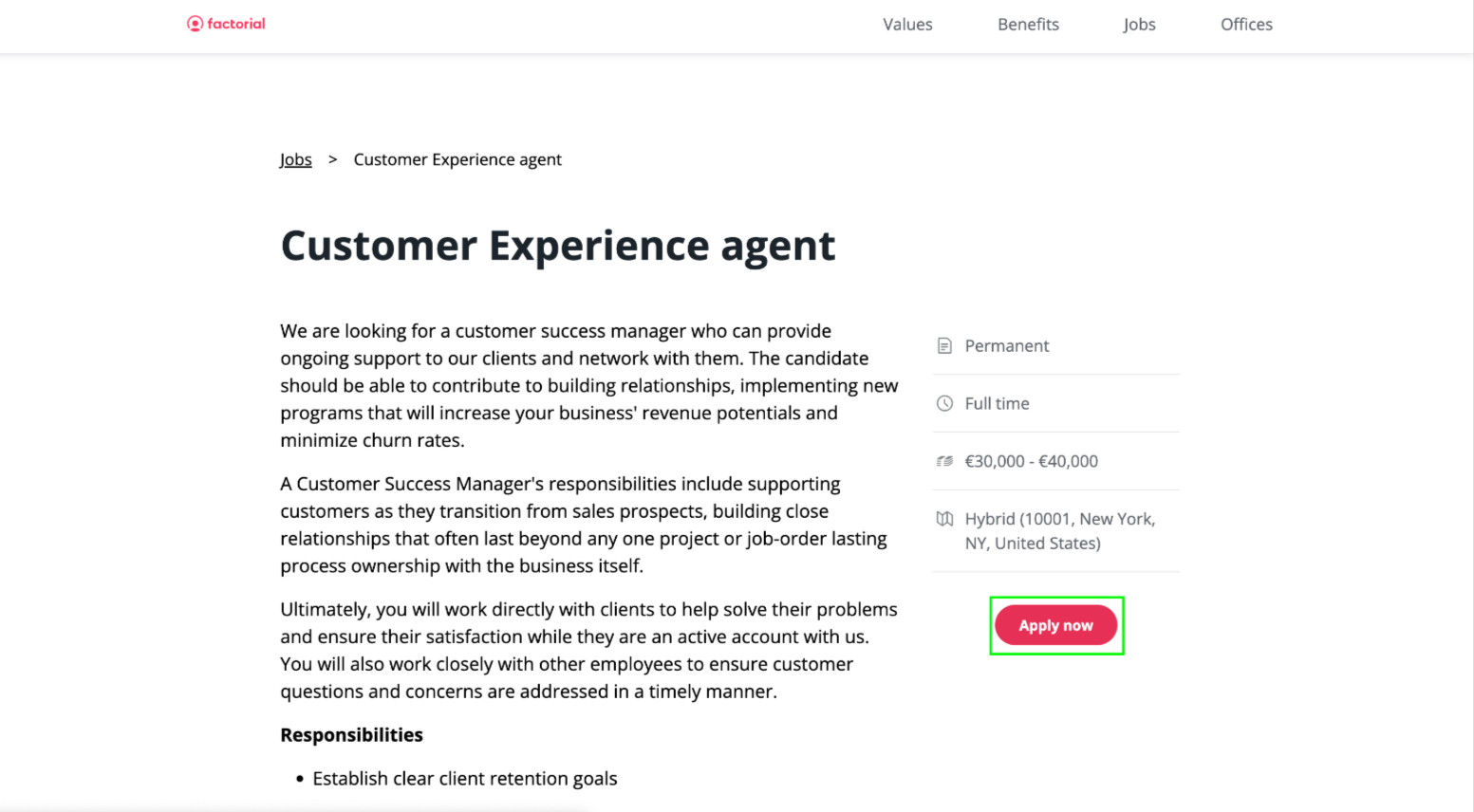
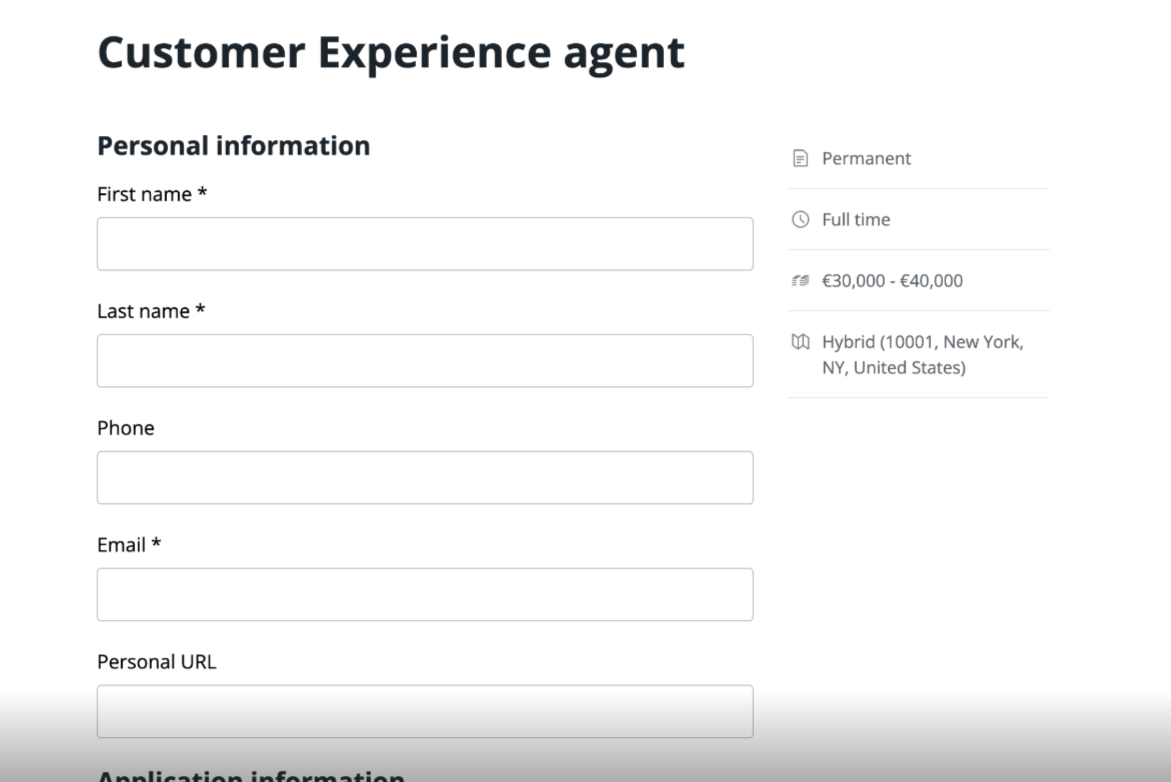
- Click Preview and Apply as a candidate
- You will be automatically added to the “New” stage
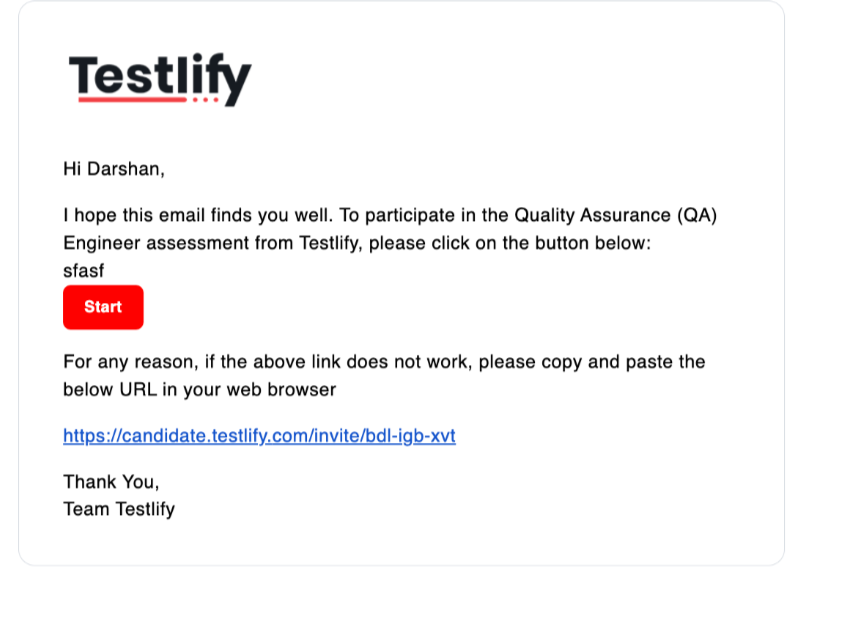
- You will receive an email invitation for the Testlify assessment
-
Once you complete the assessment, the score will appear in the Notes section of Factorial
Important Notes
- Only New stage triggers the invite (until webhook setup is done by Factorial support team)
- Make sure the job is published in Factorial to appear in Testlify
- Scores are updated in the Notes section after assessment completion.
For further support, Connect at support@testlify.com