
Track Candidate Email Status on the Candidate Details Page (CDP)
Testlify shows email delivery status on the Candidate Details Page (CDP) and Assessment Details Page (ADP), giving you instant visibility into whether test invitation emails were delivered, opened, or bounced.
Before you begin
- You need Employer access to the Testlify platform.
- At least one candidate must have been invited to an assessment.
- Email status tracking requires emails sent via Postmark or SendGrid. Custom SMTP setups are not supported.
View email status on the Candidate Details Page
- Go to app.testlify.com and log in.
- Navigate to the Candidates section and open a candidate's profile.
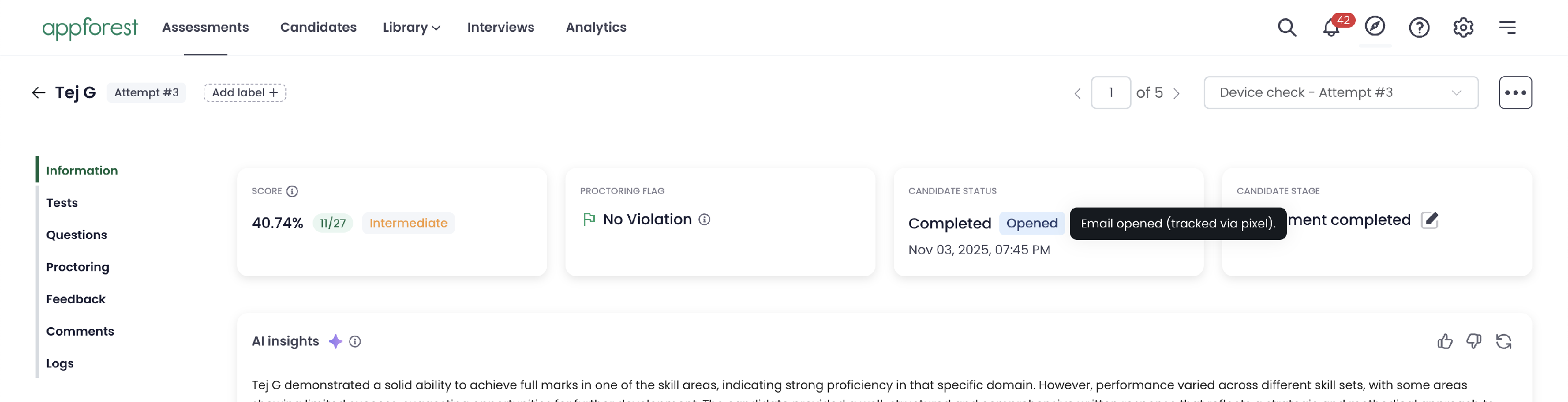
- Find the email status badge in the candidate display section. The badge shows the most recent delivery status.
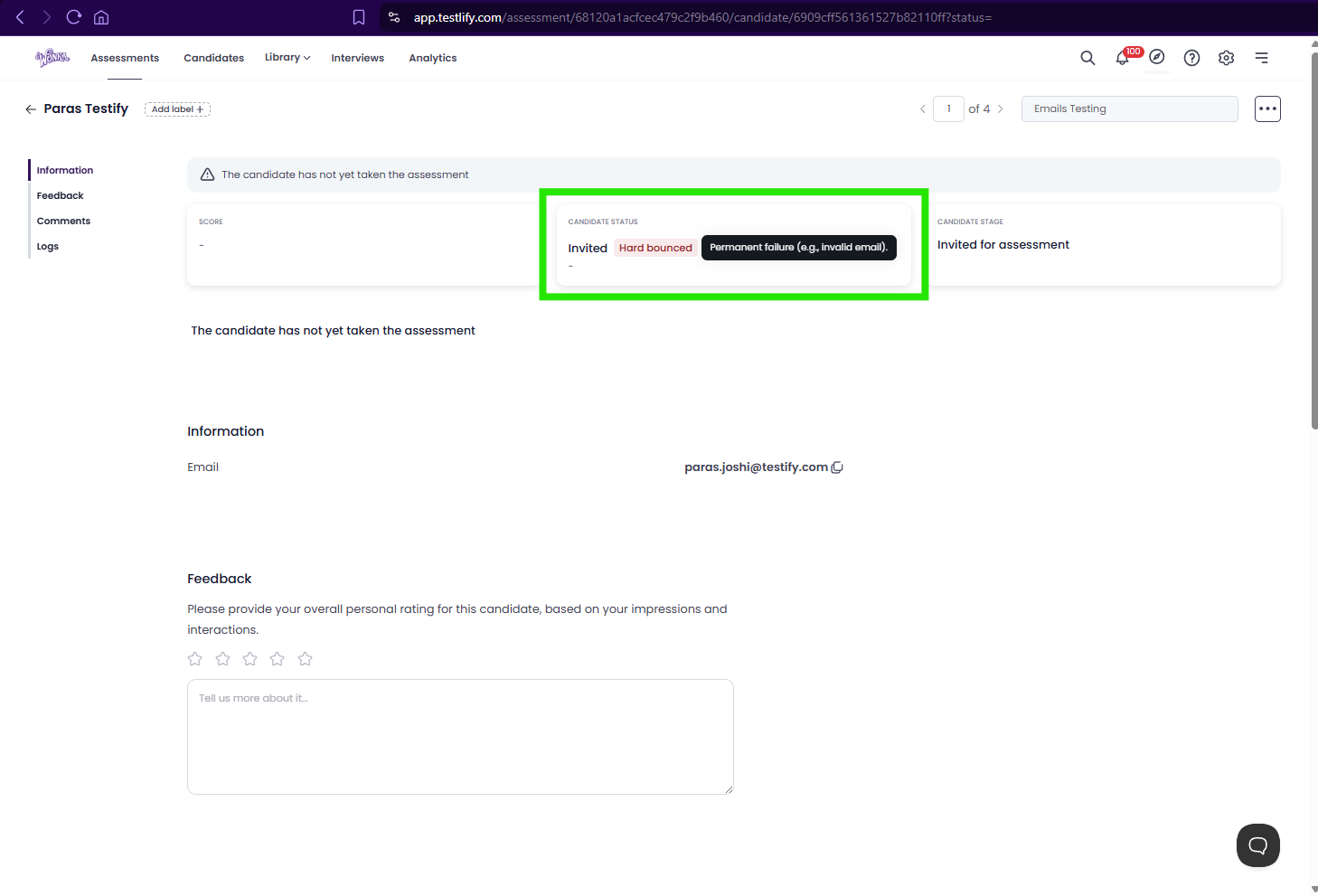
- Hover over the badge to see a tooltip with a plain-language description of the status.
View email status on the Assessment Details Page
- Open an assessment and navigate to the Assessment Details Page (ADP).
- Find the candidate row. The email status badge appears below the Invited date.
- Hover over the badge to read the status tooltip.


Email status reference
Each badge uses a color and label to indicate the delivery state. Hover over any badge to read the full description.
Delivery and processing
- Processed — Accepted by the email provider and queued for delivery.
- Delivered — Successfully reached the recipient's mail server.
- Deferred — Temporarily rejected by the recipient's server; retried automatically.
Bounces and failures
- Soft Bounce — Temporary failure (e.g., inbox full or server unavailable).
- Hard Bounce — Permanent failure (e.g., invalid or non-existent email address).
- Bounce — General delivery failure.
- Blocked — The recipient's mail server rejected the email.
- Dropped — Blocked by a suppression rule (previous spam report or invalid address).
- Suppressed — Address is on a provider suppression list; email was not sent.
- Deactivated — Address suppressed following a hard bounce.
Engagement
- Opened — The candidate opened the email.
- Clicked — The candidate clicked a link inside the email.
Compliance and opt-outs
- Spam Complaint — The candidate reported the email as spam.
- Unsubscribed — The candidate opted out of emails.
- Group Unsubscribe — The candidate opted out of a group of emails.
How status updates work
When Testlify sends an invitation, it records the message ID. As delivery events occur, Postmark or SendGrid push webhook updates to Testlify, and the Candidate Details Page reflects the latest status in near real-time.
Tip: If a candidate shows a Hard Bounce, verify their email address before re-sending the invitation to avoid repeat failures.
Frequently asked questions
Where can I view email status?
On both the Candidate Details Page (CDP) and the Assessment Details Page (ADP).
What does "Suppressed" mean?
The email was not sent because the address is on a suppression list — typically from a previous bounce, spam report, or opt-out.
Does this work with custom SMTP?
No. Email status tracking only works with Postmark and SendGrid, including custom domains routed through these providers.
How quickly does the status update?
Updates are near real-time, but the exact timing depends on the email provider.
Need help? Contact support.