
How to Create a Microsoft Word or PowerPoint Question
To create a Word or PowerPoint task, open the assessment’s Questions step, choose Microsoft Word or Microsoft PowerPoint under Office apps, and upload your template file. A copy of the file is created for each candidate, and you score the result for the whole question or by criteria.
Before you start
- Word templates must be .doc or .docx files.
- PowerPoint templates must be .ppt or .pptx files.
- For spreadsheet tasks scored by test cases, see How to create a Microsoft Excel question.
Create the question
- Go to Assessments, click the ⋯ menu on the assessment and select Edit.
- Click Questions.
- On the Custom tab, under Office apps, choose Microsoft Word or Microsoft PowerPoint.
- Enter a Question title and Question description, or start from one of the Question templates if any are shown.
- Upload your template file in the Microsoft Word file or Microsoft PowerPoint file box.
- Set the Completion time.
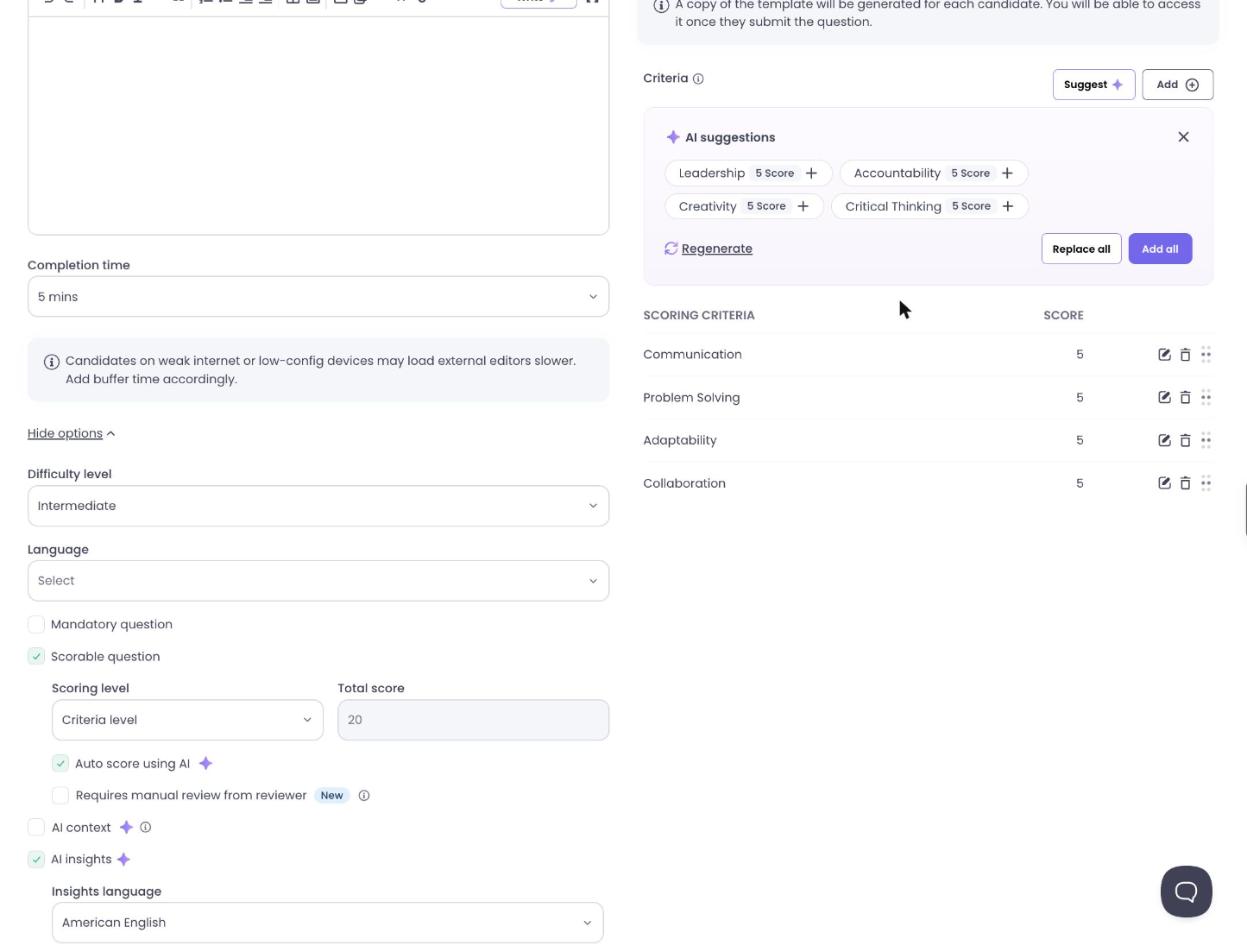
- Click Show options and set the scoring. The options are explained below.
- Click Add.
- Click Save & close to save the assessment.
Scoring options
Question level
Set one Maximum score for the whole question.
Criteria level
Score the answer against several criteria. Four criteria are added to start with: Communication, Problem Solving, Adaptability and Collaboration, worth 5 points each. Edit or delete them, click Add to add your own, or click Suggest for AI suggestions. The Total score is the sum of the criteria scores.
AI scoring and manual review
Auto score using AI is ticked by default. Tick Requires manual review from reviewer if only reviewers should access and set the score for this question.
What happens next
When a candidate starts the question, a copy of your template is created for them to work in. You can open their file once they submit the question.
Troubleshooting
Candidates say the editor is slow to load
Candidates on weak internet or low-spec devices may load the editor more slowly. Add some buffer to the Completion time.
Still need help?
Contact support@testlify.com.