
Integrate Breezy with Testlify
Connect Breezy to Testlify to attach assessments to job roles, automatically invite candidates when they advance to a specific stage, and view scores across both platforms.
Before you begin
- You have an active Breezy account with admin access.
- You know your Breezy email, password, and subdomain — the company name in your Breezy URL slug.
- You are able to contact Breezy support to register a webhook URL — this is required to activate the integration.
Step 1: Connect Breezy to your Testlify workspace
- Log into Testlify.
- Click the Settings icon on the main page.
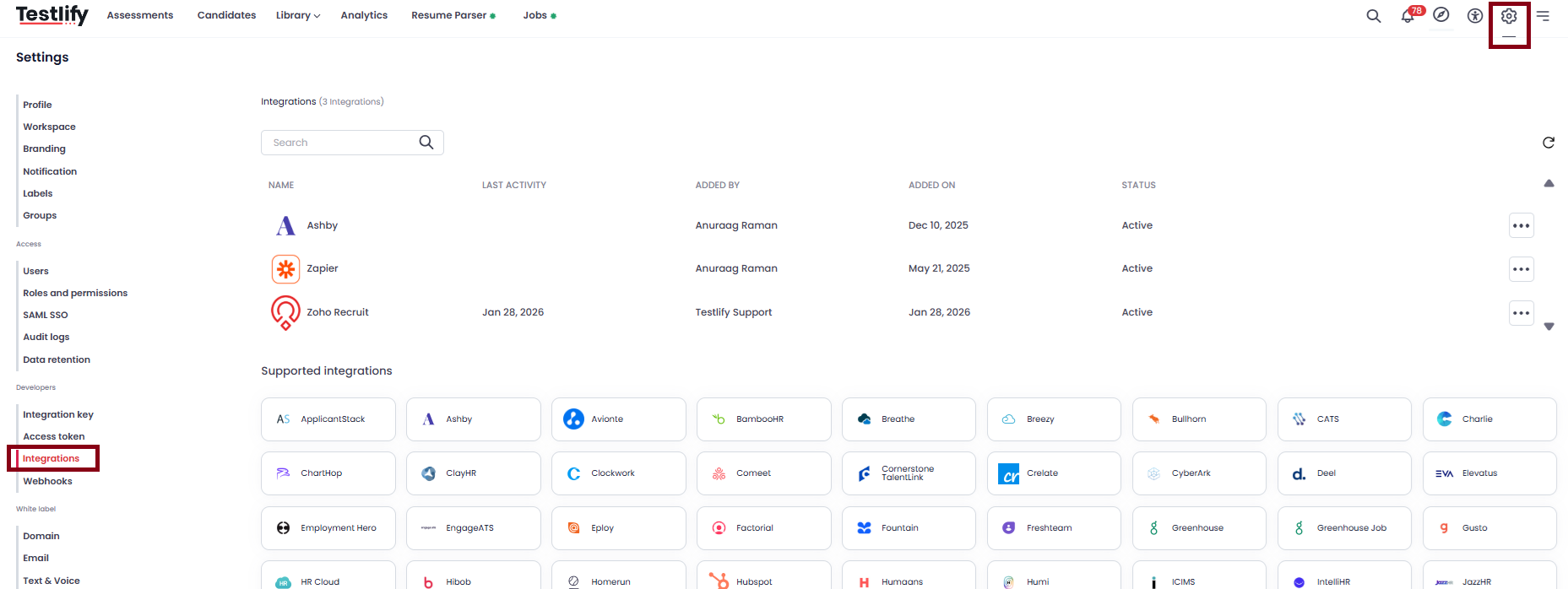
- Select the Integration module.
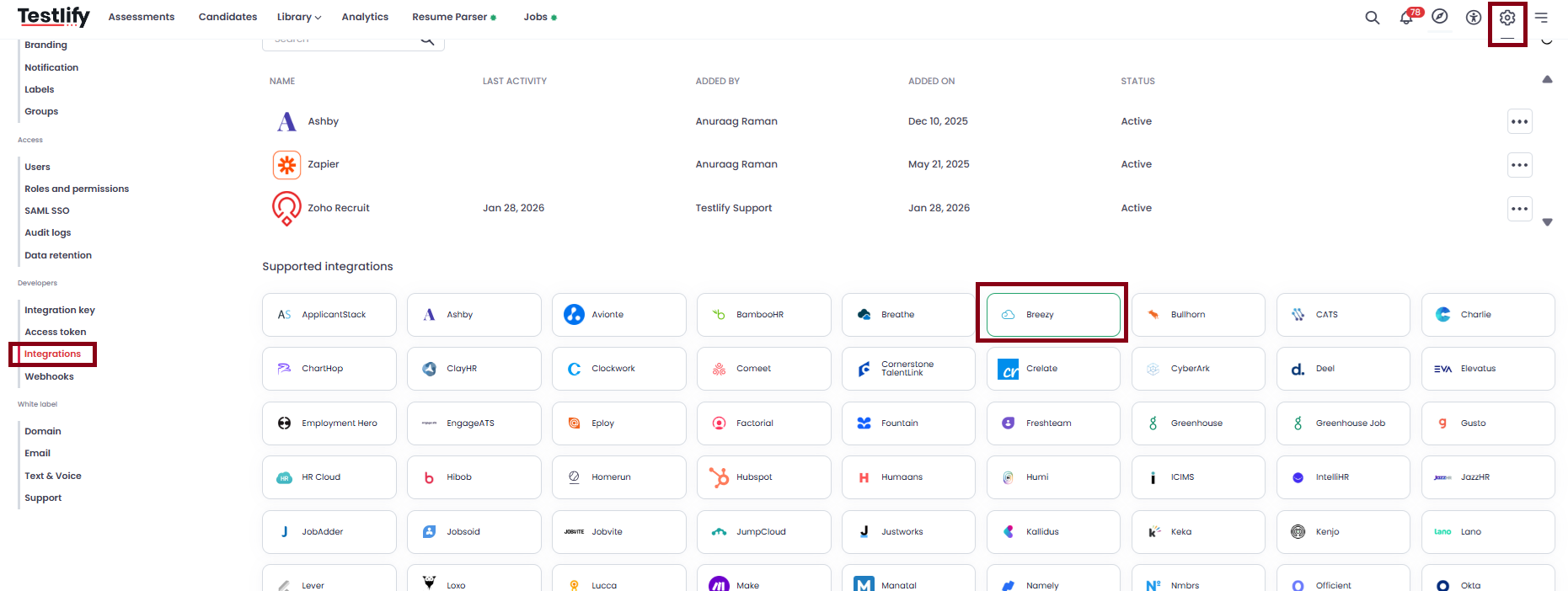
- Click Breezy from the list of integrations.
- Enter your Breezy Email, Password, and Subdomain, then click Save.

- Copy the webhook URL shown on the next screen and send it to Breezy support. Click Continue.
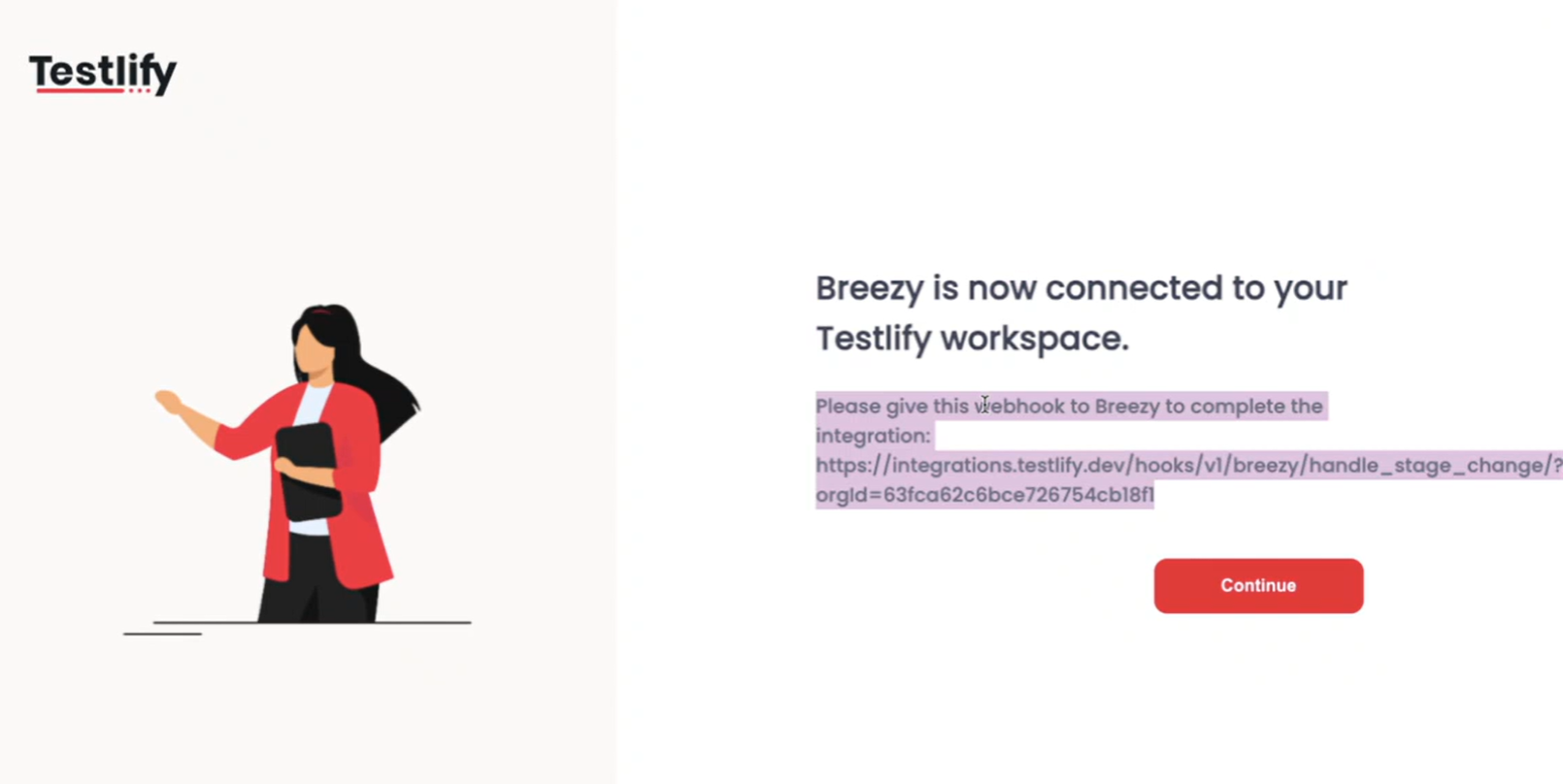
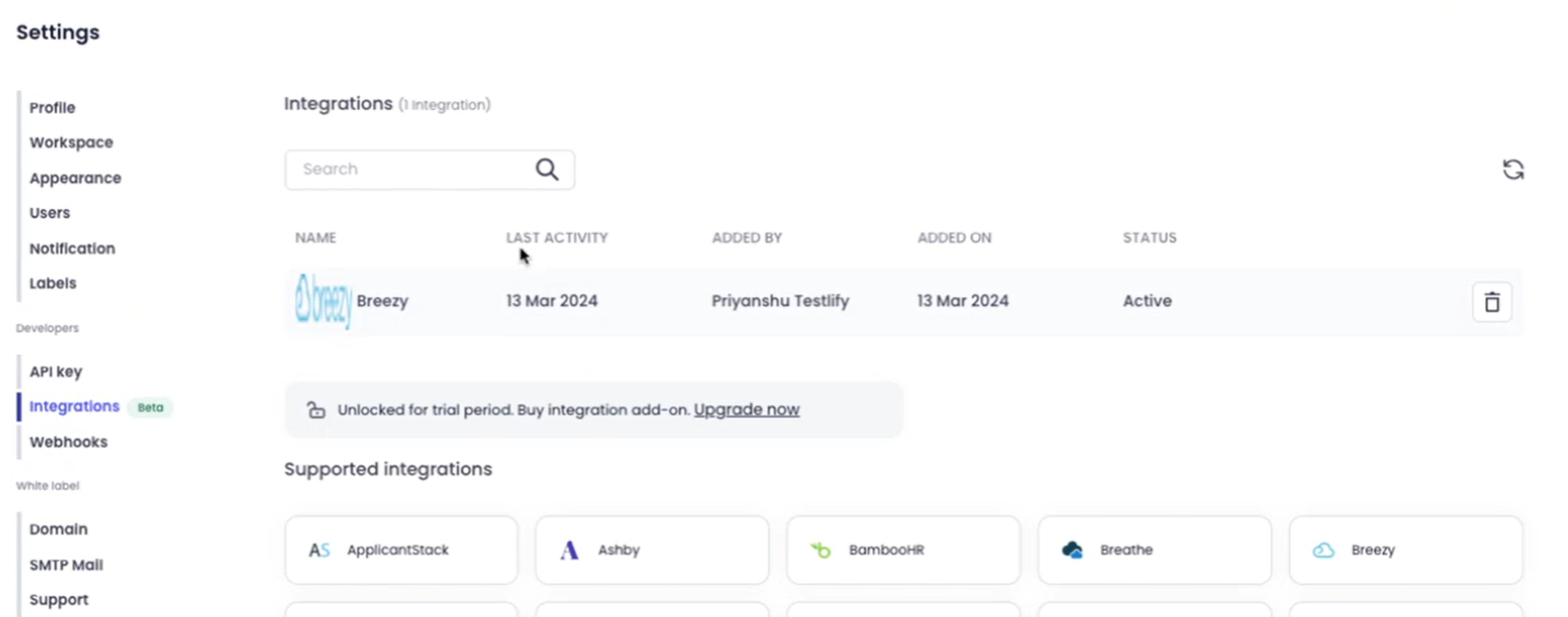
Tip: The integration is not fully active until Breezy support registers the webhook URL on your account. - Confirm the workspace-level integration is established.

Step 2: Link Breezy to a specific assessment
- Go to Assessments and open or create an assessment.
- In the assessment settings, select the Integration tab.
- Choose Breezy from the ATS dropdown. Under Job Profile, select the Breezy job role you want to link.
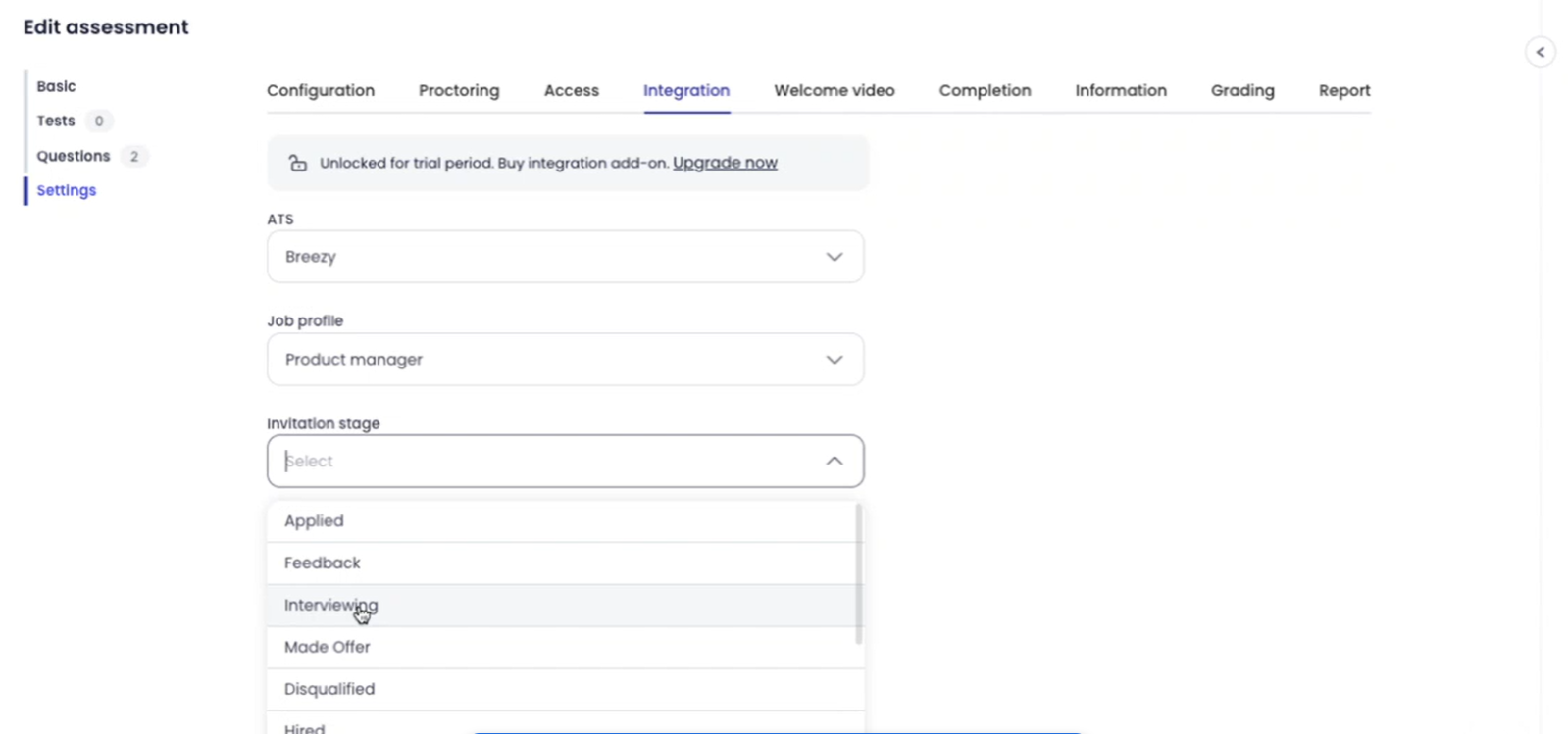
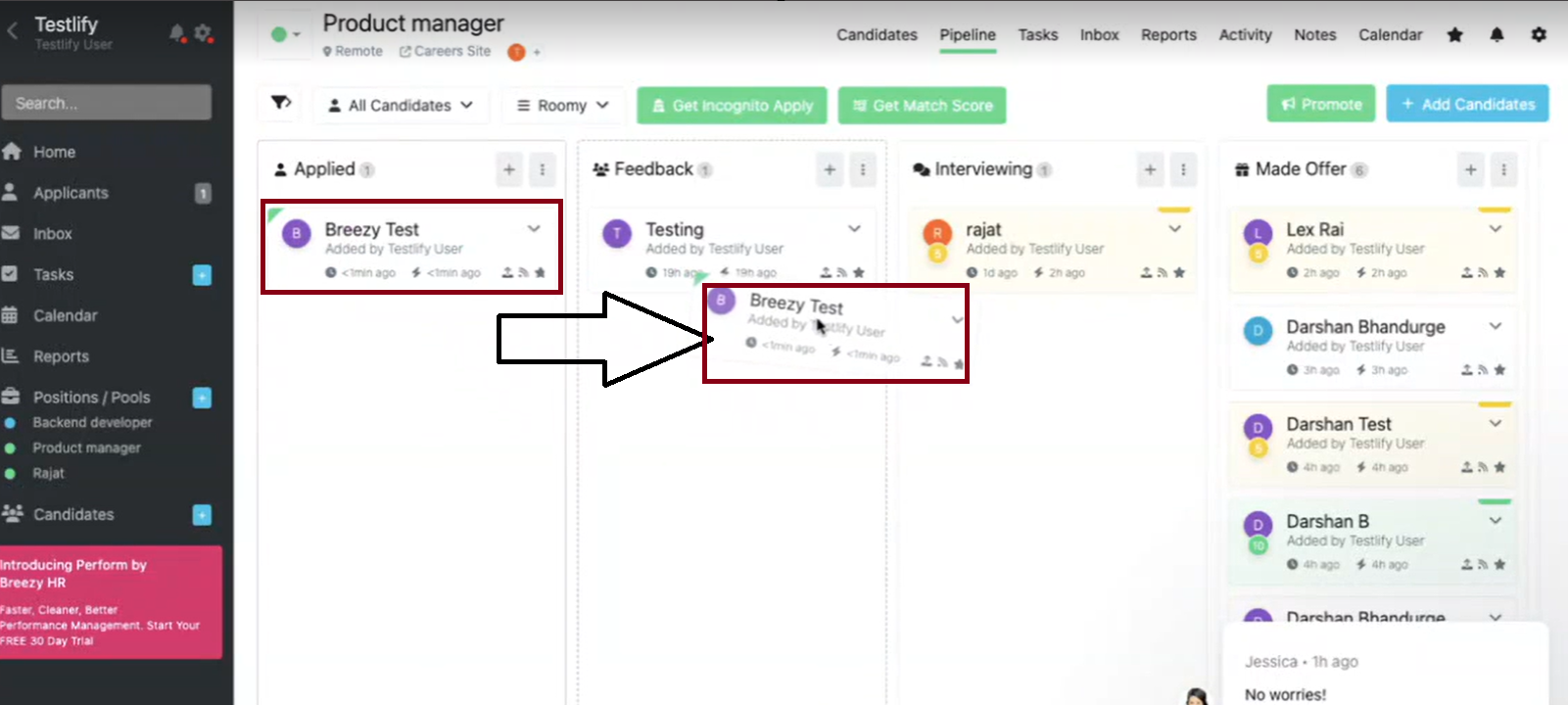
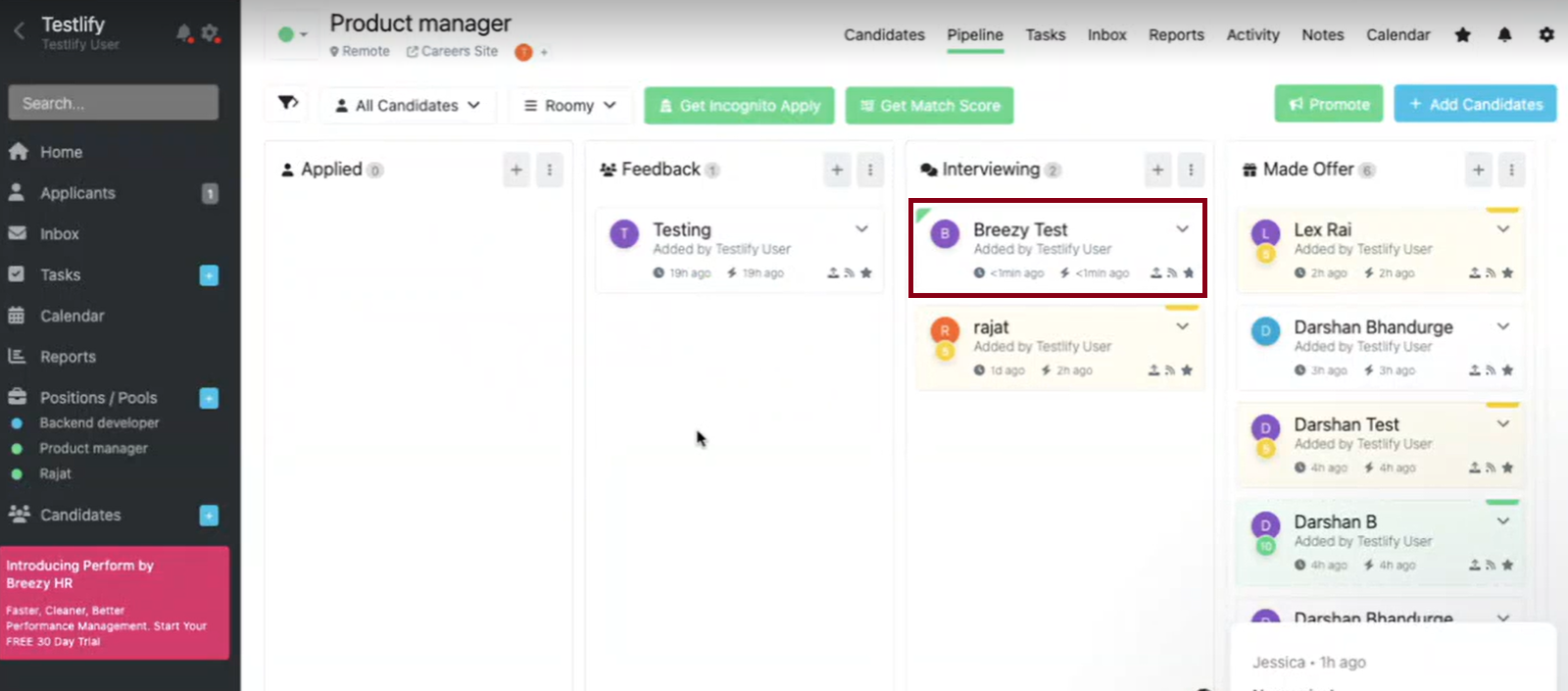
- Under Invitation stage, select the pipeline stage that should trigger an automatic assessment invitation. For example, selecting Interviewing sends the assessment link by email to any candidate moved to that stage in Breezy.
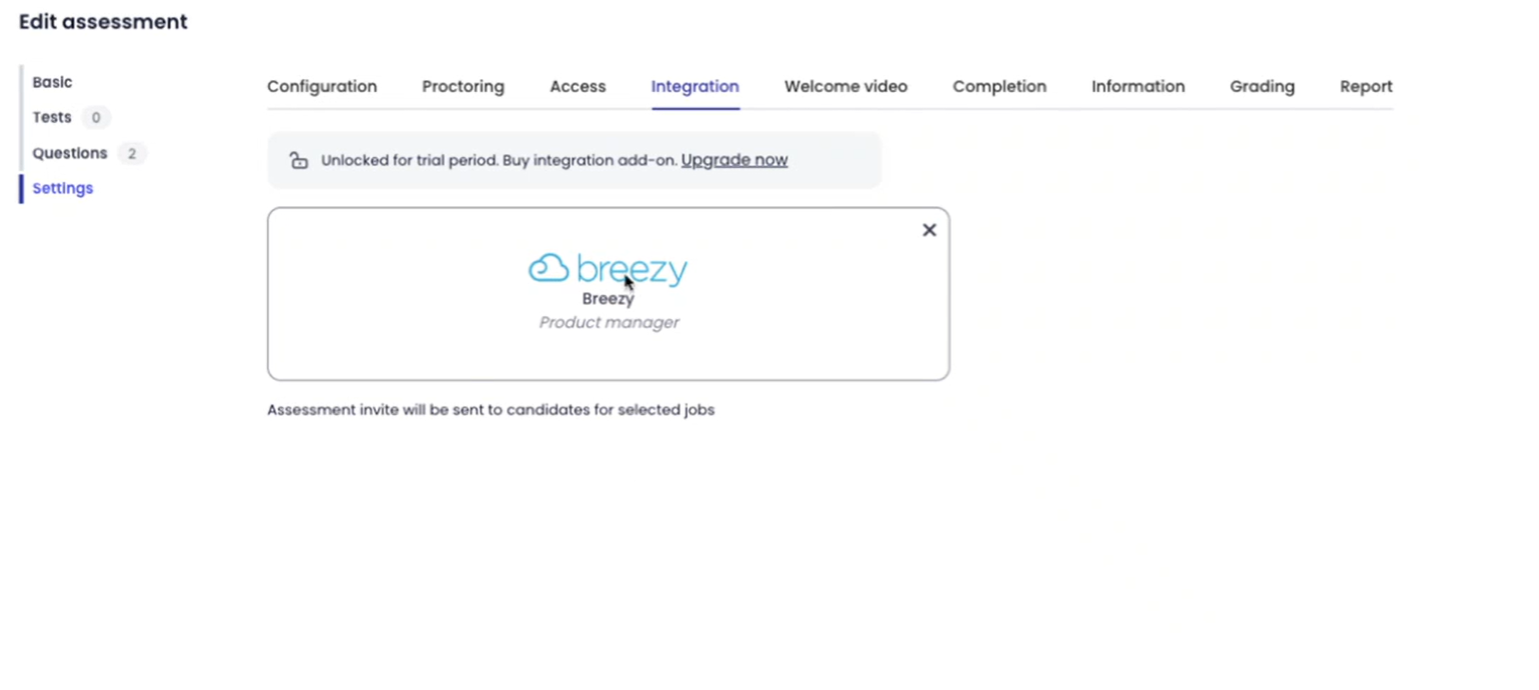
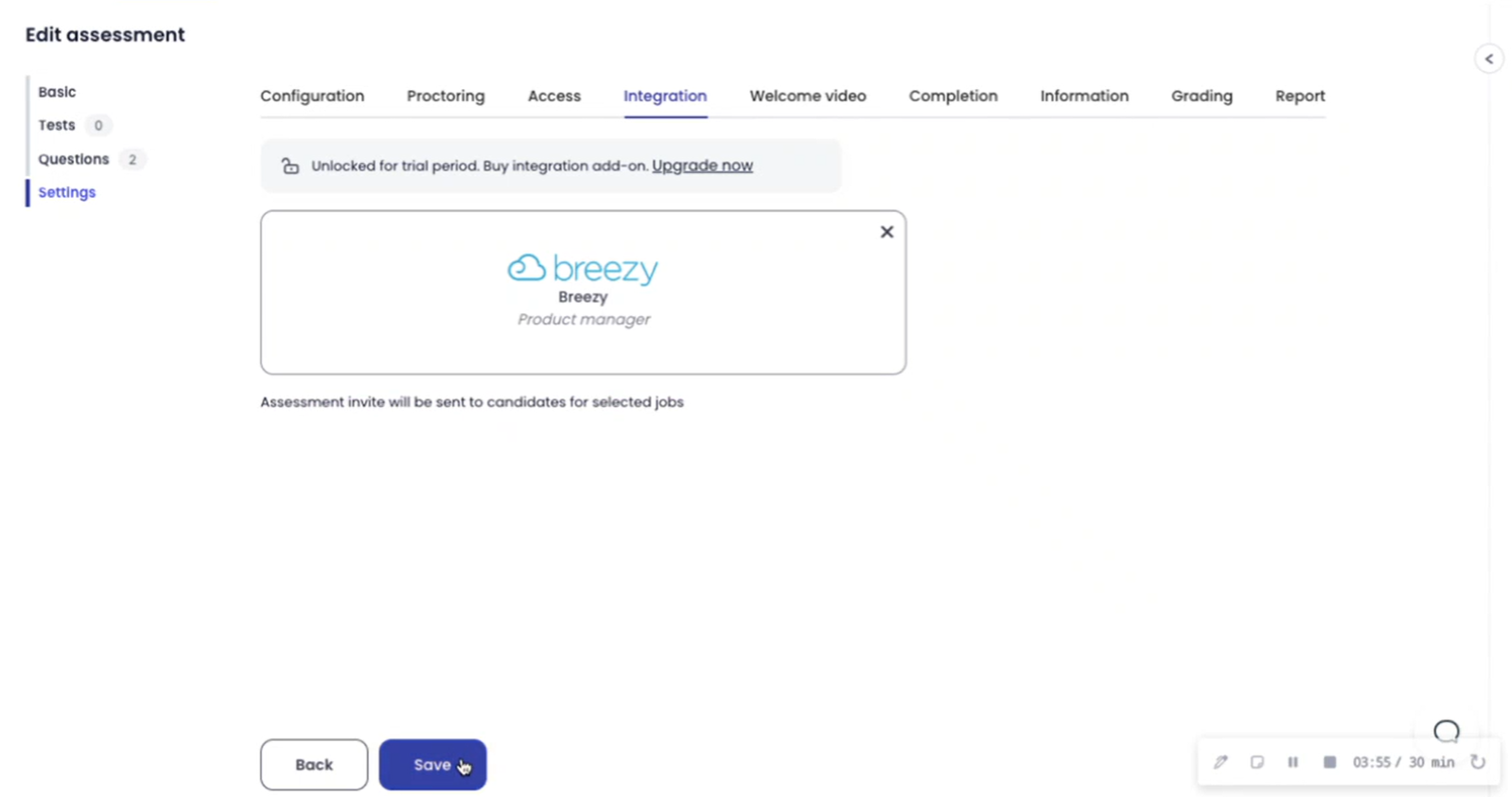
- Click Save to confirm the assessment-level integration.
Step 3: Add candidates in Breezy
- In Breezy, click Add Candidates.
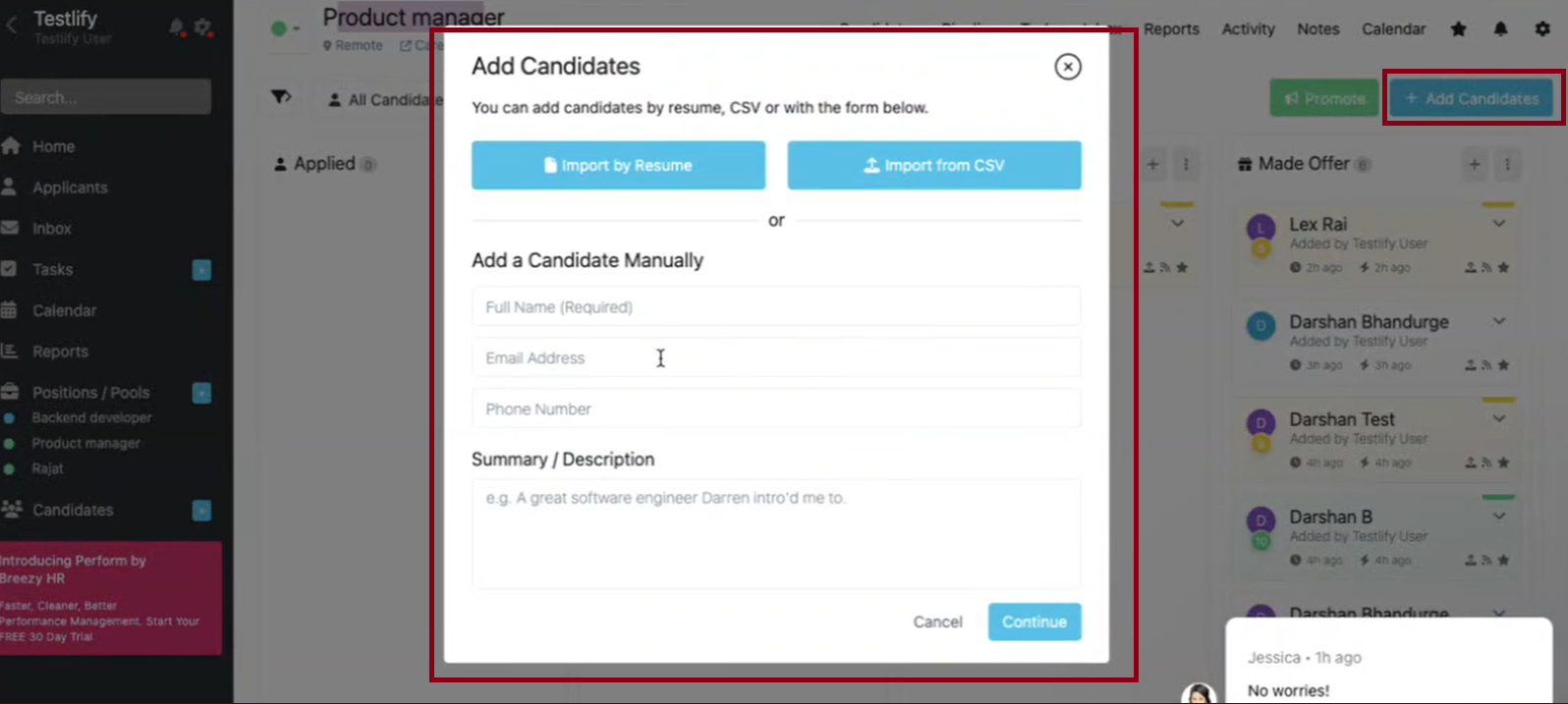
- Enter the candidate's Full Name and Email Address, then click Continue.
- Click Add Candidate to confirm.
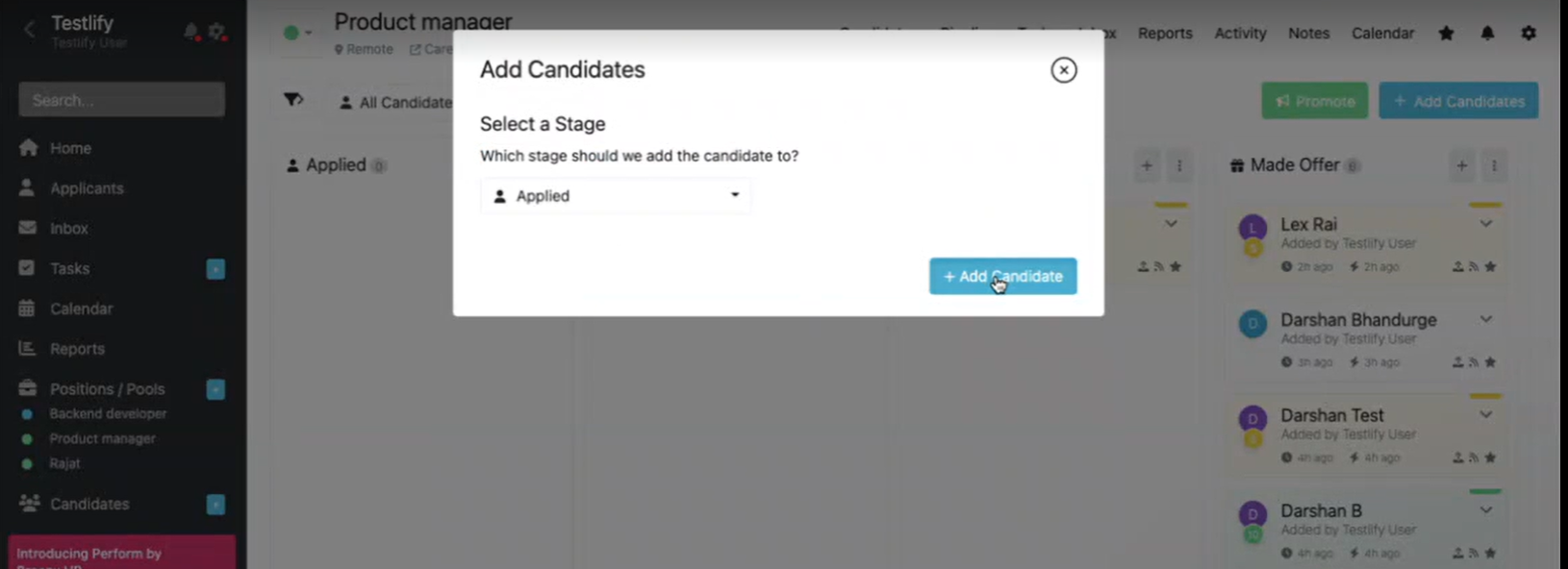
- When the candidate moves from Applied to Interviewing, they automatically receive the assessment invitation by email and their status is updated in Testlify.
Step 4: View candidate scores
- Once a candidate completes the assessment, their score appears in Testlify.
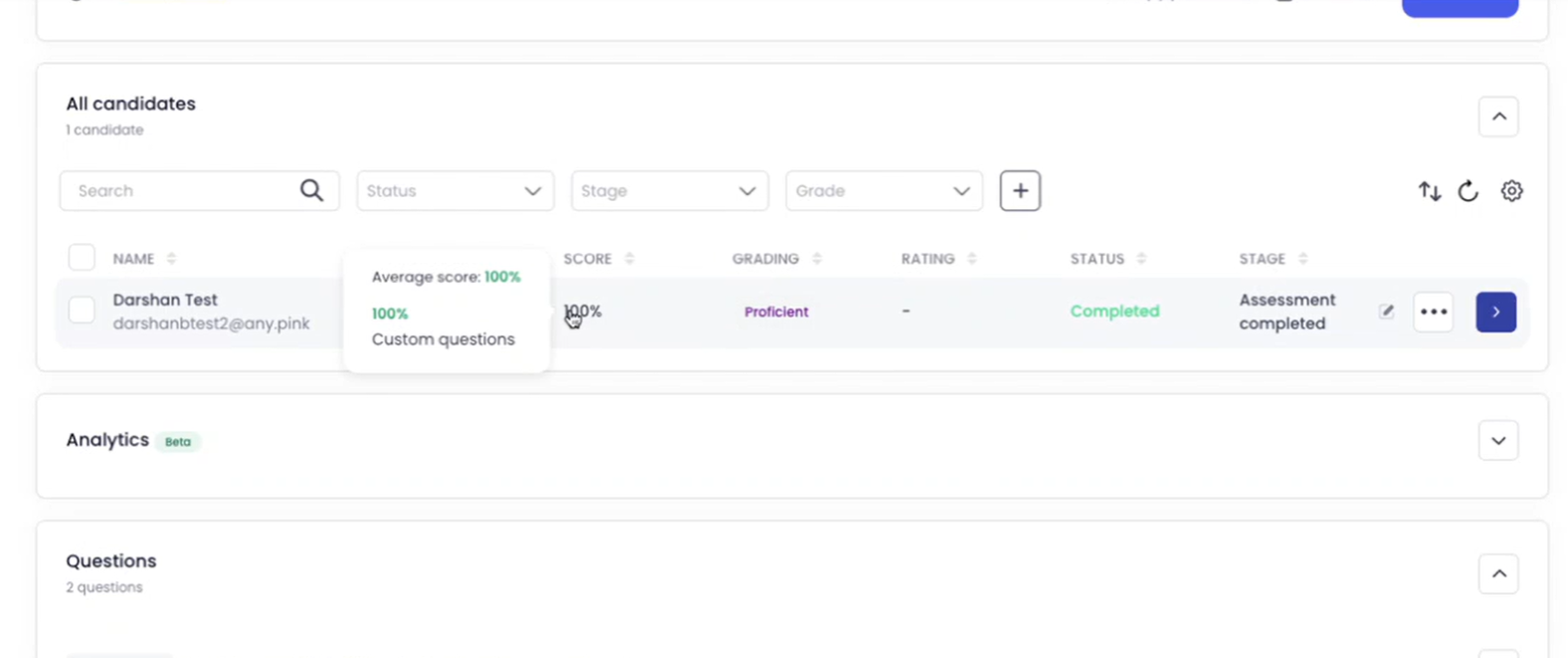
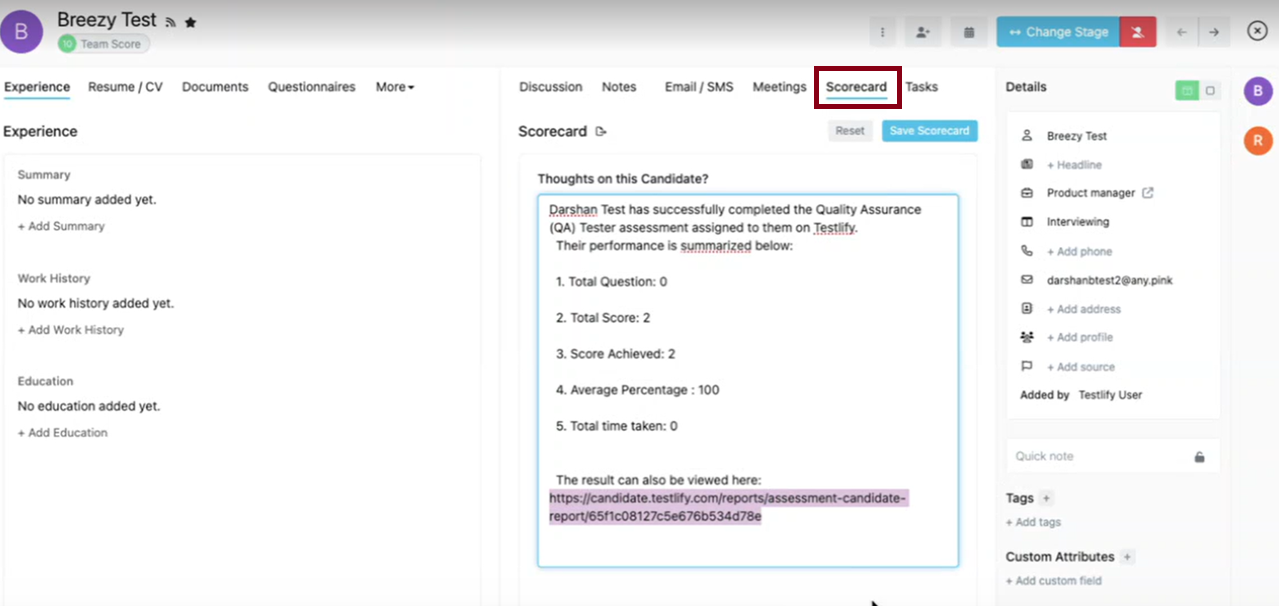
- The score also syncs to Breezy on a 0–10 scale (100% = 10, 50% = 5).
- To see the full scorecard, click the test in Breezy and select Scorecard. This shows the Total Score, Score Achieved, Average Percentage, a PDF download link, and the overall rating.
Troubleshooting: Incorrect username or password
If you updated your Breezy password after setting up the integration, Testlify will show an authentication error. To fix it:
- Go to the Breezy Integration section in Testlify Settings.
- Click the Breezy integration — this opens a new tab.
- Enter your updated Breezy username and password.
- Click Save.
Ensure you have the correct updated credentials to avoid connectivity issues.
Need help? Contact support.