
How to Change Roles and Permissions for Members in the Workspace
Before you begin
You must be a workspace admin to access Roles and Permissions. If you do not see this option in Settings, contact your workspace admin to request access.
Steps to update a member's permissions
-
Click the Settings icon at the top right of the page.

-
In the left sidebar, click Roles and Permissions.

-
Click the three-dot menu next to the member's name and select Edit.

-
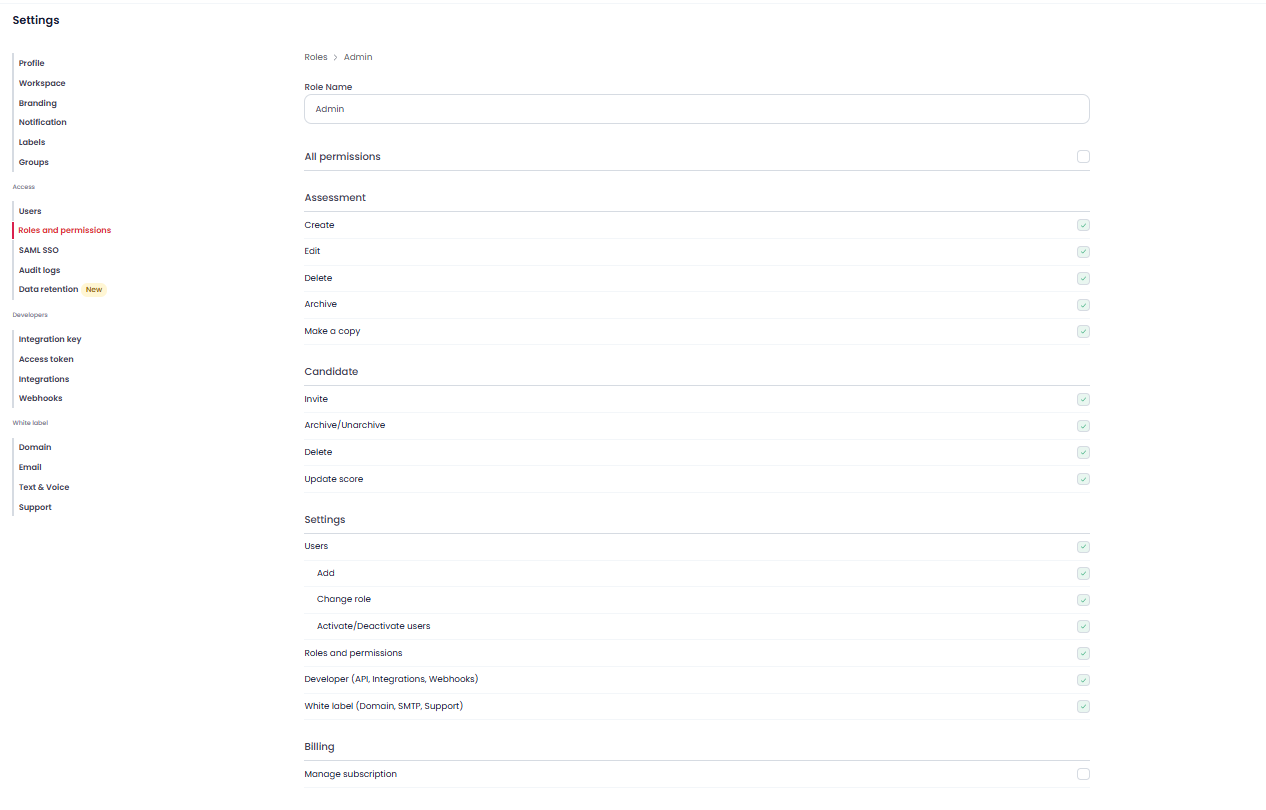
Set the member's access level for each area:
- Assessments — create, edit, or view-only
- Candidates — manage or view-only
- Settings — admin or restricted
- Billing — access or no access
-
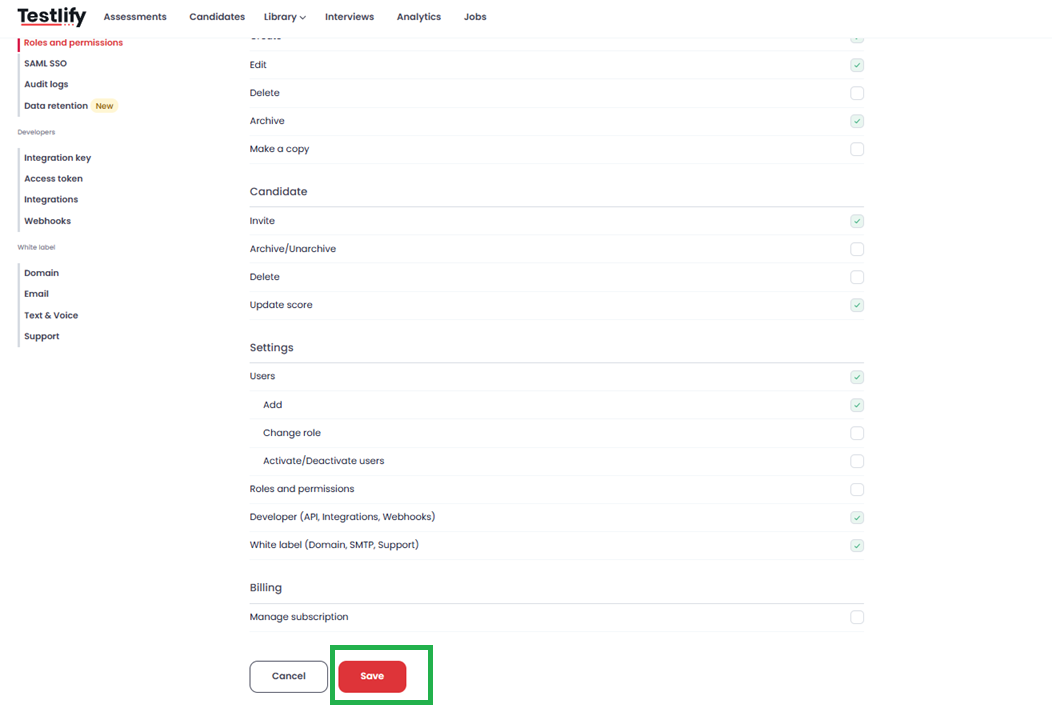
Click Save to apply the updated permissions.
Tip: Grant only the permissions each member needs for their role. This keeps sensitive assessment and billing data secure.
Need help? Contact support.