
How to Download Candidate Reports
Download a PDF performance report for any candidate who has completed an assessment. Share it with your hiring team to review scores and make confident decisions — no Testlify login required for recipients.
Before you begin
- You must be logged in to app.testlify.com.
- The candidate must have completed the assessment — reports are not available for pending or in-progress attempts.
Download a candidate report
-
Log in to app.testlify.com with your email address and OTP.

-
From the dashboard, click the Assessments tab.

-
Click the assessment name to open it.
-
Find the candidate in the list and click their name to open their report.
-
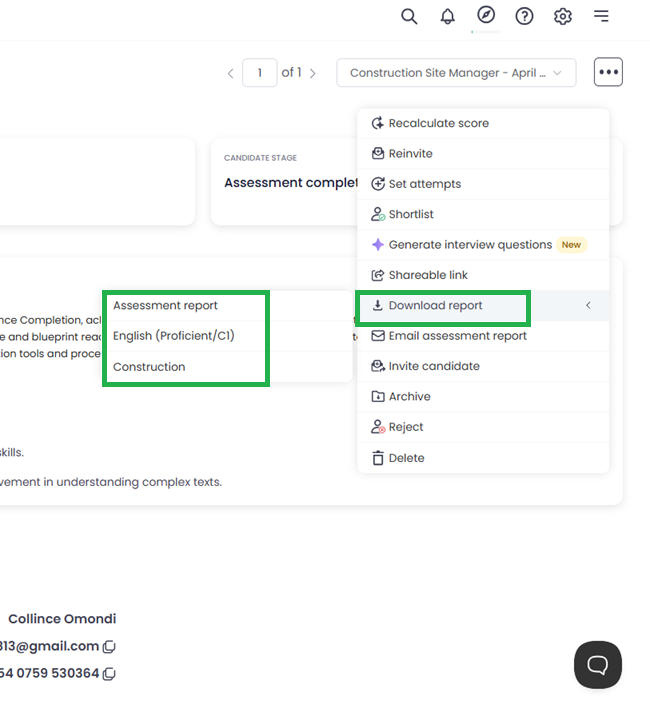
In the top-right corner of the report, click the three-dot menu (⋮).
-
Select Download Report.
-
The PDF downloads automatically. Save it to your preferred location.
Tip: The report includes section-by-section scores, time spent per question, and written or video responses — ideal for sharing with hiring managers who don't have a Testlify account.
Need help? Contact support.