
How to Set a Custom Time Limit per Question in Testlify
Set a custom time limit in the Questions Cart
- Log in to your Testlify workspace.
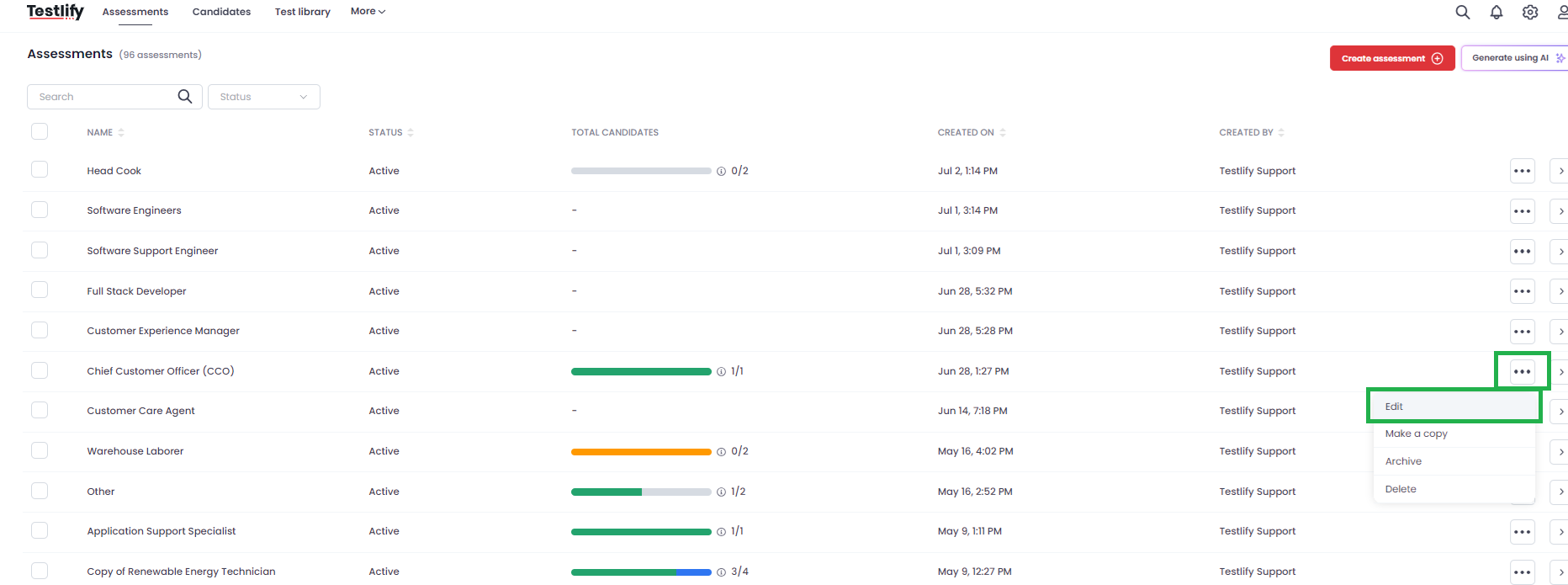
- Open Assessments and find the assessment to edit. Click its three-dot menu and select Edit.
- On the right side of the screen, click the down arrow to open the Questions Cart.

- Find the question or test to update. Click its three-dot menu and select Edit.

- Open the time settings dropdown, select Custom, and enter your desired time limit.

- Click Save to apply the new time limit.
Tip: Custom time limits apply only to the question or test you edited — all other items in the Questions Cart retain their original durations.
Need help? Contact support.