
How to Add a Welcome Video to Your Assessment
A welcome video plays for candidates before they start your assessment, giving them a personal introduction and setting clear expectations.
Before you begin
- You have an active Testlify account.
- You have an existing assessment to edit, or you are ready to create a new one.
Add a Welcome Video to Your Assessment
-
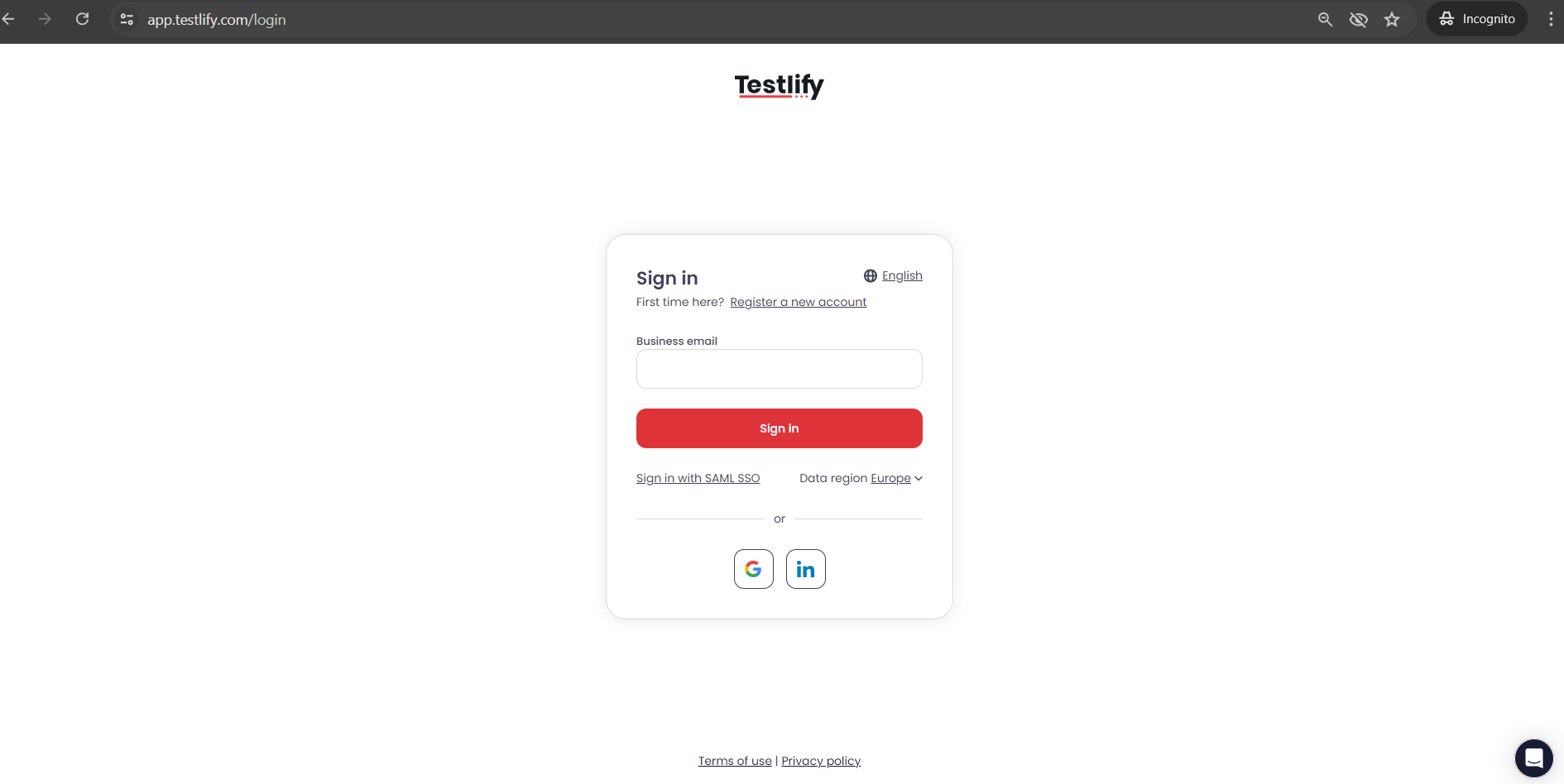
Log in to Testlify. Go to app.testlify.com and sign in.
-
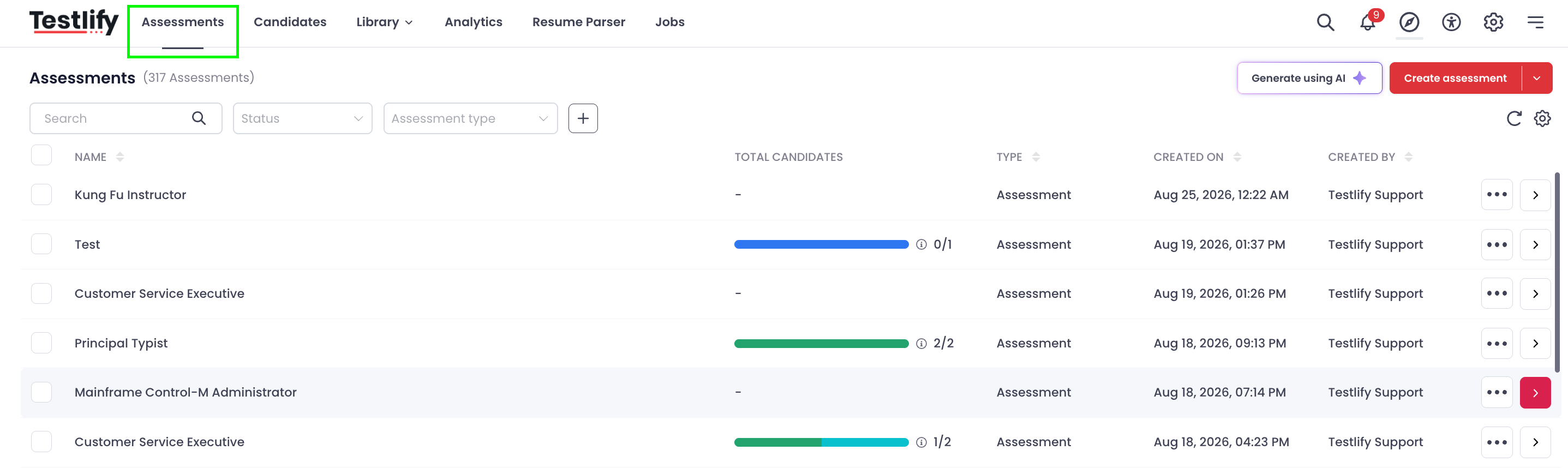
Open the Assessments tab. Click Assessments in the left navigation.
-
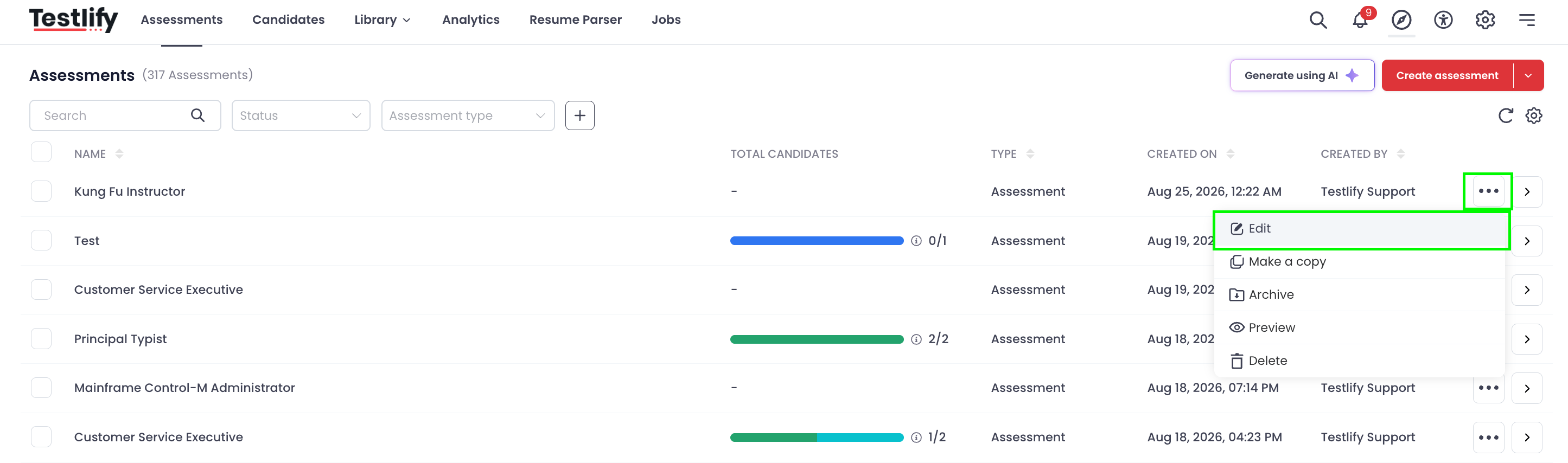
Edit your assessment. Click the three-dot menu next to the assessment you want to update and select Edit.
-
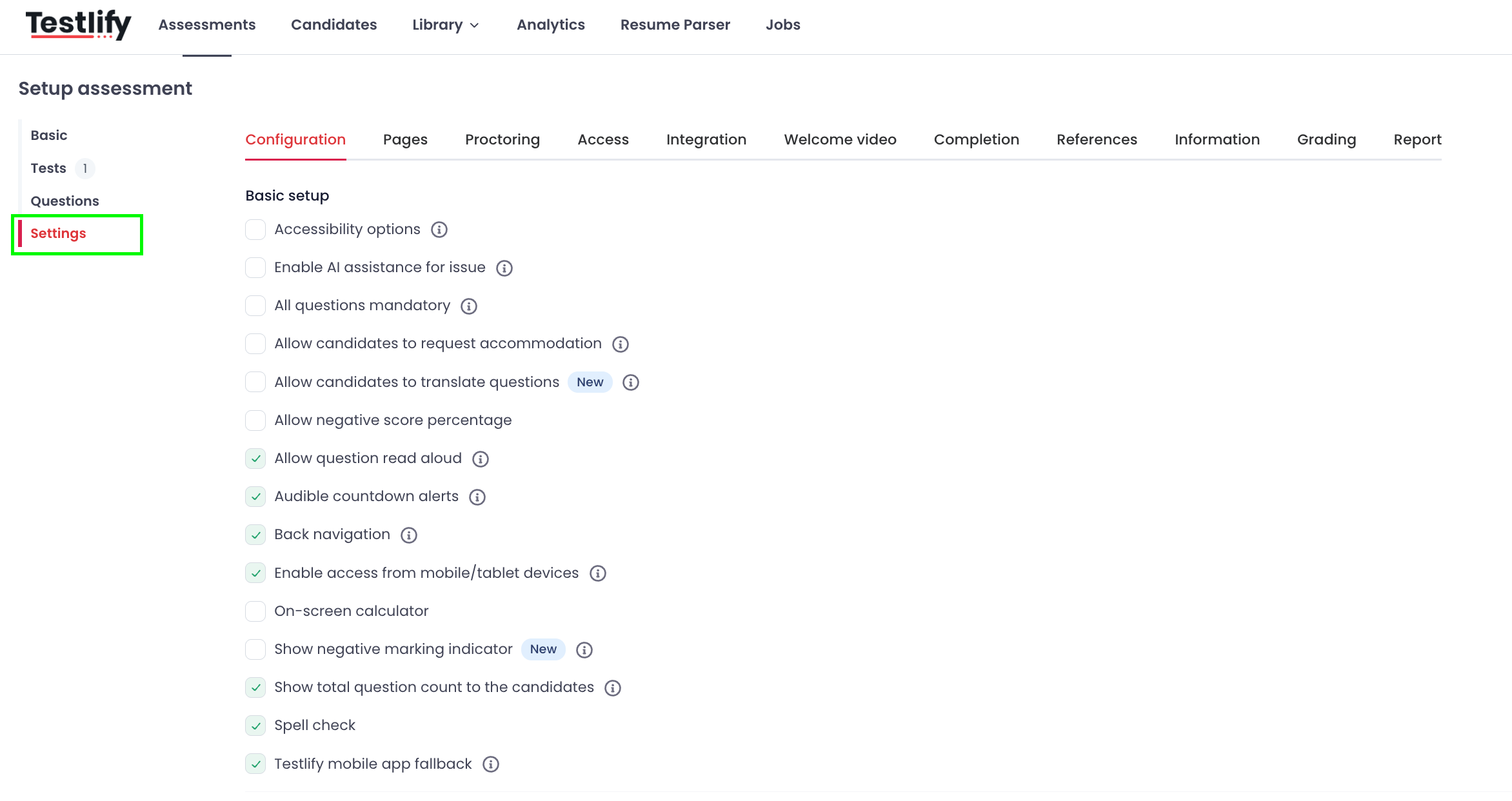
Go to Settings. Inside the assessment editor, click the Settings tab.
-
Select Welcome Video. Inside the Settings panel, click Welcome Video.
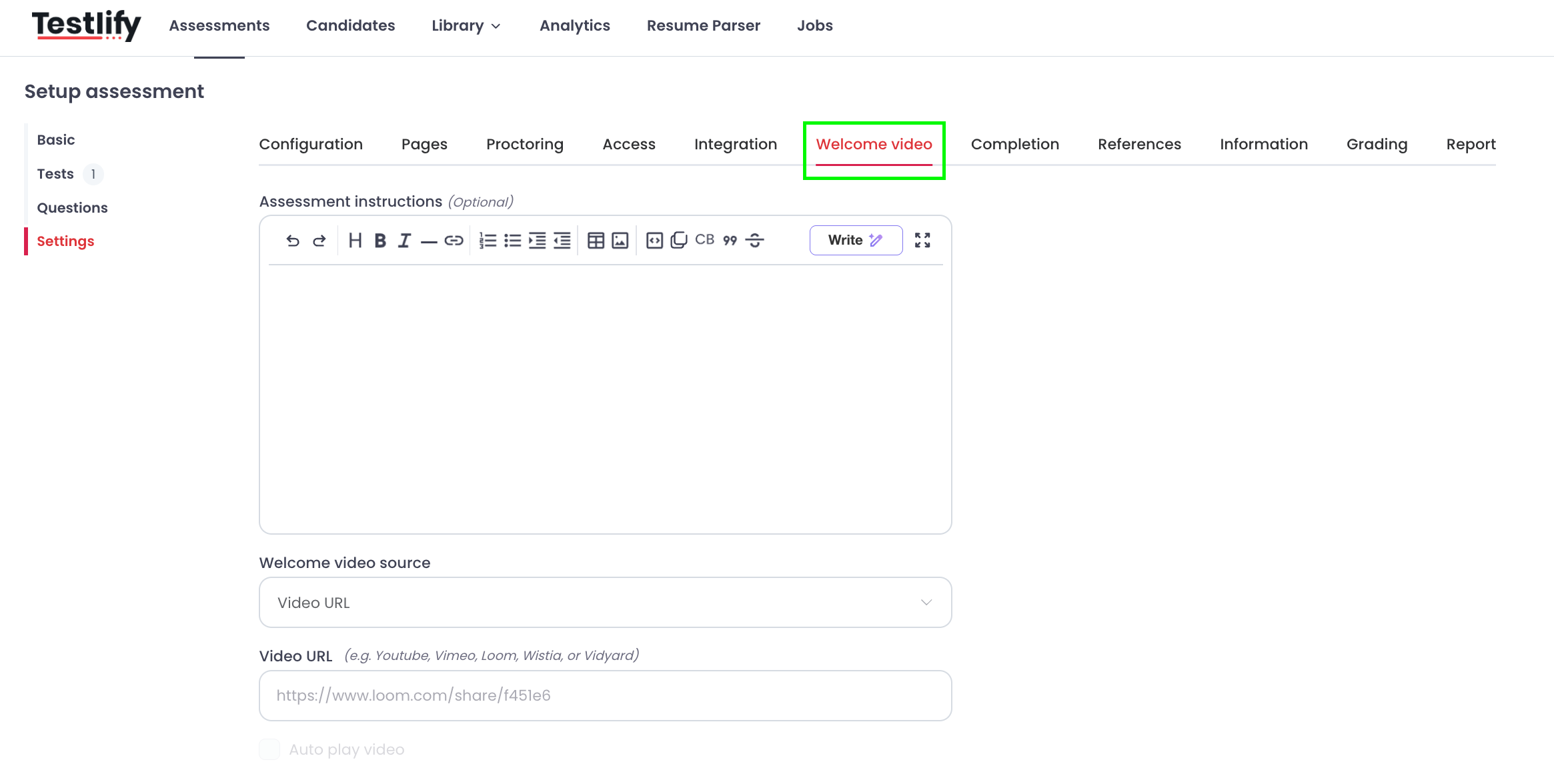
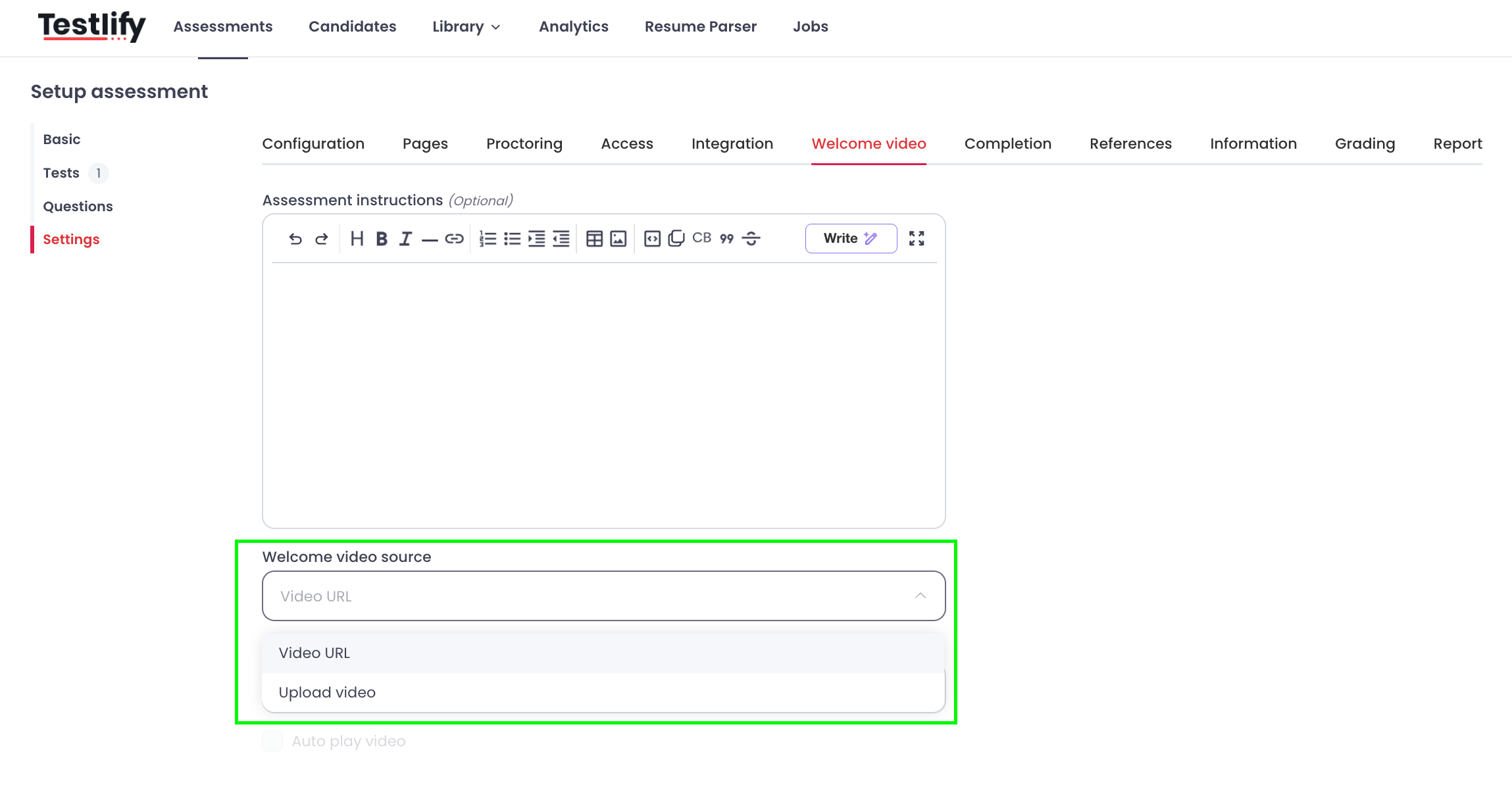
Choose a video source. Click Welcome Video Source to see two options:
- Video URL — paste a link from YouTube, Vimeo, Loom, Wistia, or Vidyard.
-
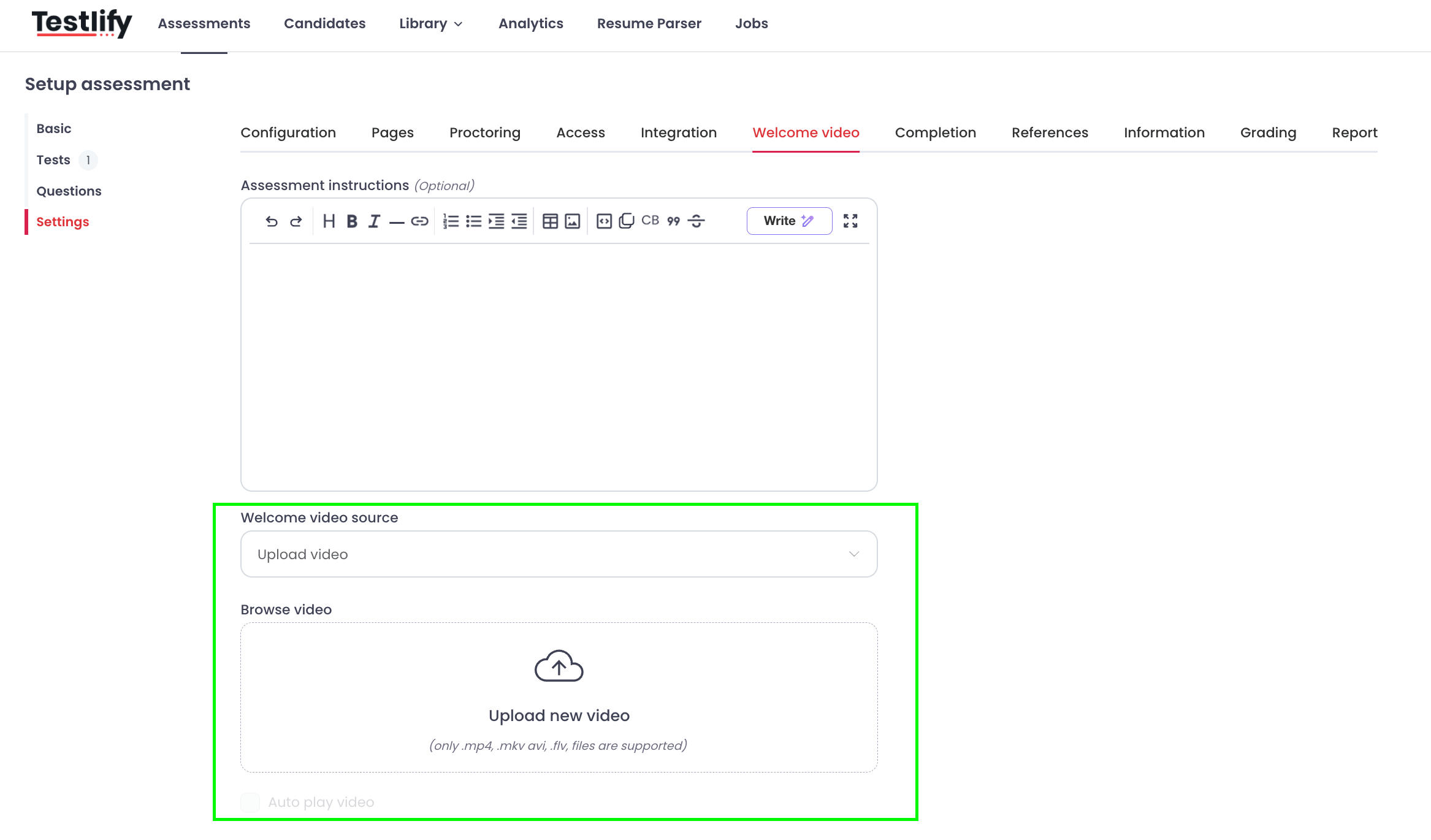
Upload Video — upload a video file directly from your device.
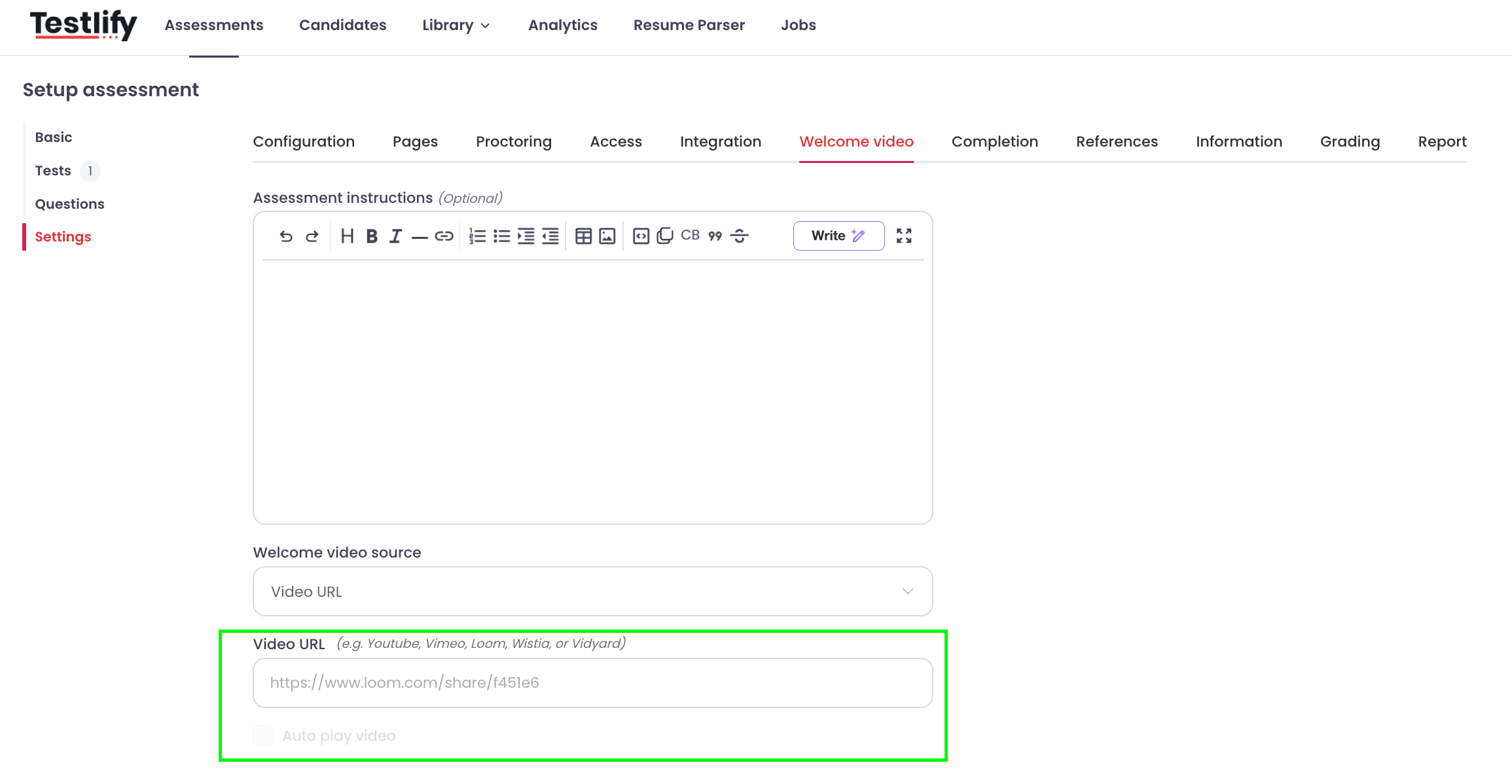
Add your video.
-
Video URL: Paste the video link into the input field.
-
Upload Video: Select the file from your device using the upload option.
- Save. Click Save. The welcome video will now play for all candidates before they start the assessment.
Tip: Keep your welcome video under 2 minutes. A concise, direct message improves candidate engagement and reduces drop-off before the assessment starts.
Need help? Contact support.