
Integrate BambooHR with Testlify
This guide explains how to integrate BambooHR with Testlify so that candidate information and assessment results sync automatically between the two platforms.
Before you begin
- Admin access to your Testlify account
- A BambooHR account with permission to generate API keys
Step 1: Open the Integration tab in Testlify
- Log in to your Testlify account.
- Go to Settings.
- Click the Integration tab.

Step 2: Select BambooHR and retrieve your API key
- In the Integration tab, click BambooHR.

- You will be taken to a page where you must enter your BambooHR API key.

- To get your API key, log in to BambooHR, click your profile icon, and navigate to Profile > API Key.
- Click Create New Key and copy the generated key.


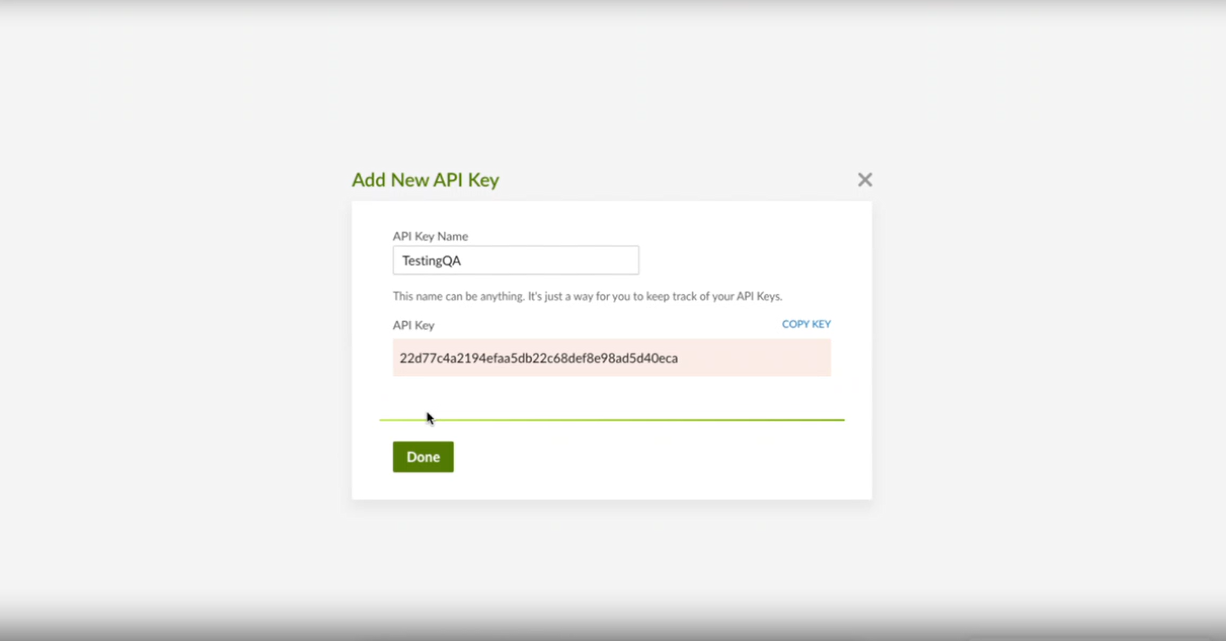
- Return to Testlify, paste the API key, enter your BambooHR password and domain name, then click Save.

Step 3: Verify the connection
- A confirmation message will appear showing BambooHR is connected to your Testlify workspace.

- Return to the Testlify dashboard and refresh the page to confirm the integration is active.

Step 4: Link BambooHR to an assessment
- Open or create an assessment in Testlify.
- In the assessment settings, click the Integration tab, then click Link Integration.
- Select BambooHR from the ATS drop-down.
- Choose the relevant job profile from BambooHR (for example, QA Engineer).

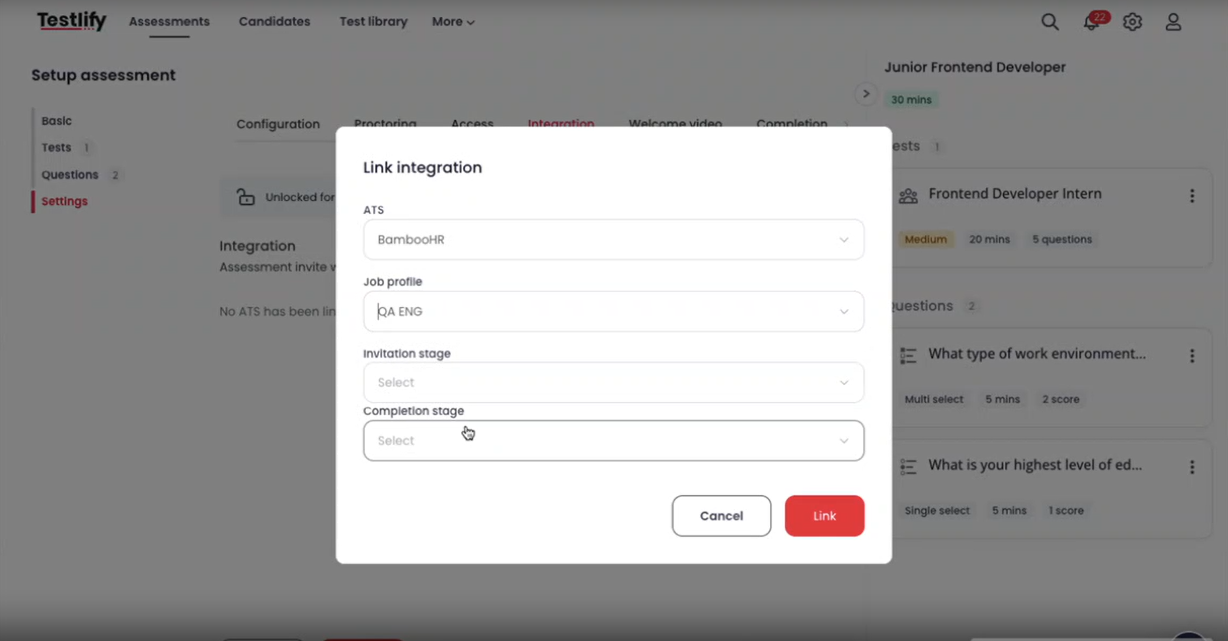
- Set the invitation stage (for example, Interviewed) and the completion stage (for example, Reviewed).
- Click Link, then click Save.

Step 5: Add and move candidates in BambooHR
- In BambooHR, go to the Hiring tab and open Jobs.

- Search for and open the relevant job role (for example, QA Engineer).

- Add a new candidate to the job role.
- Move the candidate to the Interviewed stage to trigger the Testlify assessment invitation.

Tip: The candidate receives the Testlify invitation within 5 minutes of being moved to the Interviewed stage, once the sync job runs.
Step 6: View assessment results in BambooHR
- After the candidate completes the assessment in Testlify, go to the Reviewed stage in BambooHR.
- Refresh the page to see the candidate's score in the notes section.
- Click Report Video to download a PDF of the full assessment results.

Need help? Contact support.