
Add Non-English Tests from Testlify's Multilingual Library
Testlify's test library includes assessments in ten languages. Use the Language filter to find and add non-English tests to any assessment — the workflow is the same as adding an English test.
Before you begin
- You must have an active Testlify account with access to the Library.
- Confirm your desired language is in the supported list below before searching.
Supported languages
In addition to English, Testlify offers tests in:
- Arabic
- Deutsch (German)
- Dutch
- Español (Spanish)
- French
- Greek
- Italian
- Japanese
- Portuguese
Why use multilingual tests?
- Wider talent pool: Candidates test in their preferred language, giving you access to global applicants.
- Better candidate experience: Assessing in a candidate's native language shows respect and reflects positively on your organization.
- More accurate results: Language barriers are removed, so scores reflect true skills — not English proficiency.
How to add a non-English test to your assessment
- Log in to your Testlify account.
- Click Library in the top navigation, then select Tests.

- Open the Language filter and select your target language to narrow the results.
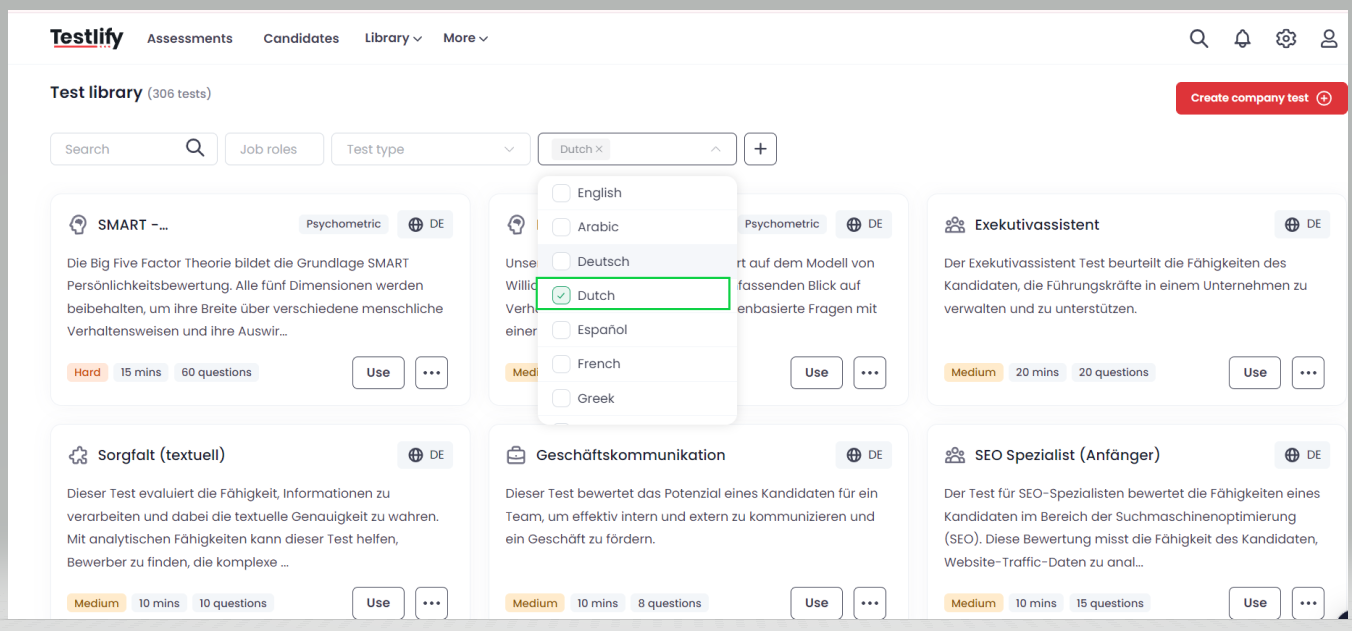
- Locate the test you need, then click Use to add it to your assessment.

Tip: Combine the Language filter with role or skill filters to find the right test faster.
Need help? Contact support.