
How to Add Negative Scoring to an Assessment
Negative scoring deducts points for incorrect answers, making assessments more precise and discouraging guesswork. This guide shows you how to enable negative scoring on custom questions in your Testlify assessment.
Before you begin
- You need an existing assessment or must create one first.
- Negative scoring applies only to custom questions you add manually — it is not available on questions from the Testlify library.
Supported question types
Negative scoring is available for the following custom question types:
- Single Select
- Multiple Select
- Yes or No
Steps
-
Open your assessment. Navigate to the assessment you want to configure and open Assessment Settings.
-
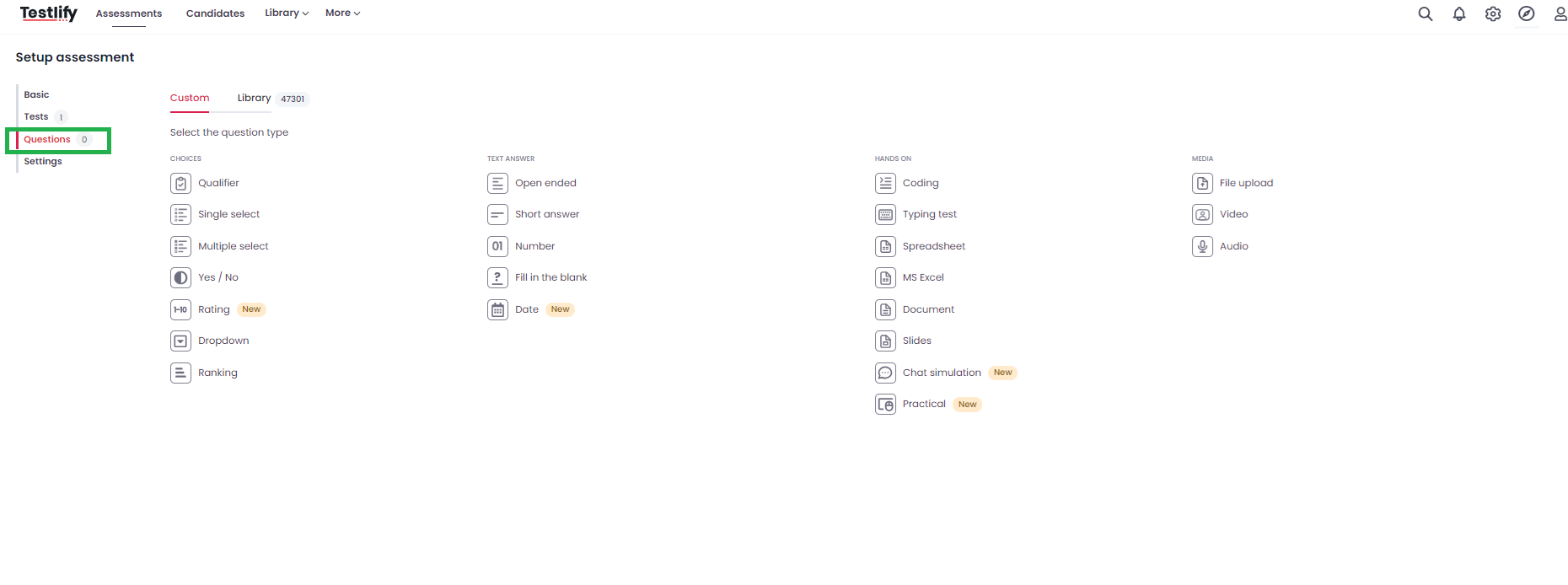
Go to the Questions tab. Click the Questions tab to access the custom question tools.
-
Select a supported question type. Choose Single Select, Multiple Select, or Yes or No to open or create a question.

-
Enter your question and answer options. Type the question text and add all answer choices.
-
Open advanced options. Scroll to the bottom of the question editor and click Show Options to reveal advanced settings.

-
Set the negative score. In the Negative Score field, enter a penalty value — for example,
-1. Each incorrect answer a candidate selects will subtract that value from their total score.
-
Save the question and assessment. Review your settings, then save to apply negative scoring.
Tip
Negative scoring works best when candidates are expected to have confident, accurate knowledge — for example, compliance checks or technical skills tests. Avoid using it for exploratory or open-ended questions where some guessing is acceptable.
Need help? Contact support.