
How to Enable Live Video Proctoring
Testlify's Live Video Proctoring uses AI-powered face detection to verify each candidate's identity and flag suspicious behaviour in real time — preventing impersonation, detecting unauthorized collaboration, and generating a tamper-evident audit trail for every session.
Before you begin
- You need edit access to the assessment you want to configure.
- Candidates must use a Chromium-based browser — Google Chrome, Microsoft Edge, or Brave. Firefox and Safari are not supported.
- Candidates need a working webcam and microphone.
Why use Live Video Proctoring?
- Prevent impersonation — confirms the registered candidate is the one sitting the test.
- Detect unauthorized behaviour — flags no face detected, multiple faces, or a different face in real time.
- Strengthen result credibility — provides a verifiable session record for your hiring team.
How to enable Live Video Proctoring
- Log in to your Testlify workspace at app.testlify.com using your business email and OTP.

- Select the assessment you want to configure from your dashboard.

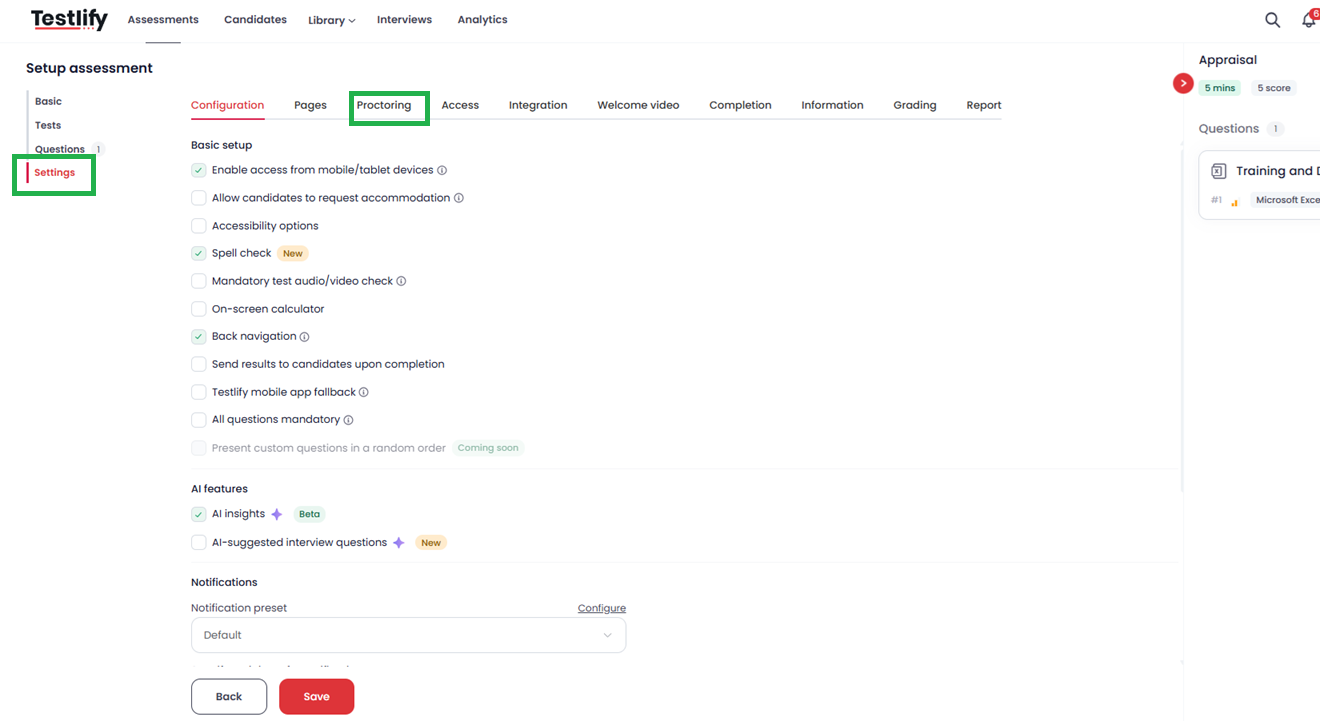
- Click Edit on the left side of the screen to open the assessment editor.

- Click Settings on the right side of the editor.
- Click Proctoring to expand the proctoring options.
- Under Camera and Mic Permissions, tick the checkbox next to Live Video Proctoring.
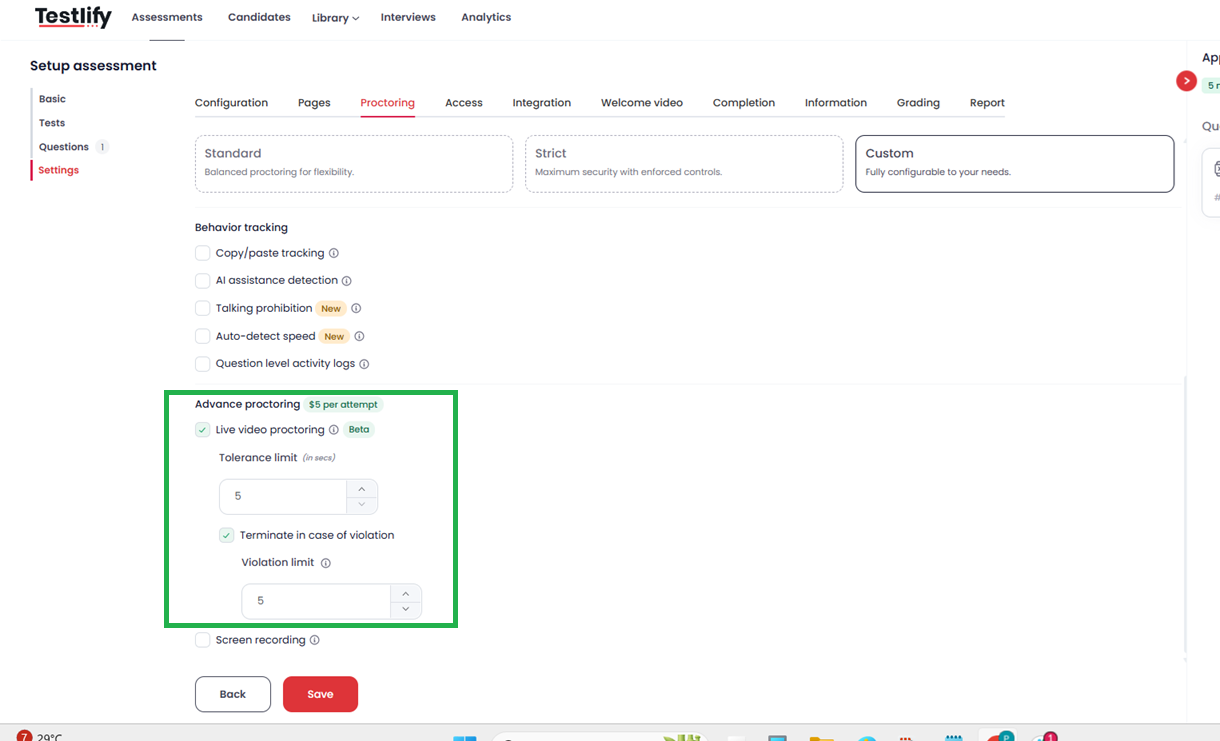
- Set your Tolerance & Violation Limit — the maximum number of violations allowed before Testlify automatically terminates the assessment. Tip: A limit of 3 strikes a good balance between strictness and tolerance for minor camera movement.
- Click Save to apply your settings.


How it works
Once enabled, the proctoring engine monitors the candidate's webcam feed throughout the assessment:
- Snapshot capture — photographs the candidate at the start and at regular intervals to confirm they remain in view.


- Face detection — continuously monitors for:
- No face detected — candidate has moved out of the camera's view.
- Multiple faces detected — possible unauthorized collaboration.
- Different face detected — potential impersonation attempt.
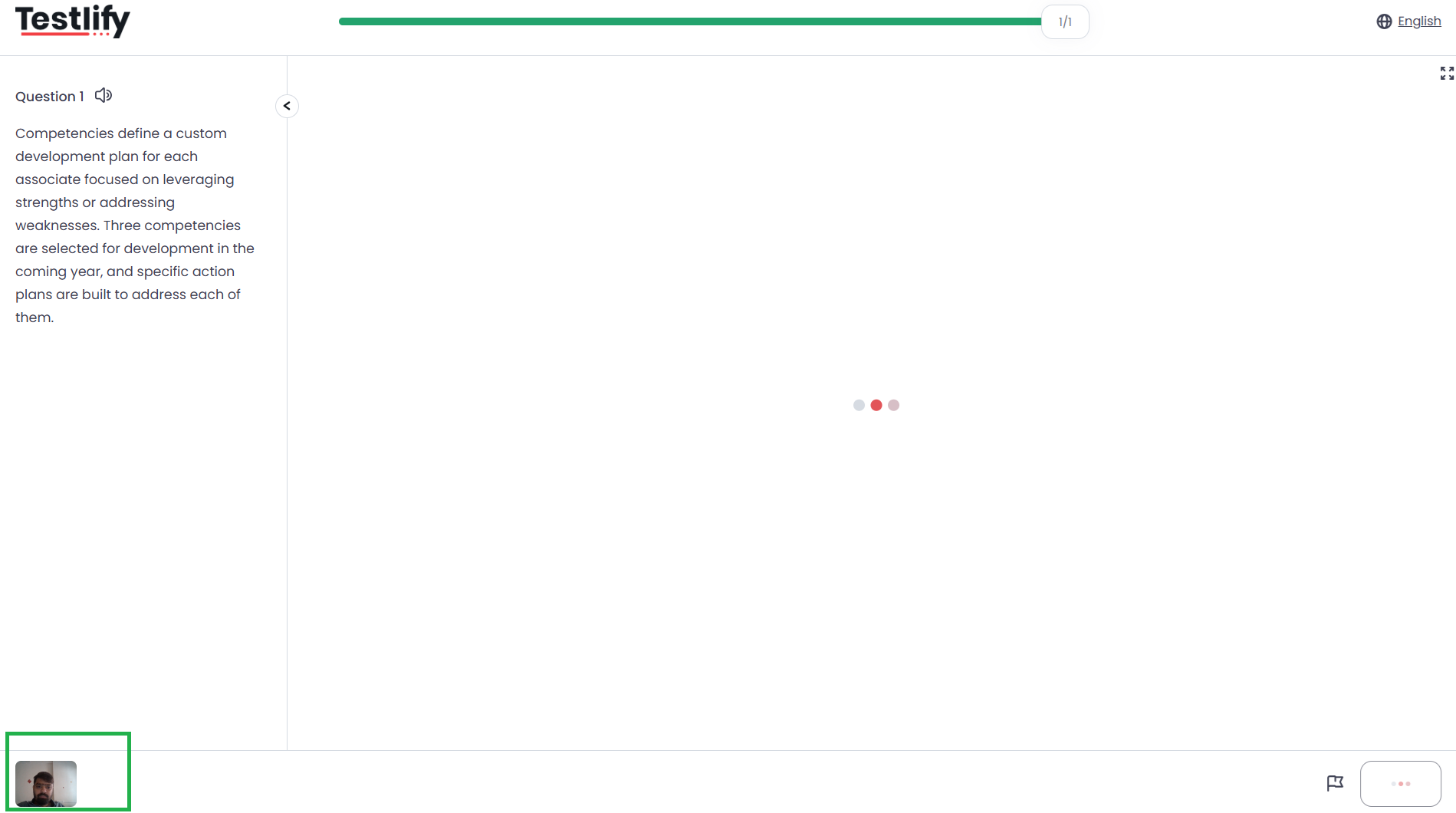


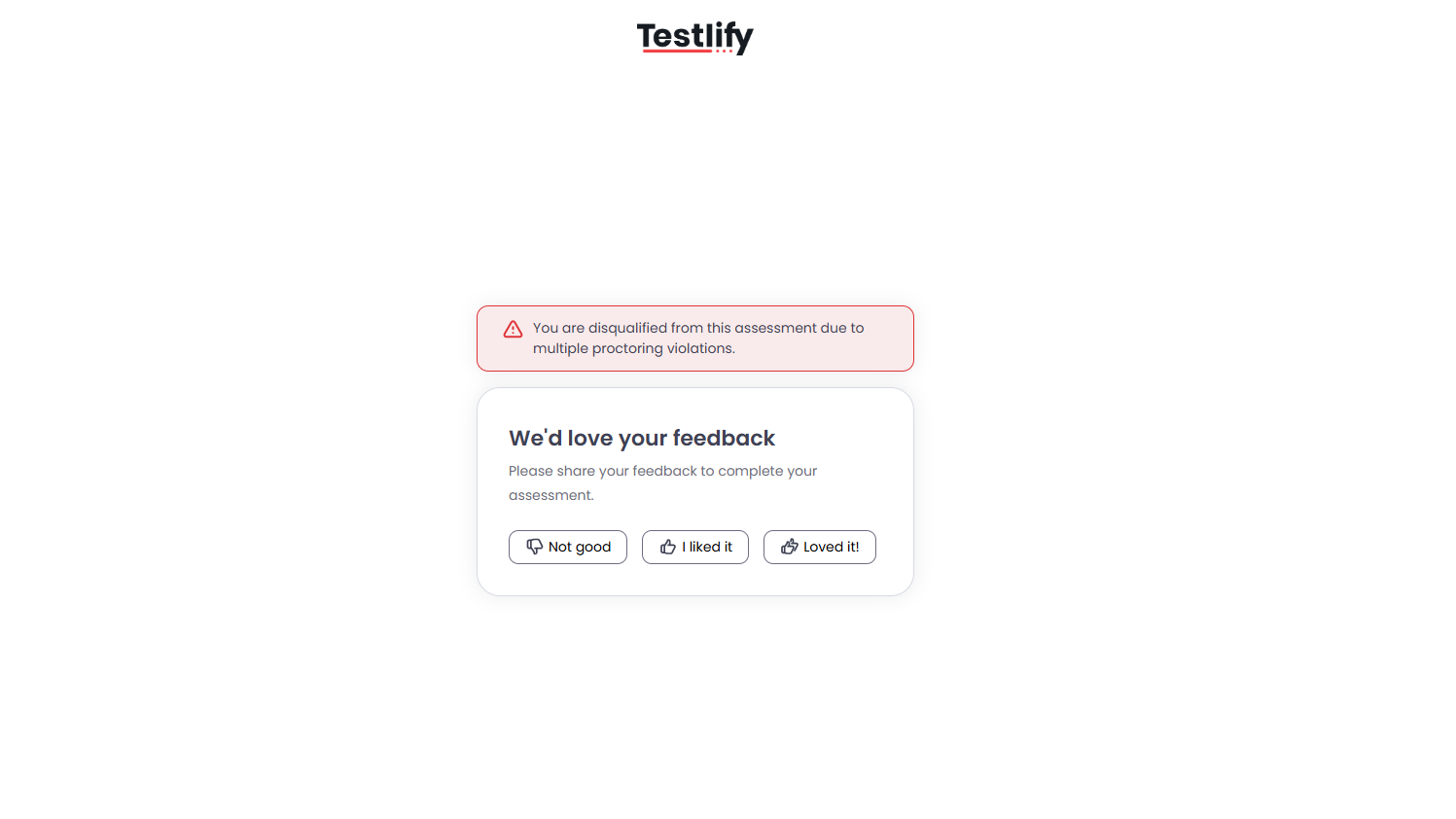
- Violation handling — each flagged event is logged. When the violation limit is reached, the assessment terminates automatically to preserve its integrity.
Reviewing proctoring logs
All session data is available on the Candidate Result Page, including:
- Snapshots captured during the assessment.
- Detailed violation logs (no face, multiple faces, different face detected).
- Time-stamped events for easy review.

Tip: Filter the violation log by event type to quickly isolate face-detection alerts from other proctoring events during longer assessments.
Need help? Contact support.