
How to Add Video Questions in Testlify
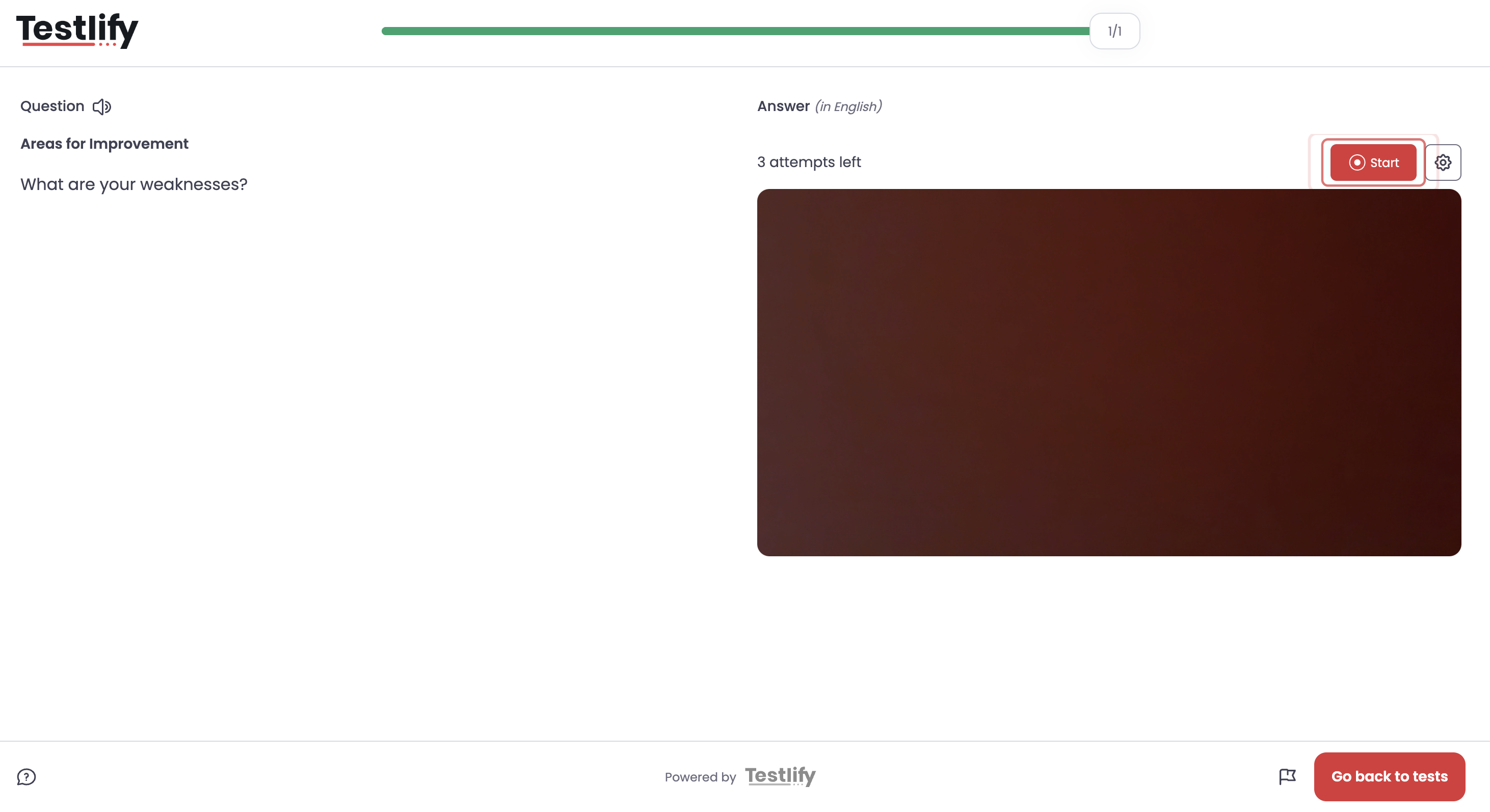
To add a video question, open the assessment, go to the Questions step, and select Video under Media on the Custom tab. Pick a template or write your own question, set the time limits and attempts, and click Add. Candidates answer on camera.
Add a video question to an assessment
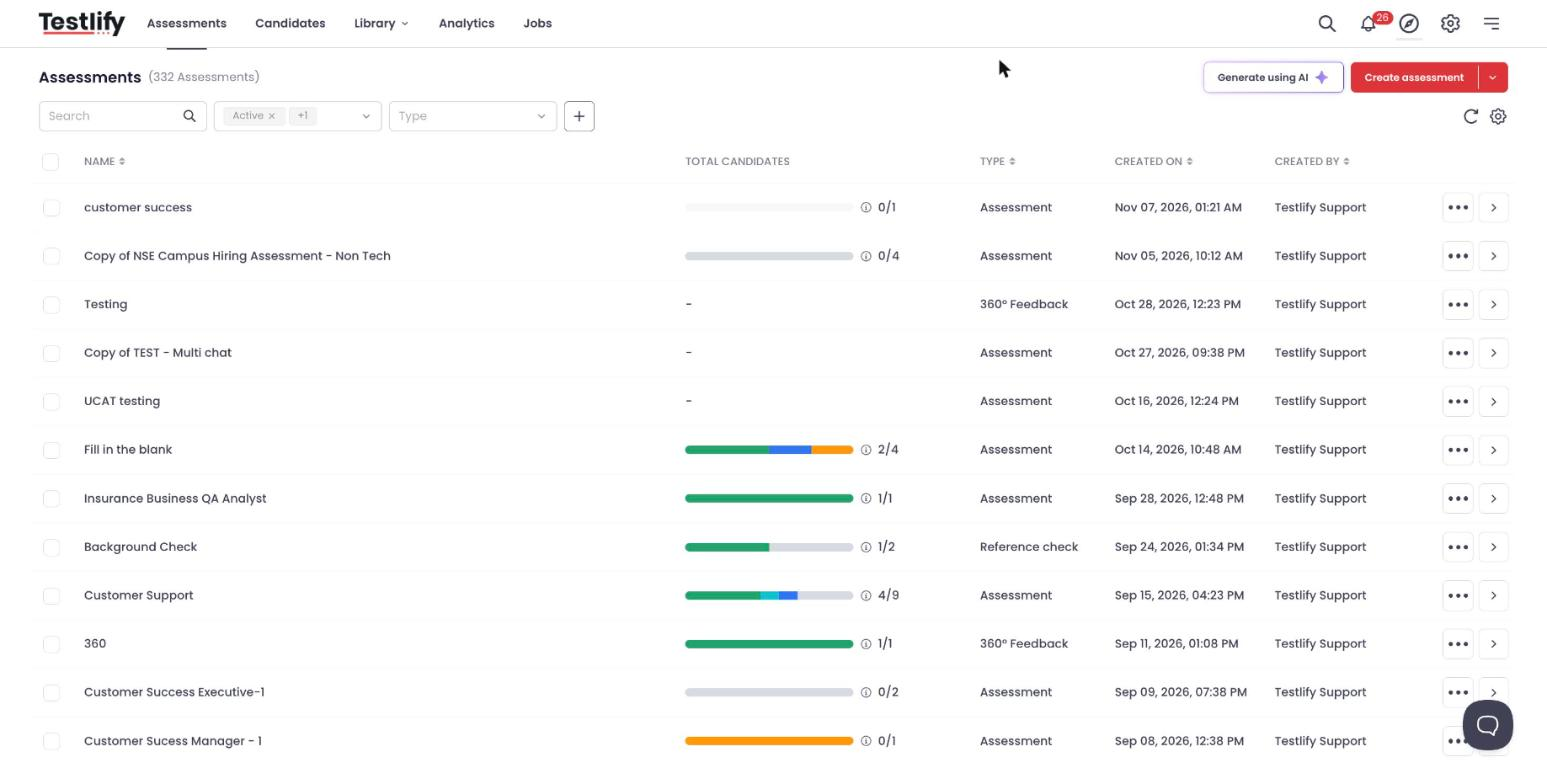
- On the Assessments page, click Create assessment, enter the Job role and Assessment name, and click Next. To use an existing assessment, open it and click Edit.
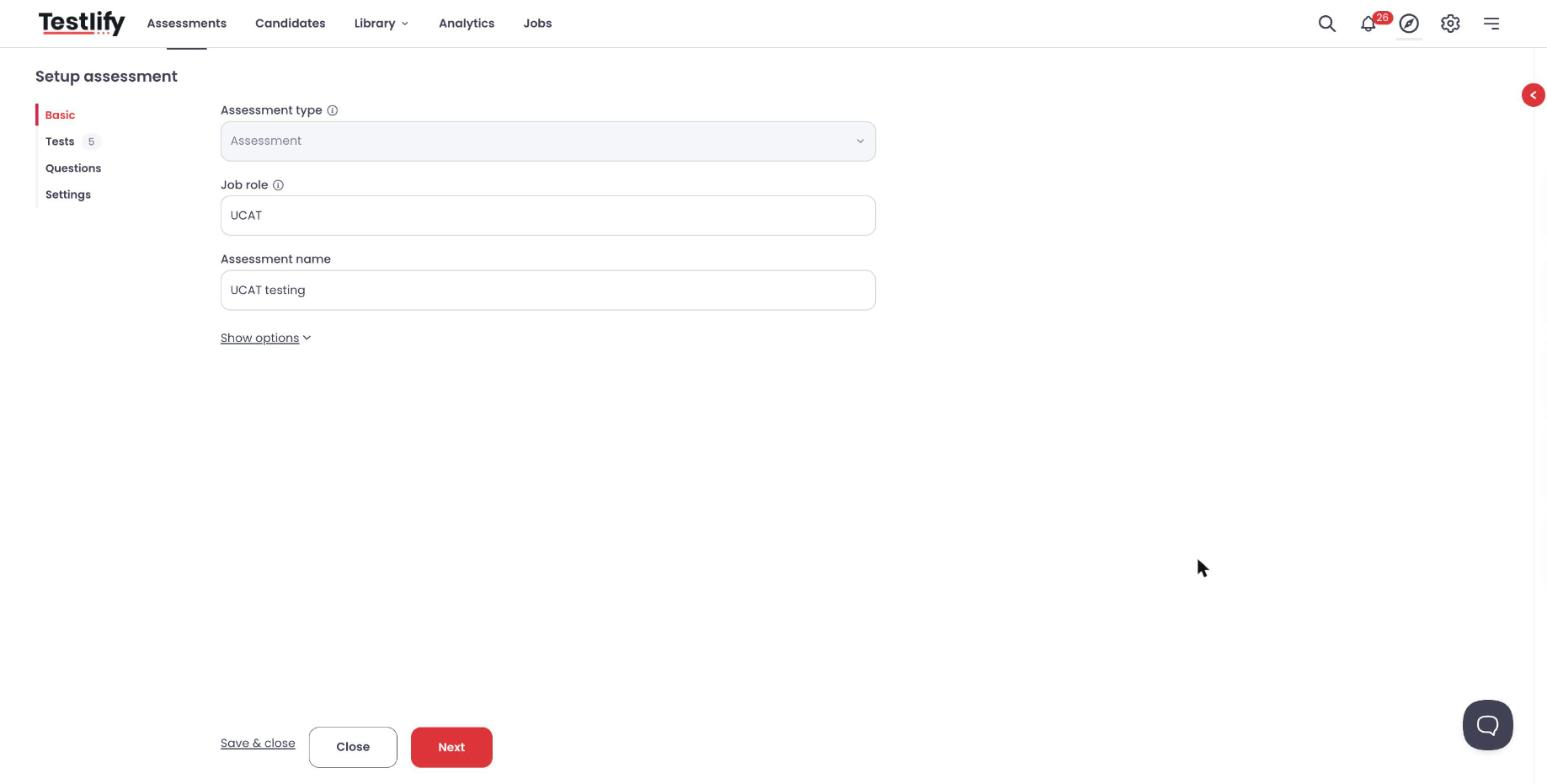
- Optionally add tests on the Tests step. Skip this if you only need video questions.
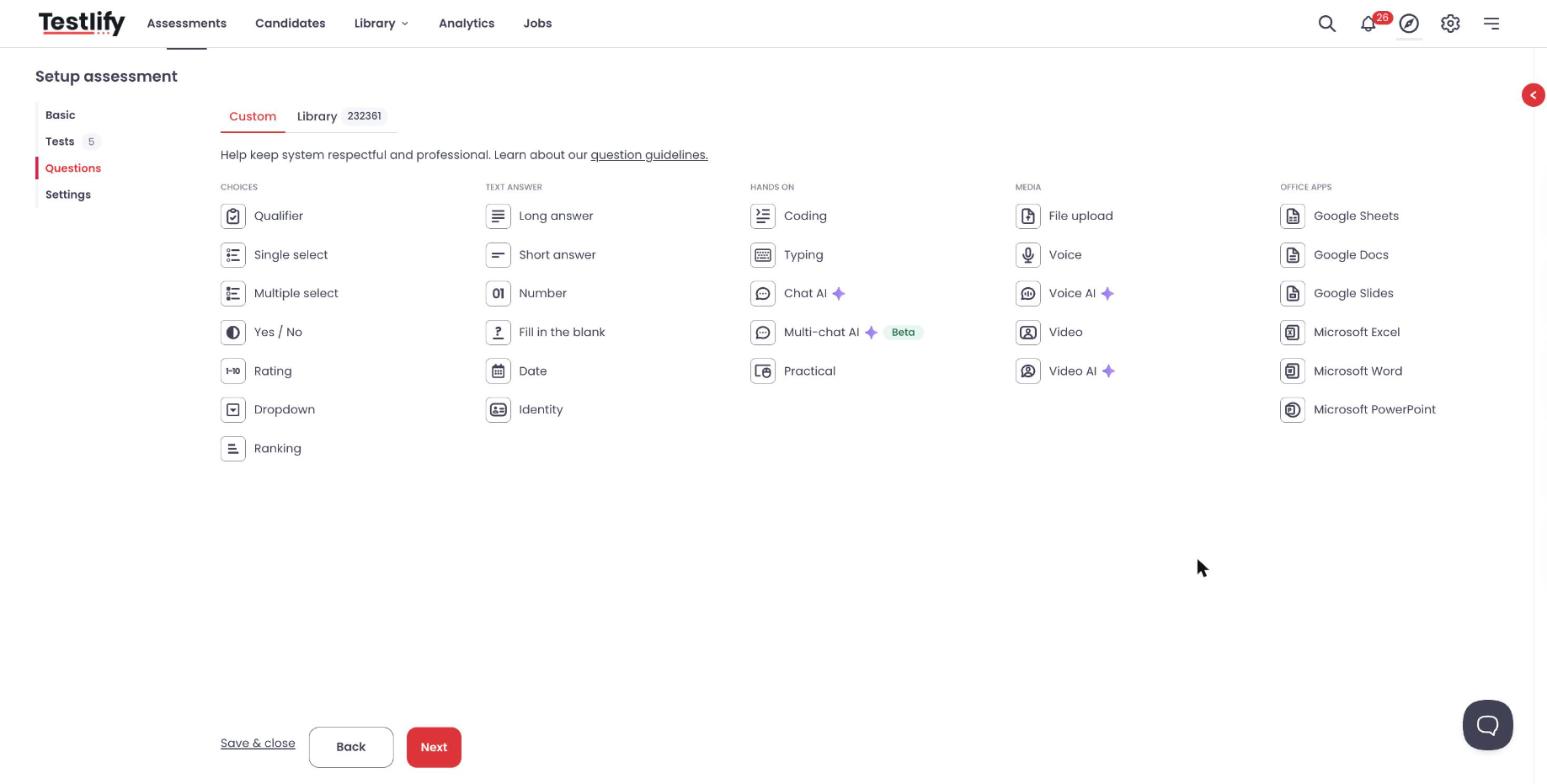
- On the Questions step, open the Custom tab and select Video under Media. (Video AI is a different question type.)
- Pick a template from Question templates, or enter your own Question title and Question description.
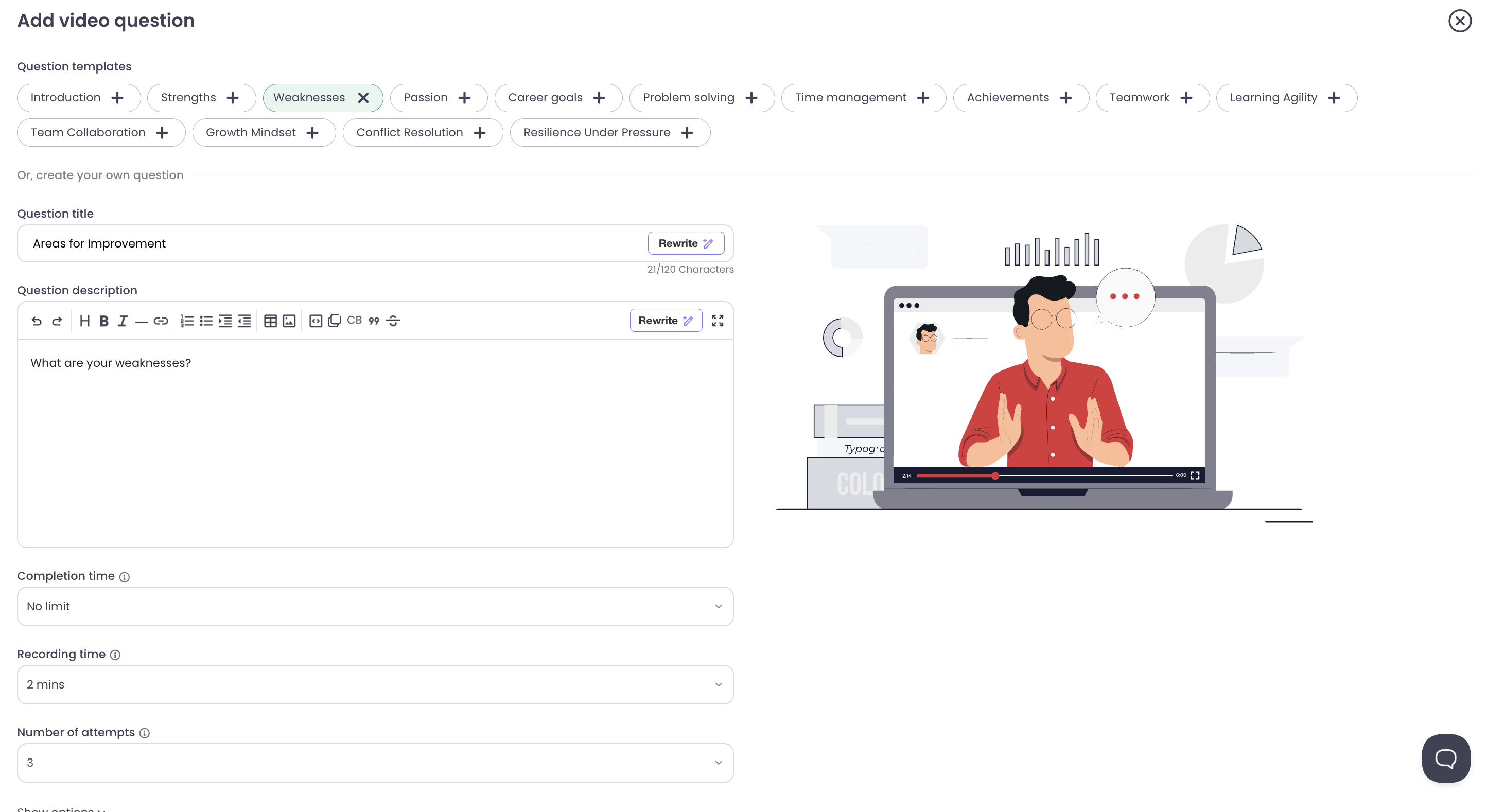
- Set Completion time, Recording time and Number of attempts.
- Click Preview to check the question, then click Add.
- Repeat for more questions, then go to the Settings step and click Save.
Add a video question to a company test
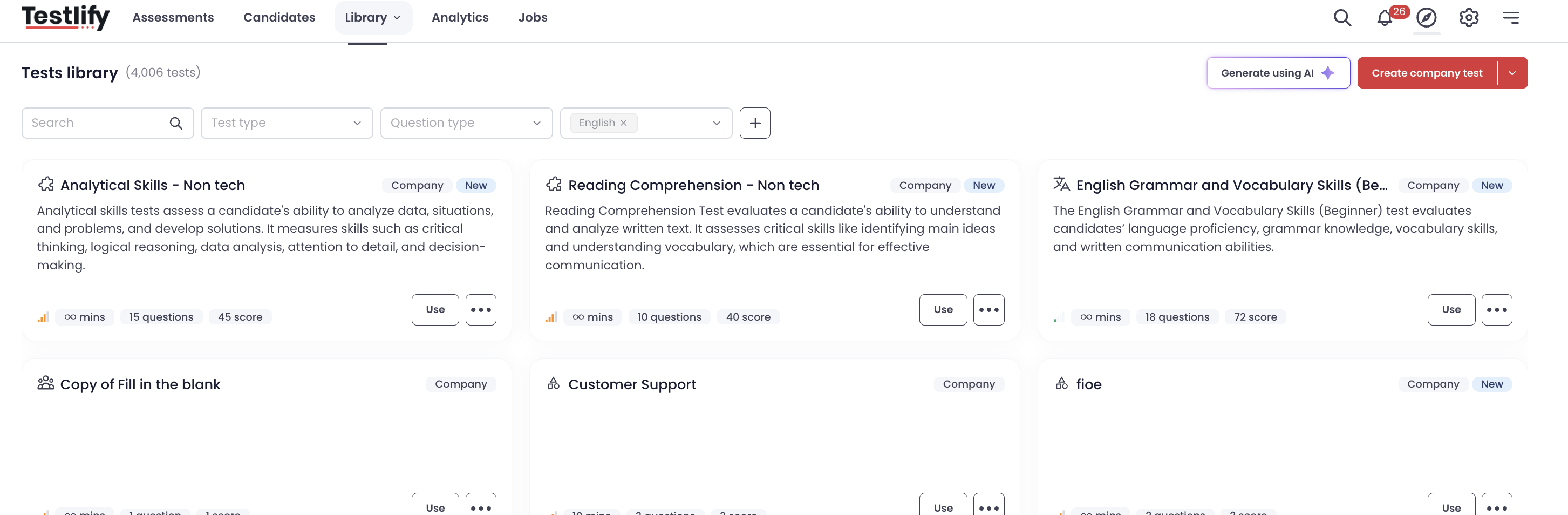
Go to Library > Tests, click ⋮ on your company test and select Edit (or click Create company test). Then follow steps 3–6 on its Questions step.
Tips for good video questions
- Be specific about what the candidate should address. Vague prompts lead to answers that are hard to compare.
- Ask open-ended questions, such as "Describe a challenge you solved and how you approached it." Aim for 3 to 5 video questions per assessment.
- Allow one or two attempts to encourage natural answers. The default is 3.
- Keep Recording time between 1 and 3 minutes.
- Place video questions at the end, so candidates show their skills first.
Troubleshooting for candidates
- Camera or microphone not detected: close other apps using the device, refresh the browser, and allow camera and microphone access when prompted.
- Slow upload: switch to a faster, more stable connection and try again.
- Can't record: update the browser and check camera and microphone permissions in the browser settings.
Need help? Contact support.