
How to Use the Difficulty Index to Filter Tests on Testlify
The Difficulty Index lets you filter Testlify's test library by skill level, making it easy to build assessments that match exactly what your role demands — from entry-level to expert.
Before you begin
Log in to your Testlify workspace and open the assessment you want to build or edit.
How to filter tests by difficulty level
-
Go to the Tests tab. Inside your assessment, select the Tests tab to access Testlify's full test library.
-
Open the filter panel. In the top-right area of the screen, click the Add button next to the Filters box.

-
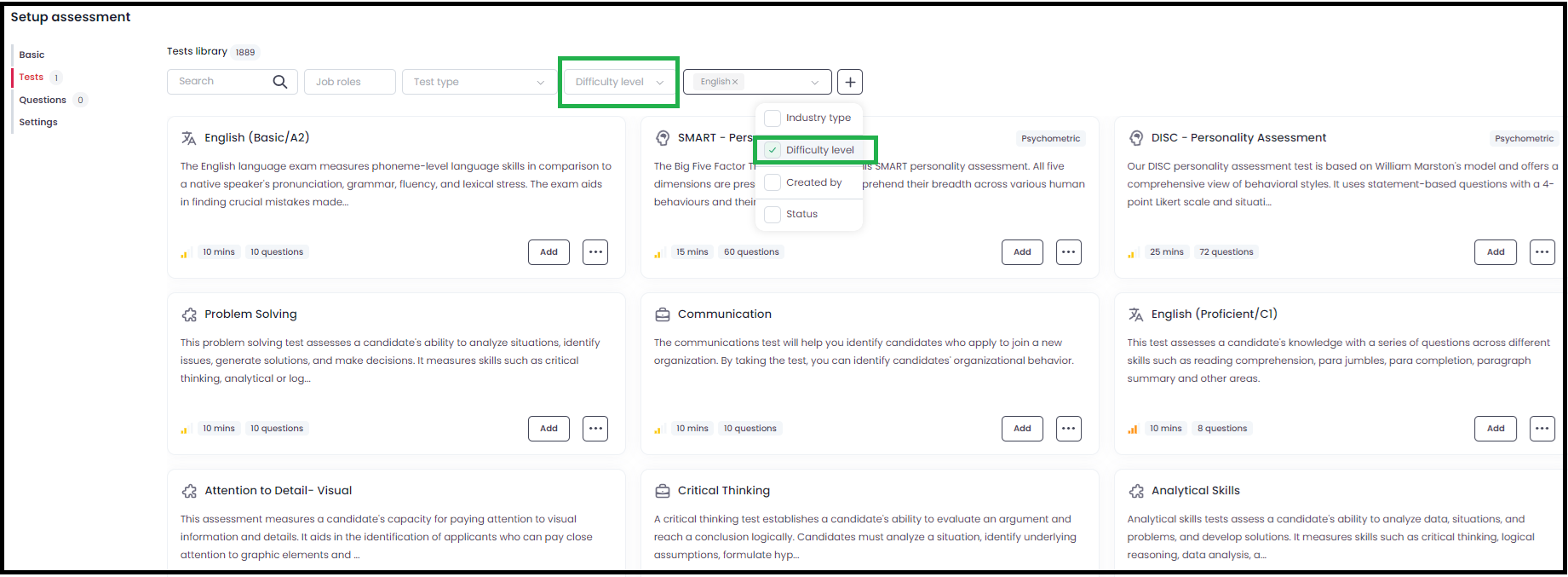
Select Difficulty Level. From the available filter options, choose Difficulty Level.
-
Choose a level. Pick one of four levels: Beginner, Intermediate, Advanced, or Expert. The library updates to show only tests at that level.

-
Add tests to your assessment. Select the filtered tests you want and add them to your assessment.
Why use the Difficulty Index?
The Difficulty Index helps you tailor assessments to the skill level the role actually requires. Whether you need beginner-friendly tests for entry-level candidates or expert-level challenges for senior hires, filtering by difficulty keeps your assessment fair and relevant.
Tip: Mix difficulty levels across different skill areas to create a balanced assessment that tests both foundational knowledge and advanced ability.
Need help? Contact support.