
Set Up SSO SAML Login on Testlify
Testlify supports Single Sign-On (SSO) via SAML, allowing your team to authenticate through your existing identity provider — no separate Testlify password required. This guide covers enabling SSO, connecting an identity provider, and signing in with SAML.
Before you begin
- You need admin access to Workspace Settings in Testlify.
- Have your identity provider (IdP) details ready: the SSO Login URL and Public Certificate from providers such as Okta, Azure AD, or
mock.saml. - SSO SAML requires an eligible subscription plan. Contact support@testlify.com to confirm availability for your workspace.
Step 1: Enable SSO SAML login
- Log in to Testlify and go to Workspace Settings.
- Click Enable SSO SAML Login.
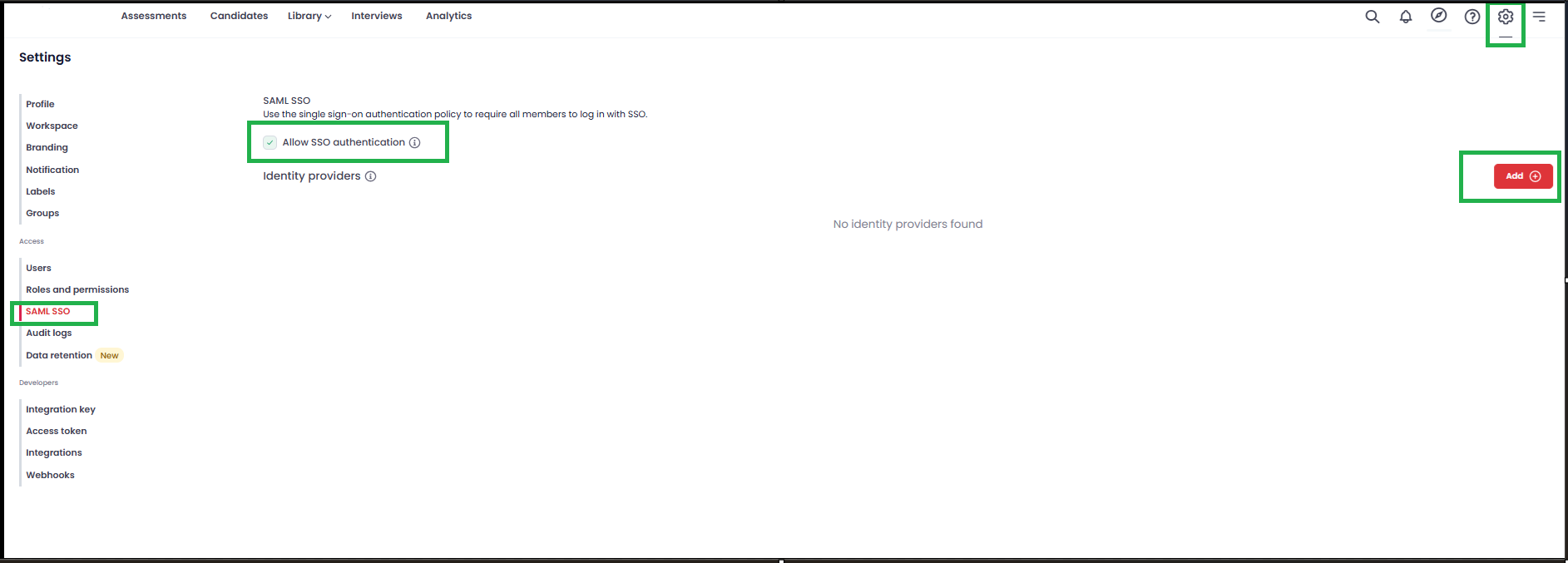
Step 2: Add an identity provider
- Click Add Identity Provider.
- Enter a unique Team Slug — a short identifier users will type when signing in with SAML (for example,
acme-corp). - Enter the SSO Login URL from your identity provider.
- Paste the Public Certificate from your identity provider to secure the authentication channel between your IdP and Testlify.
- Click Save.

Step 3: Configure your identity provider
After saving, Testlify generates two values you must add to your identity provider's dashboard:
- Service Provider (Consumer Service) URL — the endpoint your IdP calls to authenticate users on Testlify.
- Entity URL — the audience identifier Testlify uses during the authentication process.

Tip: Copy both URLs and add them to your identity provider's admin console before testing the login flow.
Step 4: Sign in with SSO SAML
- Log out of Testlify and click Sign in with SAML on the login page.
- Enter your Team Slug and click Continue. You are redirected to your identity provider's login page.
- Authenticate with your identity provider credentials.
- Your identity provider sends confirmation to Testlify and you are signed in automatically.
Manage your identity provider
- Enable or disable: Toggle the identity provider on or off from Workspace Settings at any time.
- Edit or delete: Update the SSO Login URL, Public Certificate, or Team Slug — or remove the identity provider entirely — from the same settings page.
Frequently asked questions
- What is SSO SAML?
SAML (Security Assertion Markup Language) is a protocol for single sign-on. Users authenticate once with their identity provider and access Testlify without a separate login. - Who can use SSO SAML on Testlify?
This feature is available on eligible subscription plans. Contact support@testlify.com for details. - What if I face issues during setup?
Verify that the SSO Login URL and Public Certificate exactly match your identity provider's configuration. If the problem persists, contact our support team.
Need help? Contact support.