
Use AI Insights and AI Auto Score for Open-Ended, Video, and Audio Questions
AI Insights delivers skill-based scoring and a written evaluation for each candidate's open-ended, video, and audio responses. AI Auto Score extends this by generating an overall assessment-level conclusion — eliminating the need for manual review.
Before you begin
- You must have permission to create or edit assessments in your workspace.
- Your assessment must include at least one open-ended, video, or audio question.
Enable AI Insights on a question
- Open an existing assessment or create a new one, then navigate to the Questions tab.
- Click Custom Question and select Open-Ended, Video, or Audio as the question type.
- After adding the question, click Show Options beneath the question box to reveal advanced settings.

- Check the Scorable Question & AI Insight box.
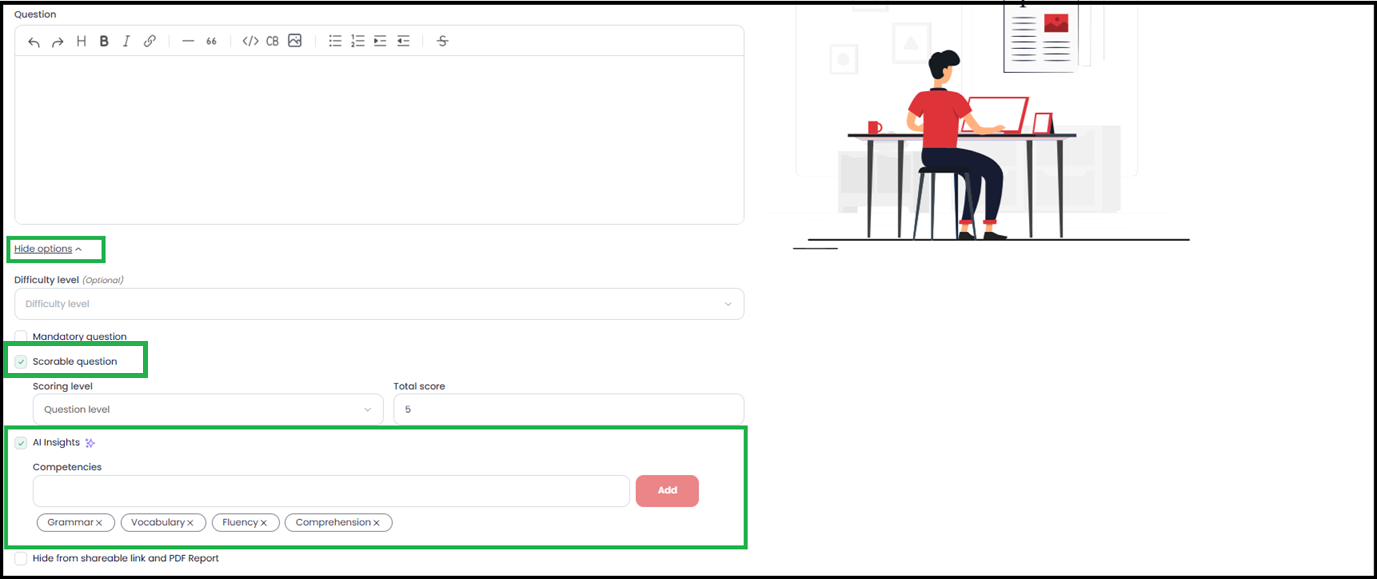
- In the skills section, choose the skills you want the AI to evaluate. Four skills are pre-selected by default — add or remove them to match the role.

- Click Save. AI Insights scores will now appear on the Candidate Display Page (CDP) for every submission.

Tip: Use role-specific skills — such as Communication clarity or Technical accuracy — to make AI scores more meaningful and actionable for your hiring team.
Enable AI Auto Score for the full assessment
In addition to per-question scoring, AI can generate an overall conclusion summarizing a candidate's performance across the entire assessment.
- Go to the Assessment Settings tab inside your assessment.
- Under the Configuration section, enable the Generate AI Insights checkbox.

- An overall AI conclusion will now appear on the Candidate Results Page for every candidate who completes the assessment.

What you get
- Automated, consistent evaluation of open-ended, video, and audio responses
- Objective, skill-based scores tied to your defined criteria
- AI-generated candidate summaries that reduce manual reviewer effort
- An overall assessment conclusion to support faster, data-driven hiring decisions
Need help? Contact support.