
How to View the Usage of Your Workspace
Monitoring your workspace usage is essential to keep track of your plan's limits and ensure smooth operations. Follow the steps below to check your workspace usage in Testlify.
Steps to View Your Workspace Usage
-
Log in to Your Workspace
Visit the Testlify Login Page and enter your credentials to log in.
-
Access the Menu
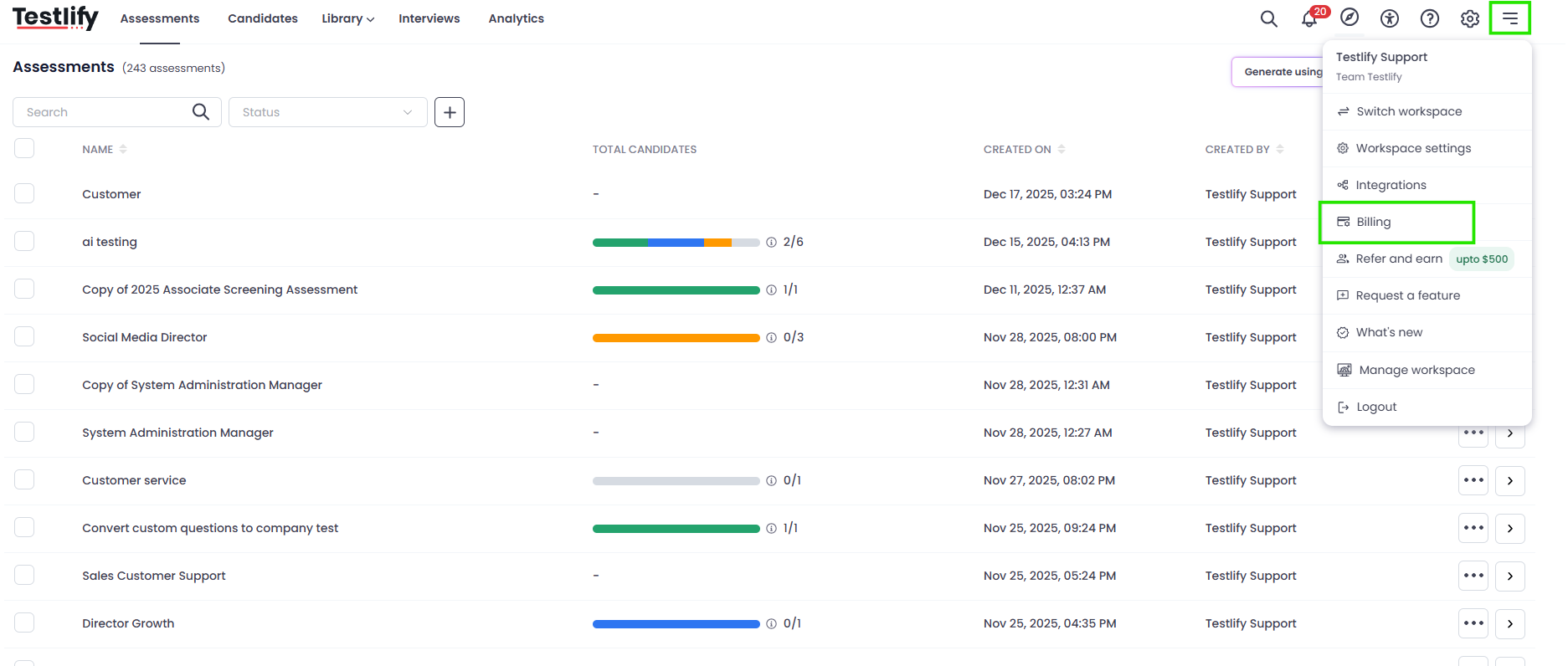
Once logged in, navigate to the Menu button located at the top-right corner of the workspace.
-
Go to Billing Section
Click on Billing from the dropdown menu.
-
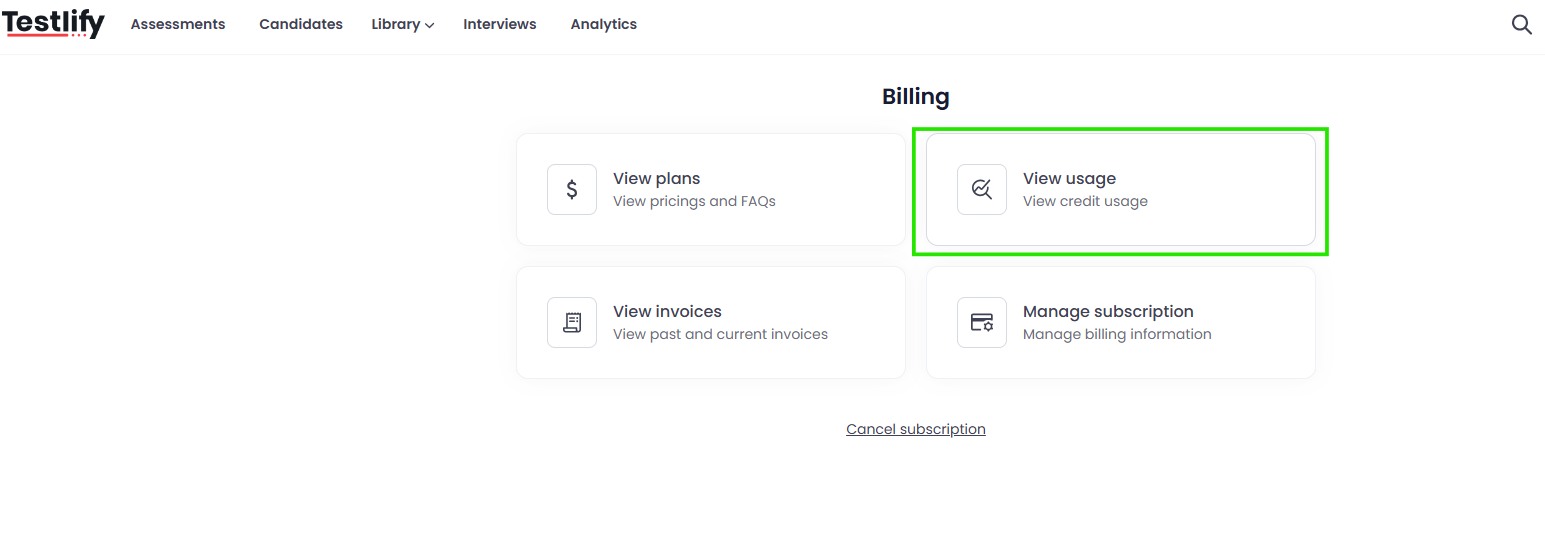
View Usage
Under the Billing section, click on View Usage to check your current workspace usage details.
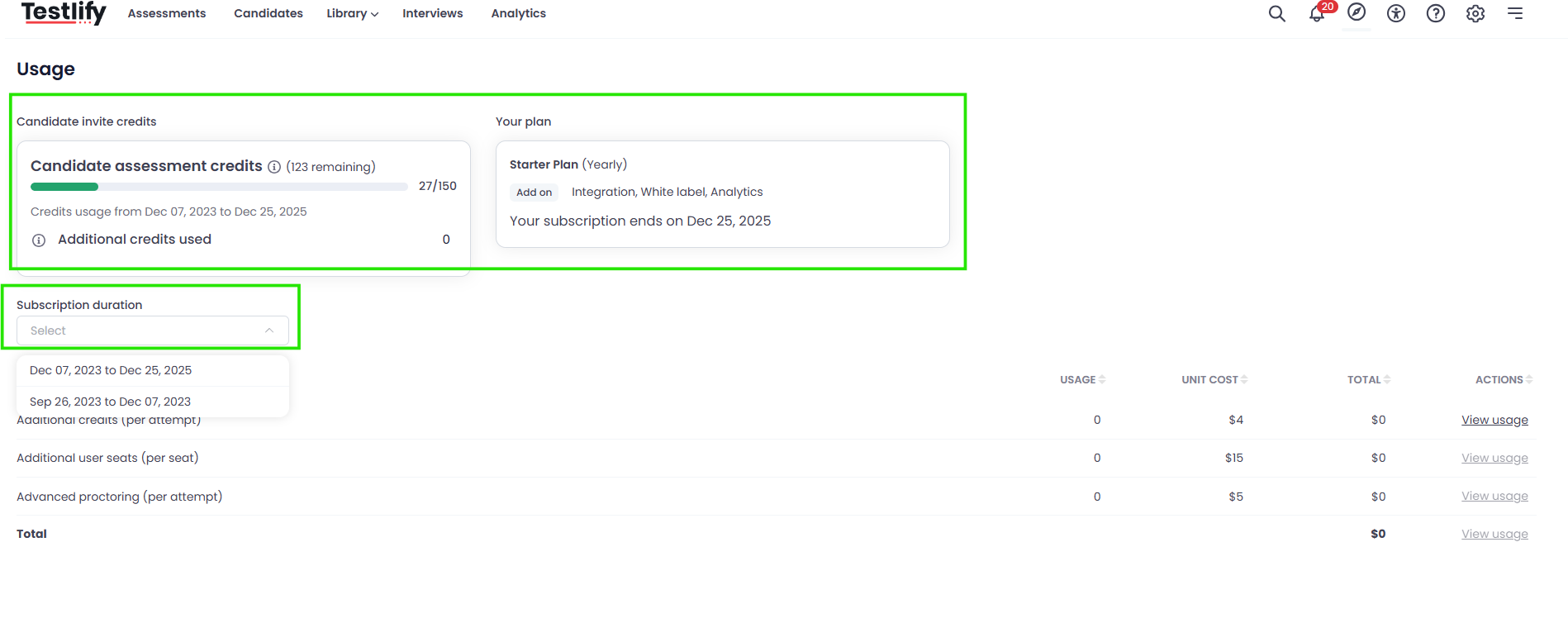
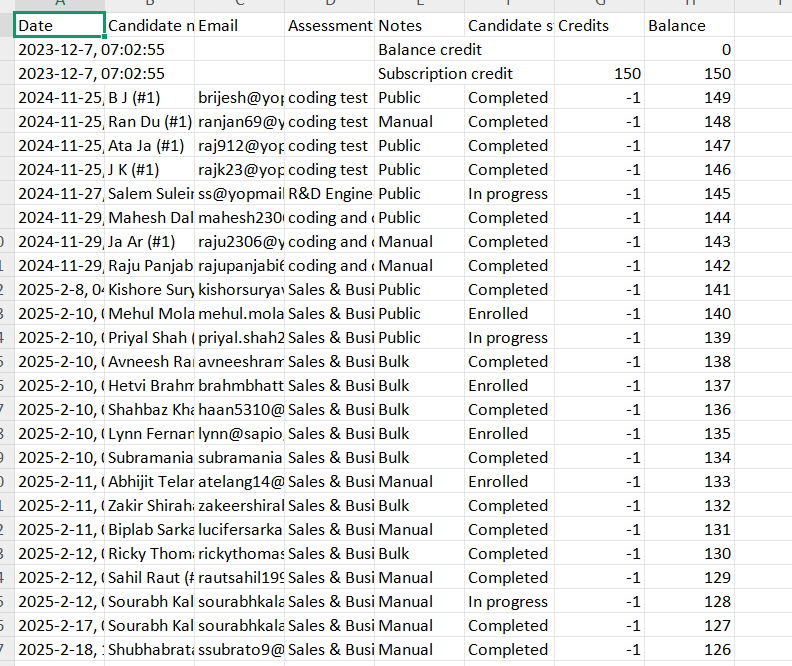
Here, you can see details about your Candidate assessment credits and Subscription duration. The information will show your remaining credits, usage breakdown, and the subscription details of your workspace.
-
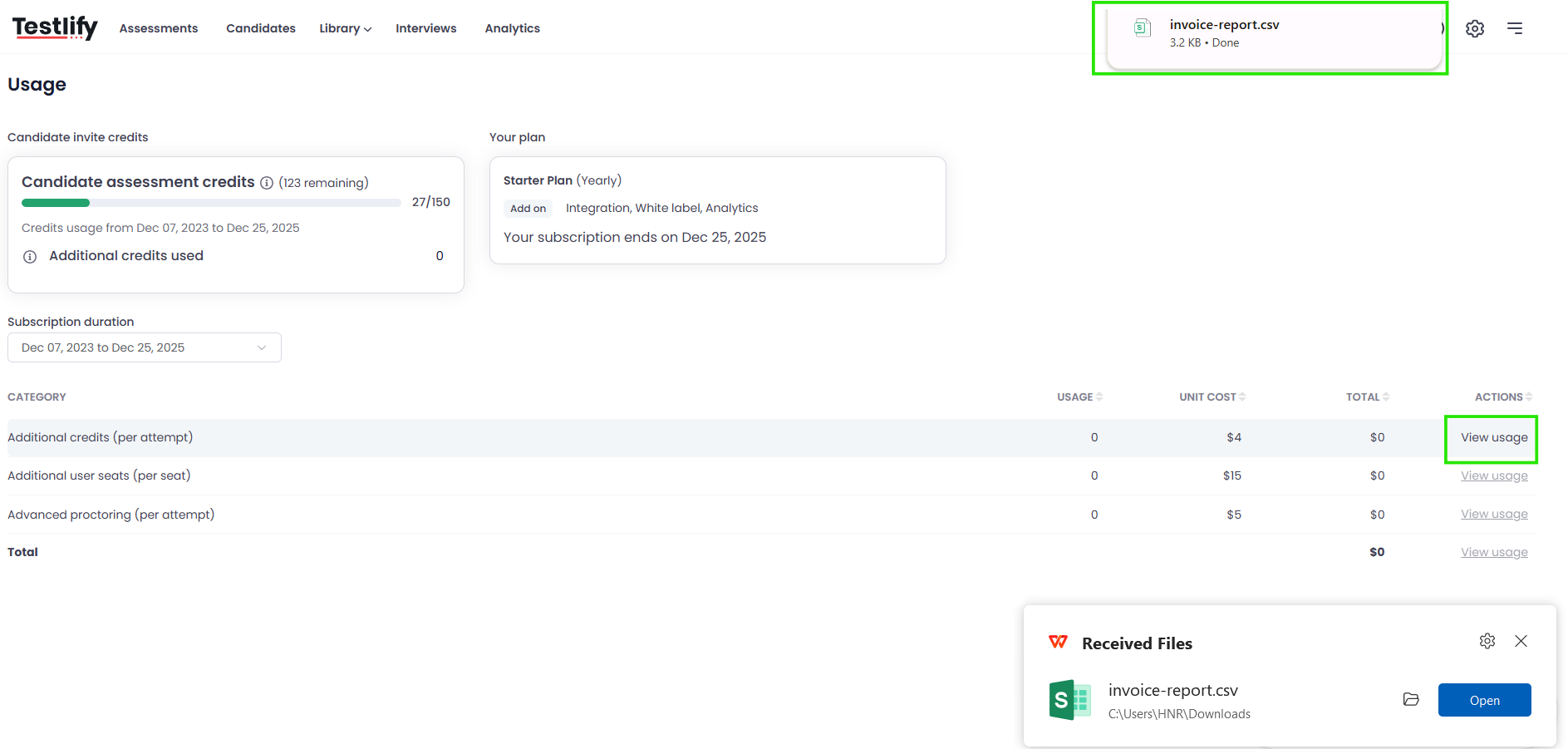
Download Invoice Report (Optional)
You can also download your invoice reports by clicking the View Usage button in CSV to keep track of your spending.
By following these steps, you can efficiently monitor your workspace's resource consumption. If you have any further questions, feel free to reach out to our support team at support@testlify.com.