
Report an Issue and Reset AI Interview
This article provides a step-by-step guide on how to report an issue and reset your AI interview attempt on the Testlify platform. This functionality is available when you encounter problems during an AI Voice or Video AI question.
When to Report an Issue and Reset
If you experience technical difficulties, such as the AI interviewer not responding, audio/video issues, or other disruptions during your AI interview, you can use the "Report an issue and reset" feature. This allows you to restart your current attempt for a specific question without affecting your overall interview progress or remaining attempts.Step-by-Step Guide to Reporting an Issue and Resetting
Follow these steps to report an issue and reset your AI interview question:- Locate the Report Button: While you are actively answering an AI interview question (either voice or video), look for the "Having an issue? Report" button. This button is typically located on the right side of the screen, just above the recording interface.

- Open the Report Modal: Click on the "Having an issue? Report" button. This action will open a modal window titled "Report an issue and reset."

- Review Reset Information: The modal will display important information under the heading "What this does?". Please read this carefully. It will inform you that:
- Only your current attempt for the specific question will be reset.
- Your previously saved attempts for other questions are safe and will not be affected.
- Your remaining attempt count for the interview is not affected.
- A report detailing the issue will be sent to the Testlify team for review.
- Provide Optional Details: Below the information section, you will find a text box labeled "What went wrong? (Optional)". Here, you can type a brief description of the problem you encountered. Providing details can help the Testlify support team understand and resolve issues more effectively.
- Submit the Report and Reset: To complete the process, click the "Report and reset" button located at the bottom right of the modal. If you decide not to proceed, you can click the "Cancel" button next to it.
- Confirmation and Restart: After clicking "Report and reset," a green notification banner will appear in the bottom left corner of the screen, confirming, "Report sent. Session has been reset." The interview interface will then revert to the starting screen for that specific question, allowing you to begin your attempt again by clicking the "Start" button.
Reset Limit Reached
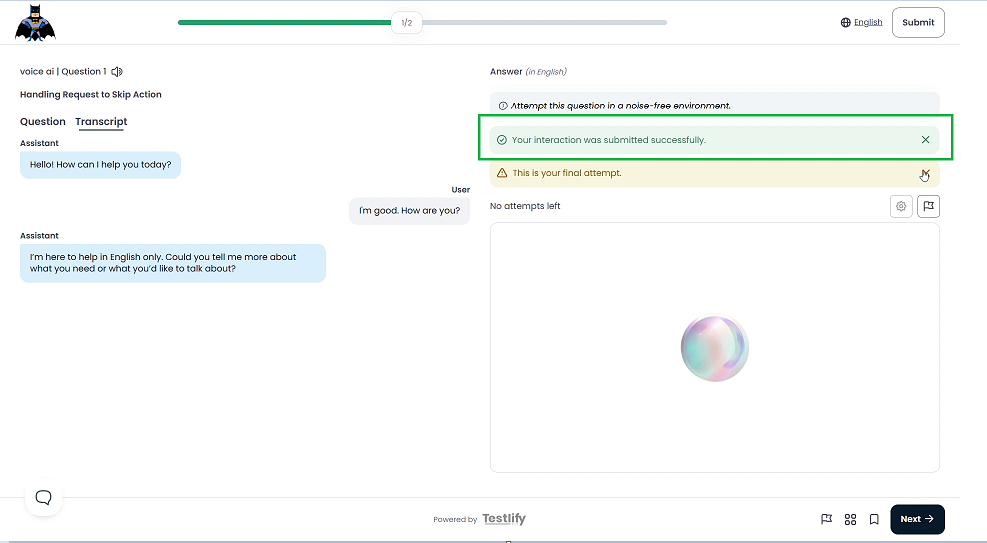
Please be aware that there is a limit to how many times you can reset a single question. If you attempt to reset a question multiple times and reach this limit, a different modal will appear. This modal will state: "Reset limit reached. You've already reset this many times. For further help, please contact support directly." You will need to click the "Close" button to dismiss this message. Once this limit is reached, clicking the "Having an issue? Report" button will immediately display this warning instead of the report form.