
Take Your Testlify Assessment: Complete Candidate Guide
This guide outlines the equipment and permissions you need, walks through the full assessment process, and answers common questions — so you can go into your Testlify assessment feeling prepared.
Watch the quick video overview:
Equipment Requirements
- Use a desktop or laptop. This gives you the best experience.
- Avoid mobile devices, especially for coding assessments — small screens and touch input make coding simulations difficult to complete accurately.
Camera and Microphone
A working camera and microphone are required for most Testlify assessments. Test both before you start.
If you don't have a camera or microphone:
- Video responses: you won't be able to record answers if the employer requires them, which may leave your assessment incomplete.
- Proctoring: Testlify takes periodic snapshots during the assessment for proctoring. These are GDPR-compliant and visible only to the hiring company. Without a camera, this can't happen, which may affect your application.
Browser Compatibility
- Recommended browser: Google Chrome, latest version.
Permissions
- Camera and microphone access is required for video questions and proctoring. Testlify checks that both are working before your assessment starts.
- Keep your camera and microphone drivers up to date.
- If you have multiple cameras or microphones connected, make sure your browser and Testlify are both set to use the correct one.
How to Allow Camera Access in Google Chrome
- Open Chrome.
- Click the three-dot menu (⋮) in the top-right corner.
- Go to Settings > Privacy and security > Site settings.
- Under Permissions, select Camera.
- Use the dropdown to choose the camera you want Testlify to use.
Troubleshooting Camera and Microphone Access
If access isn't working automatically, a pop-up will usually prompt you to allow it in your browser. If that doesn't appear, you can enable access manually:
- Windows 10: Go to Start > Settings > Privacy > Camera (or Microphone), and allow your browser to access it.
- macOS: Go to Apple menu > System Preferences > Security & Privacy > Privacy, and check the box next to your browser.
- Android: Open the Chrome app, tap More > Settings > Site Settings > Microphone (or Camera), and toggle access on.
- iOS: Open Safari, tap the icon to the right of the address bar, select Website Settings, then choose Allow for Microphone or Camera.
Privacy Policy
Your data stays confidential and secure, in line with GDPR. Only the company you applied to can access any snapshots or videos captured during your assessment.
Common Questions
- My camera isn't being detected. Check your browser and operating system settings to make sure camera access is allowed (see steps above).
- Can I take the assessment without a camera or microphone? Yes, but some sections may be unavailable, which could affect the completeness of your assessment.
- How do I switch which camera or microphone Testlify uses? Change the default device in your browser's privacy and security settings (see the Chrome steps above).
Tips for a Smooth Assessment
- Test your camera, microphone, and internet connection before starting.
- Find a quiet, comfortable space.
- Keep track of the time allotted for each section.
Testlify: Step-by-Step Candidate Guide to Taking Your Assessment
Getting Started
- No account needed. Use the link in your invitation email to go straight to your assessment.
- Your invitation email has the subject line "You've been invited to an assessment" and includes:
- Information about the company you're applying to.
- A button that links directly to your assessment.
- A full URL you can copy and paste into your browser if the button doesn't work.

Enrolling for the Assessment
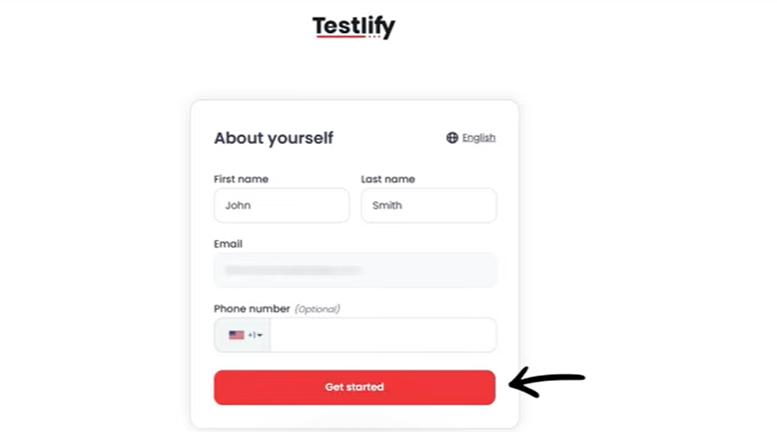
- Enter your name and any other details the employer requires. This step is mandatory before you can continue.
- Submit the form. A verification code will be sent to the email you provided.
-
Copy that code and paste it into the verification box on the assessment page to continue.

Technical Setup
- Make sure your computer, camera, and microphone are working properly before you start, especially if your assessment includes video or proctoring.
- Use an up-to-date browser for the best experience.
Assessment Structure
- Qualifying questions (if included): These are single-select multiple-choice questions used to confirm you meet the employer's basic criteria.
- If you meet the criteria, you'll automatically move on to the main assessment.
- If you don't, the assessment ends there. If you believe this happened in error, contact the hiring company directly.

- Before the assessment starts, you'll see a short checklist confirming your setup is working correctly. Once everything checks out, you can proceed.

- Welcome screen: shows the number of tests, question types, and estimated time to complete the assessment.


Need Help Reading a Question?
Some questions show a speaker icon (🔊) below the question text. Click it to have the question read aloud — helpful for staying focused, especially in Voice AI or audio-enabled assessments.

During the Assessment
- Question types include multiple-choice, single-select, essay, coding, typing, video, audio, and file upload.
- Time limits apply to each section — manage your time accordingly.
- Breaks are allowed between sections, but once a section starts, you must complete it in one sitting.
- Answering questions: select carefully — once you move to the next question, you can't go back.
- Skipping questions: you can skip a question, but it will be counted as incorrect.
After the Assessment
- You may be asked for feedback on your experience — this is optional and helps us improve.

- You'll get a confirmation message once your assessment is complete.
- Your results are sent directly to the employer, not to you.
Support and Troubleshooting
- For technical issues, check our Help Center or contact talent@testlify.com.
- For questions about your application or results, contact the employer directly — Testlify doesn't have visibility into hiring decisions.
Tips for Success
- Choose a quiet, comfortable space.
- Set aside enough time to finish without interruptions.
- Read each question carefully and answer to the best of your ability.
Testlify: FAQ and Troubleshooting for Candidates
Assessment & Test Questions
- Can I take the assessment in a different language? Assessments are only available in the language your prospective employer selected. Contact them if you need a language accommodation.
- Can I go back to a previous question? No — once you move forward, you can't return. Guessing is better than skipping, since there's no penalty for wrong answers.
- Can I retake my assessment? Each invitation link works only once. Contact the employer if you need to retake it.
Equipment & Connectivity Questions
- I don't have a webcam and my assessment includes video questions. Contact the employer to ask about alternative arrangements.
- My internet disconnected during the test. The timer keeps running during disconnections. Contact the employer if you experience a significant technical issue.
Invitation & Communication Questions
- When will I get my results or feedback? Testlify is a tool employers use for hiring — for feedback or results, contact the employer directly.
- How do I reach the employer? Use the contact details they provided in your invitation or job posting.
Other Questions
- Can Testlify help me find a job? No — Testlify isn't a job placement service. Try a platform like LinkedIn for job searching.
- Can I take a Testlify test for practice, outside of a real application? No — Testlify doesn't offer tests for personal use or standalone practice.
For any technical issues or questions about assessment content, contact talent@testlify.com.